Table of Contents
This updated guide explains how to convert email into a task list with clear steps, practical tips, and useful context. Converting emails to to-do lists helps us maintain a workflow without missing anything. Important emails often contain work content and deadlines, but sometimes they are easily missed. But with the option to convert emails to to-do lists, users will not miss any content at all.
Using the Tasks Feature in Gmail
Google Tasks lets you turn any email into a to-do with just a few clicks and no add-ons required.
Step 1:
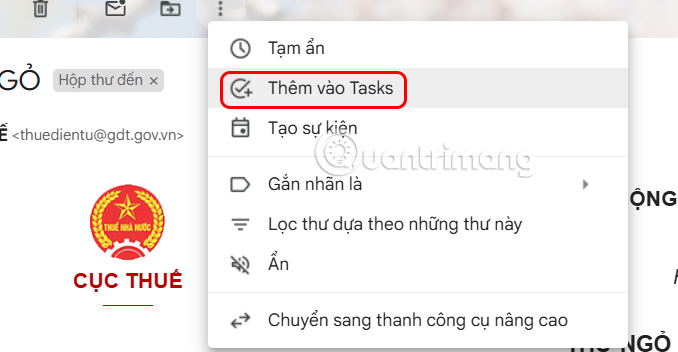
In the email that needs to be converted into a task, select the 3 dots icon above and select Add to Task .
Step 2:
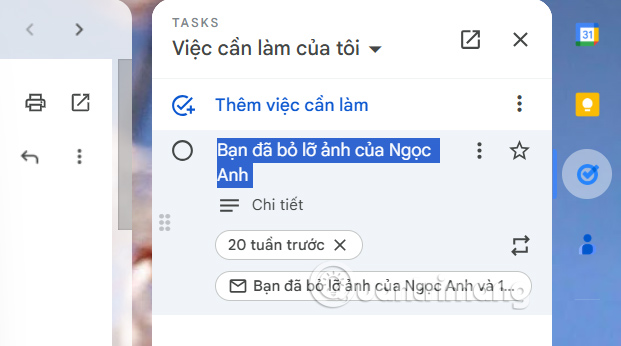
Display the Task interface on the right side, you select the task that appears and review the due date and details.
- How to add email to Google Tasks
Forward Email to Todoist
Todoist is a popular task manager that integrates well with email. It gives you more flexibility than Google Tasks, including labels, filters, due dates, and project organization.
Step 1:
You access Todoist via the link below and then create an account, or use your Google account to access immediately.
https://www.todoist.com/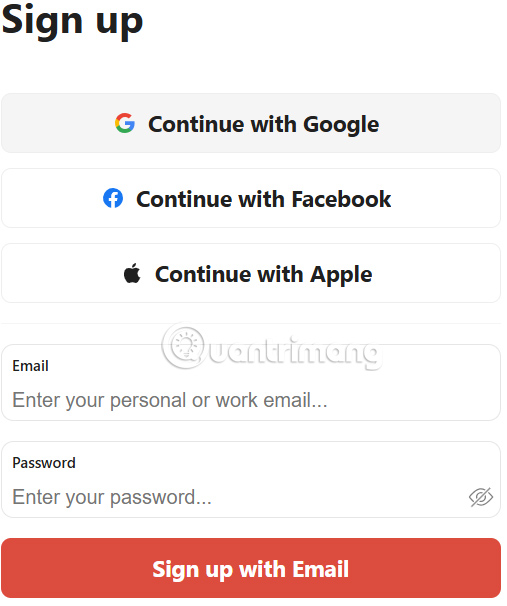
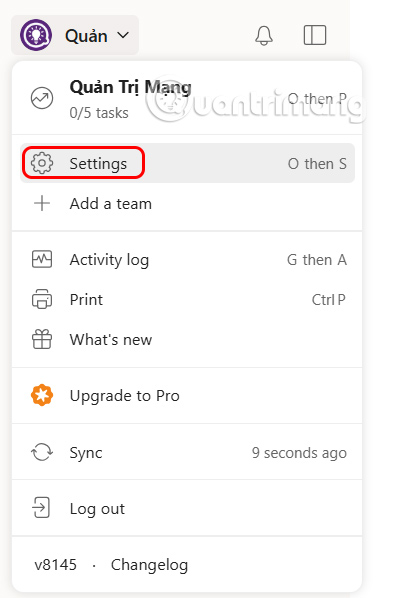
Then select the avatar and select Settings in the displayed list.
Step 2:
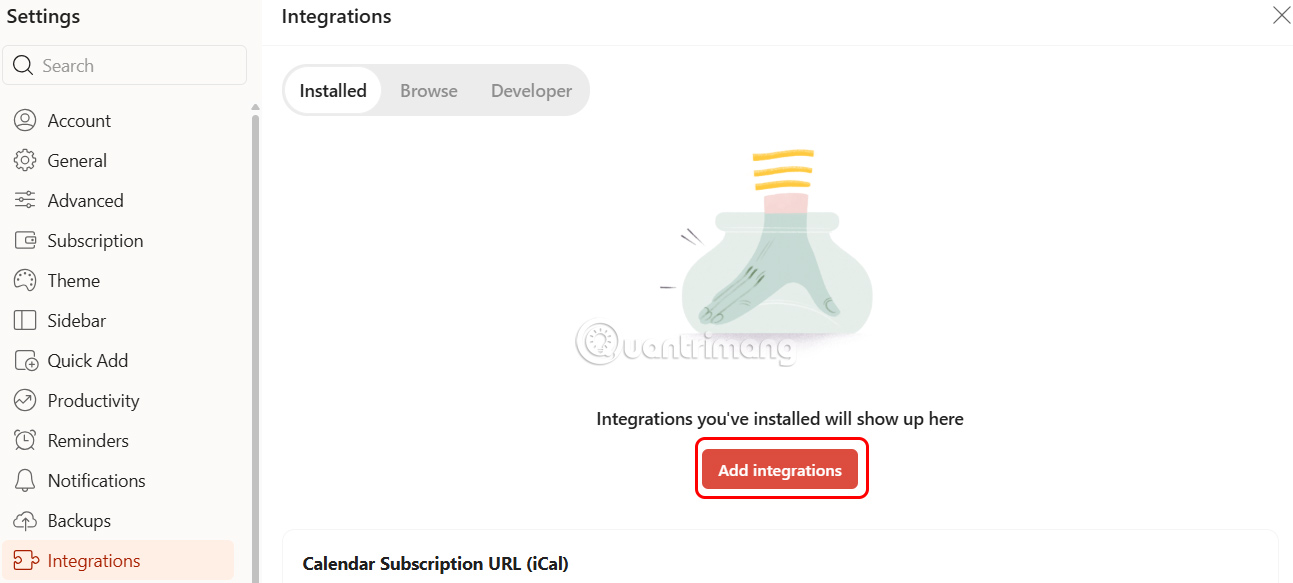
Switch to the setup interface for Todoist, select Integrations and then look to the right and choose Add integrations .
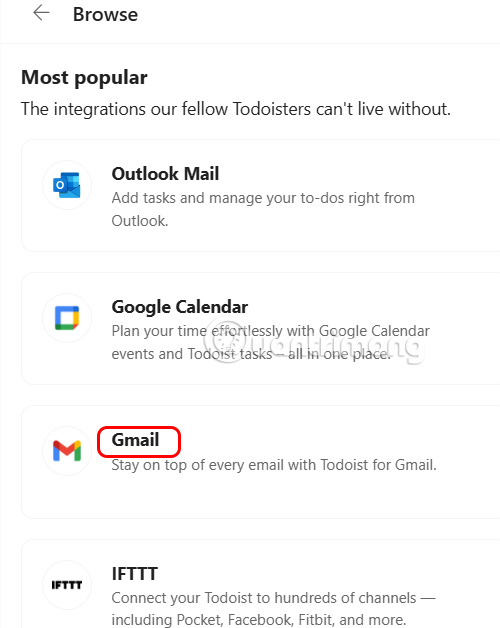
open the Browser tab and find Gmail in the connection items interface below.
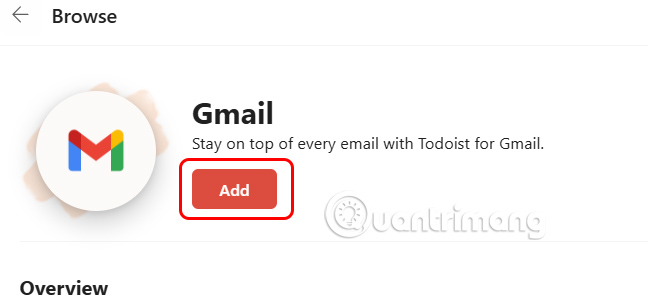
Continue to press the Add button to add your Gmail account to Todoist.
Step 3:
Return to the Gmail interface , select the plus icon and type Todoist for Gmail into the extension search bar . Then we need to install the Todoist extension in Gmail.
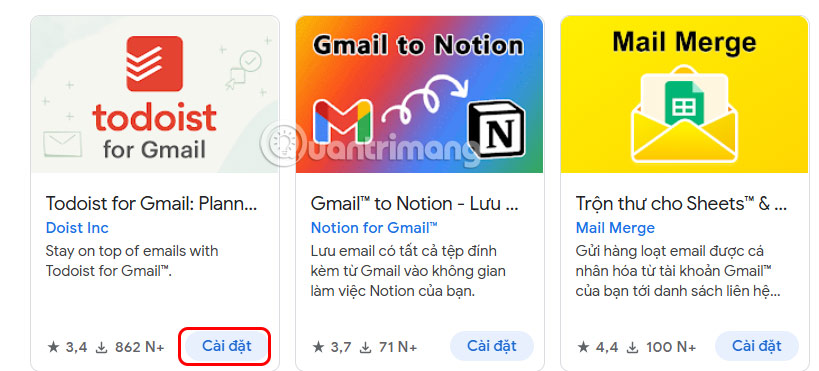
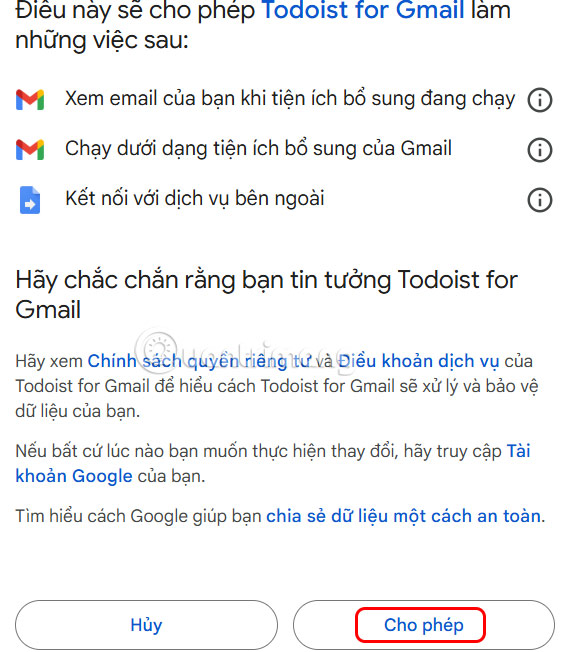
Continue to agree to let Todoist use access to Gmail .
Step 4:
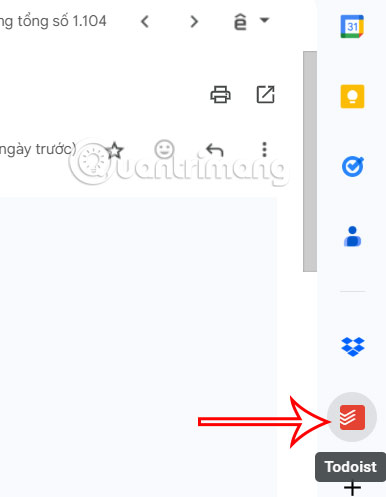
Open the email you want to convert into a task and select the Todoist icon as shown below.
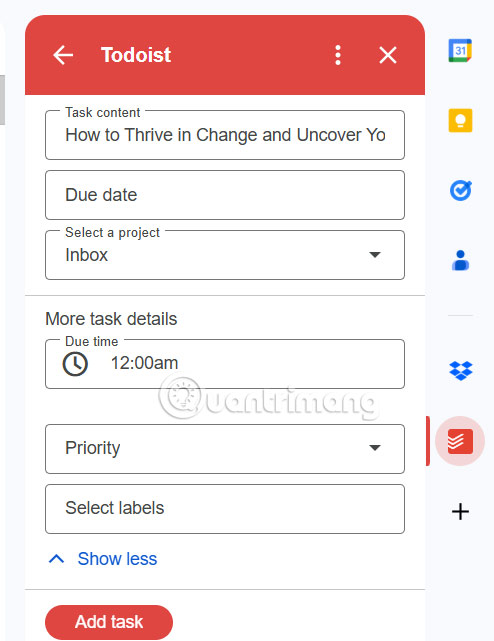
Now display the Todoist interface with the email name open and below you set up the task to create the task, choose Add task to add.
Using Outlook's Tasks Feature
Step 1:
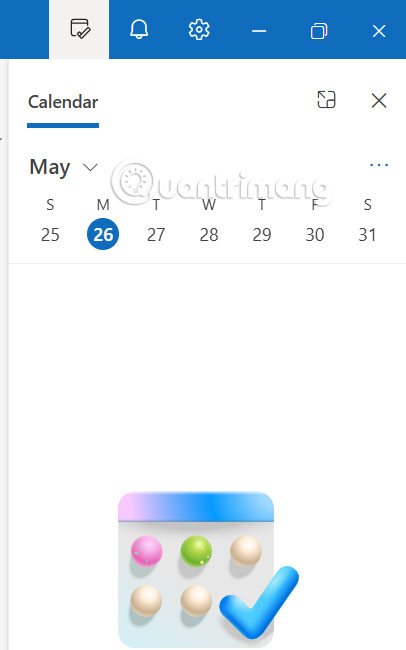
On the Outlook interface, select the My Day icon to open the calendar, then select the day you need to do the work .
Step 2:
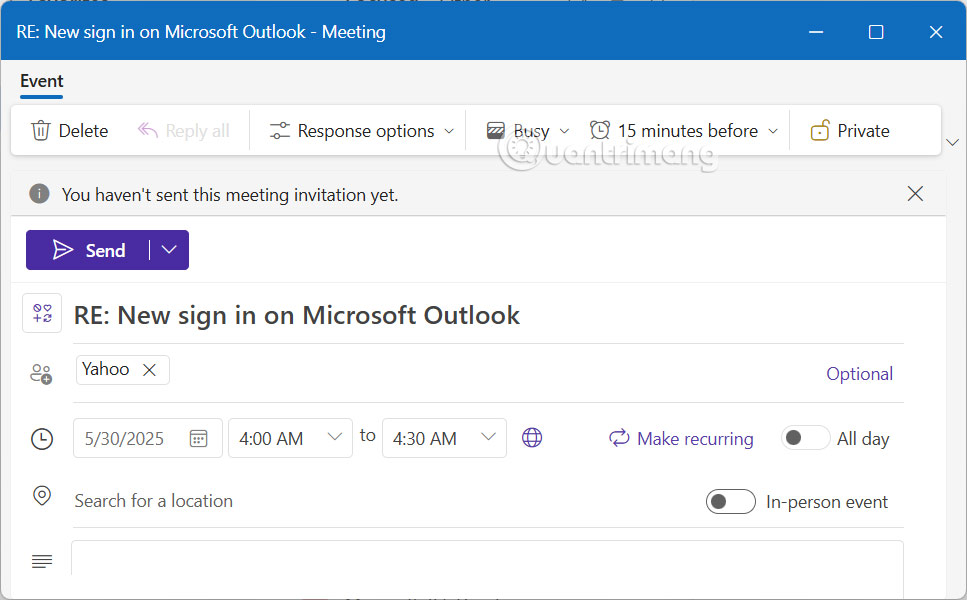
Next, drag the email you want to create a task into this interface . Immediately after that, the interface will appear for you to schedule your task from email in Outlook.
FAQ
What should I prepare before I convert email into a task list?
Review the requirements and options in the guide first. Having the correct device, app version, account access, or materials ready helps prevent avoidable errors.
How long does it take to convert email into a task list?
The time depends on the task and your setup. Most basic steps can be completed quickly, while downloads, updates, scans, or troubleshooting may take longer.
What should I do if the steps do not work?
Repeat the instructions in order, confirm that your software or device is supported, and check permissions, connectivity, and available updates before trying again.
Related Articles
 How to Convert Outlook Email into Event Invitation3 minutes read
 The To-do List Is Good, the Done List Is Very Good,6 minutes read
 This Is How to Remove Email Addresses from the Suggestions List on4 minutes read
 First Aid for 'Frozen' Mailbox: Email1 minutes read
 Time Management: Complete Guide7 minutes read
 7 Things You Can Do with Email Inbox Without You Knowing7 minutes read
Reader Comments 0
Sign in with email or Google to join the discussion.