Table of Contents
This updated guide explores don't let Microsoft 'kill' your Windows 10 PC with practical details, clear explanations, and useful takeaways. The final days of Windows 10 are approaching, but that does not mean your PC has to go with it. There are plenty of options to extend the life of your PC.
1. Proceed with Third Party Support
Some companies, like 0patch, have said they will release standalone security patches for Windows 10 after support for the operating system ends. If this is true, you can continue using Windows 10 without security updates from Microsoft, although you will have to pay for it in the form of a different subscription.
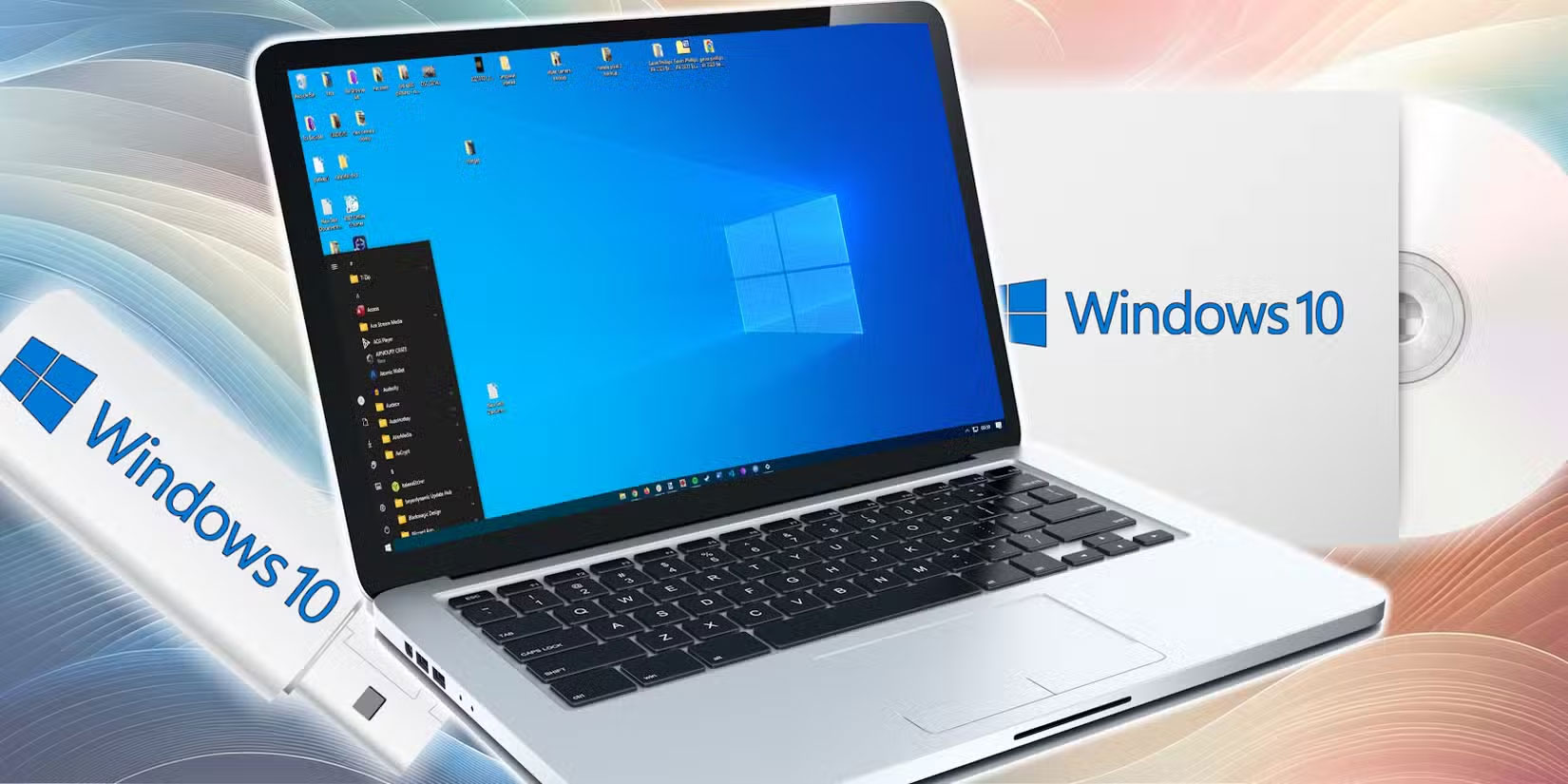
naturally, this option relies on outside companies investing time, money, and resources into developing security patches for Windows 10. We do not know what the update schedule will be like, or whether any unpatched bugs will be addressed with the same urgency as Microsoft has fixed them. But with Microsoft abandoning Windows 10 altogether, this is pretty much your only option to keep using it.
Using an operating system without future security patches is fine on a computer that never connects to the Internet, but this approach is not practical for commercial use or even personal use unless you are running tests in a lab.
2. Force Install Windows 11
The next logical option is to upgrade to Windows 11. If you have a PC that meets the strict Windows 11 hardware requirements, you can use the new operating system. But what if you do not have the necessary hardware, especially a TPM 2.0-compatible processor?
The answer is simple: You still have to install Windows 11.
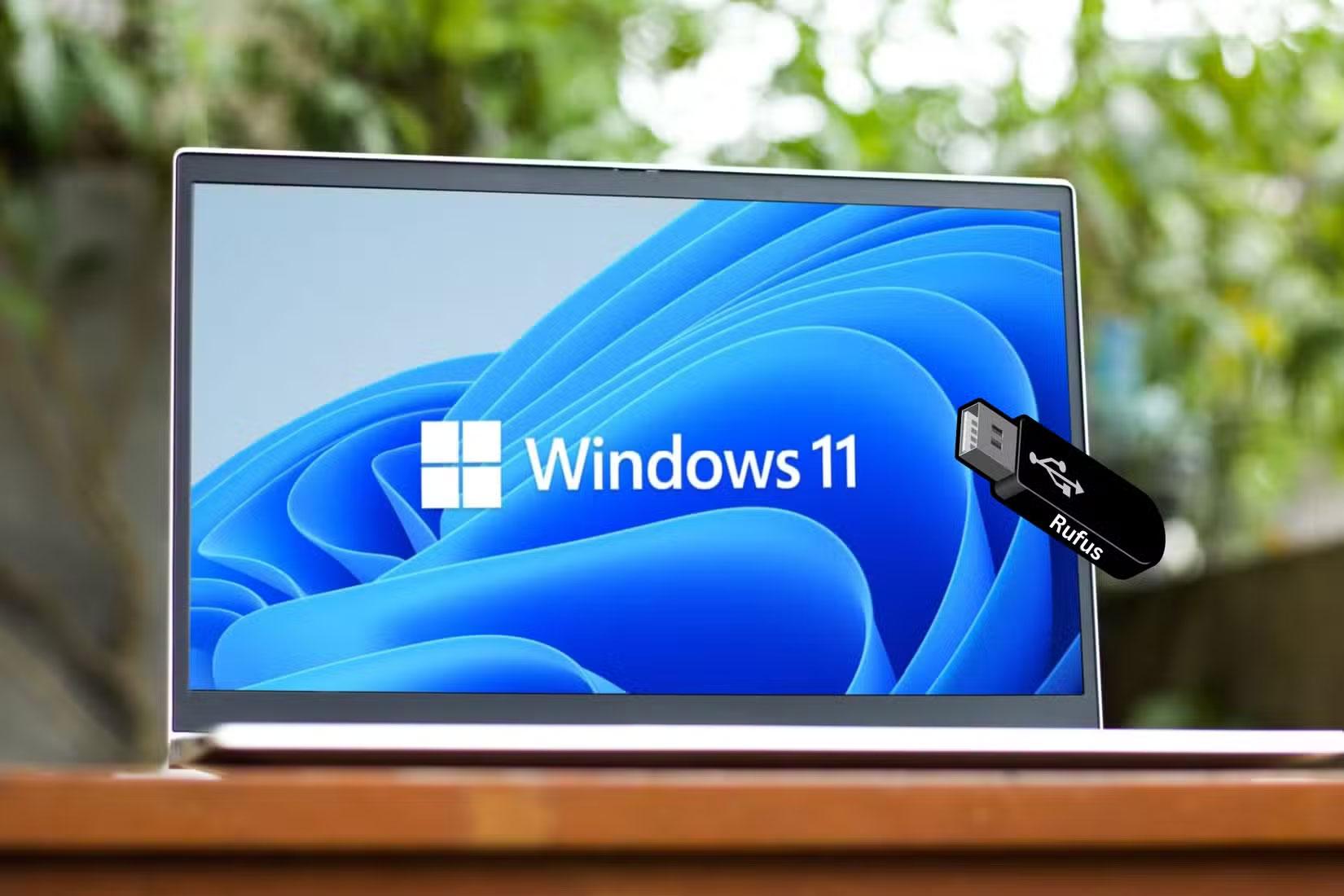
You will find ways to bypass Windows 11's hardware requirements. Still, with Microsoft refusing to loosen the hardware requirements and continually closing loopholes that allow Windows 11 to be installed in any other way, there's no telling when this will remain a viable option. Another option is to use Tiny11, a stripped-down version of Windows 11 that does not require any bloatware or additional hardware requirements.
Even if you install and run Windows 11 on unsupported hardware, the road ahead isn't easy. Unsupported PCs likely will not receive future Windows updates from Microsoft, including any security updates needed to keep your PC safe.
This leaves you in the same situation as if you were continuing to use Windows 10 – missing security updates. Still, the workarounds mentioned above can be used to install updates on your Windows 11 system. it is a hassle, but it is much cheaper than trashing your perfectly working computer or selling it for cheap.
3. Install Linux
If you do not mind switching from Windows, installing Linux on your old PC is one of the best ways to recycle an old computer. Linux distributions also tend to be lighter than Windows, so your PC will be easier to run the new operating system.
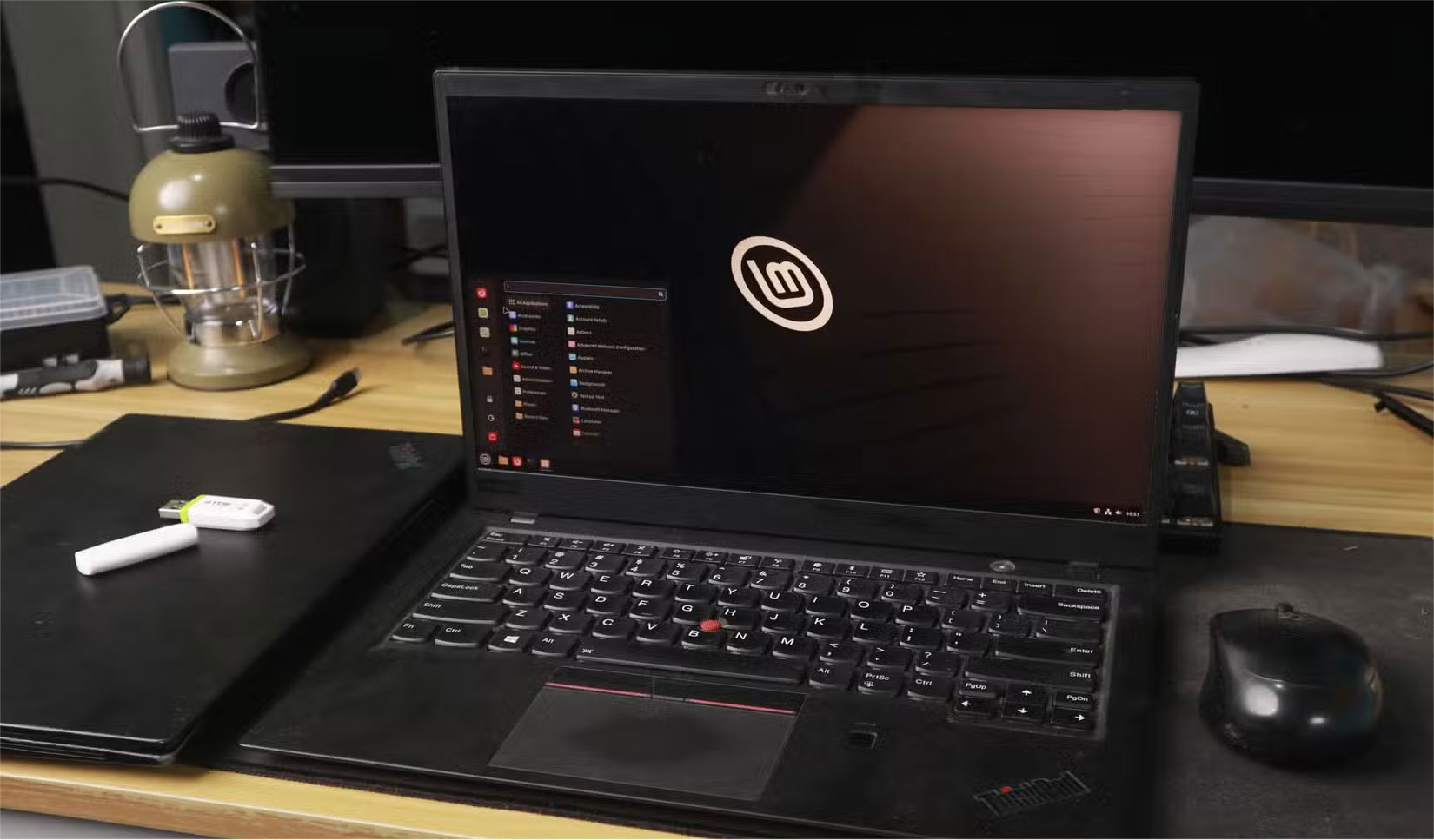
Still, with dozens of options to choose from, choosing the right Linux distribution can be confusing. There are at least 10 lightweight Linux distributions you can install on your old PC to get started, but even a standard distribution like Ubuntu, Arch Linux, or Linux Mint can work just fine if you've previously run Windows 10 without issue.
And if you're worried that Linux is too complicated, do not worry. Modern Linux distributions have great, customizable graphical interfaces and system tools that will make you feel right at home. In fact, there are even some features that Windows could learn from Linux.
Switching to Linux can be beneficial if you're willing to give it a try. The operating system has come a long way from its command-line origins and is now a worthy alternative to Windows, especially if you're looking to revive your old PC from the dead.
4. Use as a NAS or Media Server
Last but not least, there are other uses for your computer if it is no longer your everyday essential. If you've upgraded to a new Windows 11-powered computer, you can turn your old computer into a home NAS or media server with just a few quick setups.

Running your own NAS server frees you from relying on a cloud provider like Google Drive and gives you significantly more storage. Think of it as your own private cloud storage. It can hold as much data as you want, and if you're worried about security, you now have complete control over your data.
Setting up a system isn't too difficult either. Free NAS solutions like OpenMediaVault, TrueNAS Core, and Unraid are great options for DIY NAS systems.
You can turn your old computer into a Plex Media Server, which acts as a hub for streaming services and any locally stored content you might have. it is easy to set up Plex like a pro, so you'll be up and running in no time.
FAQ
What is the main takeaway about Don't Let Microsoft 'kill' Your Windows 10 PC?
The key is to understand the core idea, compare the available options, and apply the practical guidance that matches your situation.
What should beginners know about Don't Let Microsoft 'kill' Your Windows 10 PC?
Start with the essential steps and terminology. Avoid changing advanced settings until you understand how they affect performance, privacy, cost, or compatibility.
How can I use this information in practice?
Follow the relevant section in order, test one change at a time, and confirm the result before moving to the next step or recommendation.
Related Articles
 Kill Viruses, Windows 7 Trojans Without Downloading Software3 minutes read
 3 Ways to Kill Flies Do Not Cost a Penny but Very Effective3 minutes read
 5 Tips to Help Your Computer Stay 'Healthy'2 minutes read
 The Easiest Ways to Get Rid of Insects in the House5 minutes read
 Microsoft Once Wanted to Kill Windows and Replace It4 minutes read
 How to Controlled Folder Access in Windows Defender Exploit8 minutes read
Reader Comments 0
Sign in with email or Google to join the discussion.