Table of Contents
You can open a website like a desktop app by installing it through a supported browser. It gets its own window and an icon you can launch from your computer. If you only want quick access, create a shortcut to the website instead.
Neither method turns the website into a native application. The browser still runs it, and most online services still need an internet connection. Offline use depends on what the website supports.
Choose an app, a shortcut, or a saved page
- Installed web app: Opens in a separate window. Some sites are progressive web apps (PWAs) with features such as offline content or notifications; those features vary by site.
- Website shortcut: Opens a URL in your browser. It is useful when you only need a desktop icon.
- Saved web page: Stores a local copy of a page. It does not install the service or create a reliable launcher for the live website.
Install a website with Chrome
- Open the website in an up-to-date version of Chrome on your computer.
- Open the three-dot menu and select Cast, save, and share > Install page as app. The wording can vary with your browser version and the site.
- Confirm the name and select Install. For some PWAs, an install icon also appears in the address bar.
- Launch the app from its new icon. You can pin the running app to your taskbar or Dock where supported.
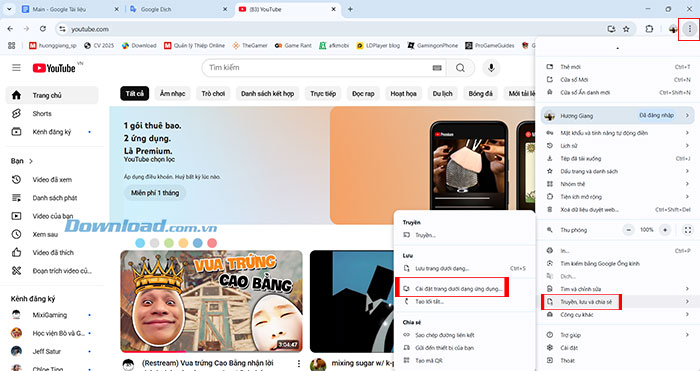
The menu in this screenshot is from an earlier Chrome interface; look for the installation command in your current version.
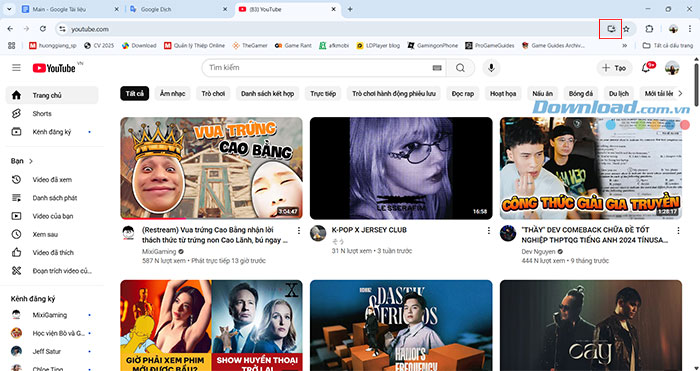
Use the site's install icon if one appears in the address bar.
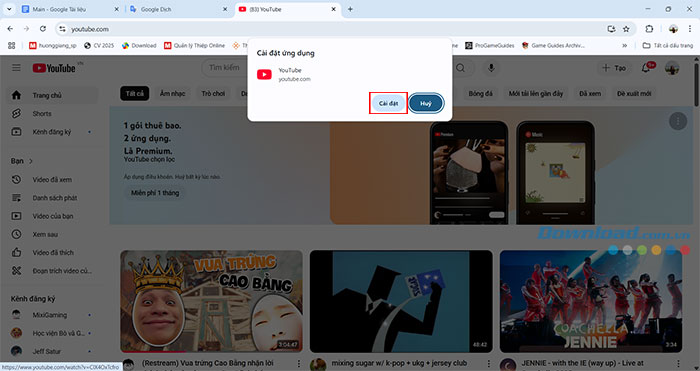
Confirm the installation in Chrome's dialog.
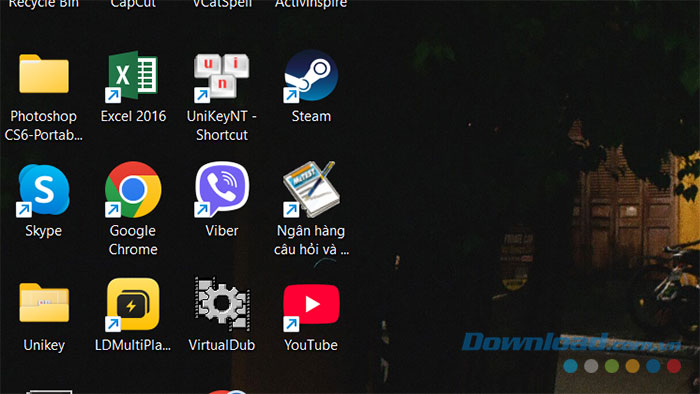
The website then opens in an app window. Chrome can also install sites that do not offer all PWA features; installation alone does not add offline support. See Google's web app instructions for current browser options.
Install a website with Microsoft Edge
- Open the website in Edge.
- Select the three-dot menu, then More tools > Apps > Install this site as an app.
- Give the app a recognizable name and confirm installation.
You can manage installed apps by entering edge://apps in the address bar. Available options include launching, creating shortcuts, and uninstalling an app. Microsoft's app management guide describes the current controls.
Create a web app in Firefox on Windows
Supported versions of Firefox for Windows have a web app button in the address bar. Open the site in a regular browsing window, select that button, and follow the installation prompt. The app can appear in the Start menu and be pinned to the taskbar. Availability depends on the Firefox version and how it was installed; this feature is not available on every operating system. Check Mozilla's Firefox web app guide if the button is missing.
Create a simple website shortcut on Windows
- Copy the website's full URL from the address bar.
- Right-click an empty area of the Windows desktop and select New > Shortcut.
- Paste the URL, select Next, enter a name, and select Finish.
The shortcut opens the live URL in your default browser. See the guide to creating desktop website shortcuts for related methods. For existing applications, use the separate instructions for adding app shortcuts on Windows and Mac.
Why “Save page as” does not create an app
The following Chrome and Edge screenshots show saving a web page to a local file. This can be useful for keeping a readable copy of static content, but it is not the correct procedure for installing a website or creating a URL shortcut.
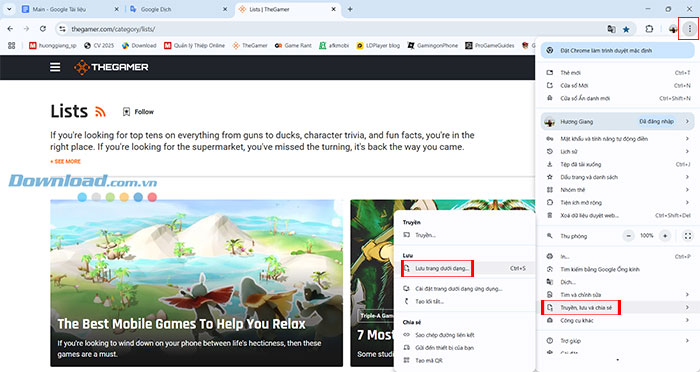
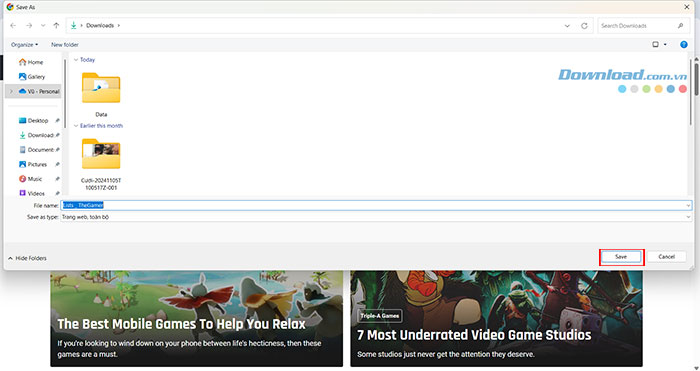
Chrome's save dialog chooses a file name and local destination.
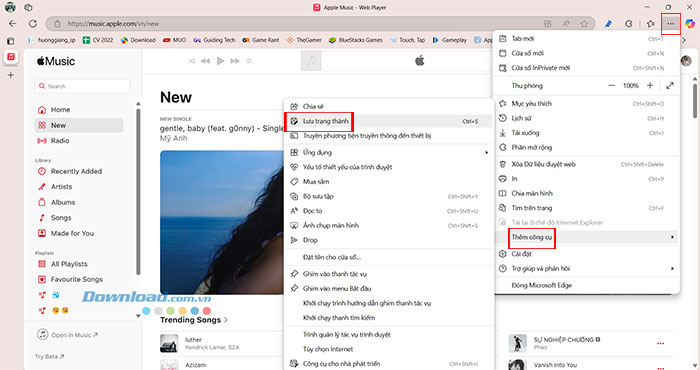
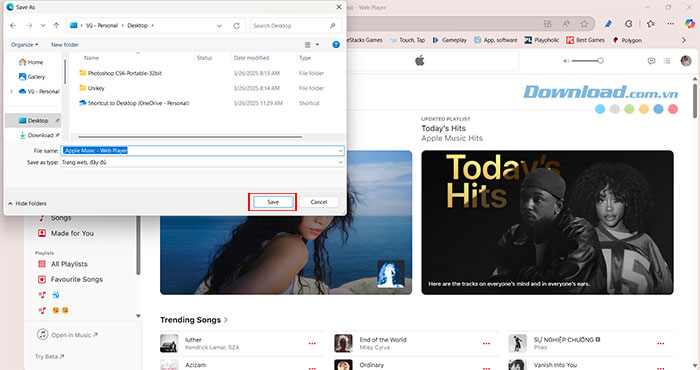
Edge's save dialog performs the same kind of local download. A saved page may lose interactive features, sign-in functionality, or resources loaded from the server. Use installation or a URL shortcut when your goal is to reopen the live service.
Related Articles
 Simple Way to Convert Excel Files to PDF: Exel to PDF8 minutes read
 How to Convert Any Website into a Figma Design6 minutes read
 How to Convert Powerpoint to PDF on iPhone4 minutes read
 Convert PDF to Word, Convert PDF Files for Free12 minutes read
 How to Convert from HTML4 to HTML58 minutes read
 How to Convert HEIC Images to JPG / PNG: Convert HEIC to JPG5 minutes read
Reader Comments 0
Sign in with email or Google to join the discussion.