Table of Contents
To add a font to Excel, Word, or PowerPoint, install it on your computer, then reopen the Office desktop application. Fonts are installed in Windows or macOS, rather than imported separately into each Office program.
The steps below cover downloaded font files. Installing a font on your computer does not automatically make it available in Office on the web or on another person's device.
1. Choose and download a suitable font
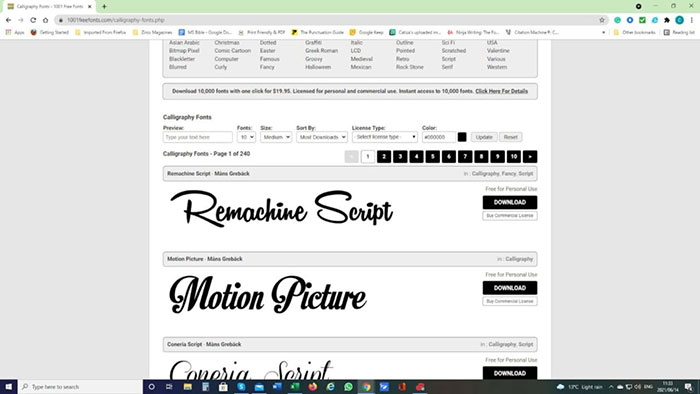
Download fonts from their creator or a reputable font provider. Check the license before using a font in business documents, client work, or products. Some fonts allow commercial use without payment; others are limited to personal use or require a license.
Look for TrueType (.ttf) or OpenType (.otf) files. A download may include separate files for regular, bold, and italic styles. Install the styles you need so your document can use them consistently.
2. Extract the downloaded files
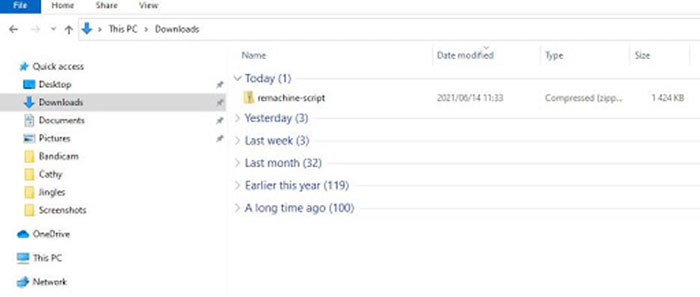
Find the download in your Downloads folder or the location you chose in the browser. If it is a ZIP archive, right-click it in Windows and select Extract All. Open the extracted folder before installing the font.
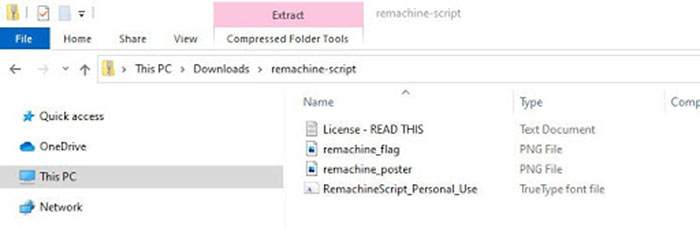
A ZIP file is a container, not the font itself. Use the actual .ttf or .otf files inside it.
3. Install the font on Windows
- Double-click a font file to open its preview.
- Check that the preview is readable, then select Install.
- Repeat for other styles included in the font family.
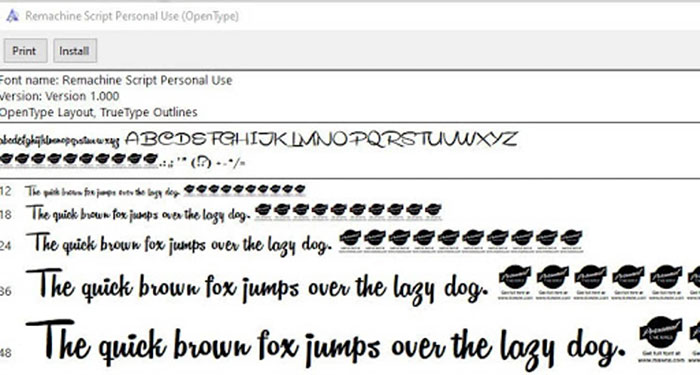
You can also right-click the extracted font file and choose Install. On some Windows 11 menus, first select Show more options. Installing for all users may require administrator rights; ordinary installation is sufficient when you only need the font in your own account.
For alternative methods, see installing fonts through Windows 11 Settings or the Microsoft Store. Microsoft's Office font installation guide explains how system fonts become available to Office.
4. Select the font in Office
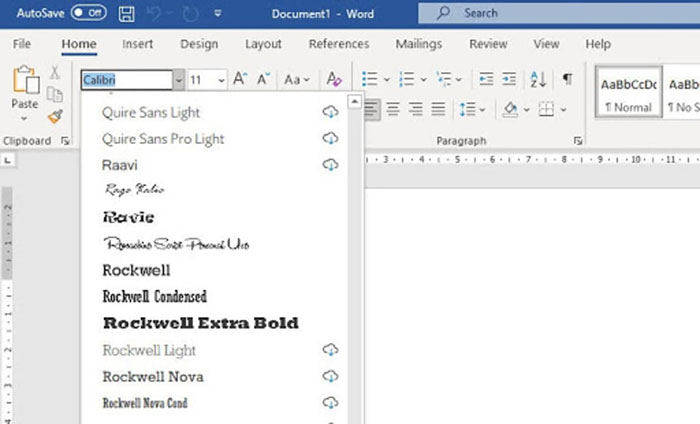
- Close and reopen Excel, Word, or PowerPoint if it was running during installation.
- Select the cells or text you want to format.
- Open the font menu on the Home tab and select the installed family.
- Test the regular, bold, and italic styles you plan to use.
The family name in the font menu can differ from the downloaded file name. If the font is missing, confirm that installation completed and that you are using the desktop app. Reinstalling Office is not normally necessary to add a font.
Installing fonts on a Mac
Open the downloaded font file and install it through Font Book. Then reopen the Office app. Font Book can validate files and identify duplicates; resolve reported problems rather than installing multiple conflicting copies. See Apple's Font Book instructions for the current controls.
Check Vietnamese characters and readability
Before applying a decorative font to a full document, test text containing the accents and characters you need, such as Tiếng Việt and đ. A font that displays English correctly may not contain every Vietnamese character.
For new documents, choose a Unicode font with Vietnamese support. Older VNI or TCVN3 documents may need a matching legacy font or an encoding conversion; changing the font alone may not repair mismatched text. The guide to font errors in downloaded Word documents covers related troubleshooting.
Use decorative fonts sparingly. Check the result at the intended print size and keep dense spreadsheet values and long paragraphs easy to read.
Share files without unexpected font substitution
A recipient who lacks your font may see a replacement that changes line breaks, spacing, or slide layout. For editable files, use a commonly available font or arrange for the recipient to install the same font where its license allows.
Supported Word and PowerPoint versions can embed eligible fonts, subject to the font's embedding permissions. Do not assume every Office application or font supports this option; consult Microsoft's embedding guide. For a document intended only for reading, export a PDF and inspect the exported pages before sharing.
Keep a copy of the original font files and license for future installation on a replacement computer.
Related Articles
 How to Add Fonts to Microsoft Paint: Step-by-Step Guide4 minutes read
 Link Download Microsoft Office 20195 minutes read
 Microsoft Office iOS App Has an Important Update, Supports3 minutes read
 How to Install and Remove Fonts on Mac: Install Fonts on Mac11 minutes read
 8 Default Settings for Optimizing Microsoft Office 20169 minutes read
 4 Things to Expect in Microsoft Office 154 minutes read
Reader Comments 0
Sign in with email or Google to join the discussion.