Table of Contents
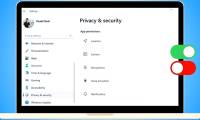
Windows 11 lets you reduce optional data sharing, limit advertising personalization, and control access to devices such as your camera and microphone. Start in Settings > Privacy & security and review the options below.
These controls have different effects. Turning off optional diagnostics does not disable normal Windows operation, but restricting app permissions can stop a video call, recording, or location feature from working. None of these switches guarantees complete privacy across Windows, your browser, and every installed application.
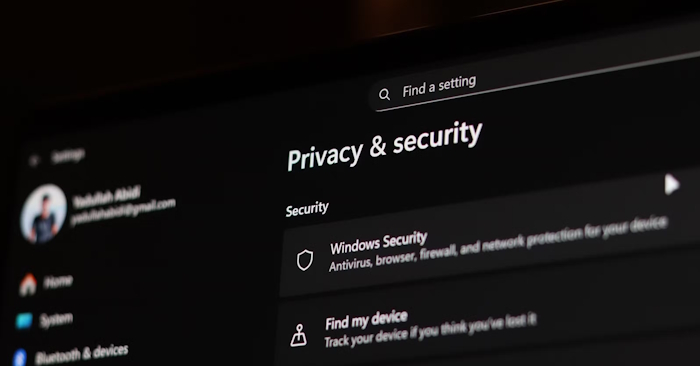
Reduce optional diagnostic sharing
- Open Settings > Privacy & security > Diagnostics & feedback.
- Turn off Send optional diagnostic data if you do not want to provide the additional device and usage information.
- Review Improve inking & typing and turn it off if you do not want to contribute writing samples to improve those services.
Windows still collects required diagnostic data. The optional setting does not control all information sent by Microsoft services or third-party apps. You can use the diagnostic viewer and deletion options on this page to inspect available data or request deletion; deleting existing diagnostics does not switch off future collection. Microsoft explains the diagnostic categories and controls.
Turn off advertising and offer personalization
In newer Windows 11 versions, look under Privacy & security > Recommendations & offers for the advertising ID setting. Older versions may call this page General. Turn off the option that lets apps use the advertising ID for personalized ads.
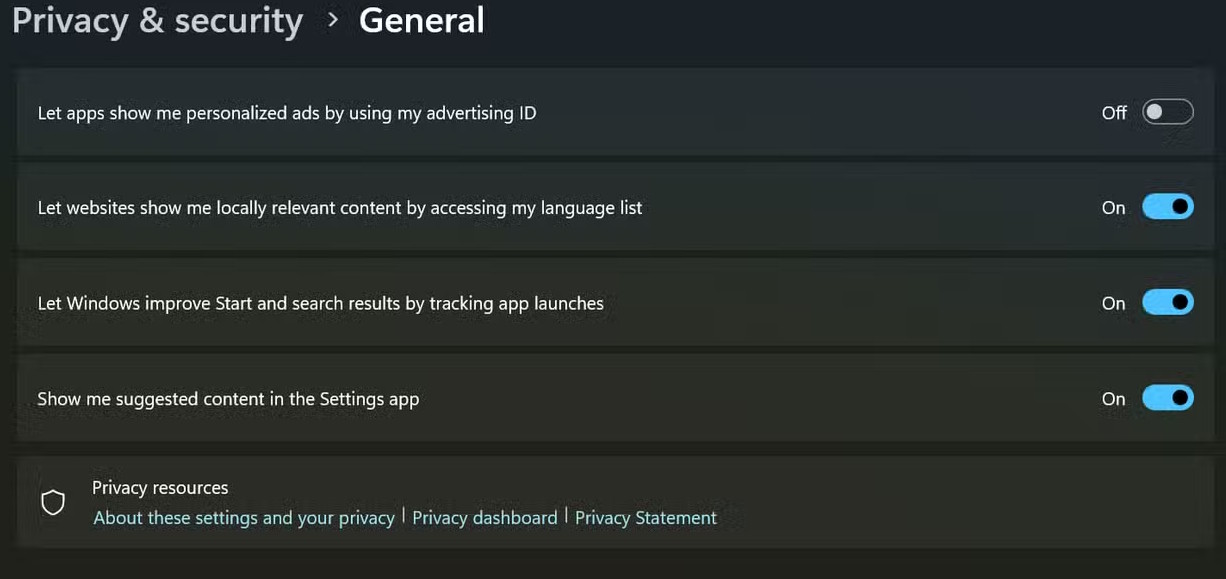
This reduces one form of ad personalization; it does not remove ads or stop a website from using its own cookies or account information.
Also review Personalized offers under Privacy & security. On older builds, the related control is called Tailored experiences and appears under Diagnostics & feedback. Turn it off if you do not want Windows activity used for personalized tips, ads, and recommendations. See Microsoft's recommendations and offers guide for current labels.
Review local activity history
If your Windows version shows Privacy & security > Activity history, turn off local activity storage if you do not use it. Use the clear-history control separately to remove previously stored activity.
The older option to send activity history to Microsoft has been deprecated on updated Windows 11 systems. Do not assume a missing switch means your PC is currently syncing that history. Local activity history is also separate from browser history, Windows Search history, and account data. Microsoft's activity history documentation explains the distinction.
Limit Start and Search personalization
Under Recommendations & offers (or General on older builds), turn off app-launch tracking if you do not want it used to personalize Start and search results. This may make suggestions less tailored to your most-used apps.
For search controls, find Search or Search permissions in Settings. Review account or cloud-content search if you do not want search results from your Microsoft, work, or school account. Disabling cloud-content search is separate from disabling Bing web results; it should not be described as a switch that removes all online search.
You can also clear Windows 11 search history. Browser and Microsoft account histories have their own controls.
Restrict camera, microphone, and location access
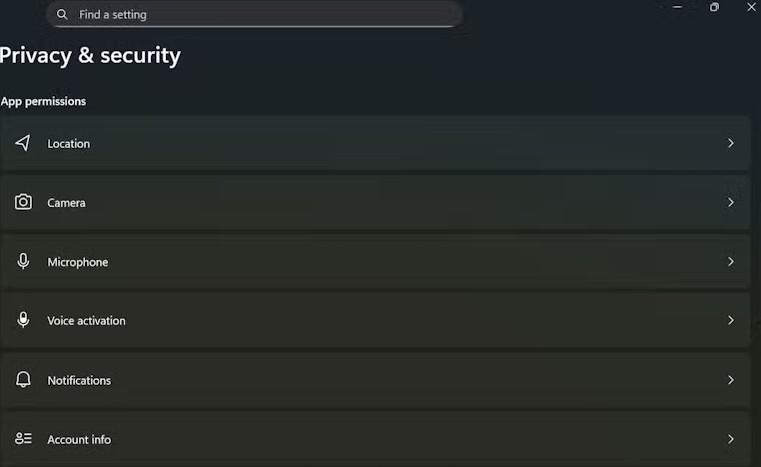
- Under Privacy & security > App permissions, open Camera, Microphone, Location, or another category you want to review.
- Disable access for apps that do not need the feature, where individual app switches are available.
- Keep access enabled for features you intentionally use, then test the app after changing a permission.
For example, a meeting app needs microphone access for voice calls. A permission should match the feature you actually use, rather than being enabled automatically or disabled indiscriminately. The guide to Windows 11 camera controls covers that category in more detail.
Desktop applications may have a shared access switch rather than individual controls, and some access methods are outside these settings. Websites also need permissions in the browser. Check Microsoft's camera and microphone privacy guide when an app is missing from the list.
Settings can vary by Windows build, and work or school policies may make some controls unavailable. Use the Settings search box to locate a renamed option.
Related Articles
 9 iPhone Privacy Settings You Should Turn on Right Now9 minutes read
 9 Windows Privacy Settings You Should Change Right Now9 minutes read
 Windows 11 Won't Respect Your Privacy Until You Make These Changes!8 minutes read
 A Tool to Help You Control Your Privacy in Windows 104 minutes read
 Check These Privacy Settings Immediately If You Use Claude Frequently6 minutes read
 Instructions for Managing Cameras on Windows 11 PCs4 minutes read
Reader Comments 0
Sign in with email or Google to join the discussion.