Table of Contents
Use Excel's SUBTOTAL function when a total, count, or average should change as you filter a list. Unlike SUM, it excludes rows removed by a filter. The function code also determines whether manually hidden rows are included.
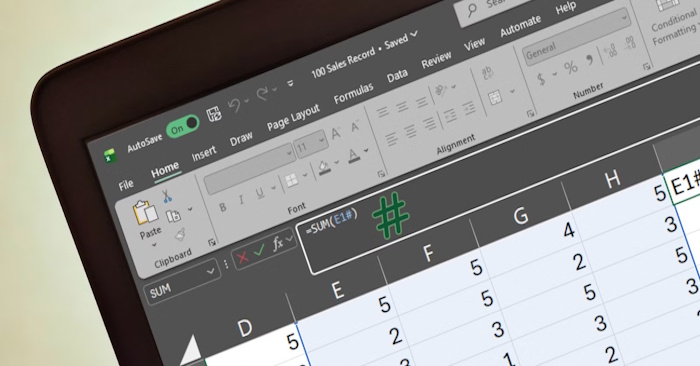
SUM remains useful for totals that should include the entire range, regardless of which rows are visible. Spreadsheet size is not the reason to choose between the two. See how the SUM function works for that approach.
SUBTOTAL syntax and function codes
=SUBTOTAL(function_num, ref1, [ref2], ...)function_num selects the calculation. ref1 is the first range, such as C2:C15; additional ranges are optional.
- Codes 1–11: Exclude filtered-out rows but include manually hidden rows.
- Codes 101–111: Exclude both filtered-out rows and manually hidden rows.
| Calculation | Include manually hidden rows | Exclude manually hidden rows |
|---|---|---|
| AVERAGE | 1 | 101 |
| COUNT | 2 | 102 |
| COUNTA | 3 | 103 |
| MAX | 4 | 104 |
| MIN | 5 | 105 |
| PRODUCT | 6 | 106 |
| STDEV | 7 | 107 |
| STDEVP | 8 | 108 |
| SUM | 9 | 109 |
| VAR | 10 | 110 |
| VARP | 11 | 111 |
The statistical codes distinguish sample calculations (STDEV and VAR) from population calculations (STDEVP and VARP). Choose them according to the data you are analyzing.
Sum the visible sales rows
Suppose sales values occupy C2:C15 and row 1 contains column headings. Put the total outside that range, for example in C16:
=SUBTOTAL(109, C2:C15)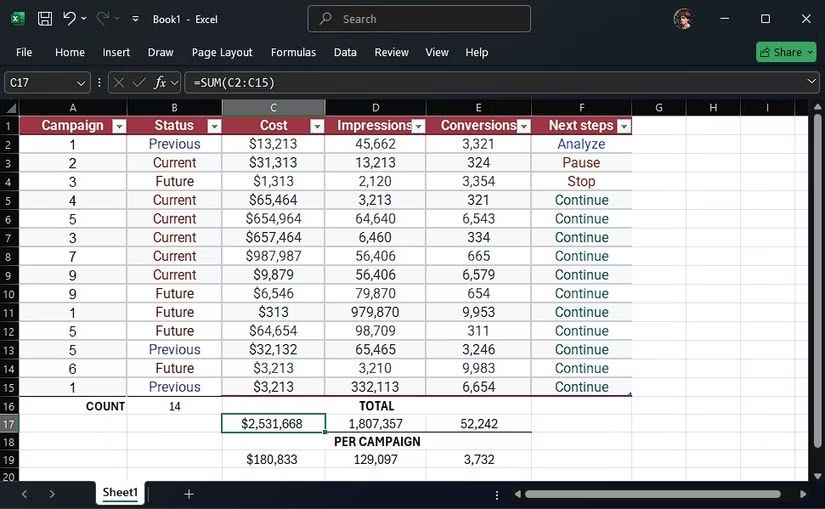
- Select the data and its headings, then enable Data > Filter.
- Use a column's filter arrow to select the product or category you want.
- Read the SUBTOTAL result. It now includes only eligible values from the displayed rows.
- Clear the filter to return to the total for the full list, excluding any rows you manually hid.
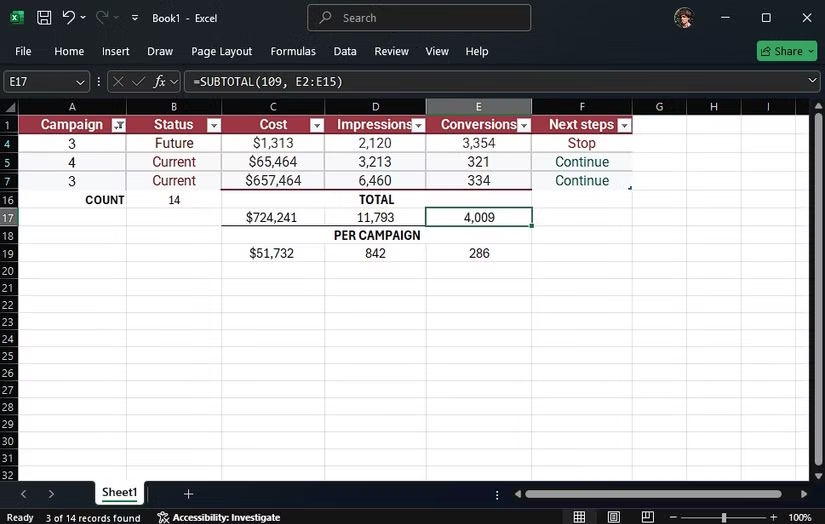
Use =SUBTOTAL(9, C2:C15) instead if manually hidden rows should still contribute to the total. Both formulas exclude filtered-out rows.
Count rows and calculate averages correctly
A regular COUNTA(A2:A15) does not adjust to filtering. If column A has one nonempty product name for every record, use:
=SUBTOTAL(103, A2:A15)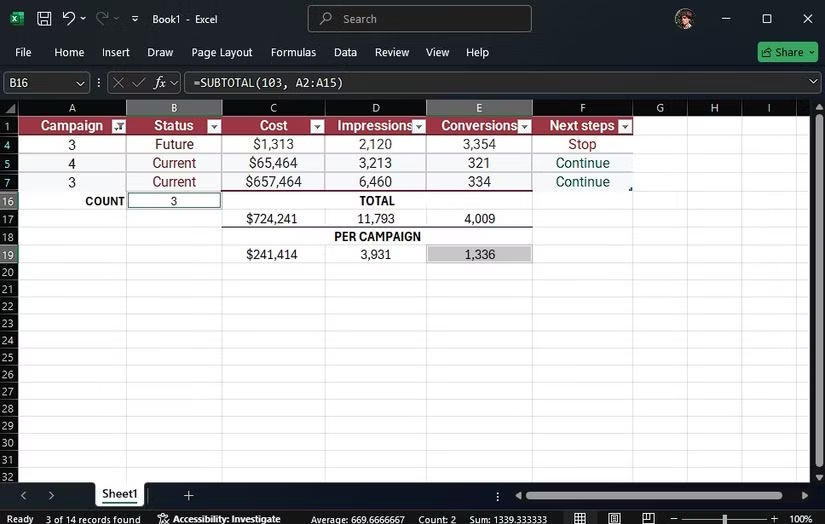
Code 103 counts eligible nonempty cells, including text. Code 102 counts eligible numeric cells. A blank identifier can make COUNTA undercount records, so choose a column populated in every row you intend to count.
For an average of the visible numeric sales values, use the average operation directly:
=SUBTOTAL(101, C2:C15)Dividing a sales subtotal by a count of product names can give a different result when sales cells are blank or nonnumeric. The direct AVERAGE code keeps the calculation tied to the values being averaged.
Avoid double-counting and common mistakes
- Nested subtotals: SUBTOTAL ignores other SUBTOTAL formulas within its referenced range. It does not automatically ignore every total made with SUM. Keep ordinary SUM totals outside the range or replace appropriate subtotal formulas.
- Formula location: Do not include the result cell in its own input range; that creates a circular reference.
- Rows versus columns: Hidden-row behavior is intended for vertical lists. Hiding a column does not remove that column's values from a horizontal SUBTOTAL range.
- Criteria-based totals: SUBTOTAL follows row visibility. For a total based on conditions without filtering the display, consider SUMIFS.
- Regional settings: If your Excel uses semicolons between arguments, enter
=SUBTOTAL(109;C2:C15).
For the full syntax and visibility rules, see Microsoft's SUBTOTAL reference.
Related Articles
 SUBTOTAL Function: Formula and How to Use the SUBTOTAL Function in Excel11 minutes read
 How to Use the Subtotal Function6 minutes read
 How to Use the SUBTOTAL Function in Excel4 minutes read
 Calculate the Total Value of the Filtered List in Excel4 minutes read
 SUM for Newbies Only: Excel Experts Use This Function Instead!7 minutes read
 Excel 2019 (Part 20): Grouping and Subsummary7 minutes read
Reader Comments 0
Sign in with email or Google to join the discussion.