Table of Contents
This practical guide explains how to clean up the safari start page on iPhone. Follow the steps in order, review the requirements first, and use the troubleshooting notes when a setting or option does not work as expected.
How to tidy up Safari start page on iPhone
Step 1:
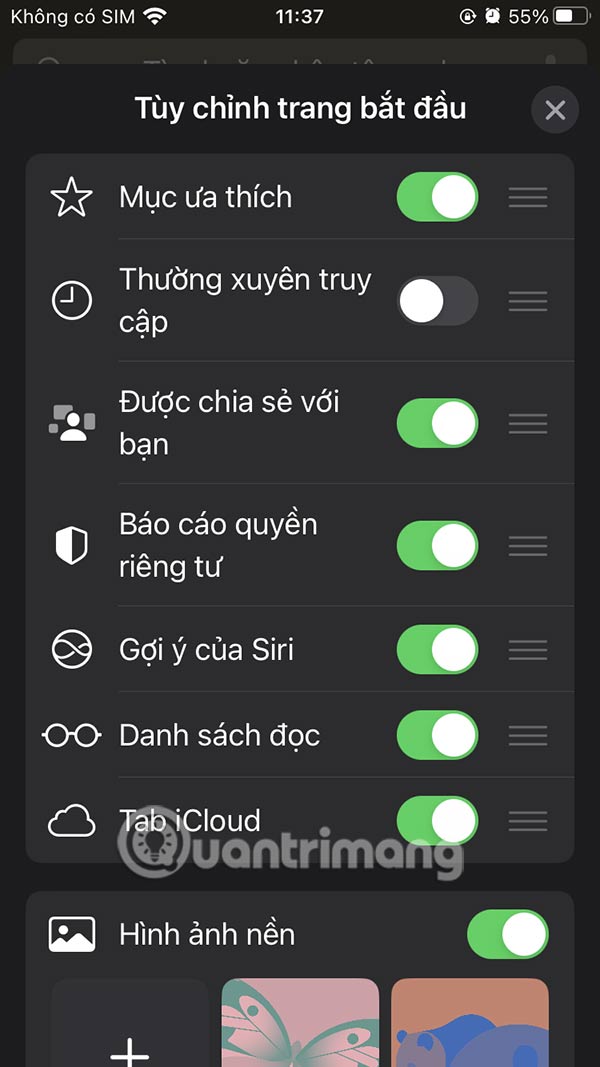
At the Safari interface, open the home page and scroll down to click the Edit button to do so. Then you will see the content items displayed on the Safari iPhone home page.

The displayed items include:
- Favorites: Enabling this option will enable displaying items from your favorites list (such as bookmarks).
- Frequently Visited: This option displays a list of websites you visit frequently.
- Shared With You: This option displays a list of items shared with you from others through the Messages app.
- Privacy Report: This section shows a report of how many trackers Safari has recently blocked.
- Siri Suggestions: This feature displays suggestions from Siri related to what's in your history and bookmarks.
- Reading List: This section displays items from your Reading List.
- iCloud Tabs: This option shows Safari tabs synced on iCloud from your other devices.
Step 2:
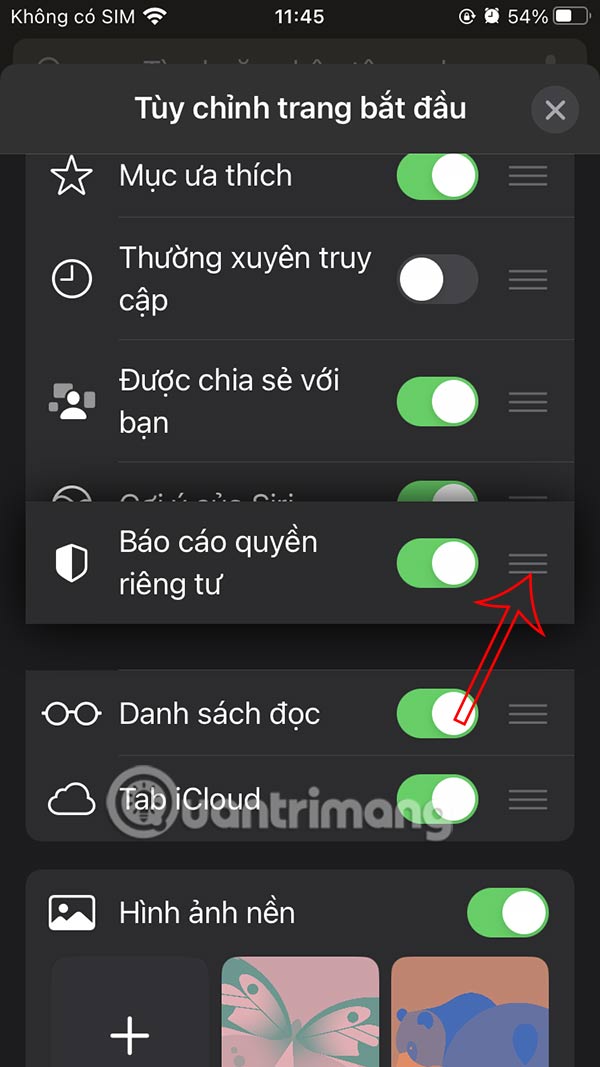
In this options interface, users can change the display order of content items in the Safari first page interface.
Step 3:
To tidy up the Safari start page on iPhone, you need to turn off the button that displays that content .
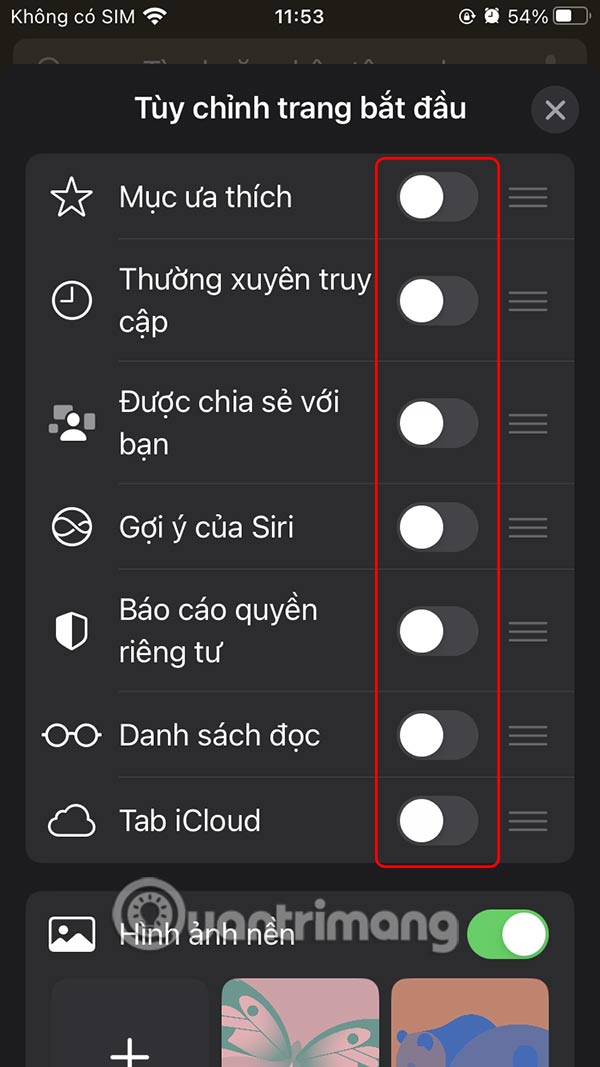
The result is a streamlined Safari start page on iPhone as shown below.

FAQ
How to tidy up Safari start page on iPhone?
At the Safari interface, open the home page and scroll down to click the Edit button to do so. Then you will see the content items displayed on the Safari iPhone home page.
What does this guide cover?
This guide explains clean up the safari start page on iPhone, including the main steps, important details, and practical considerations.
Who is this guide for?
It is designed for readers who want a clear, practical overview and a reliable process they can follow without unnecessary complexity.
Related Articles
 How to Fix 5 Safari Bugs on iPhone8 minutes read
 How to Fix Safari Error Can Not Load Websites on Mac4 minutes read
 How to Block Any Web Page on Safari for iPhone, iPad3 minutes read
 Customize the Safari Front Page on Mac5 minutes read
 How to Enable Web Page Reading Mode on Safari3 minutes read
 How to Bring Tab Features to iPhone Safari4 minutes read
Reader Comments 0
Sign in with email or Google to join the discussion.