Table of Contents
If you forget your Mac login password, start with the reset options on the login screen. Depending on how the Mac is configured, macOS may let you verify ownership with your Apple Account, a FileVault recovery key, or another administrator account. These methods reset the password; they do not bypass Activation Lock or FileVault.
Your Mac login password is the password for the user account shown at startup. It is not necessarily the same as your Apple Account password. Before resetting anything, check Caps Lock and the keyboard language shown in the login window, then restart the Mac and try the login password again.
Use the password hint or reset message
- At the login window, click the question mark beside the password field if it appears.
- Read the password hint, if you created one.
- If no useful option appears, enter a password up to three times. macOS may then display a message such as Restart and show password reset options, Reset it using your Apple ID, or Reset it using your recovery key.
- Select the message and follow the onscreen instructions.
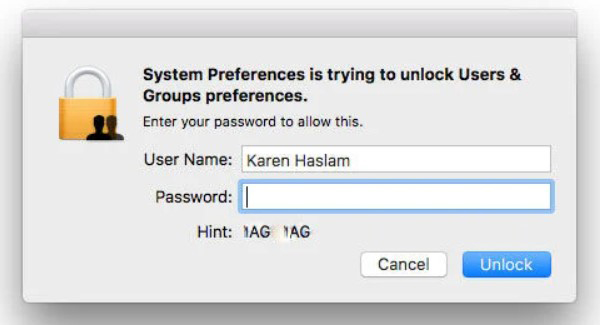
You may be asked to sign in to your Apple Account and enter a verification code, choose the startup disk, enter the FileVault recovery key, select the user account, or temporarily deactivate the Mac. Only enter credentials in the macOS recovery interface—not on an unrelated website.
If repeated attempts temporarily lock the account, wait for the time shown, restart, and try the reset flow again.
Reset the password from another administrator account
If you can sign in to a different administrator account on the same Mac, that administrator can change the local account password:
- Sign in to the administrator account.
- Open System Settings > Users & Groups. On older macOS versions, open System Preferences > Users & Groups and unlock the pane.
- Select the affected user, choose the reset-password option, and enter a new password and hint.
- Sign out and test the new password on the original account.
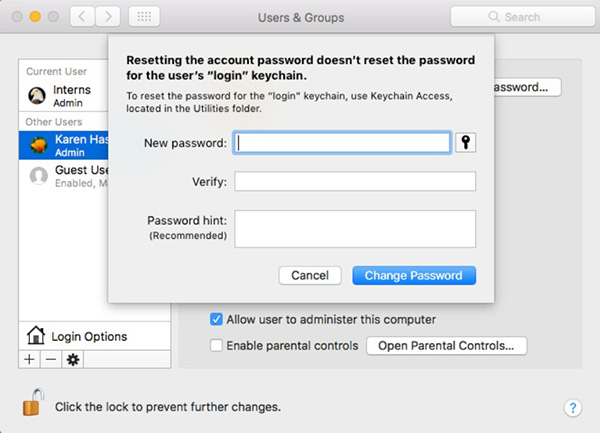
An administrator reset does not update the old login keychain password. If macOS cannot unlock the existing keychain, it may ask you to enter the old password or create a new keychain. Creating a new one means previously stored passwords in the inaccessible keychain will not automatically reappear.
Reset the password in macOS Recovery
Use Recovery when the login-window options do not work. The startup method depends on the Mac:
- Mac with Apple silicon: shut down, then press and hold the power button until Loading startup options appears. Select Options, then Continue.
- Intel-based Mac: turn on the Mac and immediately hold Command-R until the Apple logo or another startup screen appears.
In Recovery, select a user if prompted. If you do not know any listed password, choose Forgot all passwords? Follow the onscreen reset steps using the available Apple Account or FileVault recovery option.
If Recovery opens to the utilities window without offering a reset:
- Choose Utilities > Terminal from the menu bar.
- Type
resetpasswordas one word and press Return. - Use the Reset Password assistant to select the startup volume and authorized account, then create a new password.
- Exit to Recovery and restart the Mac.
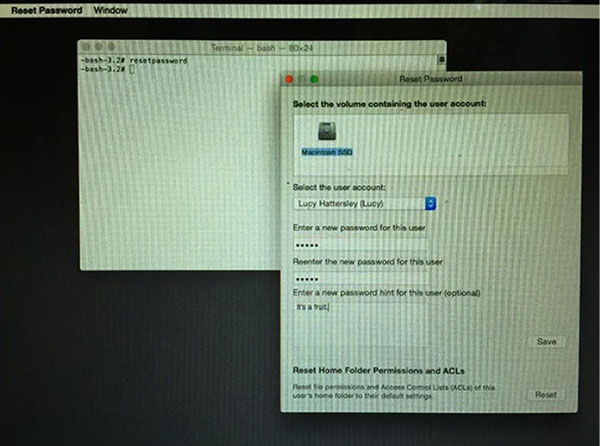
The screenshot reflects an older Recovery interface; current versions may present the Apple Account or recovery-key flow before the Terminal method.
Find a FileVault recovery key
If FileVault was configured to use a recovery key, enter that key exactly as saved. On supported current systems, the key may be visible in the Passwords app on an iPhone, iPad, or another Mac signed in to the same Apple Account: open Passwords, find the entry named for the Mac, and reveal the Recovery Key field.
If the Mac belongs to a school or company, contact its administrator. The organization may hold an institutional recovery key or enforce a managed reset process.
Why Target Disk Mode is not a password reset
Target Disk Mode on an Intel Mac—or Share Disk from Recovery on Apple silicon—can expose a disk to another Mac for file transfer. It does not remove a user password or decrypt a FileVault-protected volume without an authorized password or recovery key. Treat it as a data-transfer tool, not a way around account security.
If no recovery method works
The final supported option is to erase the Mac from Recovery and reinstall macOS. Erasing permanently removes the user accounts, passwords, and local data. It may still require the associated Apple Account to clear Activation Lock. Use this only on a Mac you own or are authorized to manage, and only after confirming that important files are backed up.
For broader cross-platform recovery guidance, see how to access a computer after forgetting the password. If you must erase the machine, read the data-loss warnings in this factory-reset guide first.
Prevent another lockout
- Store the FileVault recovery key somewhere separate from the Mac.
- Keep your Apple Account recovery information and trusted phone numbers current.
- Create a useful password hint that does not reveal the password.
- Maintain an encrypted backup so account recovery is not the only way to protect your files.
- For a managed Mac, document the organization's recovery contact before a problem occurs.
Related Articles
 How to Change Your Macbook Password, Change Your Mac Password8 minutes read
 Steps to Reset Forgotten Password on Windows 105 minutes read
 How to Reset Admin Password on Windows with Sticky Keys5 minutes read
 How to Retrieve Forgotten Windows 10 Password6 minutes read
 Forgot Your Saved Wi-Fi Password?6 minutes read
 How to Create a USB Drive to Bypass Computer Passwords When You Forget Them5 minutes read
Reader Comments 0
Sign in with email or Google to join the discussion.