Table of Contents
A Mac can be infected with malware, but no single symptom proves that infection. Unexpected ads, browser redirects, unfamiliar applications, unexplained resource use, encrypted files, or a trusted security alert justify investigation. Ordinary problems such as a full disk, failing hardware, or a misbehaving browser extension can look similar.
Do not trust a website that suddenly claims it scanned your Mac and found viruses. A normal web page cannot perform a complete system scan. Close the tab without calling the displayed phone number, installing the suggested “cleaner,” or entering Apple Account or payment details.
Five signs that may indicate malware
1. Ads and pop-ups appear in unexpected places
Adware may inject ads into pages, open tabs, display notifications, or show promotions even when you are not intentionally browsing. Check whether the messages come from a website notification, a browser extension, or a separate application before concluding that the entire Mac is infected.

2. The Mac is slow or hot without a clear reason
A malicious process can consume CPU, memory, network bandwidth, or battery power. Open Activity Monitor and review the CPU, Memory, Energy, Disk, and Network tabs. A process using substantial resources is a clue, not proof: indexing, cloud sync, video calls, and software updates can also be demanding.

If performance is the only symptom, first rule out low storage, too many startup items, old software, and hardware trouble. This guide to common causes of an unresponsive computer explains several non-malware possibilities.
3. Searches or pages redirect without permission
Browser hijackers and unwanted extensions can replace the search provider, alter the home page, redirect links, or send traffic through advertising pages. Check the browser's extension list, default search engine, notification permissions, and startup pages. Remove only entries you do not recognize or no longer need.

Fake security pages often use alarming colors, countdowns, sirens, or claims that Apple has detected an infection. Close the page. If it refuses to close, quit the browser and reopen it without restoring the suspicious tab.
4. Files are renamed, encrypted, or inaccessible
Unexpected filename extensions, ransom notes, or many documents becoming unreadable can indicate ransomware. Disconnect external drives and network shares so the damage cannot spread. Do not delete affected files or modify the only copy; preserve evidence and contact a qualified incident-response professional or the organization's IT team.
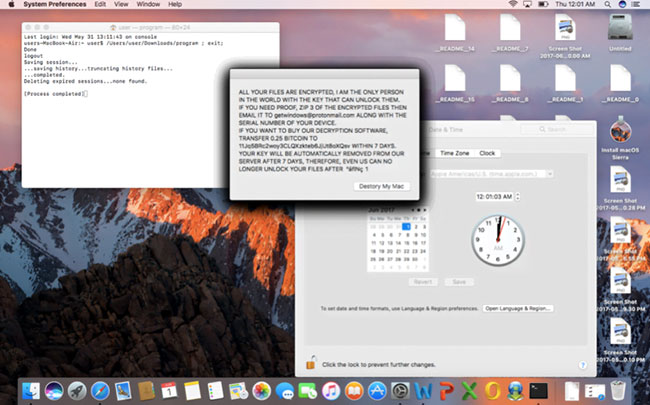
A browser page that merely fills the screen and demands payment is usually a scam rather than file-encrypting ransomware. Do not pay or provide personal information, but still inspect the browser and installed software.
5. A trusted scanner or macOS blocks known malware
macOS includes XProtect, which Apple updates automatically to detect, block, and sometimes remediate known malware. Gatekeeper and notarization checks also help prevent untrusted or altered applications from running. A warning from these built-in protections should be taken seriously.
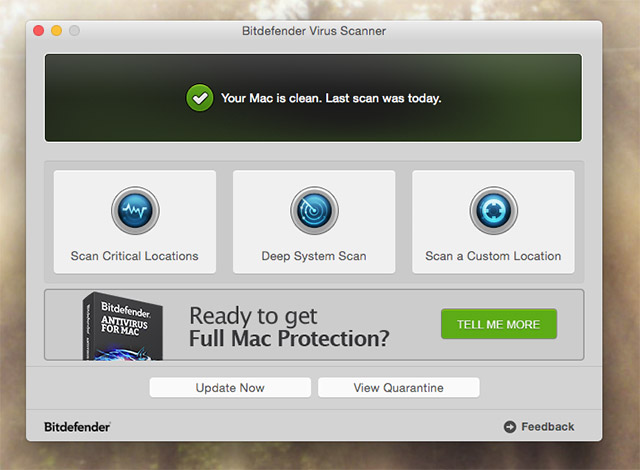
If you use a third-party scanner, download it from the developer's official site or the App Store and keep it updated. A clean scan lowers suspicion but cannot prove that every file is safe. Likewise, a detection should be verified by checking the file path, detection name, and vendor guidance before deleting important data.
What to do if you suspect malware
- Disconnect when necessary. If files are being encrypted, accounts are being used unexpectedly, or the Mac is sending abnormal traffic, disconnect Wi-Fi and Ethernet. Keep the Mac powered on if an IT or security team will collect evidence.
- Close the suspicious page or app. Use Command-Q. If it will not quit, press Option-Command-Escape, select it, and choose Force Quit.
- Do not enter credentials. Ignore demands for an Apple Account password, card number, gift card, cryptocurrency payment, or remote-access session.
- Update macOS and apps. Install updates through System Settings > General > Software Update and through the App Store or each developer's official updater.
- Review unfamiliar software. Inspect Applications, browser extensions, login items, configuration profiles, and website notification permissions. Uninstall suspicious software using the developer's documented procedure when available.
- Run a reputable scan. Use current security software obtained directly from its publisher. Quarantine or remove confirmed detections, then restart and scan again.
- Secure accounts from a clean device. If you entered a password on a suspicious page, change it from another trusted device, enable two-factor authentication, and review account sessions and payment activity.
- Restore carefully. If the system cannot be trusted, back up irreplaceable personal files, erase and reinstall macOS, and restore data from a backup made before the infection. Avoid restoring the suspicious application.
How macOS helps protect the system
- Gatekeeper checks downloaded apps and helps ensure that software comes from an identified developer, is notarized, and has not been altered.
- XProtect uses automatically updated detection rules to block known malware and can remediate some infections.
- App sandboxing limits what App Store applications can access.
- System Integrity Protection and runtime protections restrict changes to protected system areas and processes.
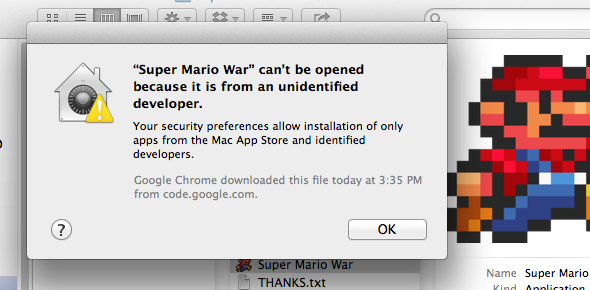
These defenses reduce risk but do not make a Mac immune. Apps outside the App Store can be legitimate, yet they require careful verification. Download from the developer's real site, leave Gatekeeper enabled, avoid pirated software, and do not use Open Anyway unless you understand why macOS blocked the app.
Keep future warnings meaningful
- Enable automatic macOS security updates.
- Keep browser fraud warnings and pop-up blocking on.
- Remove unused extensions, login items, and notification permissions.
- Maintain versioned backups that are not always writable from the Mac.
- Learn the difference between malware, phishing, and ordinary software faults; this overview of computer viruses provides useful terminology.
- If you want a second-opinion scanner, compare established products and their limitations instead of installing the first tool promoted by a warning page. See these security scanner alternatives.
Related Articles
 3 Ways to Identify a Mac Infected with a Virus9 minutes read
 Can the Router Be Infected with a Virus?6 minutes read
 How to Know If Smart TV Is Infected with Malware?7 minutes read
 Causes and Signs to Identify a Computer Infected with Virus7 minutes read
 Is Smart TV Infected with Virus?7 minutes read
 Downloaded Malware? Try These Fixes Before Factory Reset!8 minutes read
Reader Comments 0
Sign in with email or Google to join the discussion.