Table of Contents
You can change the password for your current Mac user account in System Settings as long as you know the existing login password. If you have forgotten it, use macOS's verified reset options instead. Your Mac login password and Apple Account password are separate credentials, even if you chose the same text for both.
Change your own Mac login password
- Choose Apple menu > System Settings.
- Select Users & Groups in the sidebar.
- Click the information button beside your username, then click Change. On some current versions, Login Password appears as a separate item in the System Settings sidebar.
- Enter the existing login password in Old Password.
- Enter the new password in both New Password and Verify.
- Add a hint that helps you remember the password without revealing it, then click Change Password.
On macOS Monterey or earlier, open System Preferences > Users & Groups, select the account, and choose Change Password. The labels differ, but the old password is still required.
Choose a safer replacement
- Use a long, unique password or passphrase that is not reused for websites or other devices.
- Avoid names, birthdays, keyboard patterns, and details that another person could learn.
- Do not put the password itself in the hint.
- Store the password in a trusted password manager if remembering it would be difficult.
- Keep a secure record of the FileVault recovery key, separate from the Mac.
For more detail, see how to create a secure password.
Reset another user's password as an administrator
An administrator can reset a different local user's password:
- Sign in to an administrator account.
- Open System Settings > Users & Groups.
- Click the information button beside the affected user and choose Reset.
- Enter the new password and hint, then confirm the change.
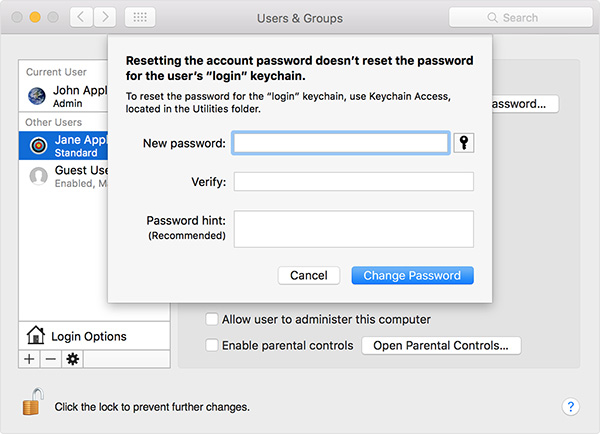
This is a reset, not a normal password change. It may leave the user's existing login keychain locked because the administrator does not know its old password. When that user next signs in, macOS may ask for the old keychain password or offer to create a new keychain. Creating a new keychain does not recover passwords stored only in the inaccessible one.
If you forgot the login password
At the login window, first check Caps Lock and the keyboard language. Click the question mark for a hint, or enter a password up to three times to reveal the reset options available for that Mac. Depending on the configuration, macOS may offer to verify with an Apple Account, a FileVault recovery key, or macOS Recovery.
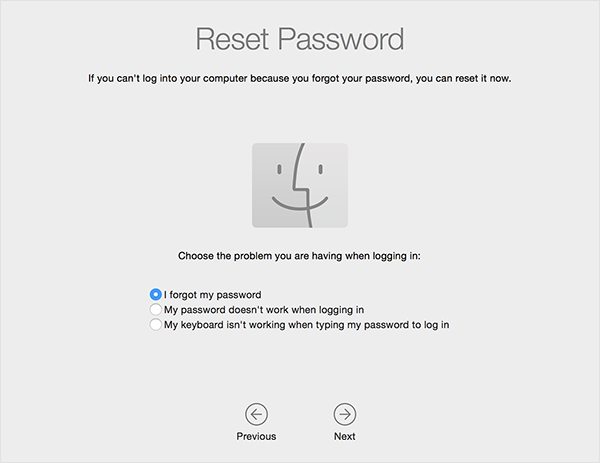
On Apple-silicon Macs, enter Recovery by shutting down and holding the power button until startup options appear. On Intel Macs, start while holding Command-R. Follow the onscreen password-reset assistant. Use the Terminal command resetpassword only if Recovery does not present the normal reset flow.
These recovery options cannot bypass FileVault or Activation Lock. If no authorized recovery method works, erasing the Mac may be the only supported way to reuse it, and that permanently deletes local data. For a complete decision path, follow this guide to recovering access after a forgotten computer password.
Mac login password vs. Apple Account password
| Credential | Main purpose | Where to change it |
|---|---|---|
| Mac login password | Unlocks the local user account and authorizes many system changes | System Settings > Users & Groups or Login Password |
| Apple Account password | Signs in to iCloud, the App Store, and other Apple services | System Settings > your name > Sign-In & Security |
| FileVault recovery key | Helps recover access to an encrypted startup disk when configured | Created or managed in Privacy & Security > FileVault |
Changing the Mac login password does not automatically change the Apple Account password. If the Apple credential is the one you need to update, follow the Apple Account password steps instead.
After changing the password
Lock the screen and test the new password before ending your work session. If FileVault is enabled, restart once and confirm that the new password unlocks the disk at startup. Also update any password manager entry and remove insecure notes containing the old password.
Related Articles
 How to Change Your Computer Password for the Most Popular Operating Systems7 minutes read
 Change Wi-Fi Password: 2 Steps to Change Linksys Wi-Fi Password2 minutes read
 4 Extremely Useful Macbook Security Tips, Did You Know?4 minutes read
 How to Change Your Computer, Phone and Mac Passwords4 minutes read
 Change Wi-Fi Password: How to Change Vnpt Wi-Fi Password5 minutes read
 How to Change or Reset Your Spotify Password7 minutes read
Reader Comments 0
Sign in with email or Google to join the discussion.