Table of Contents
This practical guide explains how to change folder color in iPhone files app. Follow the steps in order, review the requirements first, and use the troubleshooting notes when a setting or option does not work as expected.
How to change folder color on iPhone Files
Step 1:
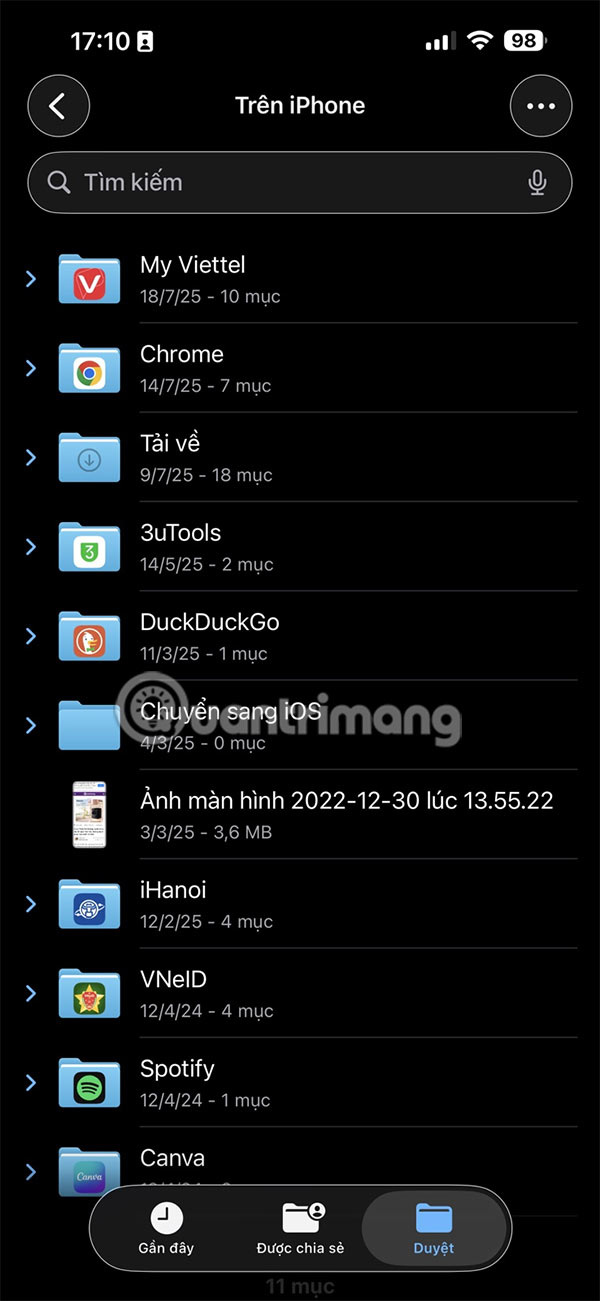
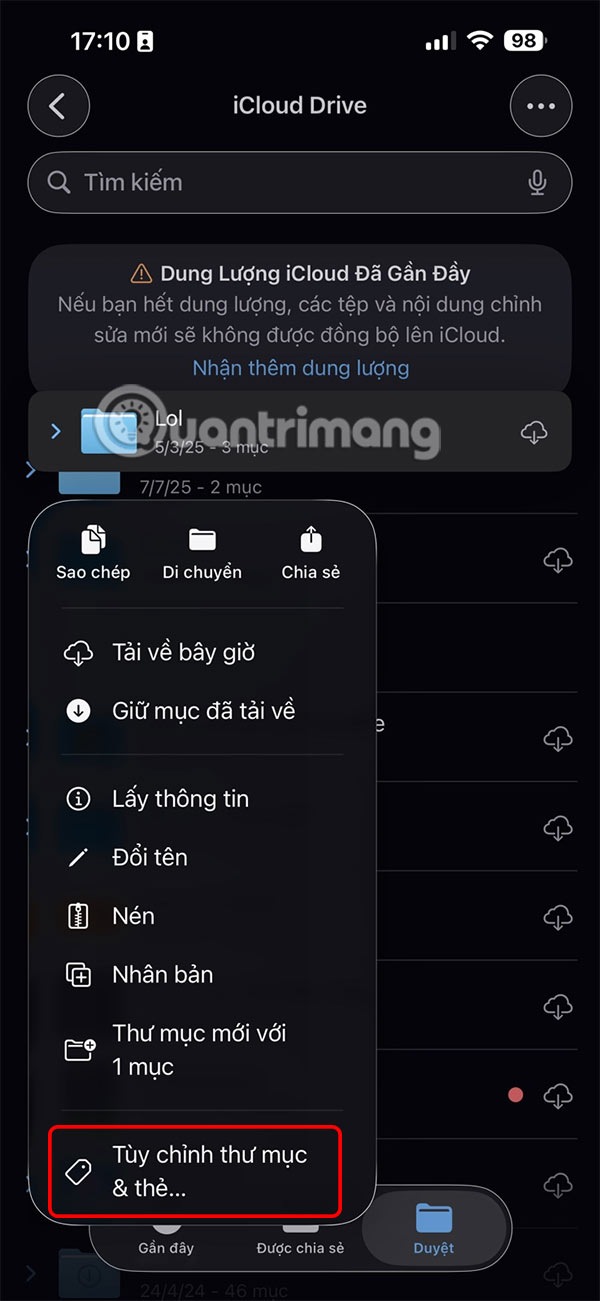
Open the Files app and select iCloud Drive, On My iPhone/iPad, or whatever cloud storage service you want to use. Tap and hold on a folder and select Customize Folders & Tags from the menu that appears.

Step 2:
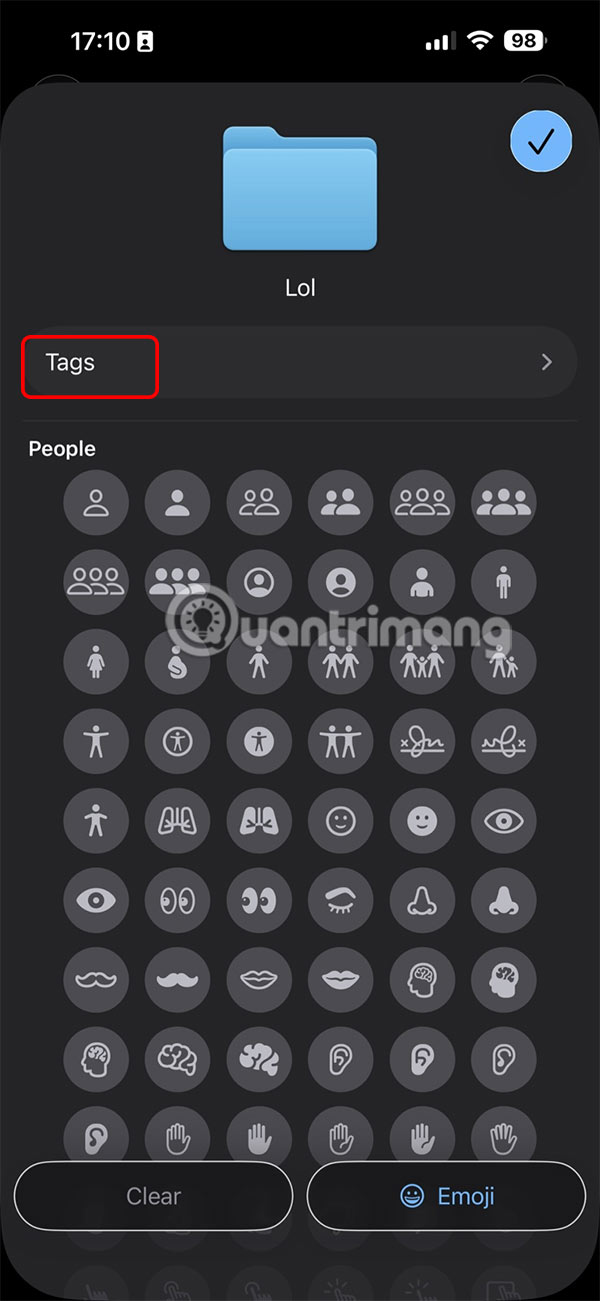
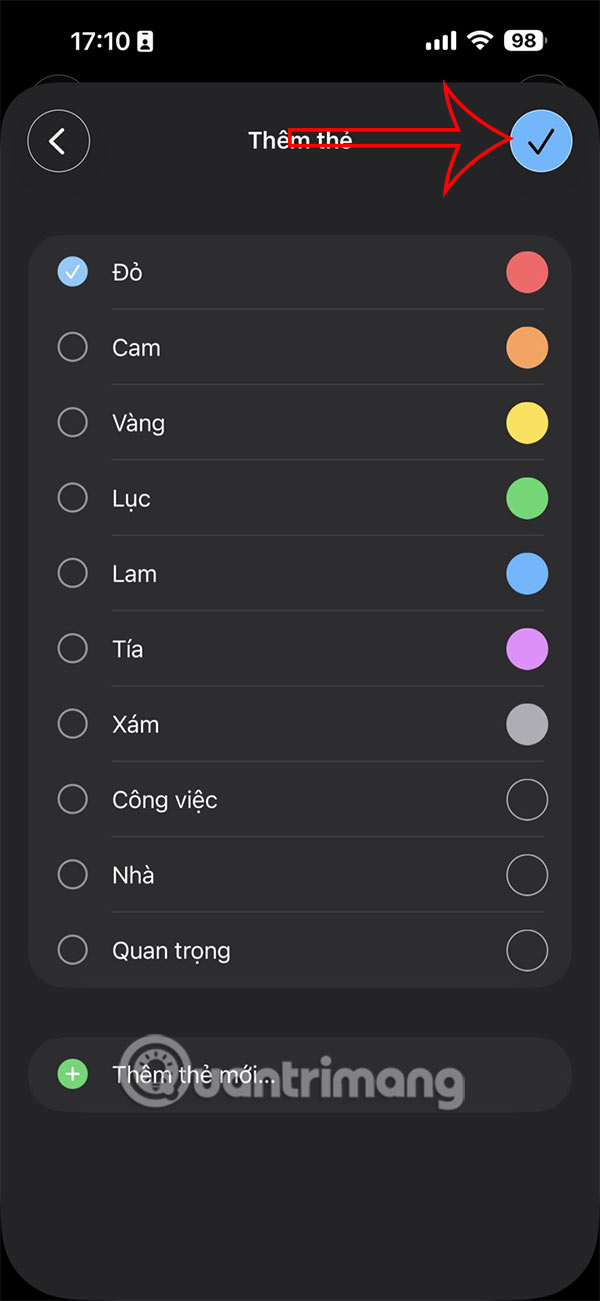
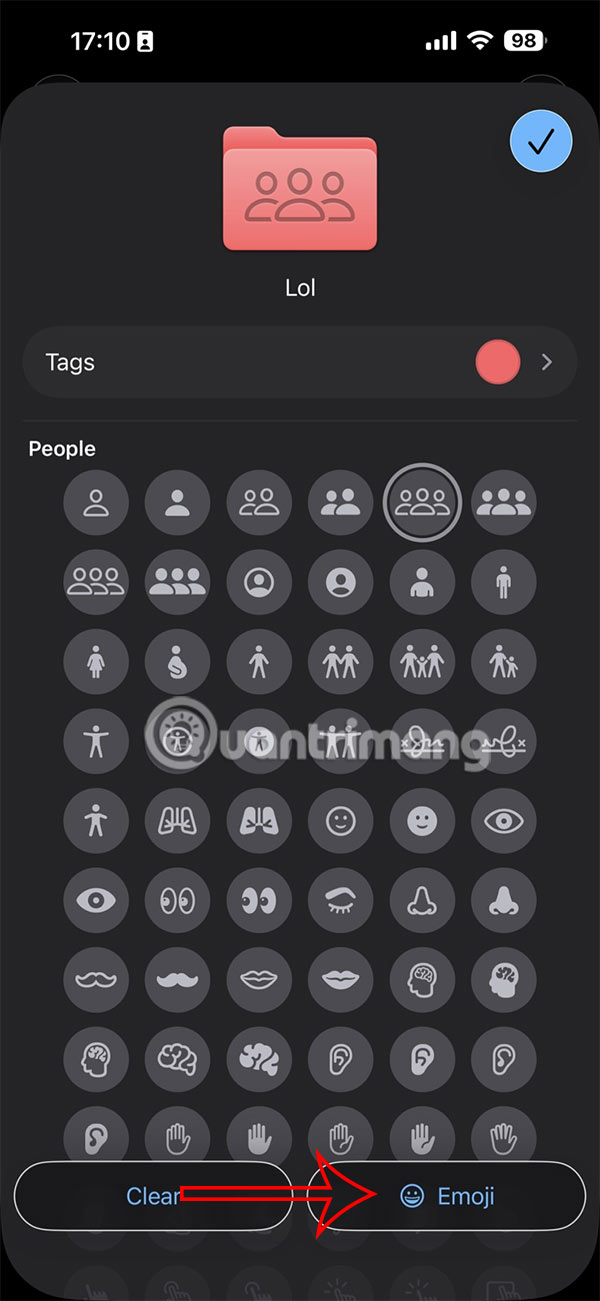
select Tags then select the color of the File folder you want, click the check mark in the top right corner to save the changes.
Step 3:
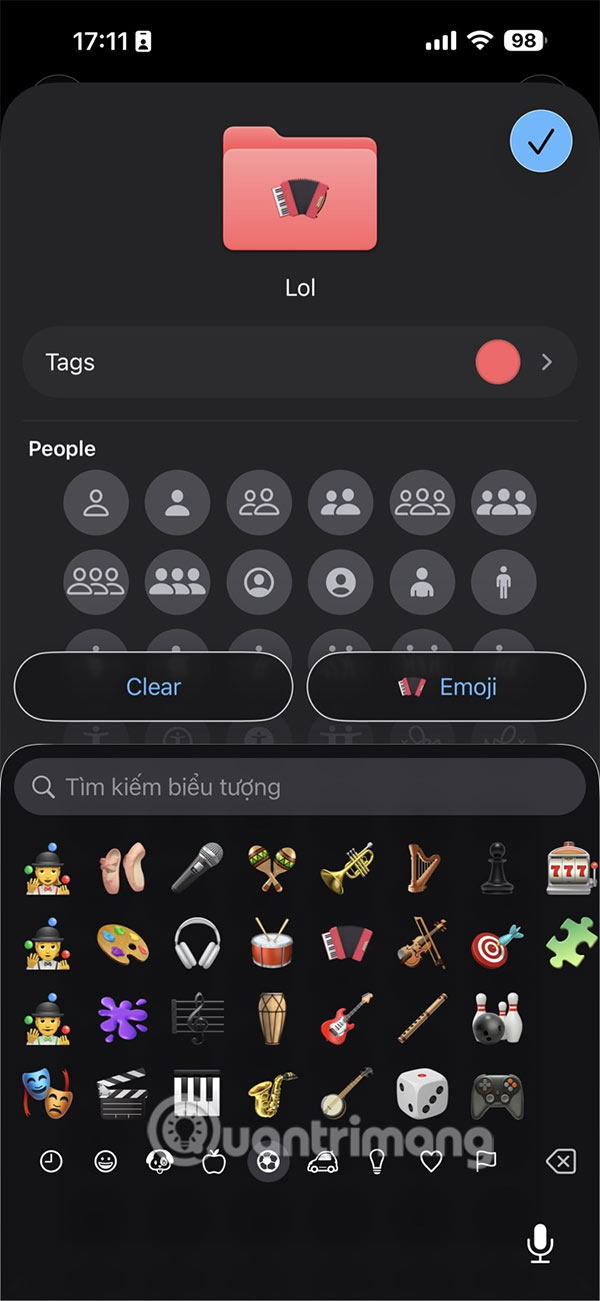
Next, the user taps Emoji to expand the icon and selects the emoji or icon you want to use for this folder in the Files app to make a difference.
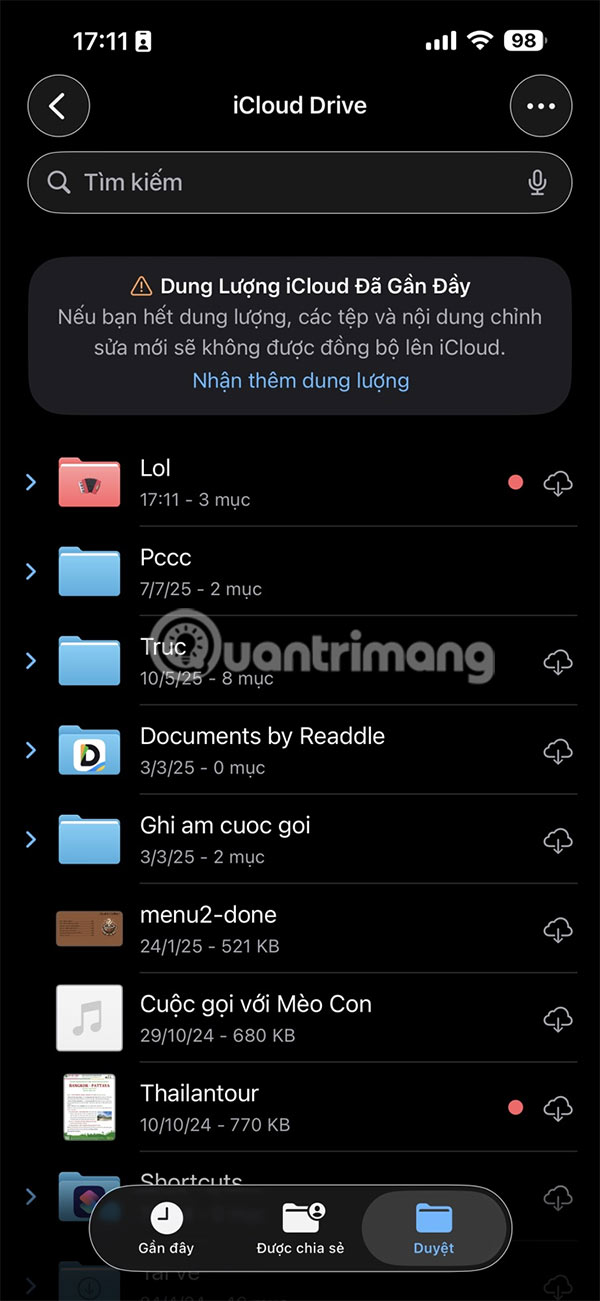
As a result you get folder color in Files on iPhone as shown below.
Note on changing iPhone Files folder color
You can change folder colors and add icons to all local and iCloud folders, but keep in mind:
- When you tap and hold an iCloud folder created automatically by apps like GarageBand, Numbers, Pages, TextEdit, Pigment, etc., you'll see a Tag option, but selecting a color tag won't change the folder color.
- If the Tag option is present in third party app folders (on my iPhone/iPad), such as Firefox, Darkroom, Infuse, VLC, and Pages, it will change the color.
- If you use Dropbox, you can customize the color of your Dropbox folders and assign icons or emojis to the folders.
FAQ
How to change folder color on iPhone Files?
Open the Files app and select iCloud Drive, On My iPhone/iPad, or whatever cloud storage service you want to use. Tap and hold on a folder and select Customize Folders & Tags from the menu that appears.
What should you know about note on changing iPhone Files folder color?
You can change folder colors and add icons to all local and iCloud folders, but keep in mind:
What does this guide cover?
This guide explains change folder color in iPhone files app, including the main steps, important details, and practical considerations.
Related Articles
 Change Any File or Folder Name in Windows9 minutes read
 Instructions to Change Folder Color - Folder3 minutes read
 How to Change Folder Color in OneDrive3 minutes read
 How to Change the Color of the Google Drive Folder3 minutes read
 Customize Folder Colors in Windows with Folder Colorizer3 minutes read
 How to Change the Directory to Save the Downloaded File from5 minutes read
Reader Comments 0
Sign in with email or Google to join the discussion.