Table of Contents
Microsoft allows access to Android phones from File Explorer in Windows 11 when enabling PC access to linked mobile devices is enabled.
Microsoft is gradually rolling out the ability to access Android phones from File Explorer in Windows 11 to Windows Insiders, when you enable the mode that allows your computer to access linked mobile devices. This lets you access your phone from any folder or file view. Here's how to enable Android access from File Explorer in Windows 11.
How to access Android from File Explorer Windows 11
Step 1:
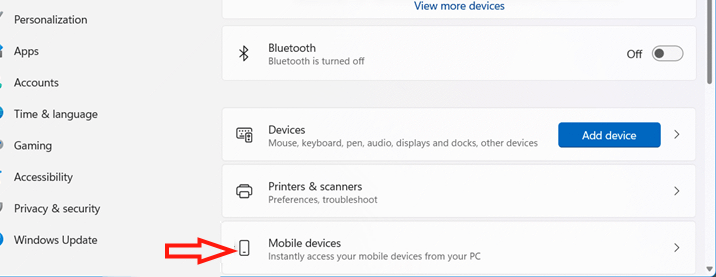
Open Settings on your phone, then Select Bluetooth & devices On the left, then look to the side And select Mobile devices To access the phone device linked to the computer.
Step 2:
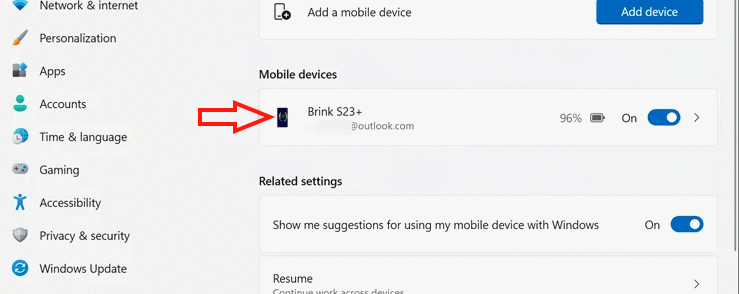
Go to the next interface, Click on Manage devices . Next, in the Mobile devices section, Click on the Android phone Linked to the computer.
Step 3:
In the next customization interface, this guide will need to Enable the Show mobile device in File Explorer setting .
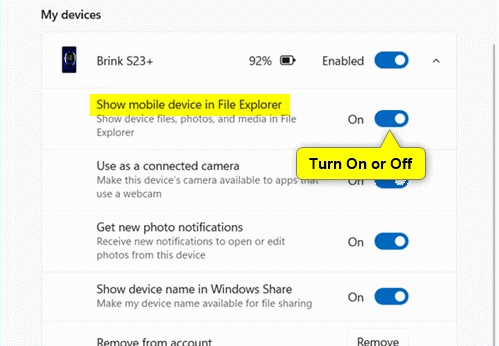
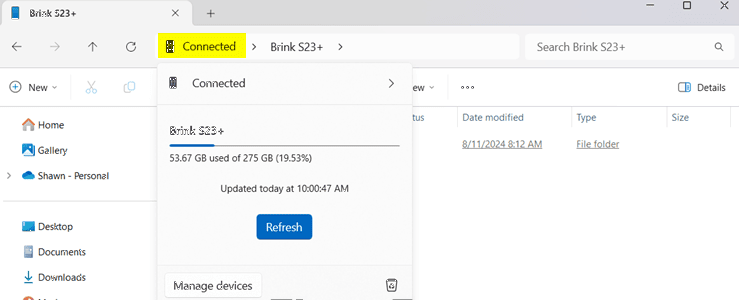
Once this setting is enabled, when you connect your Android to your computer, you can access your phone from the File Explorer interface.
To use this feature, You should pay attention:
- Android 11 phones or later.
- Use Phone link app version 1.24071 or later.
- Computer running Windows 11 version 24H2 or later.
FAQ
What should you know about access Android phone from file explorer Windows 11?
In practical terms, Microsoft allows access to Android phones from File Explorer in Windows 11 when enabling PC access to linked mobile devices is enabled.
Why does access Android phone from file explorer Windows 11 matter?
The article highlights that here's how to enable Android access from File Explorer in Windows 11.
What is the main takeaway?
The main takeaway is that how to access Android from File Explorer Windows 11 Step 1: Open Settings on your phone, then Select Bluetooth & devices on the left, then look to the side And select Mobile devices to access the phone device linked to.
Related Articles
 9 Outstanding Features of Solid Explorer You May Not Know10 minutes read
 How to Fix Working on It on File Explorer Windows 104 minutes read
 How to Change Quick Access in File Explorer on Windows 104 minutes read
 6 Windows File Explorer Add-ons That Make Life Easier7 minutes read
 Access Android Storage on Windows 11: Step-by-Step Guide4 minutes read
 Warning File Explorer Error on Windows 10 Data Loss When Connected to Android5 minutes read
Reader Comments 0
Sign in with email or Google to join the discussion.