Table of Contents
Winaero Tweaker serves as a Windows 10 personal interface customization tool, helping you edit the system according to your needs.
Windows 11 is great, but it still has some inconveniences that are hard to ignore, especially for power users. Currently, there is no shortage of third-party applications that can help you overcome these inconveniences of Windows 11. For example, you can use Windhawk to fix the taskbar, replace the Start menu with Flow Launcher, use ExplorerPatcher to edit the context menu, etc. But downloading and installing a separate application for each of these inconveniences can quickly become boring.
Winaero Tweaker is a free application that lets you restore old features, apply system-level tweaks, and fix common problems with Windows 11. The best part is that it is extremely easy to use. All you have to do is search for the tweak you want to apply and check the box. That's it!
- Refresh Windows 10 interface with 8 customization tools
- How to use Windows Tweaker 5 to customize Windows
- Unlock Hidden Features on Windows 10 with Some Registry Tricks
Fix right click menu, remove ads and disable updates
Take back control, tweak it little by little
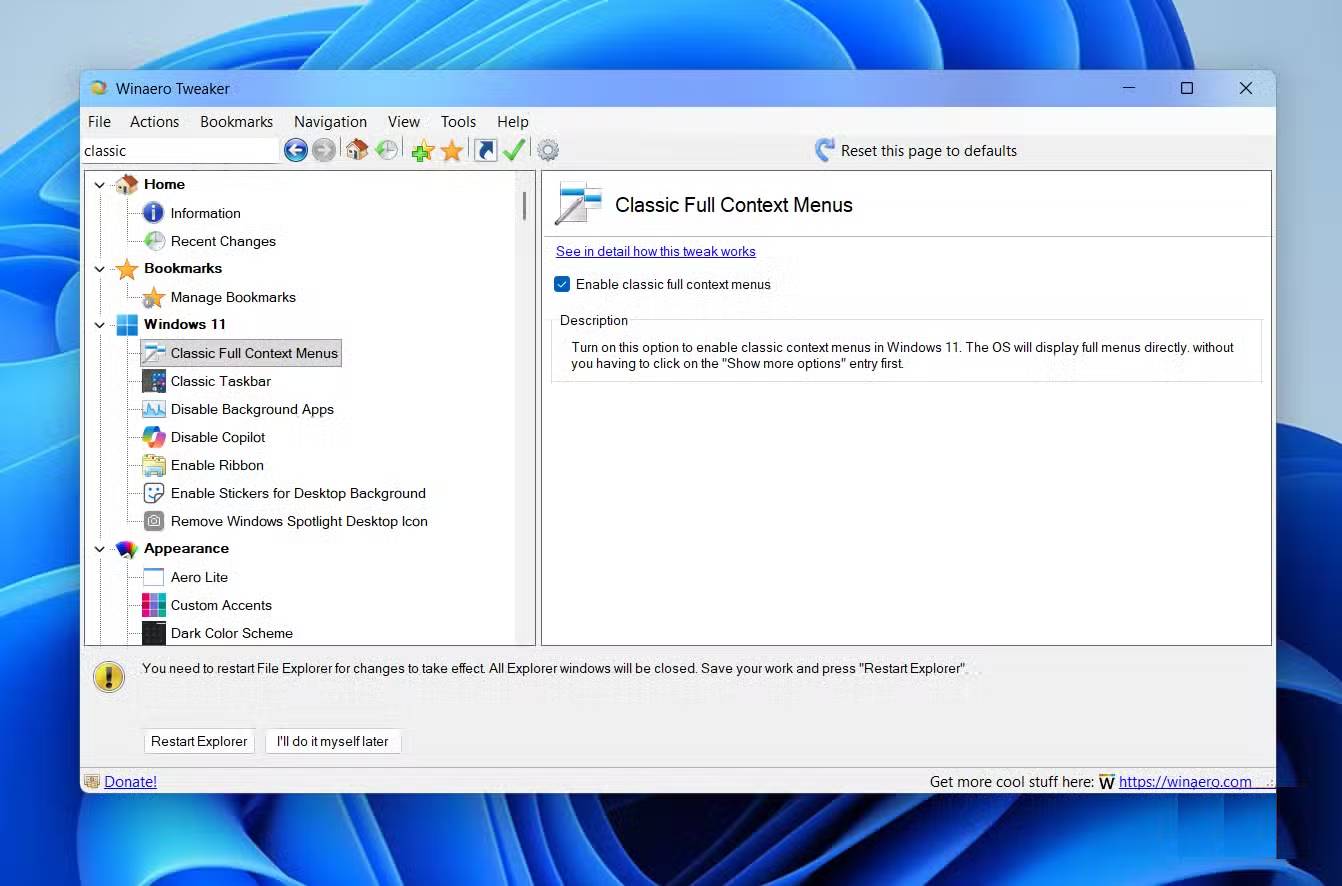
The most common complaint about Windows 11 is its minimalist context menu. Sure, it looks clean and modern, but it's not really useful, as it hides some useful options behind a 'Show more options' button. With Winaero Tweaker, fixing this takes less than a minute. Open the app, scroll to Classic Full Context Menu , check the box, and hit Restart Explorer .
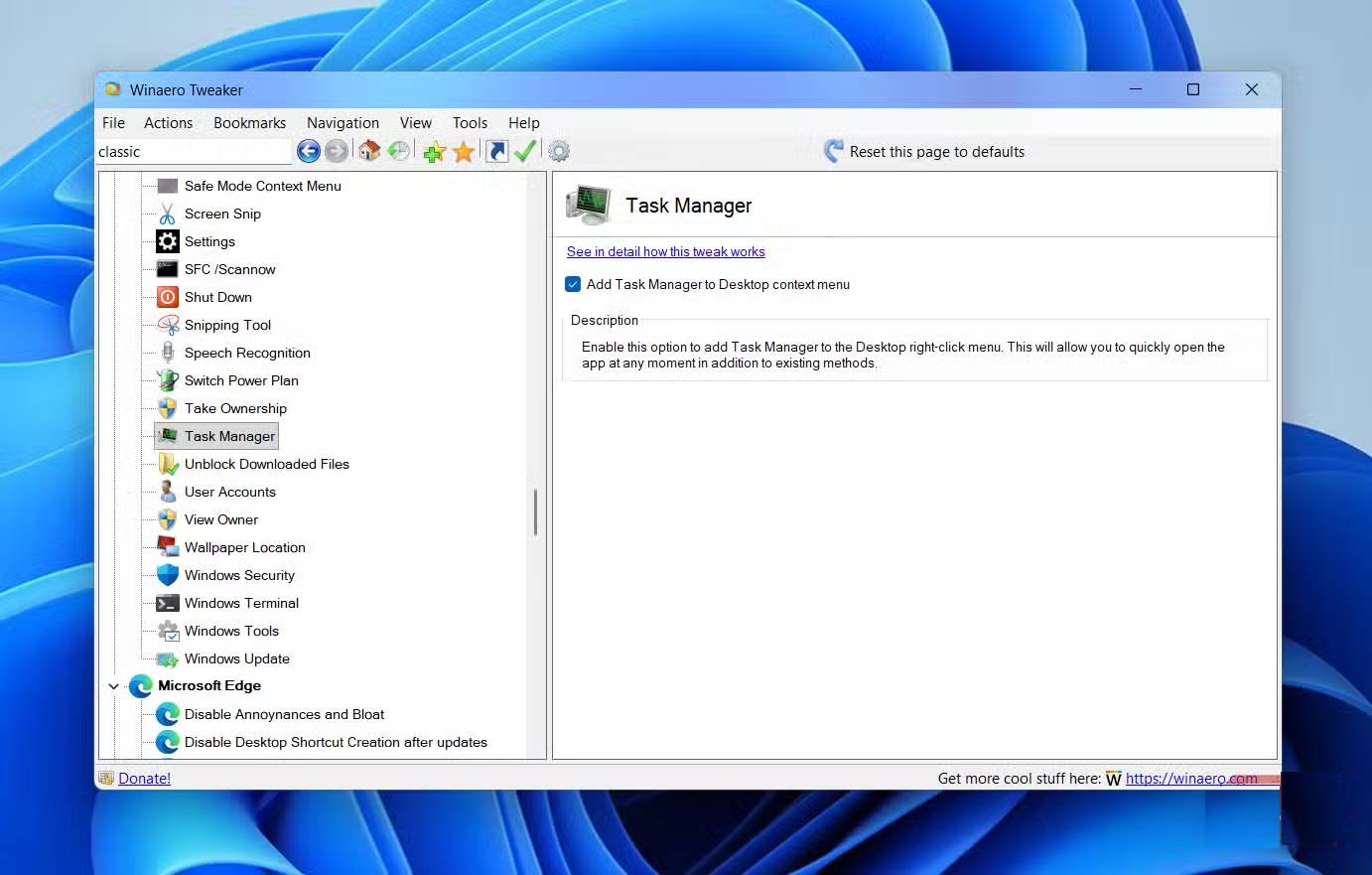
Winaero Tweaker also lets you edit the right-click menu. In practice, you can add more options like Create Restore Point Or Kill Non-Responsive Apps , and even shortcuts to your favorite Windows tools like Task Manager , Command Prompt , Snipping Tool , etc.
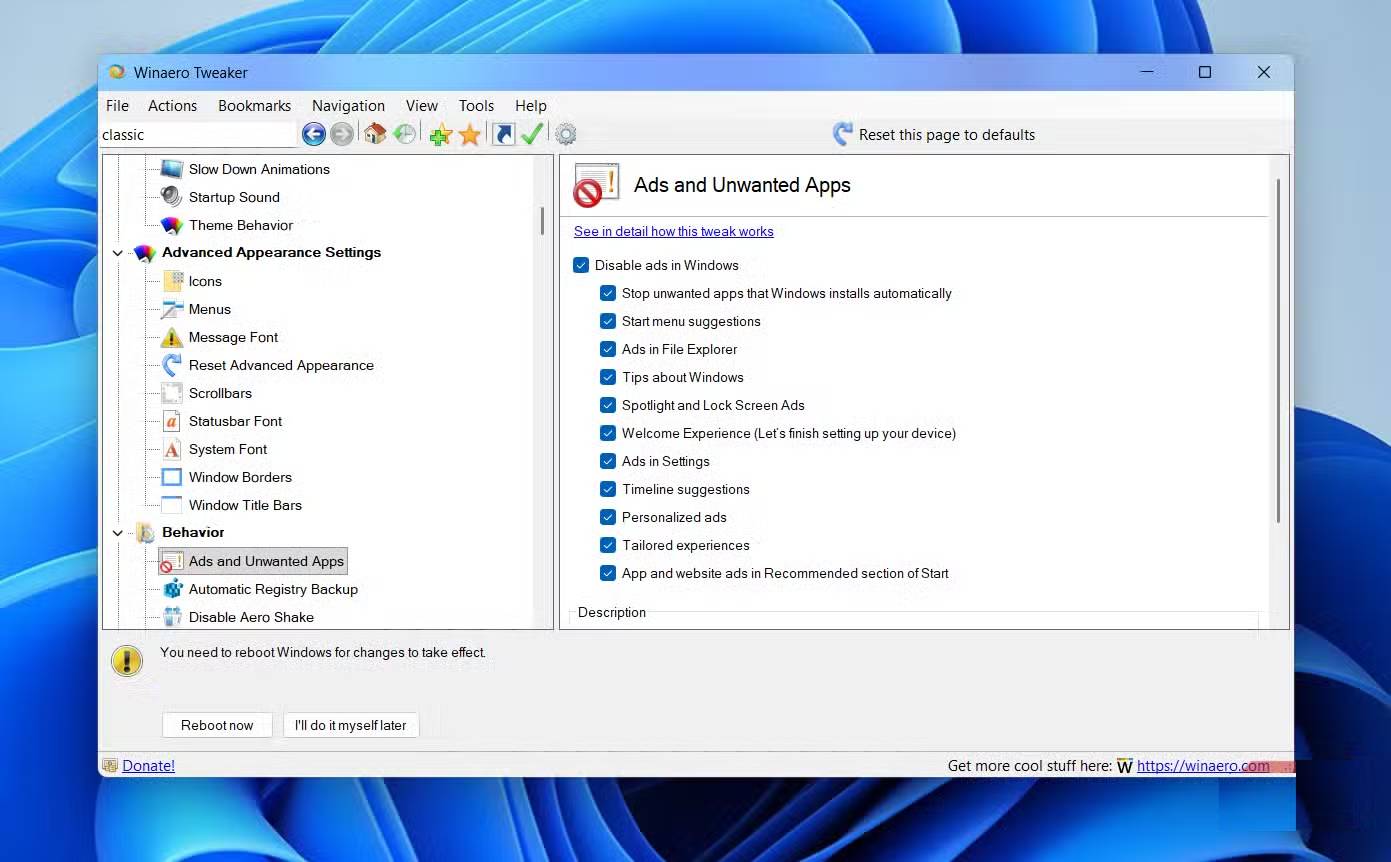
Another big annoyance with Windows 11 is the amount of ads it displays. They appear everywhere, from the lock screen and Start menu to even in notifications. Winaero Tweaker can help with that too. Go to Behavior > Ads and Unwanted Apps And you'll see a list of checkboxes that allow you to disable all sorts of ads that Windows intentionally inserts.
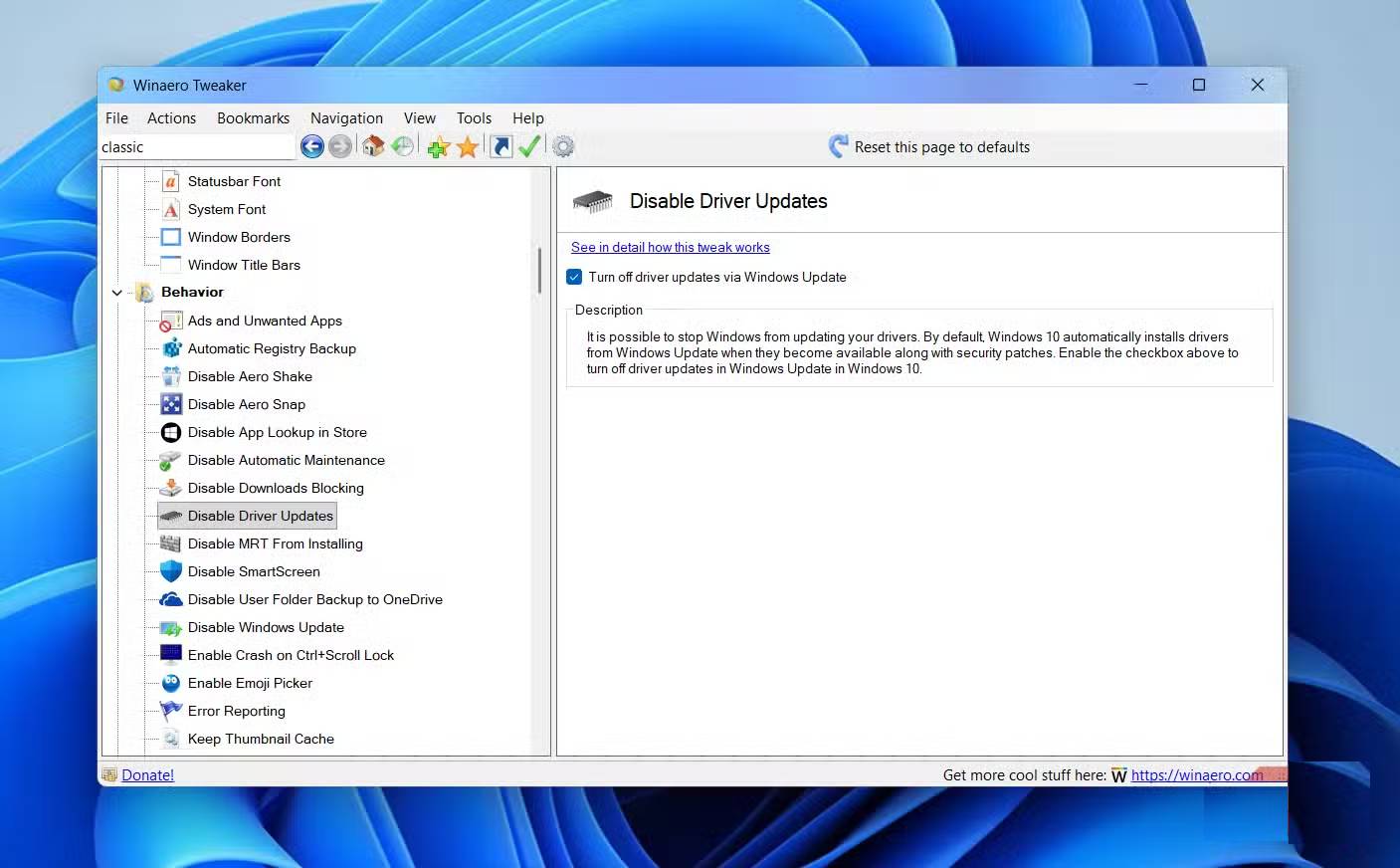
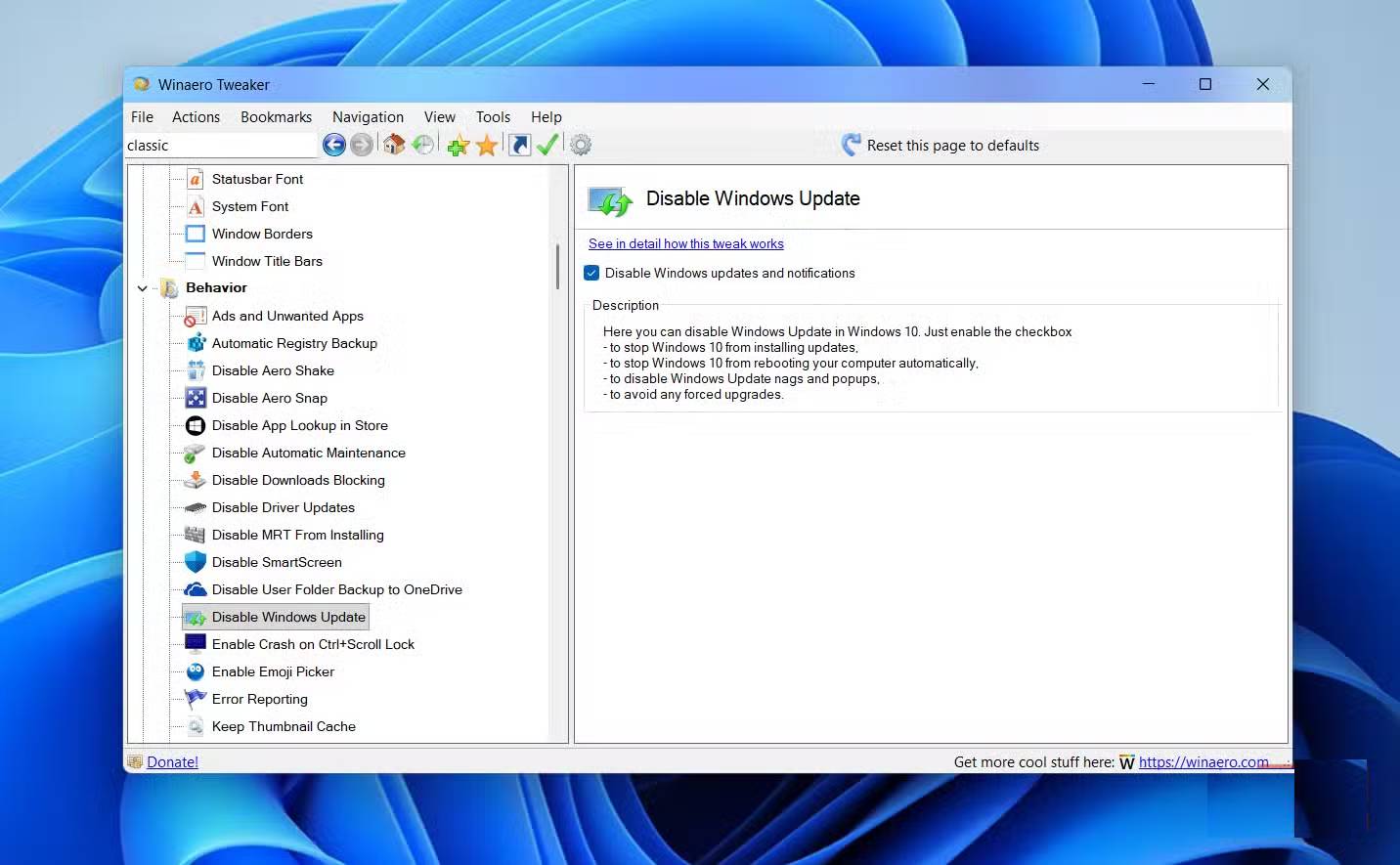
Finally, if you don't like the automatic Windows and driver updates, Winaero gives you the option to disable them. Go to Behavior > Disable Windows Update Or Disable Driver Update And check the corresponding box.
Turn off annoying features, boost privacy, and restore classic apps
No more distractions, privacy restored
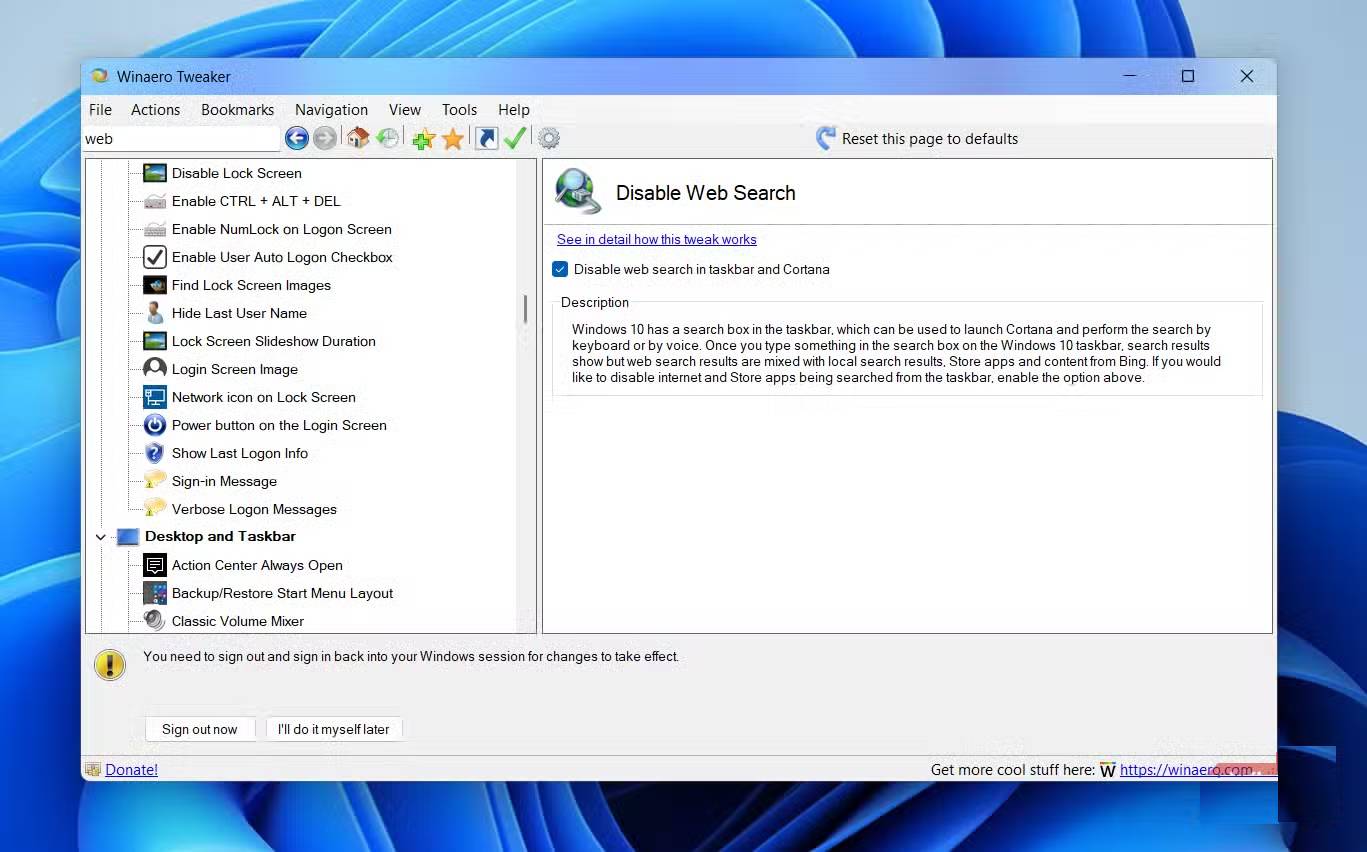
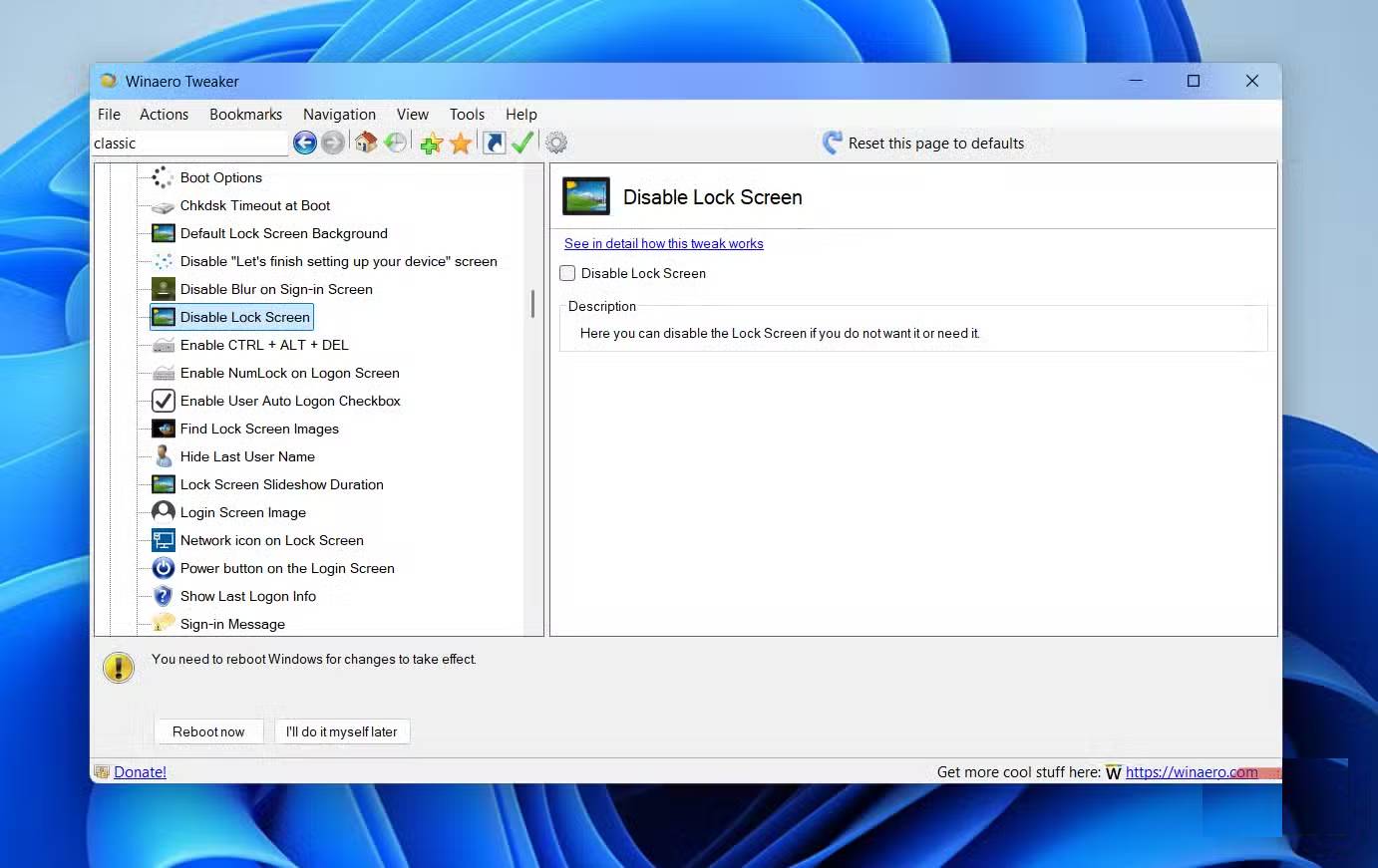
One thing you might notice when using Windows 11's search menu is that it shows results from the internet. While this isn't necessarily a bad thing, Windows forces those web searches to go through Bing in Edge, regardless of your default browser. This can also be annoying when you're trying to open Notepad, mistype "Notepad," and it opens a web browser. If you find this annoying, Winaero Tweaker includes an option to disable web search in the Start menu entirely.
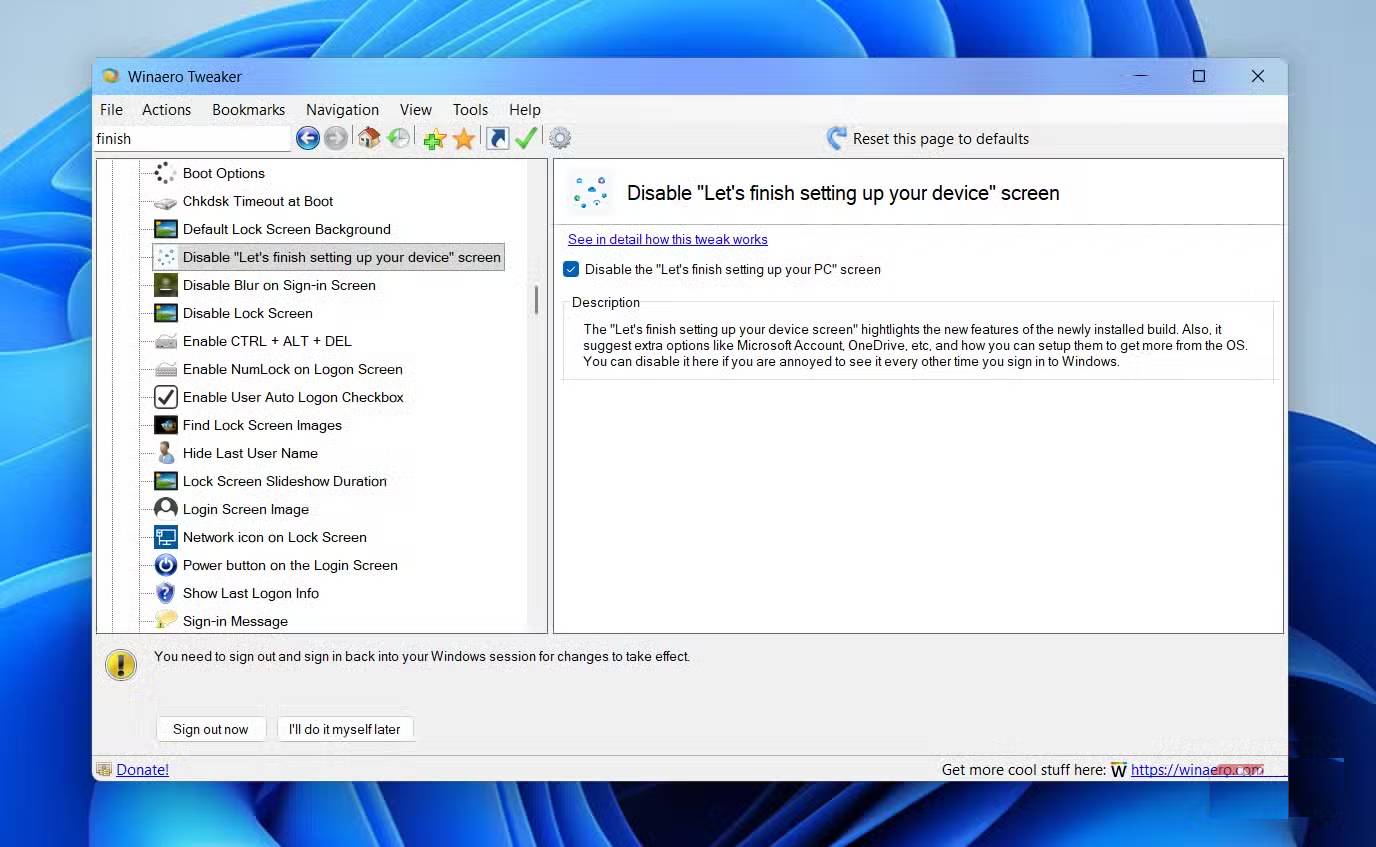
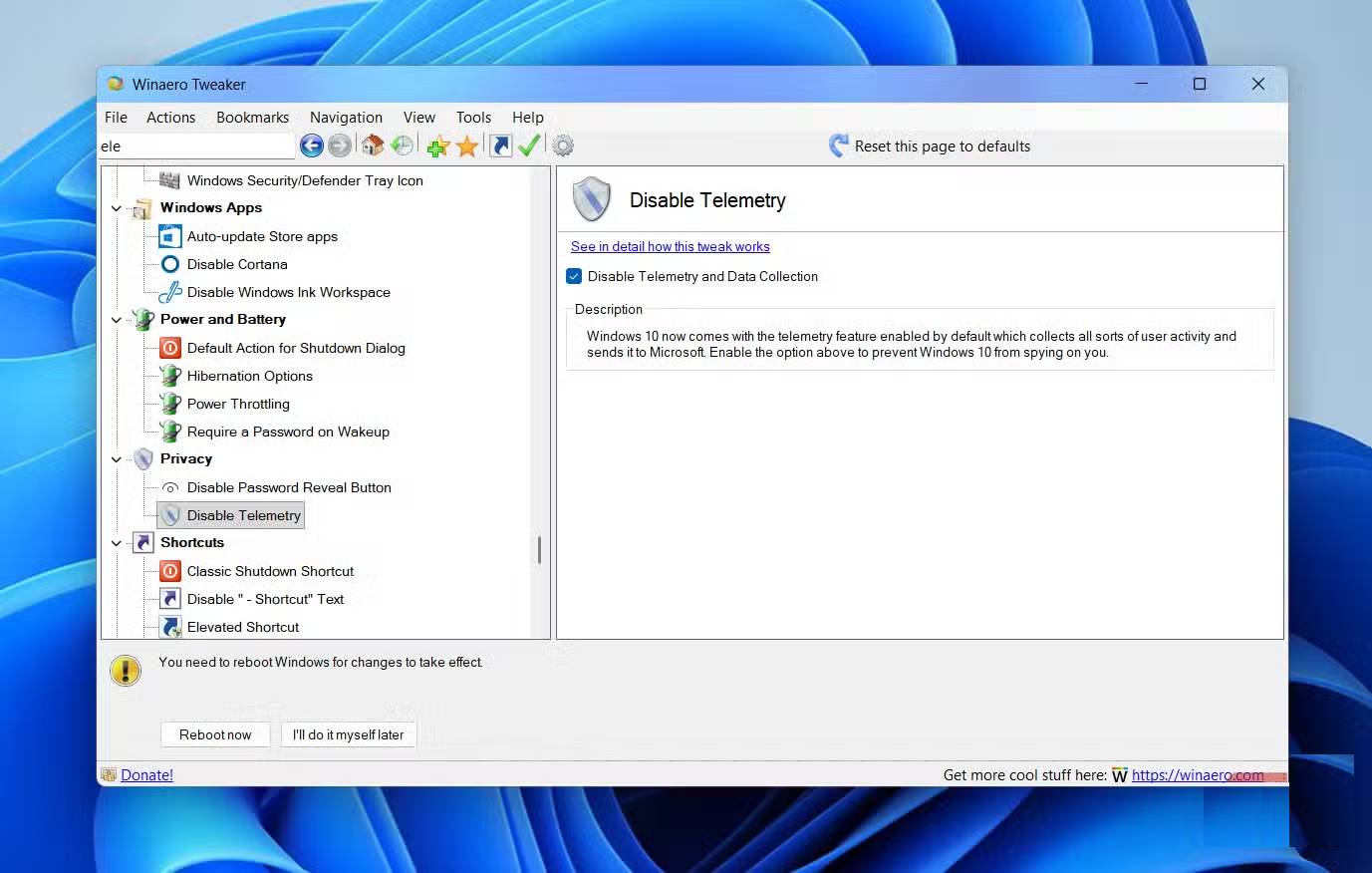
Next up is the 'Let's finish setting up your device' screen, which Windows displays after every major update. This screen isn't really useful, as all it does is remind you to use a Microsoft account, enable OneDrive, and set Edge as your default browser. With Winaero Tweaker, you can disable this screen entirely. Privacy-conscious You can also disable Telemetry, which prevents Windows from sending diagnostic and usage data to Microsoft.
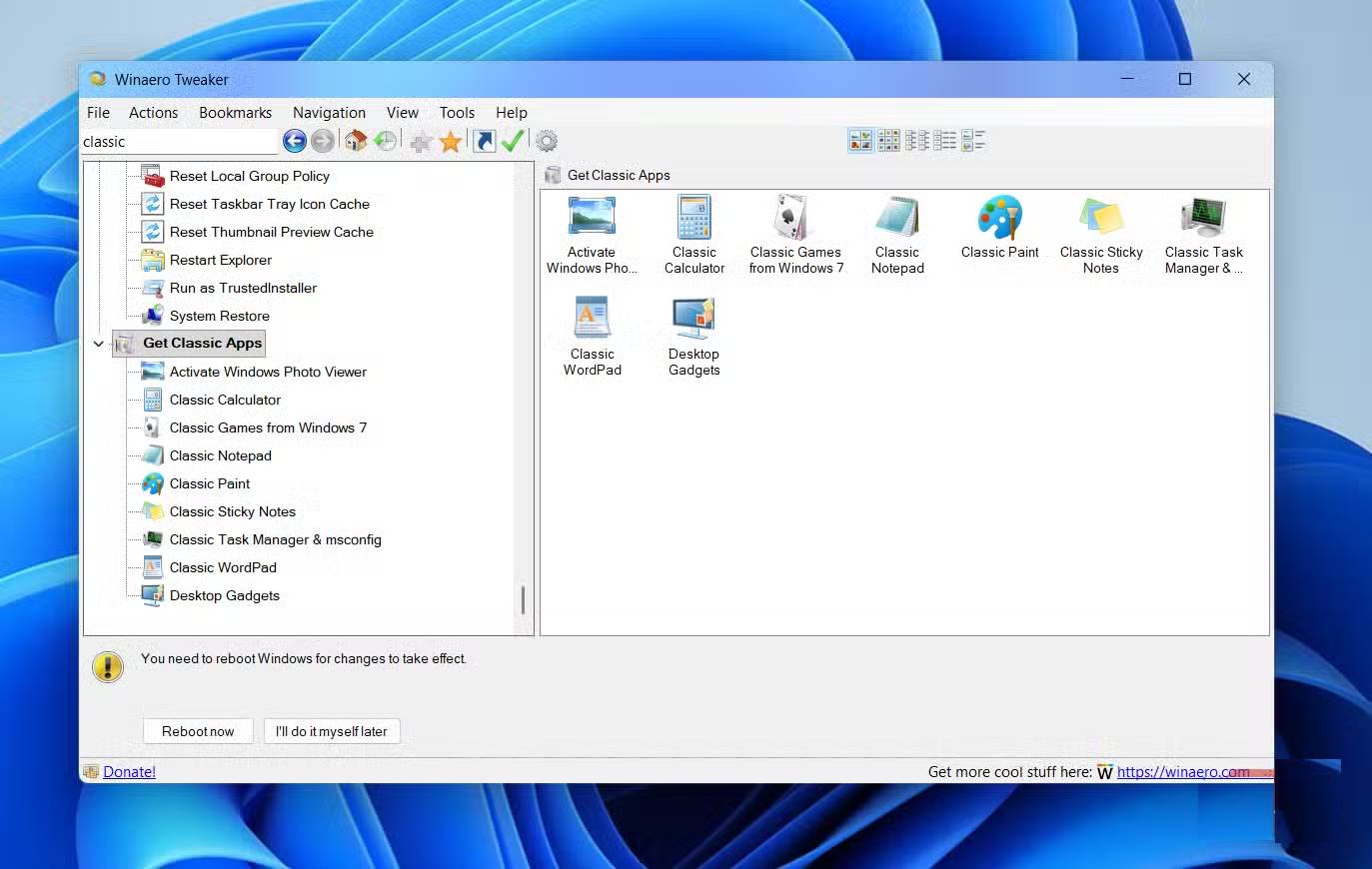
In addition to disabling features, Winaero Tweaker lets you restore classic apps like Windows Photo Viewer, the old Notepad, Windows 7 Games, and even desktop widgets. You'll also find options to enable the classic ribbon interface in File Explorer, limit background apps, adjust window borders, speed up animations, and more.
Why does Winaero Tweaker feel like the settings app we deserve?
The Control Panel Microsoft Should Create
Winaero Tweaker feels like one of those tools that should be built into Windows. It doesn't reinvent the wheel or do anything groundbreaking. It simply gives you back the control Microsoft took away. And best of all, you don't have to mess with the registry, use obscure PowerShell commands, or go through complicated workarounds. All the tweaks are readily available and easy to apply.
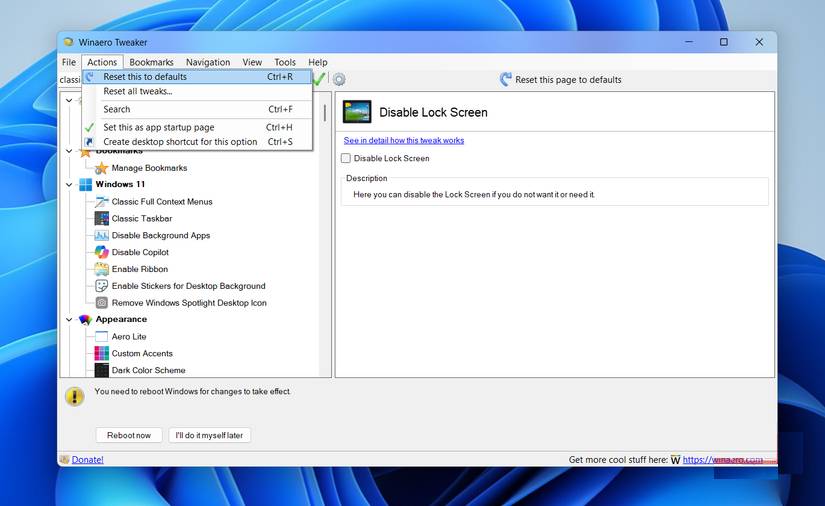
The layout is simple and logical. On the left, all tweaks are displayed by category, such as Appearance , Behavior , File Explorer , Context Menu , etc. On the right, each tweak has its own short description, so you always know what change you're making.
You can even bookmark your favorite tweaks or use the search menu to easily access them. Additionally, if you use multiple computers or move to another computer, you can export all your Winaero preferences and then import them to the new computer. Finally, if you are worried about messing up your system with too many tweaks, Winaero Tweaker also includes an option to reset all your changes in one go.
Windows 11 has improved a lot since its launch. It's been almost 4 years, so Microsoft has had enough time to address common concerns and improve the experience. However, there are still issues that bother users, and Winaero Tweaker is the most comprehensive tool to fix them.
Good luck!
See also:
- Instructions on how to enable and disable UAC on Windows 10
- How to add Shutdown to the right-click menu on Windows 10
- How to speed up the display of the right-click menu on Windows 10
FAQ
What should you know about winaero tweaker guide?
In practical terms, winaero Tweaker is a Windows 10 personal interface customization tool, helping you edit the system according to your needs.
Why does winaero tweaker guide matter?
The article highlights that refresh Windows 10 interface with 8 customization tools How to use Windows Tweaker 5 to customize Windows Unlock Hidden Features on Windows 10 with Some Registry Tricks Fix right click menu, remove ads and disable.
What is the main takeaway?
The main takeaway is that in addition to disabling features, Winaero Tweaker lets you restore classic apps like Windows Photo Viewer, the old Notepad, Windows 7 Games, and even desktop widgets.
Related Articles
 How to Customize Windows with Winaero Tweaker9 minutes read
 Winaero Tweaker, a Tool That Fully Personalizes Windows 10 Spring4 minutes read
 Refresh the Windows 10 Interface with 11 Custom Tools11 minutes read
 How to Use Windows Tweaker 5 to Customize Windows6 minutes read
 Introducing the Custom Tool 'All in One' on Windows 102 minutes read
 Hide the Start Button on the Windows 10 Taskbar Using 7+ Taskbar Tweaker3 minutes read
Reader Comments 0
Sign in with email or Google to join the discussion.