Table of Contents
You can enable or disable the option to have Snipping Tool save edited screen recordings if not already saved when closing the Snipping Tool application.
You can find many ways to record the screen of a Windows computer, in which you can use the built-in Snipping Tool on your computer. You can enable or disable the option to ask Snipping Tool to save the edited screen recording if not saved when closing the Snipping Tool application. This helps you limit the loss of edited content in the screen recording video. Below is a guide to display the save edits notification for the Snipping Tool screen recording video.
Snipping Tool Screen Recording Video Editing Notification Guide
Step 1:
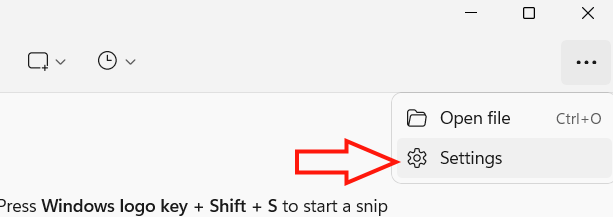
At the Snipping Tool interface, click on The 3-dot icon and select Settings To access the tool settings.
Step 2:
In the next interface, scroll down to the Screen recording section and you will see The Ask to save edited screen recordings option .
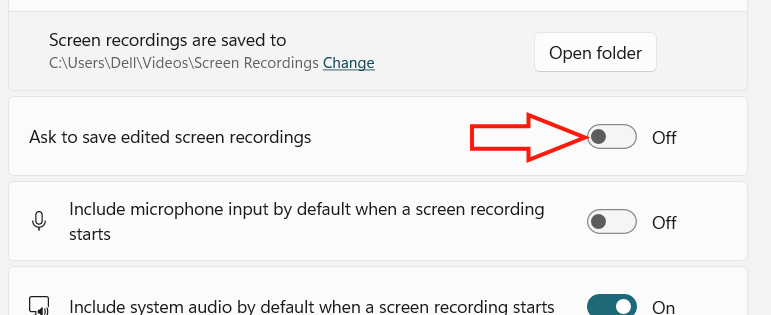
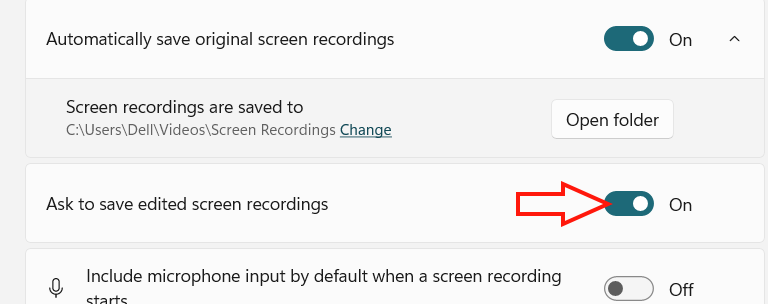
Now You should Enable the Ask to save edited screen recordings setting To display the notification to save edited screen recording videos on Snipping Tool.
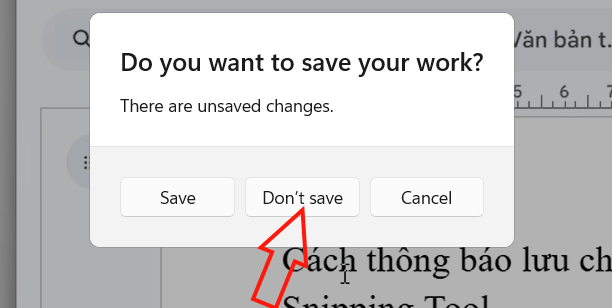
When recording a video using Snipping Tool and editing, if you accidentally turn off Snipping Tool, a notification will appear to save the screen video edit as below to let you know. You can choose Save or Don't save if you do not want to save the edited content.
FAQ
What should you know about notify save edits of snipping tool screen recording video?
In practical terms, you can enable or disable the option to have Snipping Tool save edited screen recordings if not already saved when closing the Snipping Tool application.
Why does notify save edits of snipping tool screen recording video matter?
The article highlights that snipping Tool Screen Recording Video Editing Notification Guide Step 1: At the Snipping Tool interface, click on The 3-dot icon and select Settings to access the tool settings.
What is the main takeaway?
The main takeaway is that when recording a video using Snipping Tool and editing, if you accidentally turn off Snipping Tool, a notification will appear to save the screen video edit as below to let you know.
Related Articles
 How to Create GIF Images from Screen Recording Videos on Snipping Tool3 minutes read
 How to Edit Screen Recording Videos on Snipping Tool3 minutes read
 Record Screen Video: Complete Guide4 minutes read
 How to Use Snipping Tool on Windows 10 Full Set10 minutes read
 How to Record Screen Using Snipping Tool on Windows 116 minutes read
 How to Fix Snipping Tool Keeps Showing Error4 minutes read
Reader Comments 0
Sign in with email or Google to join the discussion.