Table of Contents
Google Vids lets you add narration without leaving the video editor. You can generate a voiceover from a script, insert it into an individual scene, and adjust the audio on the timeline. If a synthetic voice is not suitable, you can also record your own narration directly in the project.
Before you add a voiceover
Open your project in Google Vids and finish the main scene order first. A stable timeline makes it easier to match narration to each visual. Access to AI features and supported languages can vary by Google Workspace account, administrator settings and product updates, so check the options shown in your editor.
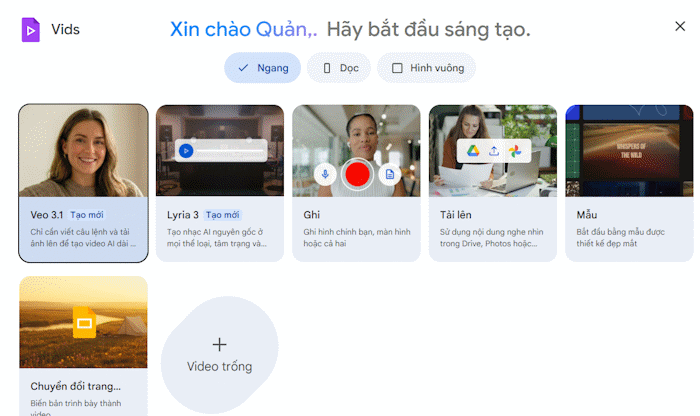
If you are starting from scratch, this overview of creating presentations with Google Vids explains the wider project workflow before you add narration.
Generate an AI voiceover from text
1. Open the Voiceover tool
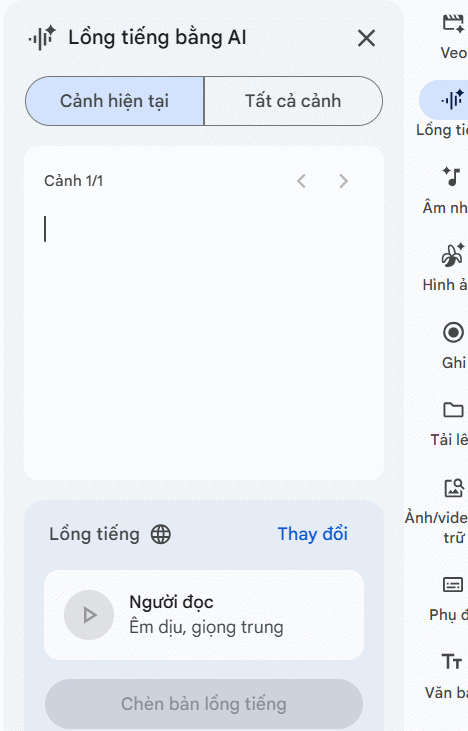
Switch to the editing view, select the scene that needs narration, and open Voiceover from the right-side tools. The voiceover panel provides a script field and voice controls.
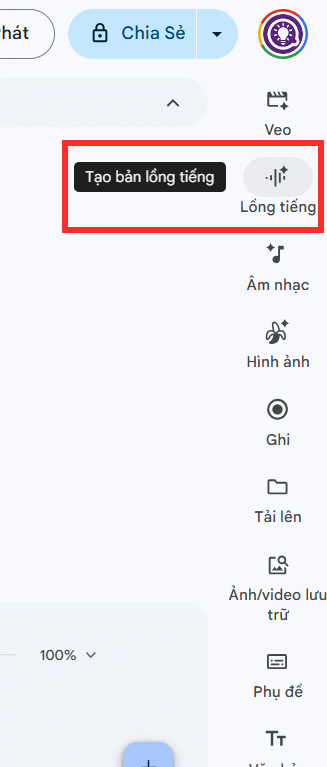
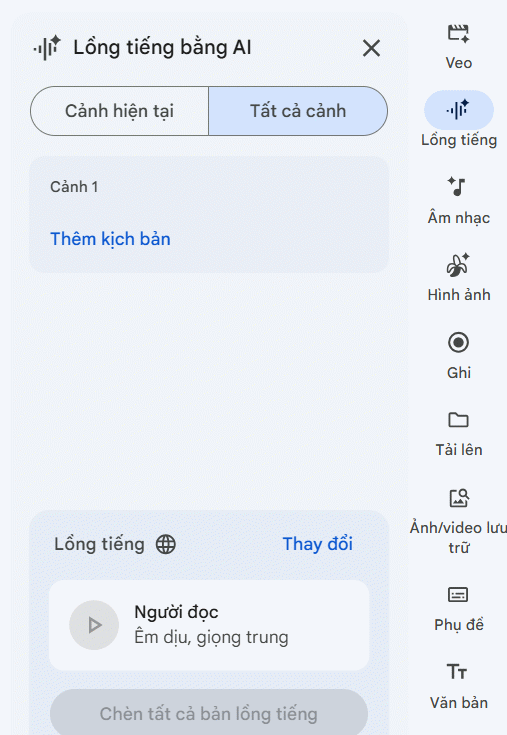
You can create narration for one scene at a time. This is usually easier to edit than generating a single audio track for the entire video, especially when scenes have different lengths.
2. Enter and prepare the script
Paste or type the words for the selected scene. Write for listening rather than reading: use short sentences, add punctuation where the speaker should pause, and spell out abbreviations that may be pronounced incorrectly. Read the script aloud once to check whether it fits the scene duration.
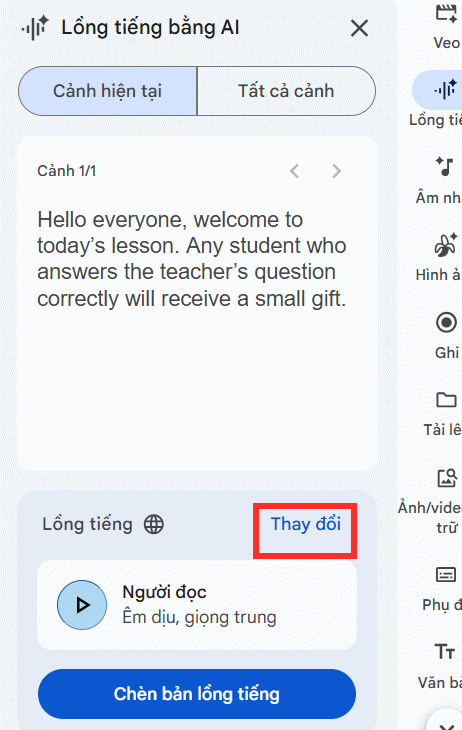
3. Choose a voice and insert the narration
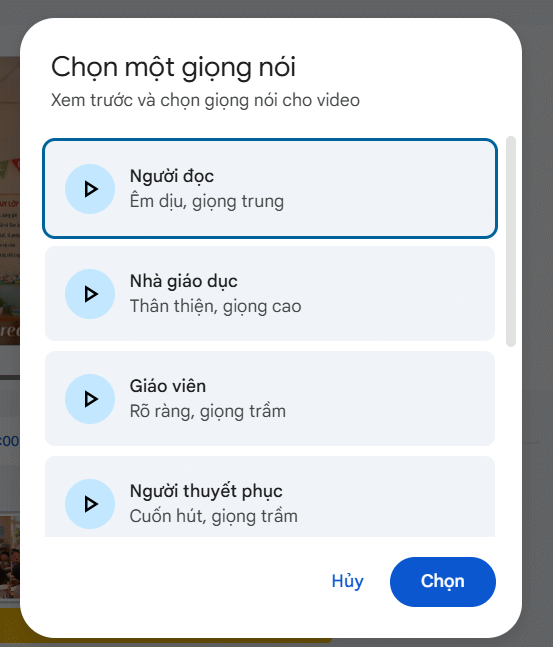
Select Change to preview the available voices. Compare clarity, pacing and tone against the purpose of the video instead of choosing only by how expressive a sample sounds. When the script and voice are ready, select Insert voiceover to generate the audio and add it to the scene.
4. Check timing on the timeline
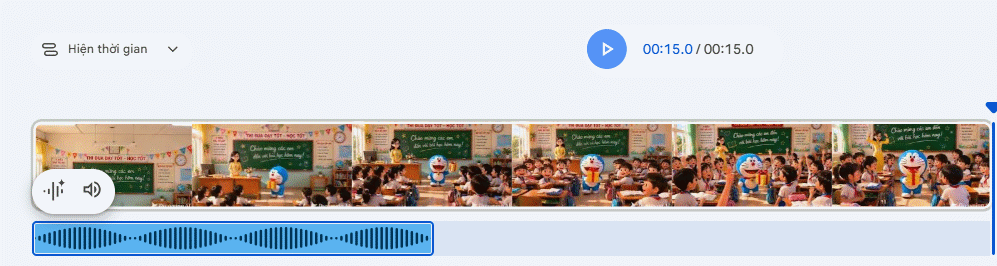
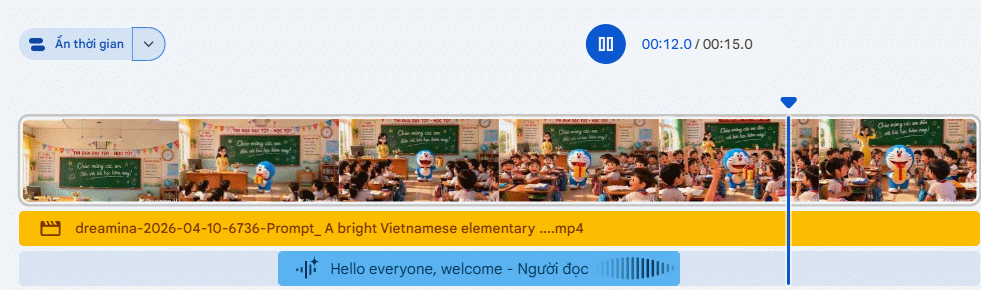
Play the scene from the beginning and listen for clipped words, long gaps or narration that continues after the visual has changed. Open the timeline and reposition the audio segment if it starts too early or too late. If the narration is much longer than the scene, shorten the script or extend the visual rather than forcing an unnaturally fast delivery.
5. Balance the volume
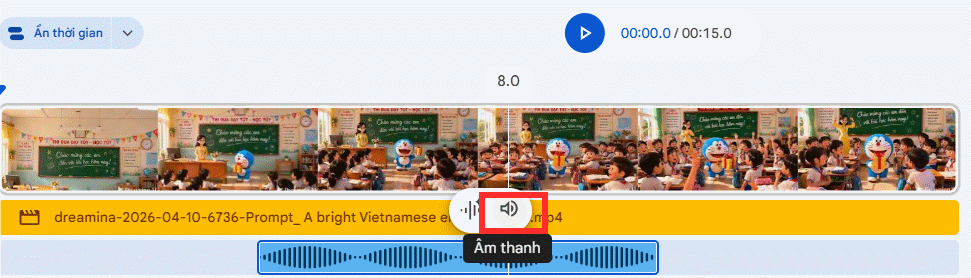
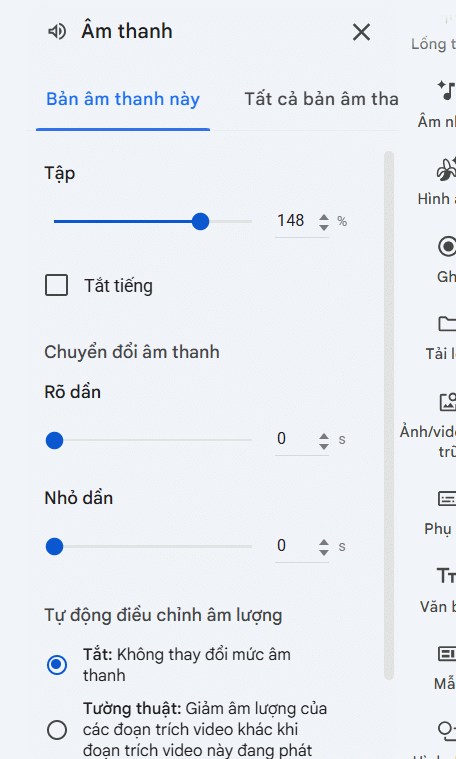
Use the speaker or volume control for the voiceover track, then preview the scene with every audio layer enabled. Narration should remain understandable over music and sound effects. Lower the background audio when necessary instead of simply increasing the voice track until it distorts.
Record your own voice in Google Vids
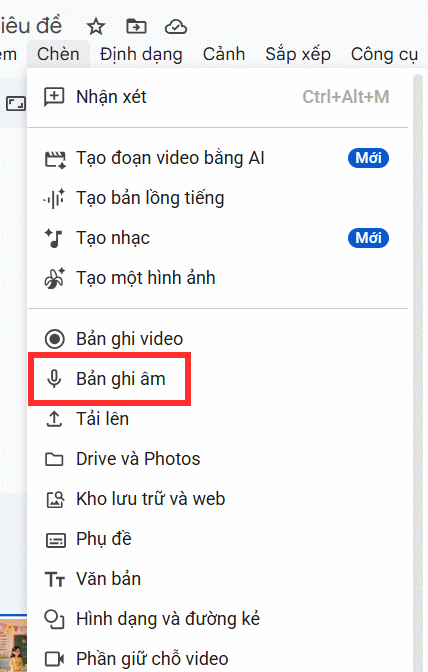
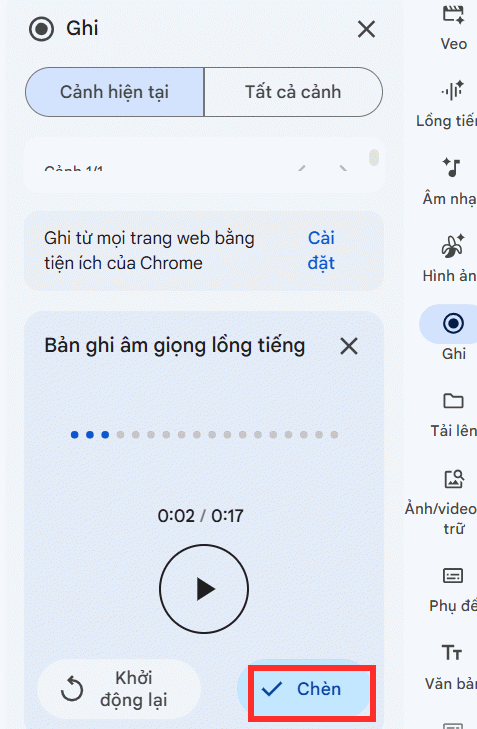
For a personal delivery or a language not available in the generated-voice menu, record narration directly. In the editor, choose Insert, then select Audio recording.
Use a quiet room and position the microphone consistently. A headset or external microphone can help, but reducing echo and background noise matters more than buying expensive equipment. Keep the input level high enough for a clear signal without clipping.
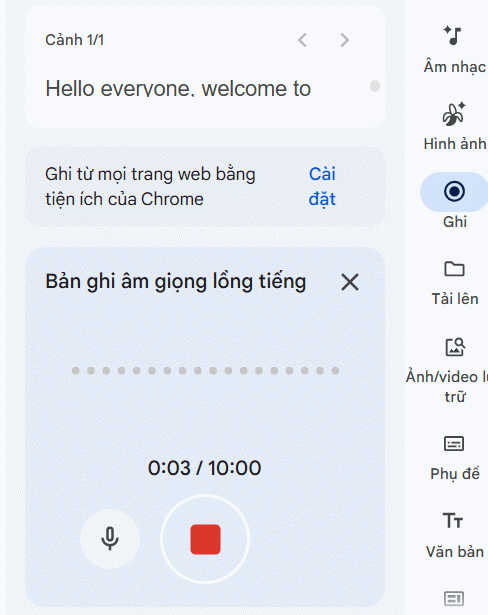
After recording, listen to the entire take, trim mistakes if the editor allows it, and select Insert. Then use the same timeline and volume checks described above.
Voiceover checklist
- Confirm names, numbers and technical terms are pronounced correctly.
- Leave brief pauses between ideas so the narration does not feel rushed.
- Check that each audio segment matches its scene.
- Listen once with headphones and once through speakers.
- Keep background music below the spoken track.
If the built-in voices do not fit your project, compare alternatives in this guide to AI voice generator tools. Review any externally generated audio before importing it, and verify that its use complies with the tool's terms and your project's requirements.
Related Articles
 How to Add Voiceovers to Videos Using CapCut4 minutes read
 How to Create Voiceovers for Lecture Slides3 minutes read
 How to Insert Google Voice into Video on Capcut3 minutes read
 Guide to Creating Short AI Videos Using Google Vids5 minutes read
 How to Create Product Advertising Videos on Flow3 minutes read
 How to Create AI Timelapse Videos9 minutes read
Reader Comments 0
Sign in with email or Google to join the discussion.