Table of Contents
TeraBox AI can generate a presentation from a topic prompt or a reference document, apply a visual template, and let you edit the resulting slides before export. The quickest workflow is to define the audience and purpose first, generate an outline, review the content, and only then polish the design.
Feature names, free-plan limits, and export formats can change. The screenshots below show the interface available when this guide was prepared.
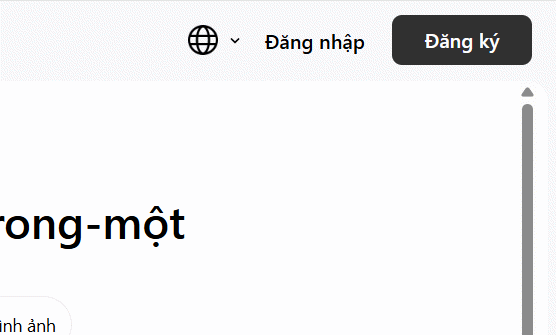
1. Open the TeraBox AI presentation tool
Visit the TeraBox AI workspace and sign in or create an account. Do not upload confidential, personal, or licensed material unless you are authorized to process it through the service.
2. Choose a presentation workflow and template
From the left menu, open the presentation option. Depending on the current interface, you may see tools for creating a new deck and for beautifying an existing presentation.

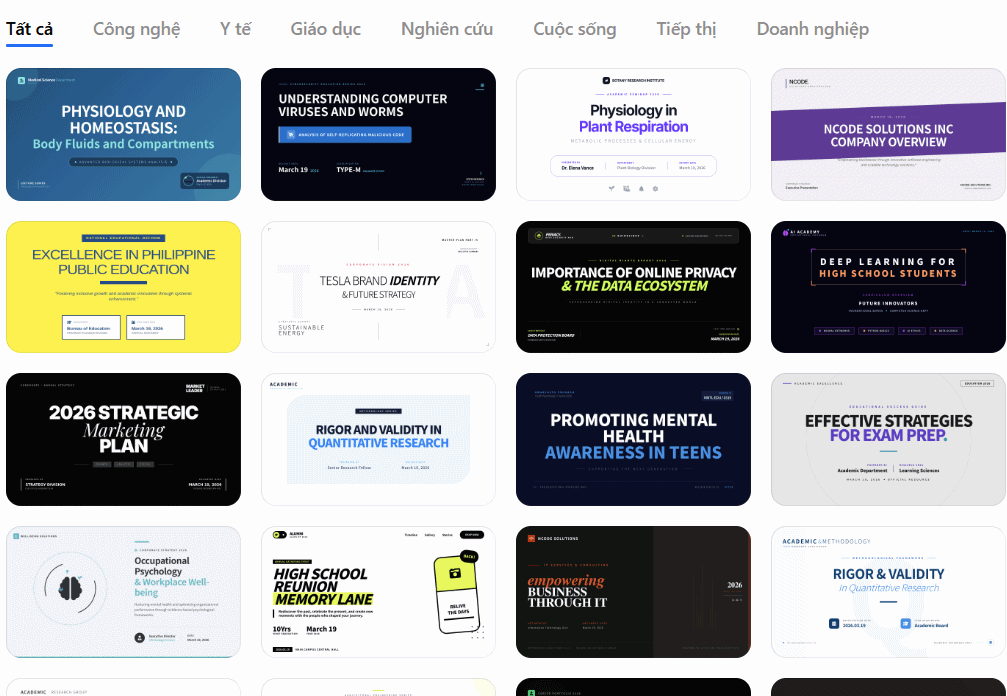
Browse the template categories and choose a style that fits the audience and setting. Prioritize readable type, sufficient contrast, and a simple layout over decorative effects.
If you are still comparing platforms, see TipsMake's guide to AI presentation tools and these online PowerPoint alternatives.
3. Supply a topic or reference file
Select Create. Use the attachment control if you want the tool to work from an existing document; otherwise, continue with a prompt.
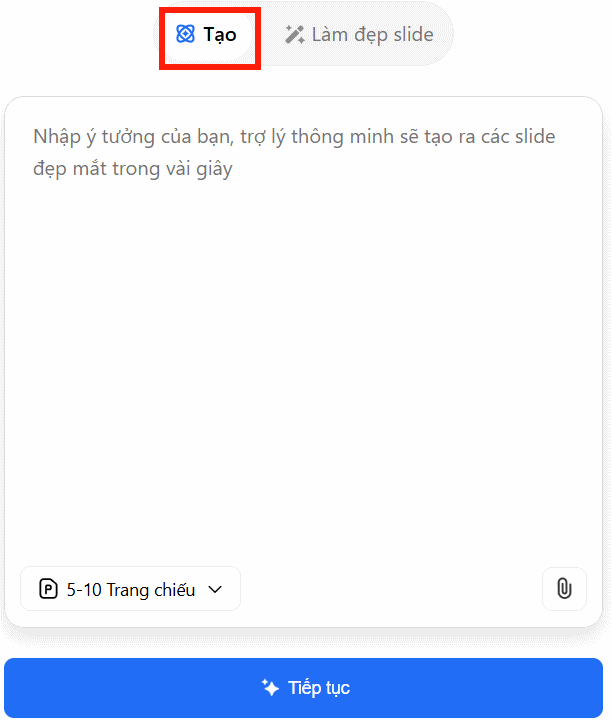
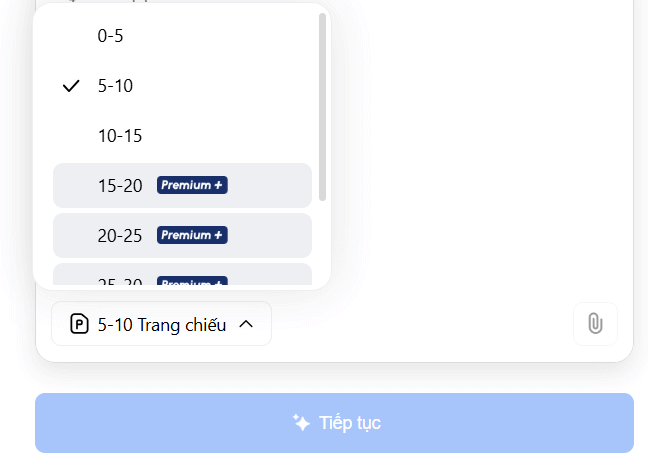
Choose the requested number of slides. Account limits may vary, so use the range shown in your workspace rather than relying on an older published limit.
Write a prompt that specifies the audience, objective, scope, tone, and desired structure. For example: “Create an eight-slide introduction to online privacy for high-school students. Include a title slide, three everyday risks, practical protections, one classroom activity, and a recap. Use plain language and cite sources for factual claims.” Select Continue to generate the draft.

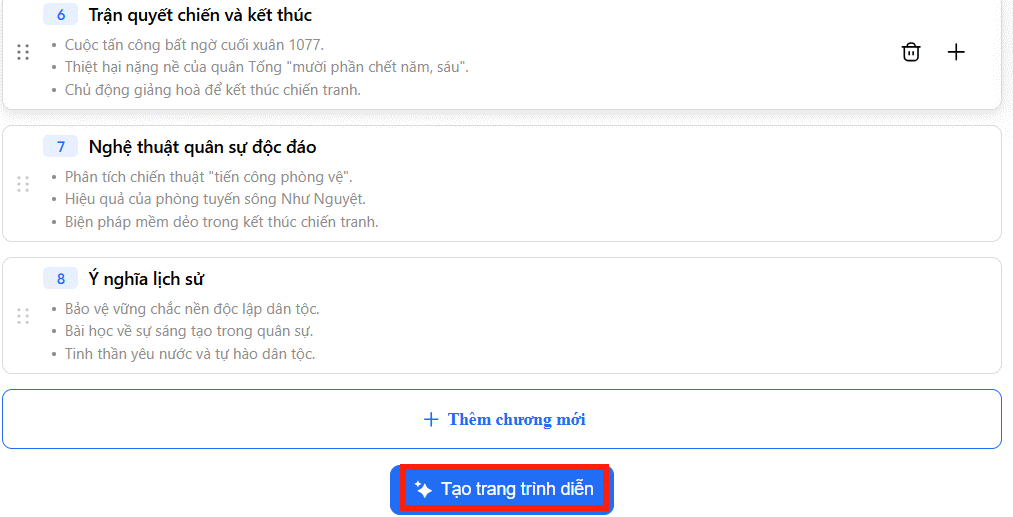
4. Review the outline before creating slides
Read the proposed title and slide outline. Reorder, add, or remove sections so the story has a clear beginning, progression, and conclusion. Correcting the outline now is faster than redesigning a complete deck built on a weak structure.
When the outline is ready, choose Create Slide or the equivalent command in the current interface.
5. Edit the generated presentation
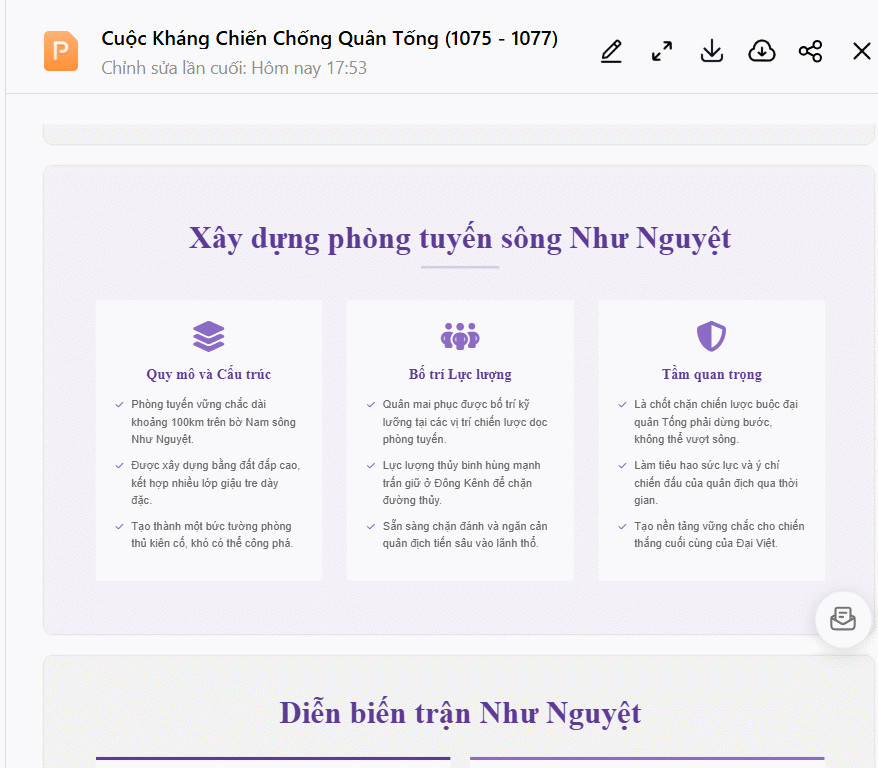
Open the generated deck and select Edit. Review one slide at a time for factual accuracy, repetition, text density, image relevance, and visual consistency.
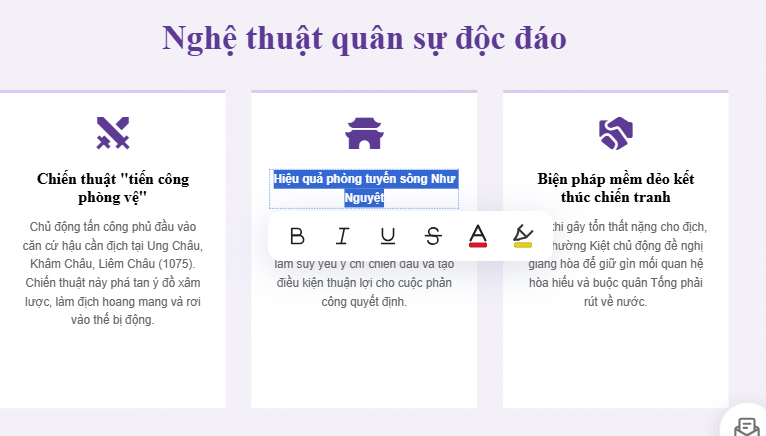
Select an individual text or design element to reveal its formatting options. Make the necessary changes and save the deck.
6. Export and test the file
Use the download control and choose an available format. Open the exported file in the application you plan to use for presenting, because fonts, spacing, animations, or media may not transfer perfectly between formats.
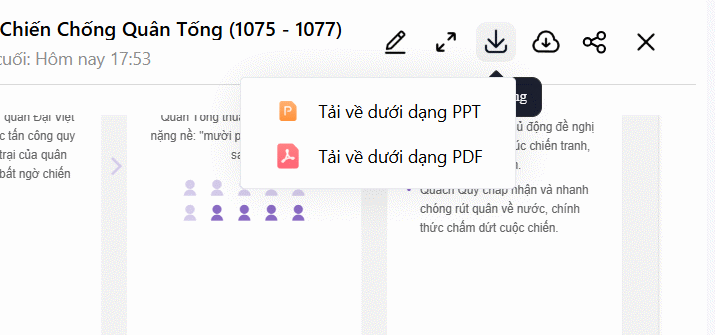
If you export to PowerPoint, TipsMake's PowerPoint interface overview can help with final manual edits.
Quality checklist before presenting
- Verify every factual claim and replace invented or missing citations.
- Keep one main idea per slide and shorten dense paragraphs.
- Use consistent headings, colors, margins, and image styles.
- Add alt text or verbal descriptions for important visuals.
- Check the deck on the actual screen and device you will use.
- Keep a local copy in case the online service is unavailable.
Related Articles
 How to Create Presentation Slides on ChatGPT5 minutes read
 Guide to Creating Lecture Slides Using Brisk AI5 minutes read
 How to Create Presentation Slides Using ChatGPT4 minutes read
 TeraBox - Cloud Storage Service with 1Terabyte of Free Storage5 minutes read
 How to Create Professional Presentation Slides with Kimi AI5 minutes read
 Creating a Professional Presentation7 minutes read
Reader Comments 0
Sign in with email or Google to join the discussion.