Table of Contents
Currently, users can create slides on ChatGPT through Thinking mode, a mode that deeply analyzes the uploaded document and provides more professional feedback. With ChatGPT's support, we can quickly transform raw content into a clear, logical slide outline that closely follows the content objectives.
Simply provide the topic or material, and the tool will suggest a presentation structure, slide titles, main content, and even ideas for illustrative images. This significantly saves presentation preparation time while ensuring a systematic presentation. Below is a guide to creating presentation slides using ChatGPT.
How to create presentation slides using ChatGPT
Step 1:
First, you need to switch to Deep Thinking mode on ChatGPT to use it.
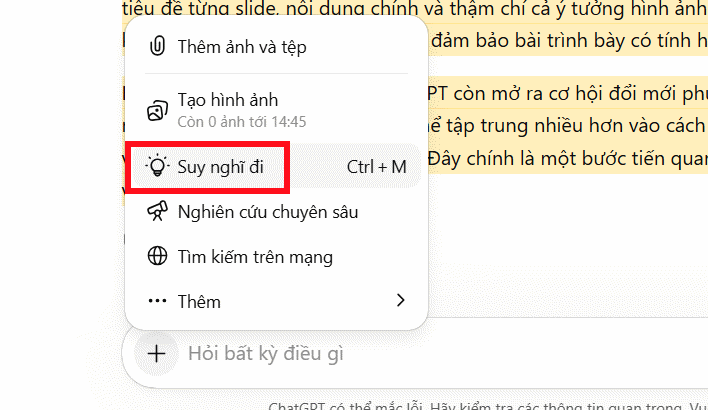
Step 2:
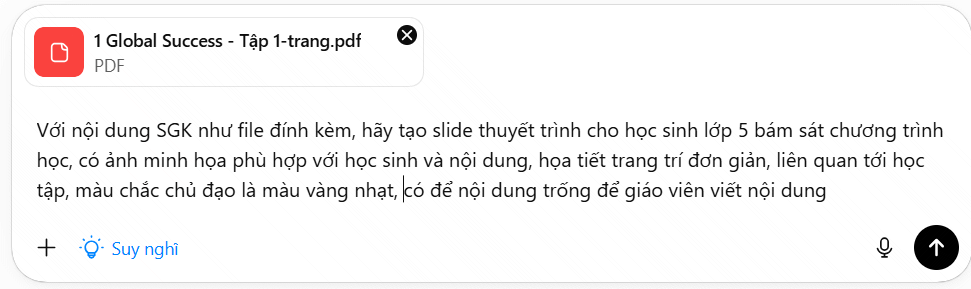
Next, we upload the data file to ChatGPT , for example, in this case, it will be a textbook slide. Then, you enter the command to request slide creation from this file. The more detailed the request, the easier it will be for ChatGPT to analyze and create the slides for you.
The command content will include the following parts: slide object, which part of the slide to create, or to create from the entire content, the slide style you want to use, colors in the slide, how to use images, whether there is space to insert content, etc. You can specify which part of the slide you want to create, the style, the images, and whether you need to leave space to insert an AI video, etc.
Step 3:
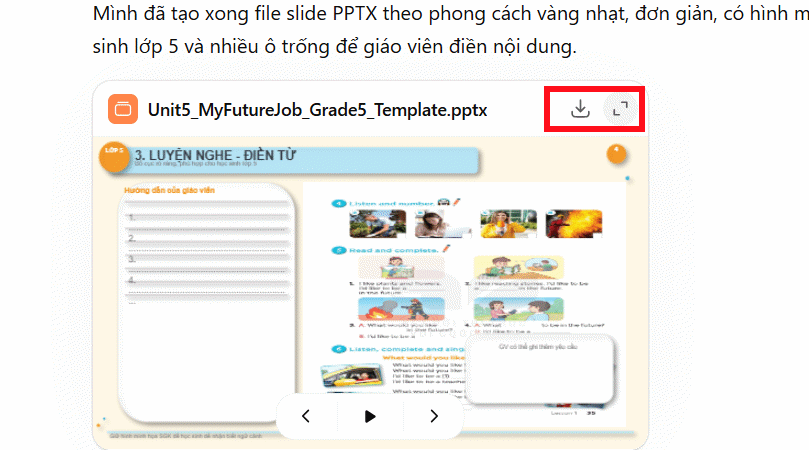
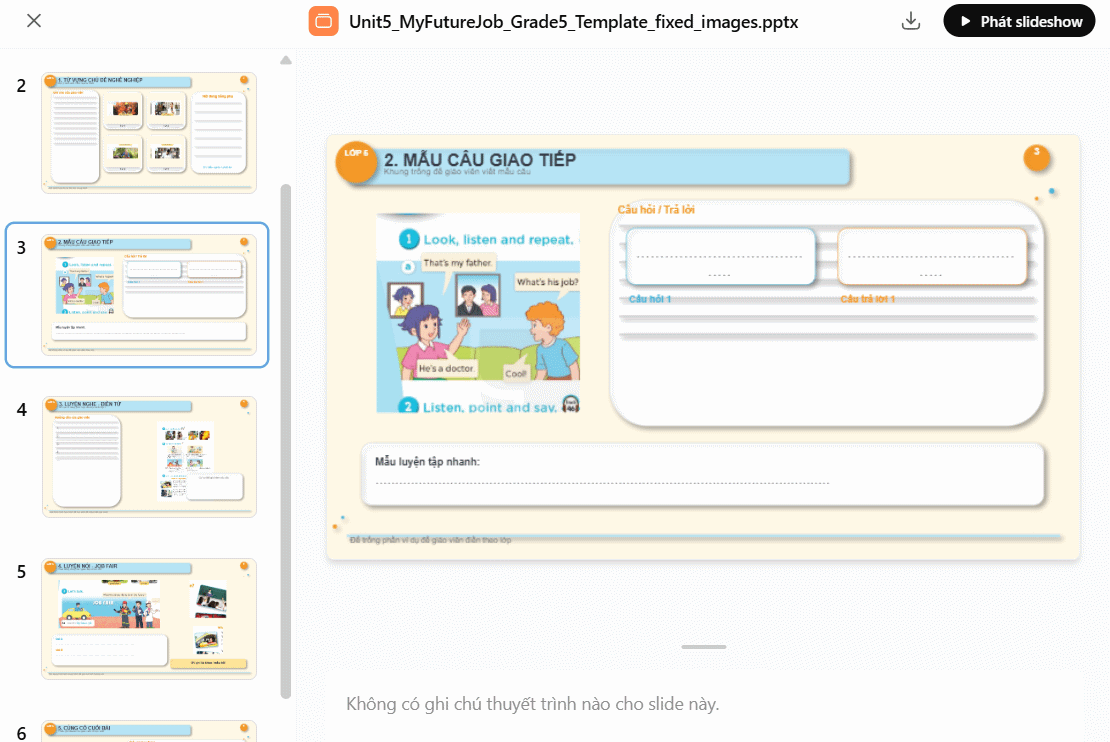
Immediately afterwards, the process of analyzing the original document to create presentation slides begins. You will see the results below, matching the requirements we have set.
Click the expand icon to view the content in the slide .
Step 4:
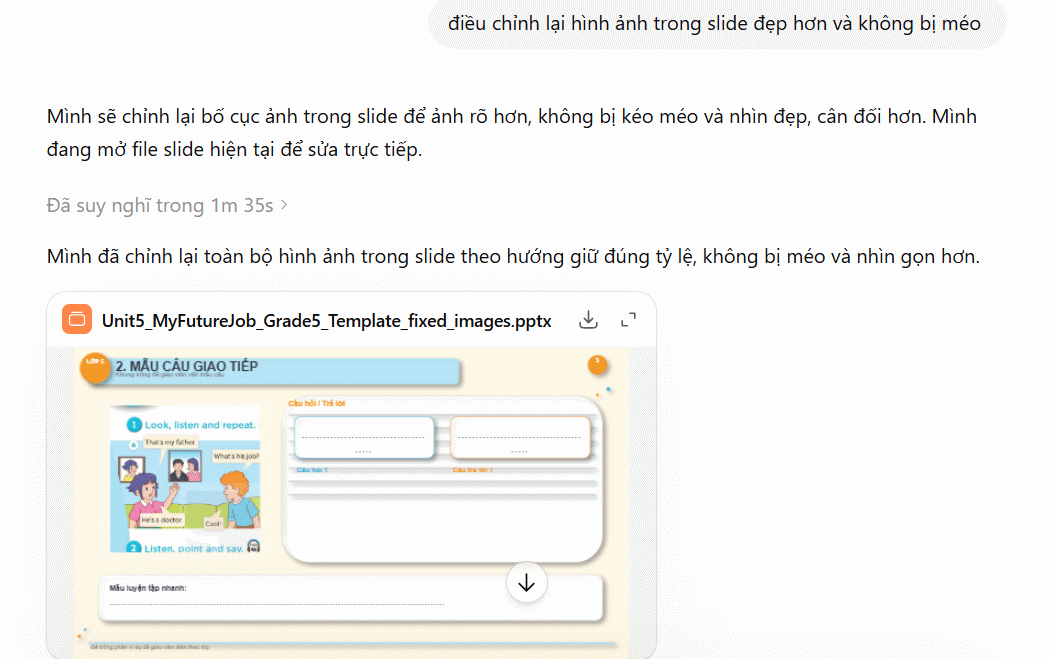
Review your presentation slides, and if you're not satisfied with any part , enter your requests for revisions to create a better slide. Remember to keep the "Think" mode selected so ChatGPT can continue analyzing and developing your ideas.
Step 5:
Finally, we click the download icon to download the slides and proceed to edit them to get a more polished slide.
Related Articles
 How to Create Presentation Slides on ChatGPT5 minutes read
 Guide to Creating Lecture Slides Using Brisk AI5 minutes read
 How to Create Presentation Slides on TeraBox3 minutes read
 How to Create Professional Presentation Slides with Kimi AI5 minutes read
 Creating a Professional Presentation7 minutes read
 How to Create Presentation Slides Using Canva AI5 minutes read
Reader Comments 0
Sign in with email or Google to join the discussion.