Table of Contents
BIOS is the firmware displayed on the screen during system startup. Suppose you want to configure your BIOS to boot from external hard drives or USB drives but don't know how.
By default, the BIOS allows users to set the boot device to boot from first; however, this only happens if you are running Legacy BIOS. If you are using UEFI BIOS , you certainly won't find this option. In this article, TipsMake will guide you through two ways to configure UEFI BIOS to boot from a USB drive or external hard drive.
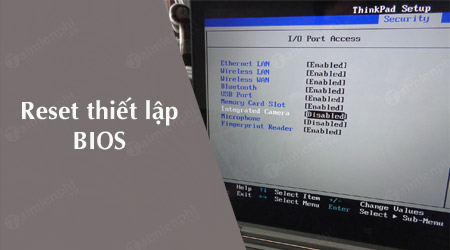
How to configure BIOS UEFI to boot from USB or external hard drive
There are two ways to configure UEFI/BIOS to boot from a USB drive or external hard drive: you can either change the BIOS firmware to legacy BIOS, or use the built-in option in UEFI/BIOS.
Options to set up UEFI boot from USB or external hard drive.
First, turn off your laptop or computer, then restart it. During the boot process, press the dedicated shortcut key to access the BIOS or Boot Option before the system boots into Windows.
Different operating systems have different shortcut keys to access the Boot Option and BIOS on different computer models. If you are using a Dell laptop, press the F12 key to access the BIOS.
At this point, the screen will display an option allowing you to choose to boot from any external device or hard drive. Make sure these USB devices or hard drives are connected to the computer before booting into the menu; otherwise, they will not appear in the bootable devices menu.
Use the arrow keys to select the device you want to boot from, then press Enter.
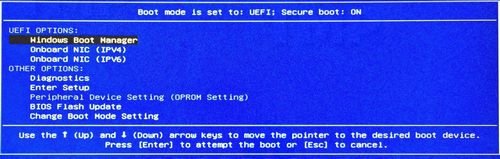
Change UEFI to Legacy BIOS
To change UEFI to Legacy BIOS, first boot your computer and press the key to access the Boot menu. The keys may vary on different systems, but it's usually the F12 key.
If you're unsure, you can search on Google to find out which key is on your system.
In this menu, you will find a Boot tab . Use the arrow keys to navigate to the Boot tab and find the Secure boot option . Your task is to disable Secure boot to find and select the boot option from the first device in the list.
Setting the BIOS to UEFI to boot from a USB drive or external hard drive does not affect your operating system or system. If desired, you can also set it to boot from a hard drive or SSD. The data on your computer is guaranteed to remain intact. Changing the BIOS firmware rarely causes errors that lead to system crashes, boot failures, or data loss.
In summary, the article above from TipsMake has guided you on how to set up UEFI BIOS to boot from a USB drive or external hard drive. Additionally, if you are unsure how to update or upgrade your system, you can refer to TipsMake's article on how to update BIOS to learn how to do it, ensuring your device is always optimized and operates stably.
Related Articles
 How to Set Up BIOS to Boot from USB // CD // DVD, External Hard5 minutes read
 What Is UEFI?8 minutes read
 How to Check the Computer That Supports Efi // Uefi or Legacy4 minutes read
 What Is Uefi: Differences Between Uefi and Bios4 minutes read
 Why Intel Killed the BIOS, Switched to UEFI?6 minutes read
 How to Adjust the BIOS on an HP Laptop to Boot from USB5 minutes read
Reader Comments 0
Sign in with email or Google to join the discussion.