Table of Contents
Computer boot speed depends on RAM, hard drive, processor, and BIOS. This guide shows you on how to adjust your BIOS to speed up boot times.
How to configure BIOS to boot your computer faster
Option 1 : Update
This method should only be applied to pre-built computers like Dell, HP, and IBM , as they have clear specifications and have been tested. Upgrading the BIOS on other machines carries a high risk.
Visit the manufacturer's website to find and download the appropriate update.
Warning: Incorrect updates or actions may damage your computer.
Option 2 : Reset the parameters
Step 1: Access the BIOS
Each type of computer has a different way to access the BIOS . During startup, the screen will display instructions. Usually, you press Delete, F2, F10 , or F12 to access it.
Step 2: Turn off floppy disk search.
If your computer doesn't have a floppy drive, go into the BIOS , find the Legacy Diskette entry, and change it to Disabled to skip it during boot.
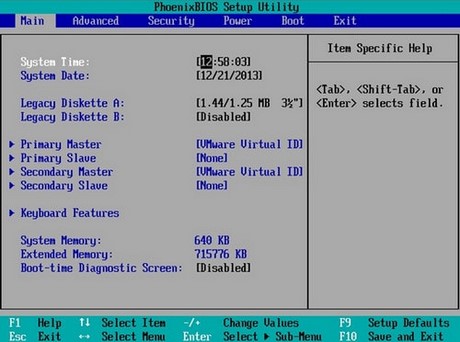
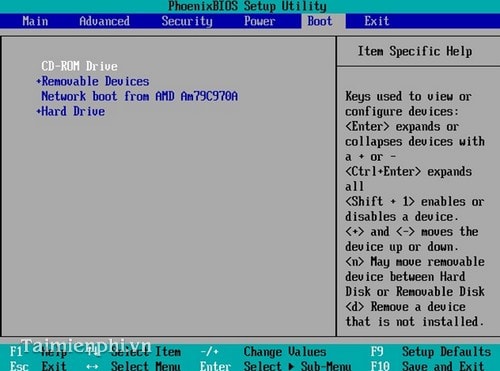
Step 3: Set up the boot drive, prioritizing the hard drive.
- In the BIOS , navigate to the Boot tab.
- Select Hard Drive and move it to the top of the list.
- Use the +/- keys or F5/F6 (depending on the type of machine) to change the order.
Step 4: Save settings and restart.
Press F10 (or the equivalent key) to Save and Exit .
- Restart your computer and check if the startup time improves.
Adjusting the BIOS is one way to help your computer boot up faster and run more stably. You can follow the instructions above to optimize your system.
Additionally, most modern computers support CPU virtualization , which helps improve performance. However, this feature needs to be enabled in the BIOS to use it. See the guide on how to enable CPU virtualization in BIOS for more details.
FAQ
How can you Adjust BIOS Settings to make your computer Boot faster?
Computer boot speed depends on RAM, hard drive, processor, and BIOS. This guide shows you on how to adjust your BIOS to speed up boot times.
How can you configure BIOS to boot your computer faster?
Option 1: Update This method should only be applied to pre-built computers like Dell, HP, and IBM, as they have clear specifications and have been tested.
Do the steps or features vary by device or software version?
They can. Menu names, available settings, and compatibility may differ by device, region, account type, or software version, so check the options shown on your own screen.
Related Articles
 How to Set Up BIOS to Boot from USB // CD // DVD, External Hard5 minutes read
 How to Adjust the BIOS on an HP Laptop to Boot from USB5 minutes read
 How to Enter Bios3 minutes read
 Speed up Your Computer: Top 10 Ways to Speed up Computer Boot10 minutes read
 How to Make SSD Boot Windows Faster3 minutes read
 Instructions for Upgrading BIOS, How to Update BIOS27 minutes read
Reader Comments 0
Sign in with email or Google to join the discussion.