Table of Contents
OneDrive can automatically upload photos and videos from an iPhone and make them available on a Windows PC. It is a practical option if you already use a Microsoft account or Microsoft 365, but it works differently from a true two-way photo library: Camera Backup uploads the iPhone originals to OneDrive, while edits or folder changes made on the PC generally do not update the copies in Apple Photos.
Before starting, check how much OneDrive storage your account has and compare it with the size of the iPhone photo library. An initial upload can be large, so use a reliable Wi-Fi connection and keep the phone charged.
Turn on Camera Backup on the iPhone
- Install or update Microsoft OneDrive from the App Store.
- Open the app and sign in to the Microsoft account you also use on the Windows PC.
- Open your profile or OneDrive settings, then select Camera Backup. Depending on the app version, the Gallery screen may also show a Turn On prompt.
- Enable Camera Backup for the correct account.
- When iOS requests Photos access, choose Allow Full Access so OneDrive can upload the complete library.
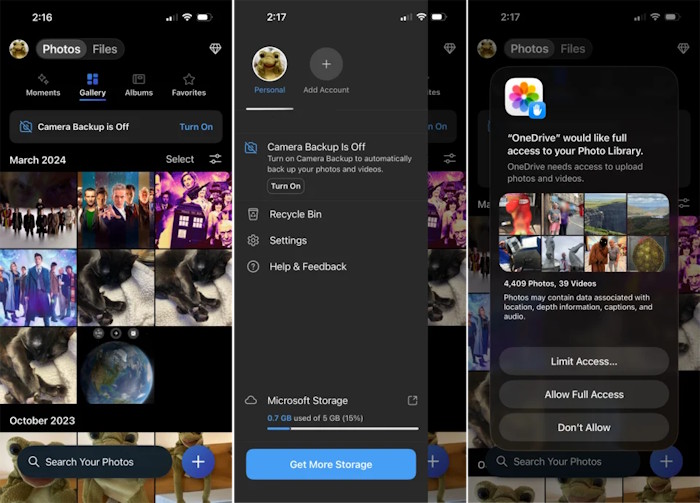
Review the additional options before the first upload. For example, decide whether videos should be included and whether uploads may use cellular data. The exact labels can differ by OneDrive version.
Let the first backup finish
Tap the account or backup status in OneDrive to see upload progress. The initial backup may take a while if the library contains many videos or high-resolution photos. Keep OneDrive open for part of the first upload if iOS background limits are slowing it down.
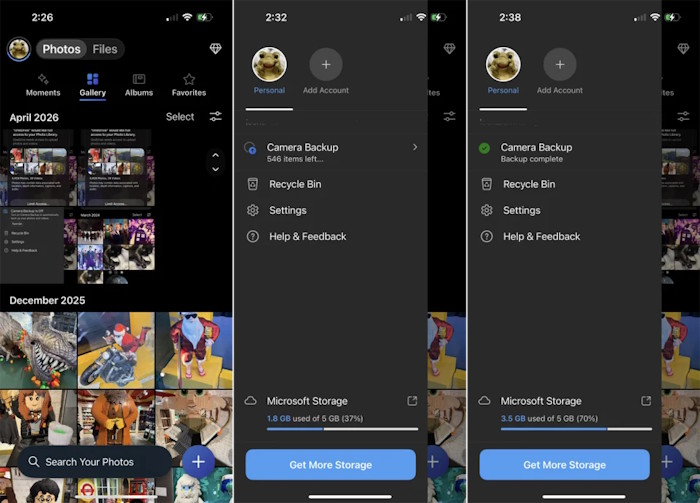
Do not delete photos from the iPhone until you have confirmed that the upload is complete and opened several files from OneDrive. A cloud backup should also not be the only copy of irreplaceable photos.
Set up OneDrive on Windows
- Open OneDrive from the Start menu or the cloud icon in the notification area.
- Sign in with the same Microsoft account used on the iPhone.
- Open OneDrive settings and confirm that syncing is active.
- In File Explorer, open OneDrive and locate the camera-upload folder, commonly shown under Pictures or Photos as Camera Roll.
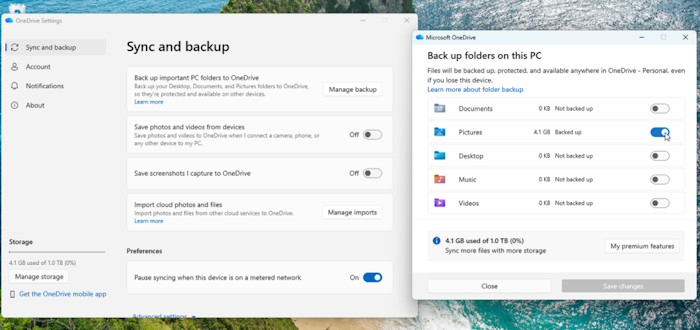
The Manage backup option in Windows protects Desktop, Documents, or Pictures folders from the PC. It is not required merely to view photos already uploaded by the iPhone; signing in to OneDrive and syncing the camera-upload folder is sufficient.
Keep the photos available offline
With Files On-Demand, File Explorer may show cloud placeholders that download only when opened. To keep the entire photo folder on the PC:
- Right-click the Camera Roll or relevant photo folder in File Explorer.
- Select Always keep on this device.
- Wait for the status icons to show that downloads have completed.
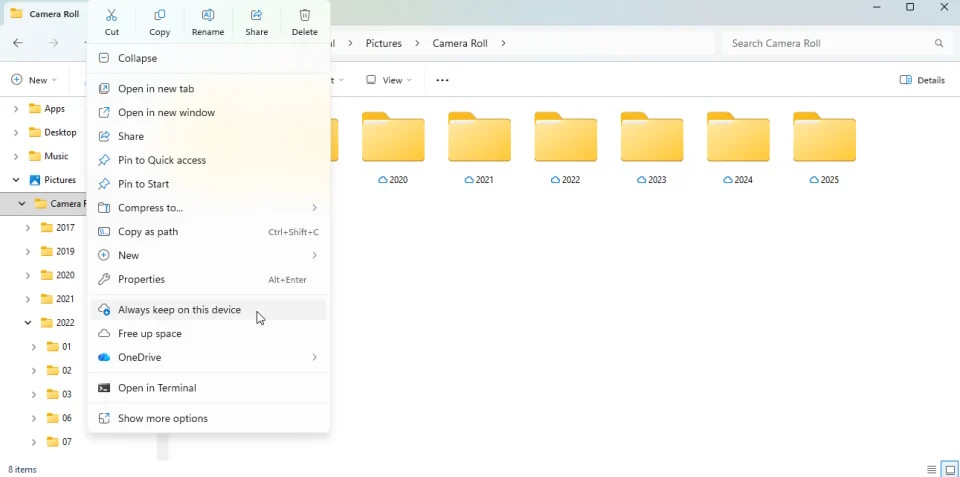
This option uses local disk space. If the PC is short on storage, keep Files On-Demand enabled and download only the folders you need.
What syncs—and what does not
- New iPhone photos and videos are uploaded when Camera Backup is enabled and OneDrive can run.
- The uploaded files can be viewed through File Explorer, the OneDrive app, or the OneDrive website.
- Renaming, reorganizing, or editing the OneDrive copy does not turn Camera Backup into a two-way Apple Photos library.
- Deleting a file from OneDrive can remove the cloud copy and synced PC copy, but it should not be treated as a way to manage the original in Apple Photos.
If you need edits, albums, and deletions to remain synchronized as one Apple photo library, iCloud Photos for Windows is the more appropriate workflow. Use OneDrive when the main goal is automatic upload and convenient Windows access.
Related Articles
 How to Turn Off Icloud Account Synchronization on iPhone5 minutes read
 How to Solve Icloud Sync Problem7 minutes read
 How to Use iCloud Photos on iPhone, iPad, and Mac4 minutes read
 How to Set up Icloud Email, Contacts and Calendar on iPhone or iPad4 minutes read
 How to Download Photos from ICloud7 minutes read
 How to Turn Off Icloud Photo Synchronization with Mobile Data4 minutes read
Reader Comments 0
Sign in with email or Google to join the discussion.