Table of Contents
When setting up a new device, we don't wait until we run into problems. We need to change a few settings right away to increase privacy, reduce noise, and make everyday activities more intentional.
When we set up a new device, we don't wait until we run into problems. We change a few settings right away to enhance privacy, reduce noise, and make daily activities more intentional. After those initial adjustments, the phone works as expected right from the start.
Enable advanced protection in Google services
Unlock the security that Samsung has hidden
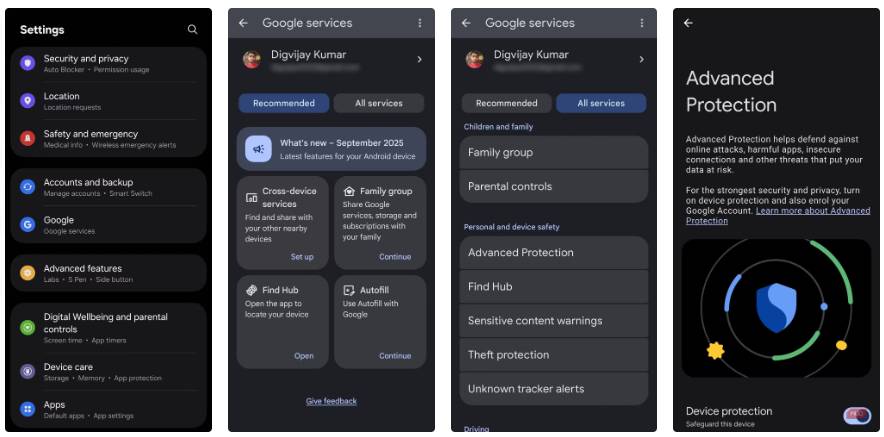
One UI 8 adds a new security feature that most users won't notice because it wasn't previously visible. It's in Google's Settings instead of Samsung's own menu, so it's easy to miss during setup. Turn it on early because it protects your apps, network, web, device security, and Google Messages.
- Open Settings And scroll down to Google .
- Click on it and switch to the All services Tab.
- Scroll to the Personal and device safety Section.
- Tap Advanced protection , then turn on Device protection .
Set battery protection to suit charging habits
Automatic battery health protection
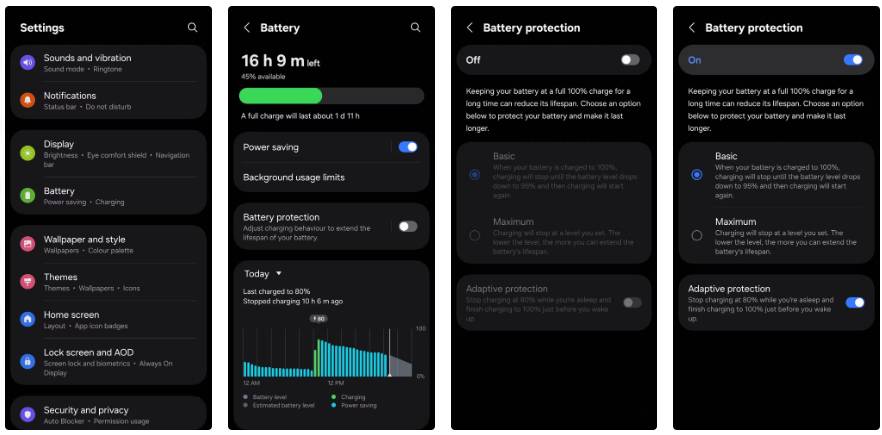
Another change you should make right away is battery settings. One UI 8 separates the options more clearly, but it's still useful to have them configured yourself, making charging work the way you want it to, day and night.
- Open Settings , then select Battery .
- Tap Battery protection .
- Select Basic .
- Turn on Adaptive protection If you charge overnight.
From here, the phone will automatically adjust the charge level based on how long you leave it plugged in.
Hide Secure Folder app in share sheet
Keep apps truly private
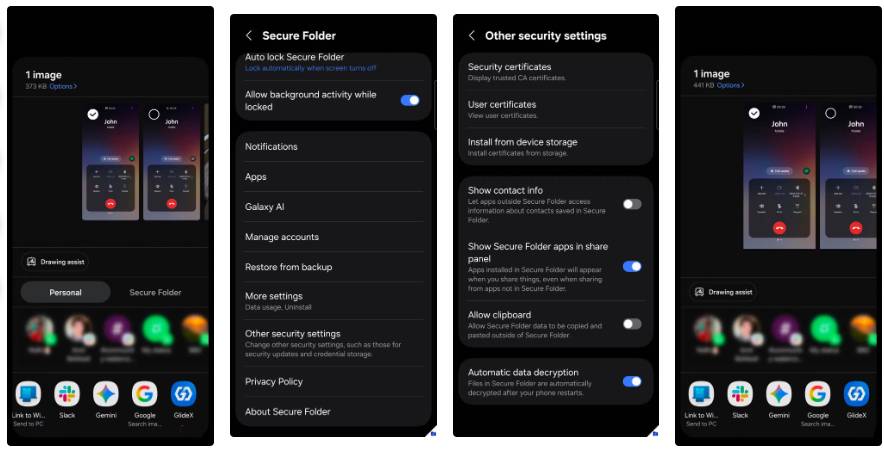
Once you've fixed the battery protection bug, head straight to the sharing settings. One UI 8 adds a neater sharing tab. If you enable Secure Folder in the share sheet, it will show you the Personal And Secure Tabs.
- Open Secure Folder.
- Tap the three-dot icon, then select Settings .
- Click Other security settings .
- Turn off Show Secure Folder apps in share panel .
Control what appears on the Now Bar
Delete updates you don't care about
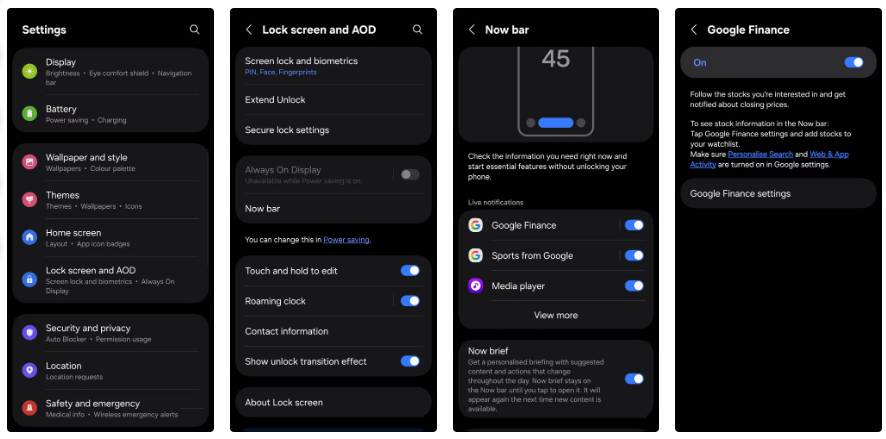
Next, configure the Now Bar so that the lock screen only shows what you actually care about. One UI 8 adds Google Finance along with Sports, and both can fill the void with updates you might not want.
- Open Settings And go to Lock screen and AOD .
- Select Now Bar .
- Turn on Google Finance .
- Tap Google Finance settings .
- Use the plus button to add stocks or indices you want to track.
Turn on call captions for noisy places
Read call content when you can't hear clearly
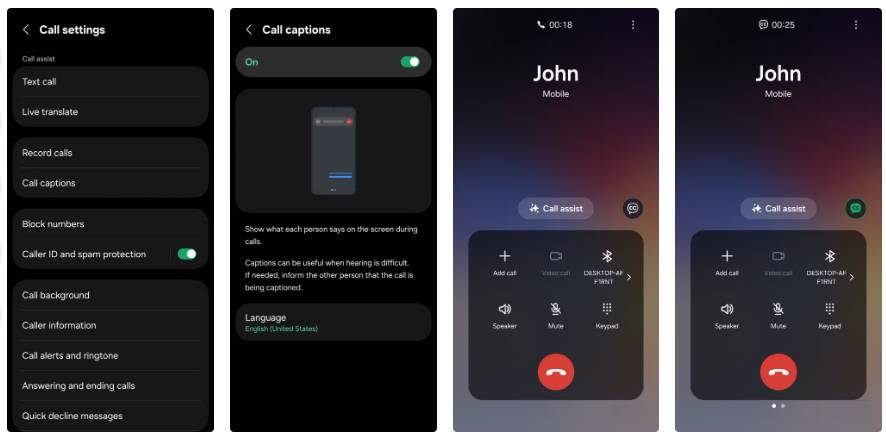
Sometimes you can't hear your caller clearly, especially when you're outdoors or in a noisy room. Call captions in One UI 8 display the caller's speech as text on the screen so you don't miss what's being said.
- Open the Phone App and tap the three dots icon.
- Select Settings , then select Call captions .
- Enable this option, then select a language if available.
Limit My Files search to recent items
Stop searching on the entire phone
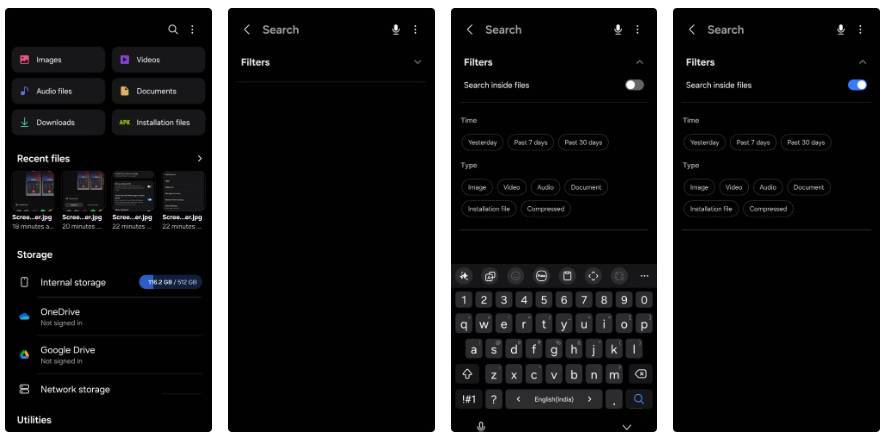
One UI 8 adds a Search recent files toggle on the search screen, which helps focus results on what you've recently opened or downloaded.
- Open My Files.
- Click on the search icon in the top bar.
- Turn on Search inside files .
- Use category tags to filter, for example, Image, Video or Documents.
Results will then return faster and focus on your recent activity. If You should scan your entire device, turn the toggle off and search again.
FAQ
What should you know about the first 6 one UI 8 settings you should change on every samsung?
In practical terms, when setting up a new device, we don't wait until we run into problems. We need to change a few settings right away to increase privacy, reduce noise, and make everyday activities more intentional.
Why does the first 6 one UI 8 settings you should change on every samsung matter?
The article highlights that enable advanced protection in Google services Unlock the security that Samsung has hidden One UI 8 adds a new security feature that most users won't notice because it wasn't previously visible.
What is the main takeaway?
The main takeaway is that one UI 8 separates the options more clearly, but it's still useful to have them configured yourself, making charging work the way you want it to, day and night.
Related Articles
 12 Settings on Samsung Galaxy Phones You Should Change12 minutes read
 6 Tips That Will Completely Change the Way You Use Your: Key Takeaways6 minutes read
 5 Settings You Should Change on Galaxy S9 / S9 +8 minutes read
 Custom Tips for Virtual Navigation Keys on Samsung Phones Are More5 minutes read
 Change These 6 Settings on One UI 7 Now!8 minutes read
 These Settings Make Switching to Samsung So Much Better6 minutes read
Reader Comments 0
Sign in with email or Google to join the discussion.