Table of Contents
The options below offer different strengths for users interested in 5 settings you should change on galaxy s9 / s9 +. Review the key details and consider which choice best matches your needs.
Disable partially or completely Bixby
Bixby has been greatly improved since its first launch, but it still has a long way to go so it can be used every day. And Samsung has realized that, the company has brought a few options so that users can partially or completely disable Bixby on the Galaxy S9.
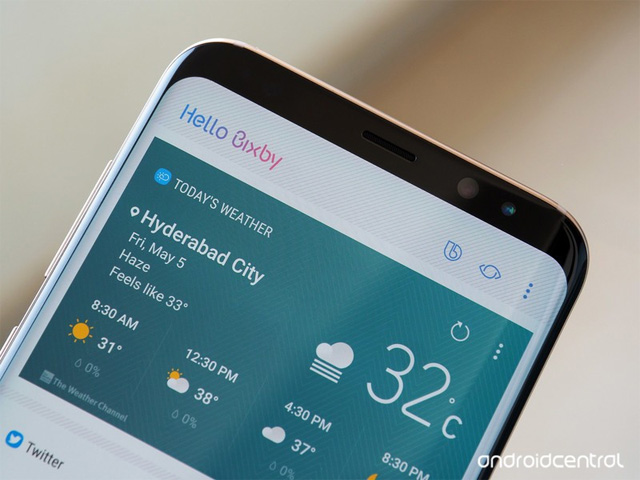
What most users want to disable is the Bixby button on the side of the phone. The location of this button makes it easy for users to accidentally touch it. To disable, open Bixby Home by swiping it on the main screen, tap the gear icon in the top right corner and then turn off " Bixby Key ". Now, you don't need to worry about cloning the Bixby button anymore, when you want to use it, just press and hold this button to open the Bixby Voice command.
When needed to disable both Bixby Voice, on the Bixby Home installation screen, turn off " Bixby Voice ". Now even if you press and hold the Bixby button, users cannot access Bixby Vocie anymore.
To completely disable Bixby on Galaxy S9, perform the above two options and then turn off Bixby Home completely. To do this, press and hold on the blank space in the main screen, swipe right to open the Bixby Home panel and touch the toggle button in the upper right corner.
Replace Samsung keyboard
Samsung's new keyboard uses predictive and swipe algorithms, making users unfamiliar and easy to cause errors when typing. Long-time Samsung keyboard users are familiar with original keyboards or using third-party keyboards such as Gboard by Google, SwiftKey, Chrooma, Flesksy, etc.
Therefore, to manage and switch keyboards, go to Settings> General management> Language and Input. In addition, you can quickly switch the keyboard at any time by tapping the small keyboard icon on the navigation bar.
- 11 best Android keyboard apps
Disable Edge screen
Samsung's curved screen is great and makes the phone look narrower. But is the "Edge screen" software really useful? Some people find it useful, help to quickly open applications and services, but some people feel that it takes up the main screen area. If you don't like Edge screen, here's how to disable it.
Step 1: Swipe on the side of the phone to open the Edge screen bar. You can recognize it with a small gray tab, equal to two-thirds of the screen.
Step 2: Touch the gear icon in the bottom left corner.
Step 3: Touch the blue toggle switch in the top right corner to turn gray.
Step 4: Press the home and Edge screen buttons are disabled.
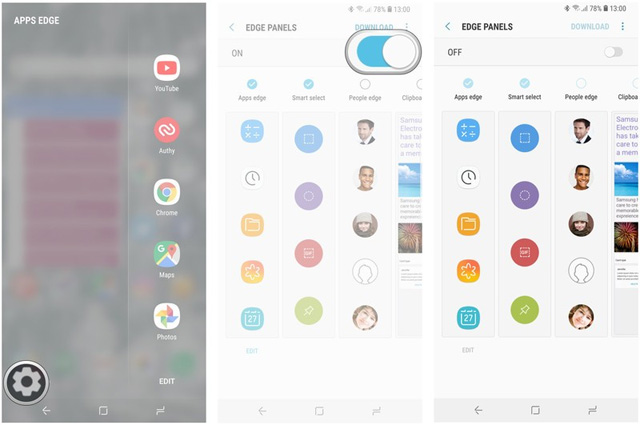
Step 5: To turn on Edge screen again, go to the Settings> Display> Edge screen And click the Edge panel Button.
Hide unused apps but can't uninstall
Samsung launcher allows users to hide apps from view, which can help you manage some duplicate and unwanted apps that can't be uninstalled or even disabled. Although these applications are still installed, you do not see it in the app pane. Users can hide applications such as Samsung's Calendar, Email and Contacts applications, etc. to be replaced by other applications. This is how to hide the app.
Step 1: Click and hold on the blank space on the main screen.
Step 2: Touch the Home screen settings On the right.
Step 3: Scroll down and touch Hide apps.
Step 4: Select the app you want to hide from view mode and click Apply In the top right corner.
When needed to re-display these applications, just repeat the steps above and uncheck the hidden applications.
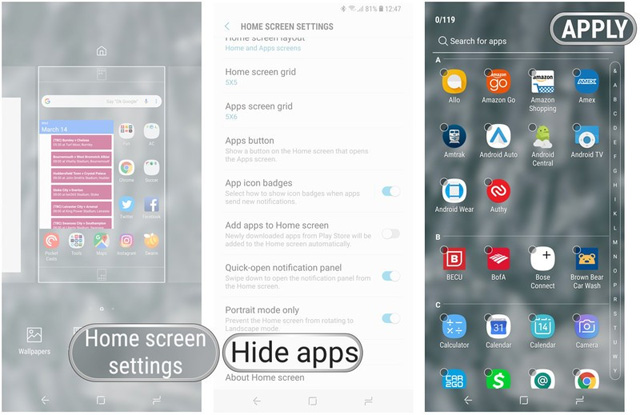
You should hide the app after you've set up your phone, choose the default applications and make sure you manage the settings you want to change in the included applications, otherwise you'll have to reload the screen settings. main.
Delete all unused quick settings
Quick settings enabled in the notification bar are useful, but that doesn't mean you must keep them the way Samsung has set up. By default, you have very strange options such as NFC, sync and mobile data, which may be a setting you don't often use. Instead, you can rearrange quick settings or use and delete unused settings.
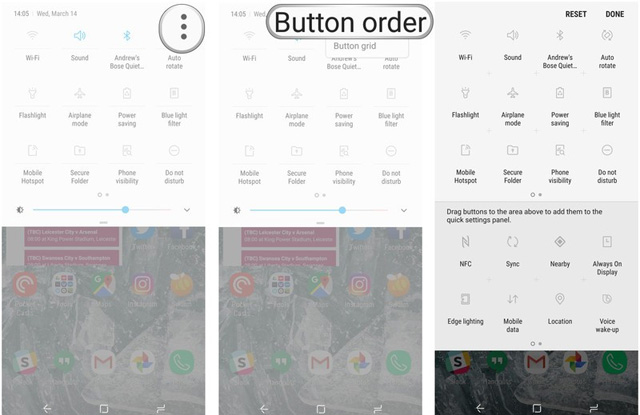
Step 1: Drag the notification bar, then swipe back to expand the quick settings.
Step 2: Touch the three dots in the upper right corner and press Button order .
Step 3 : On top of the page are the active icons and at the bottom of the page are icons that can be added to quick settings.
Step 4: Click and hold the icon to move them from the top and bottom or rearrange them. If the icon is added to more than one page, it will automatically jump to the second page. Notice the first six icons in the list are the first apps you will see when you swipe the notification bar for the first time.
Step 5: When done, just click Done .
- 5 ways to take screenshots Samsung Galaxy S9 / S9 +
- How to turn on developer mode on Galaxy S9 / Galaxy S9 +
- Summarize interesting tips on Galaxy S9 users should not ignore
FAQ
How were the 5 settings you should change on galaxy s9 / s9 + options selected?
The options are compared by usefulness, ease of use, core features, and their fit for the situations described in the article.
Which option is best for beginners?
Choose the option with the simplest setup, clear documentation, and the features you actually need. A more advanced option is not always the better starting point.
What should I check before choosing?
Check compatibility, current availability, pricing or licensing, privacy requirements, and whether the product still receives updates and support.
Related Articles
 Some Settings Need to Be Changed After Purchasing Samsung Galaxy S810 minutes read
 Change These 6 Settings on One UI 7 Now!8 minutes read
 6 Samsung Galaxy S23 Ultra Camera Settings You Need to Change: Expert Selection9 minutes read
 12 Settings on Samsung Galaxy Phones You Should Change12 minutes read
 How to Change the Power Button Samsung Galaxy Note 10, Galaxy S202 minutes read
 The Main Settings Need to Be Changed on Galaxy S10, S10 + or S10e12 minutes read
Reader Comments 0
Sign in with email or Google to join the discussion.