Table of Contents
Spotify has added lossless streaming, in-app messages and disclosures for some AI use since these features first appeared on listeners’ wish lists. Other requests, such as finer discovery filters or matching menus across devices, are still worth checking against how you actually listen.
1. Match the features you use on mobile and desktop
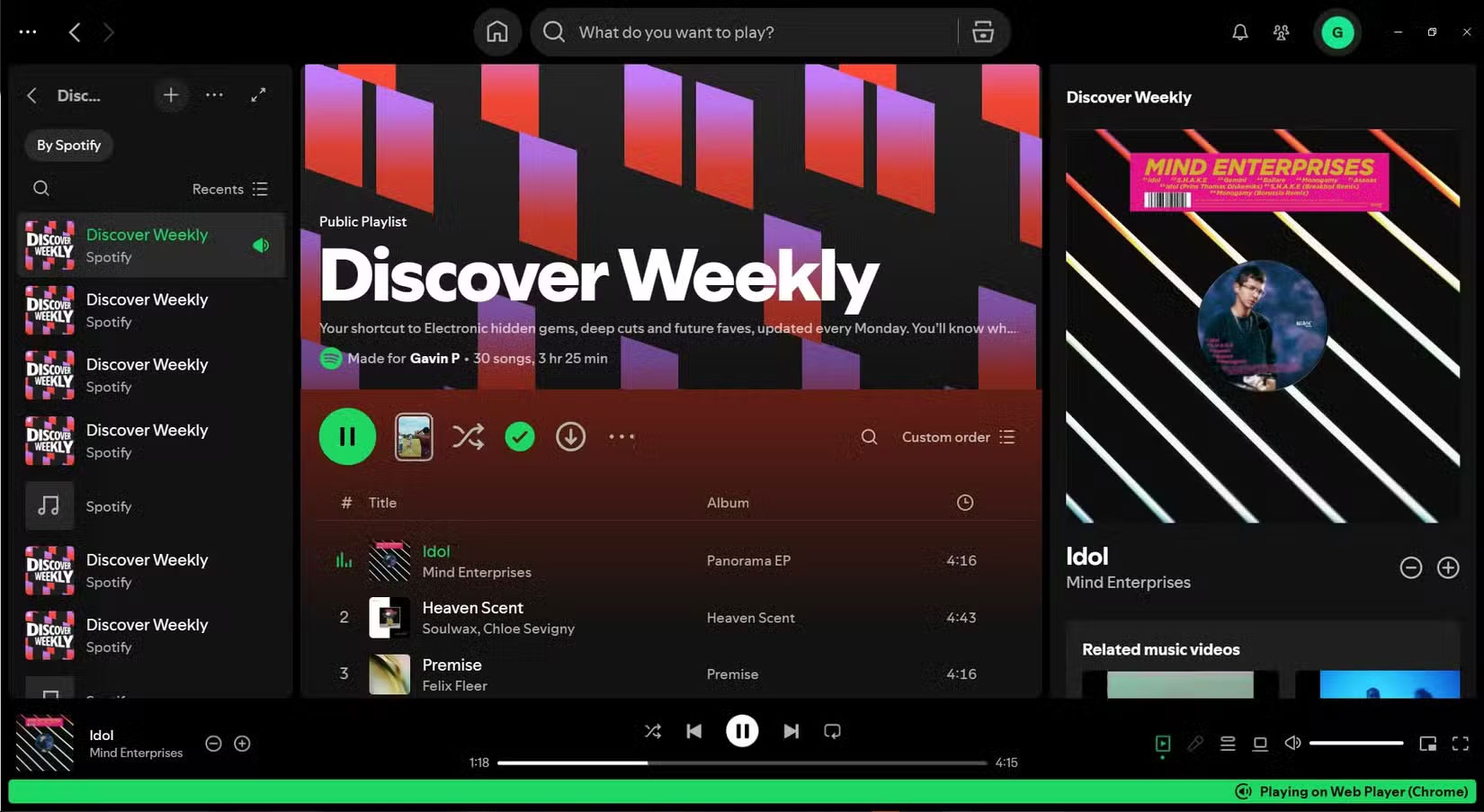
Try your usual workflow on both apps. Features may appear in different places, and some launches are specific to one platform. For example, check whether you can see the source playlist and the queue as easily on desktop as on mobile.
2. Check AI disclosures in song credits
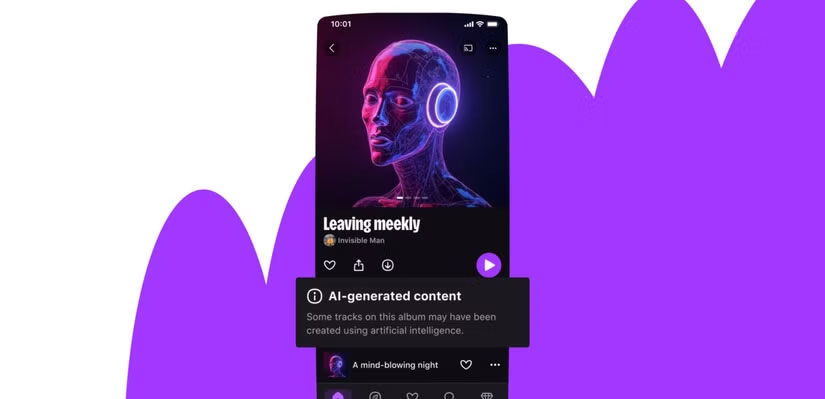
Spotify says AI disclosures can appear in mobile Song Credits when supplied, and it has added an artist-profile label for certain AI-generated artist identities. Check the credits if the distinction matters to you. A song without a disclosure may still have used AI.
3. Use the Music filter on Home
Where available, use the Music filter to focus the Home view on music. A filter changes what you see in that view. It doesn’t give you control over every recommendation or permanently remove other content types.
4. Use search tags for more precise results
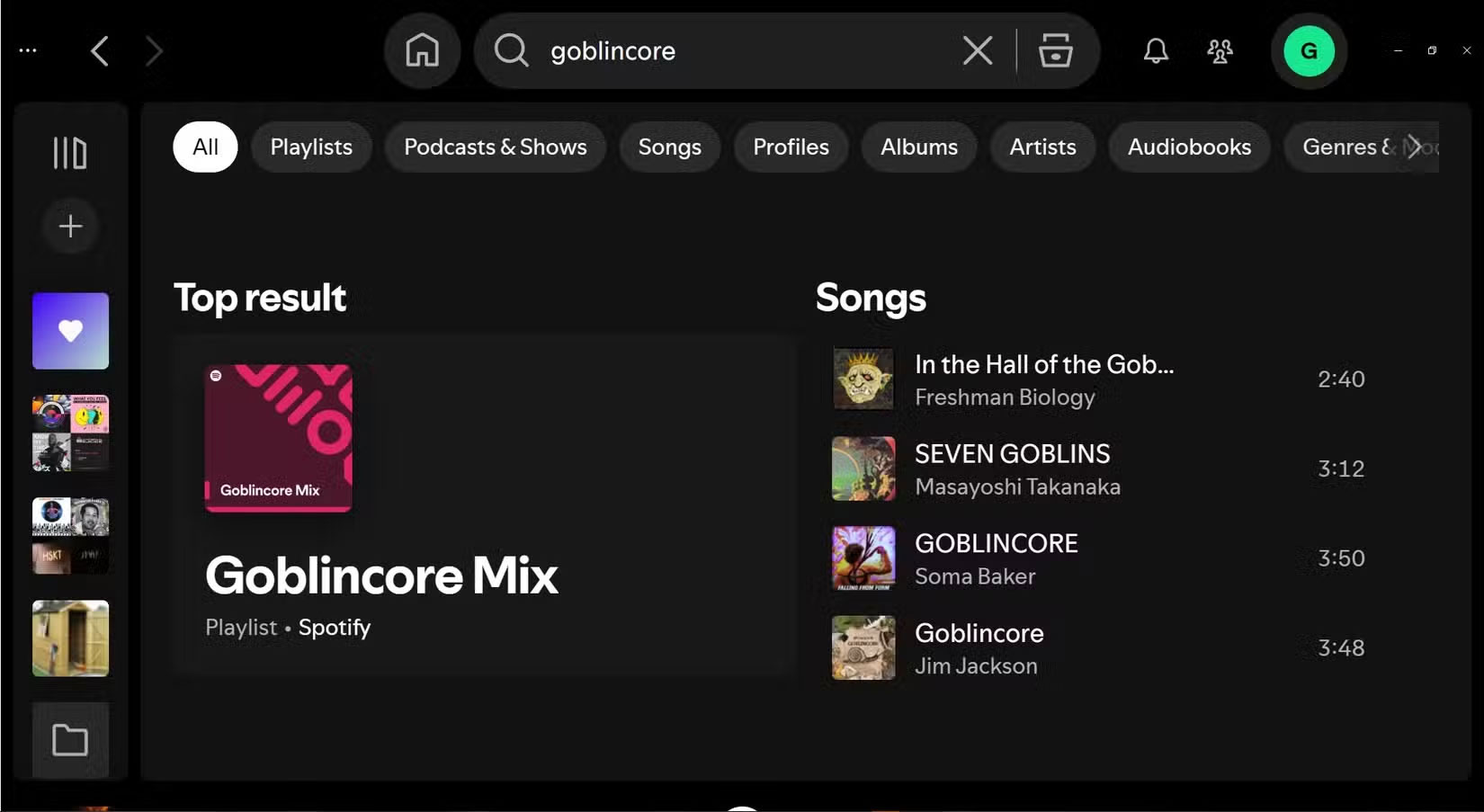
Spotify supports tags such as genre:, year: and label:. Try genre:metal year:1982 or search for several words you remember from the lyrics. These options help narrow results, though they don’t provide every detailed filter a collector might want.
5. Check Lossless in audio quality settings
Spotify Lossless is available to Premium listeners in eligible markets. Look for it under audio quality and check the settings for each device. A Bluetooth connection may re-encode the audio, and the setting uses more data than compressed streaming.
6. Try Jam and Spotify Messages
Jam lets people contribute to a shared queue. Spotify Messages can share tracks or send Jam requests on supported accounts. Check the join and host requirements before making plans with a group, especially if participants are joining remotely.
7. Narrow a discography or playlist
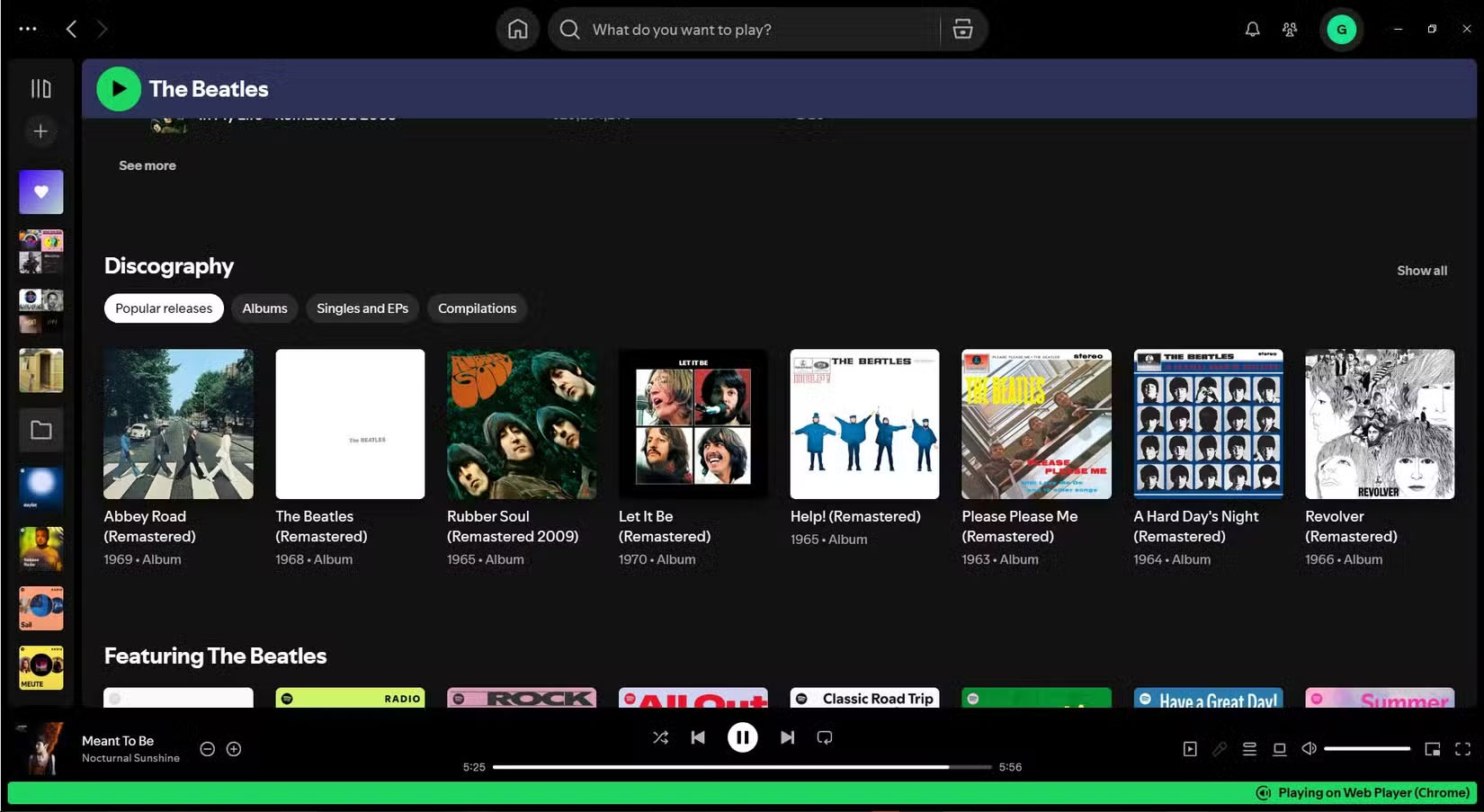
Use release categories and sorting controls where the app offers them. Within a long playlist, use its search or filter to find a title or artist. If discovery is the goal, compare Spotify with other ways to find new music and playlists.
8. Adjust the listening history that shapes recommendations
Where available, choose Exclude from your taste profile for a playlist or track you don’t want influencing recommendations. This can help with sleep or workout music. It does not create a rule that keeps every already-saved song out of Discover Weekly.
9. Identify a song playing nearby
Use a recognition app such as Shazam to identify audio in the room, then open or search for the song in Spotify. If you know part of the lyrics, try Spotify search first. See how Last.fm approaches discovery if you want recommendations based on listening across services.
Related Articles
 10 hidden Spotify features everyone should know
 Get More Spotify Streams With These 6 Essential Tips
 Do you know Spotify has more interesting things than you think?
 How to increase the Spotify experience with support websites
 Official Spotify has a lighter version on Android, only 10MB of storage
 How to use Spotify in PC game on Windows 10
Reader Comments 0
Sign in with email or Google to join the discussion.