Table of Contents
Google Slides can be the easier choice when a team already works in Google Drive and wants to edit or comment through a shared browser link. PowerPoint also supports live co-authoring when the file is stored in OneDrive or SharePoint. The right choice depends on where collaborators work and which presentation features you need.
1. Start with a template you can edit immediately
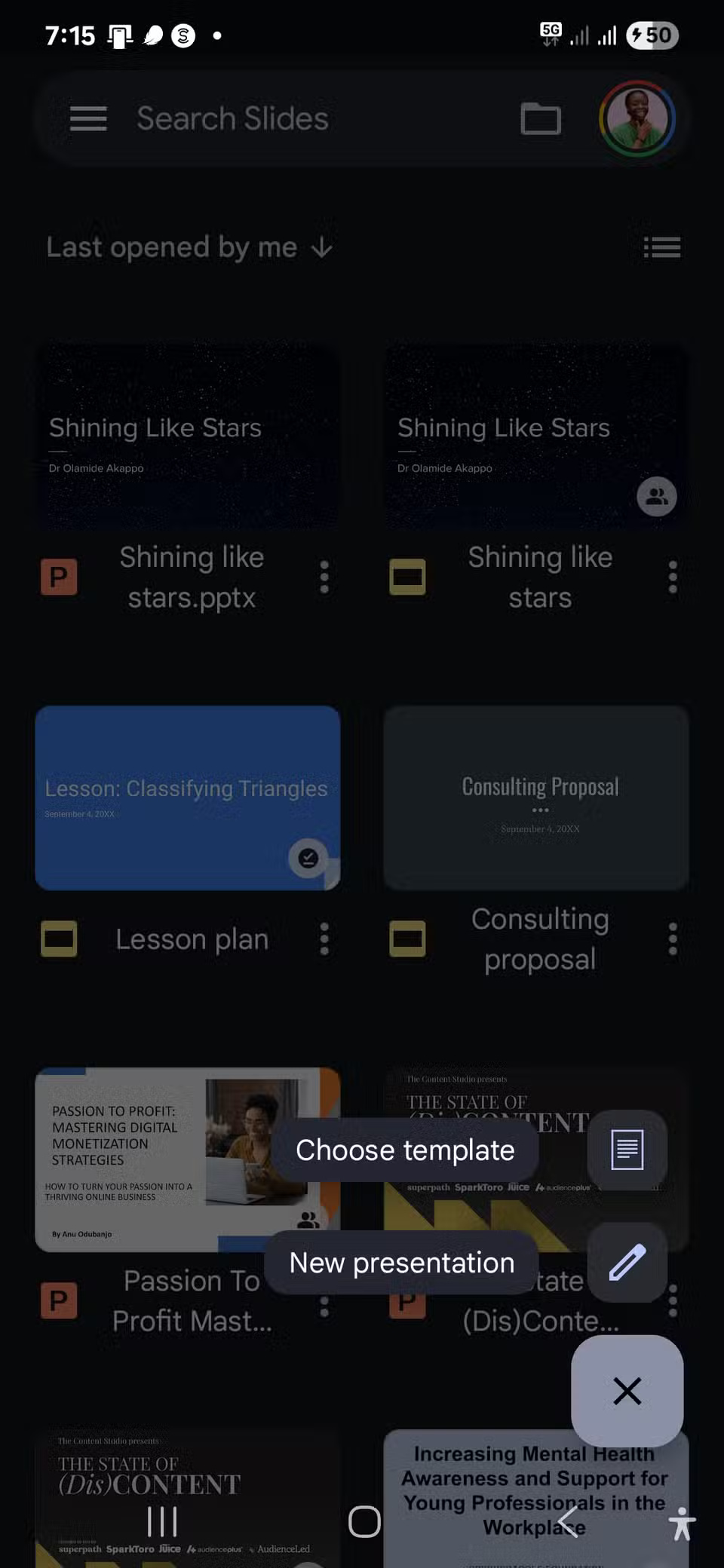
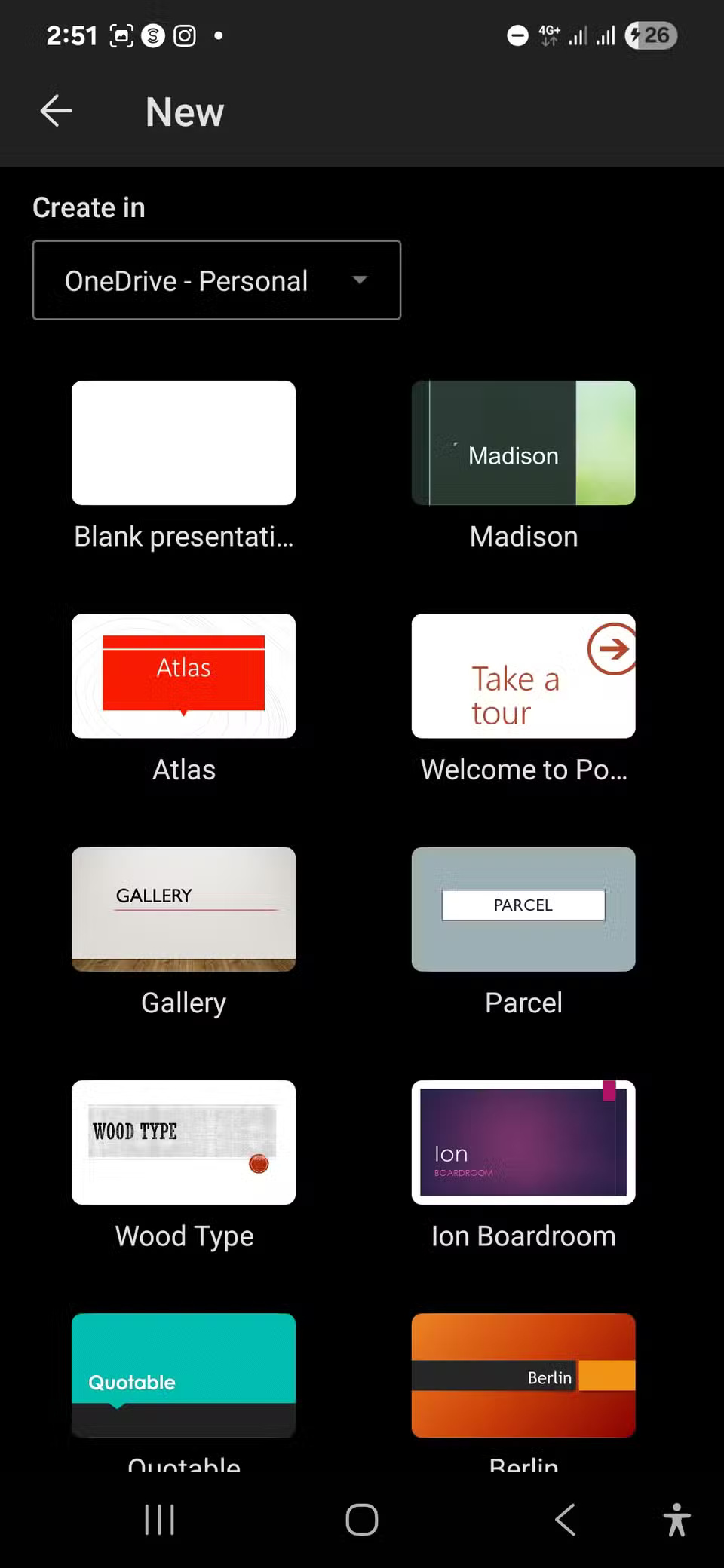
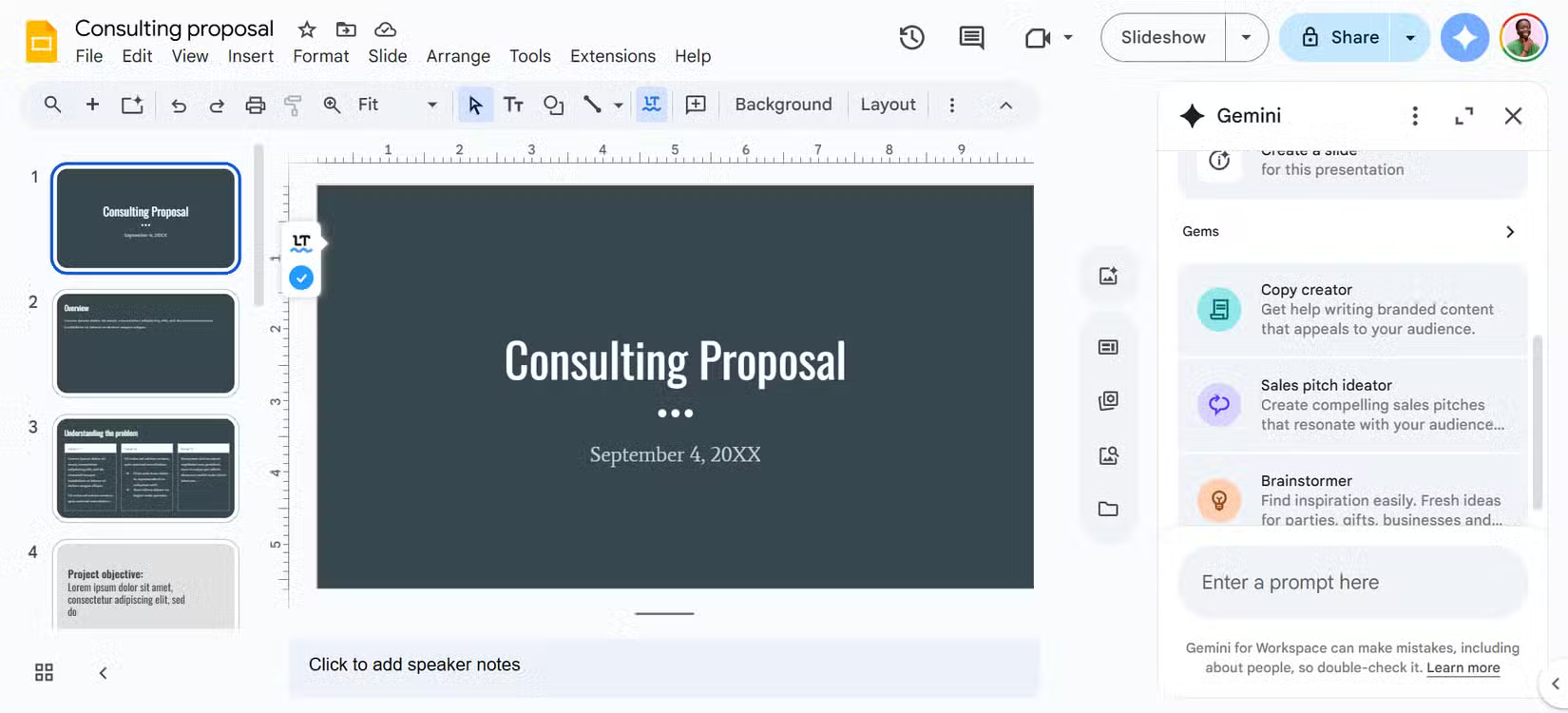
In Slides, pick a template from its gallery or make a copy of a deck your team already uses. In PowerPoint, choose a template available in your app or organization. Check that it opens where you plan to edit. The galleries in the screenshots vary by device and version.


2. Keep mobile edits small and check the result
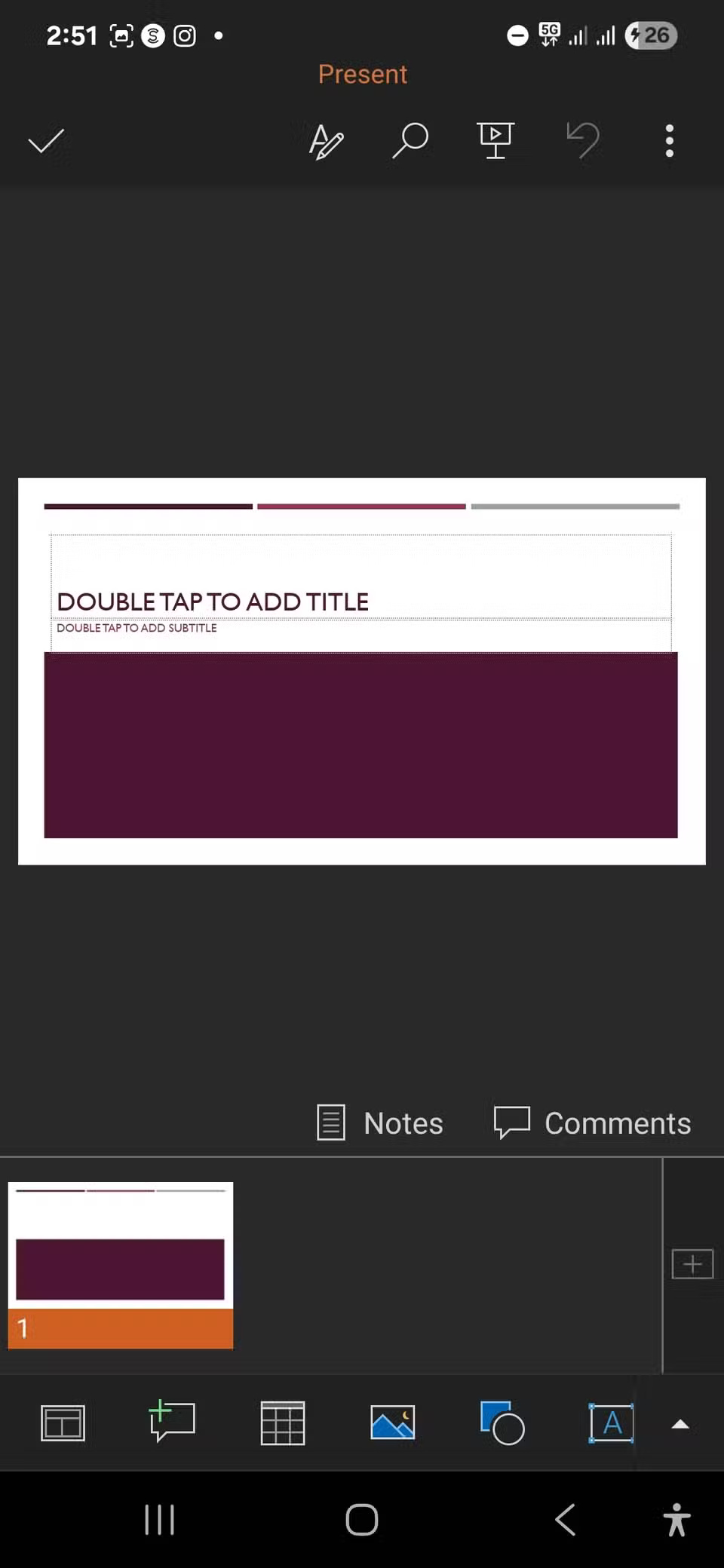
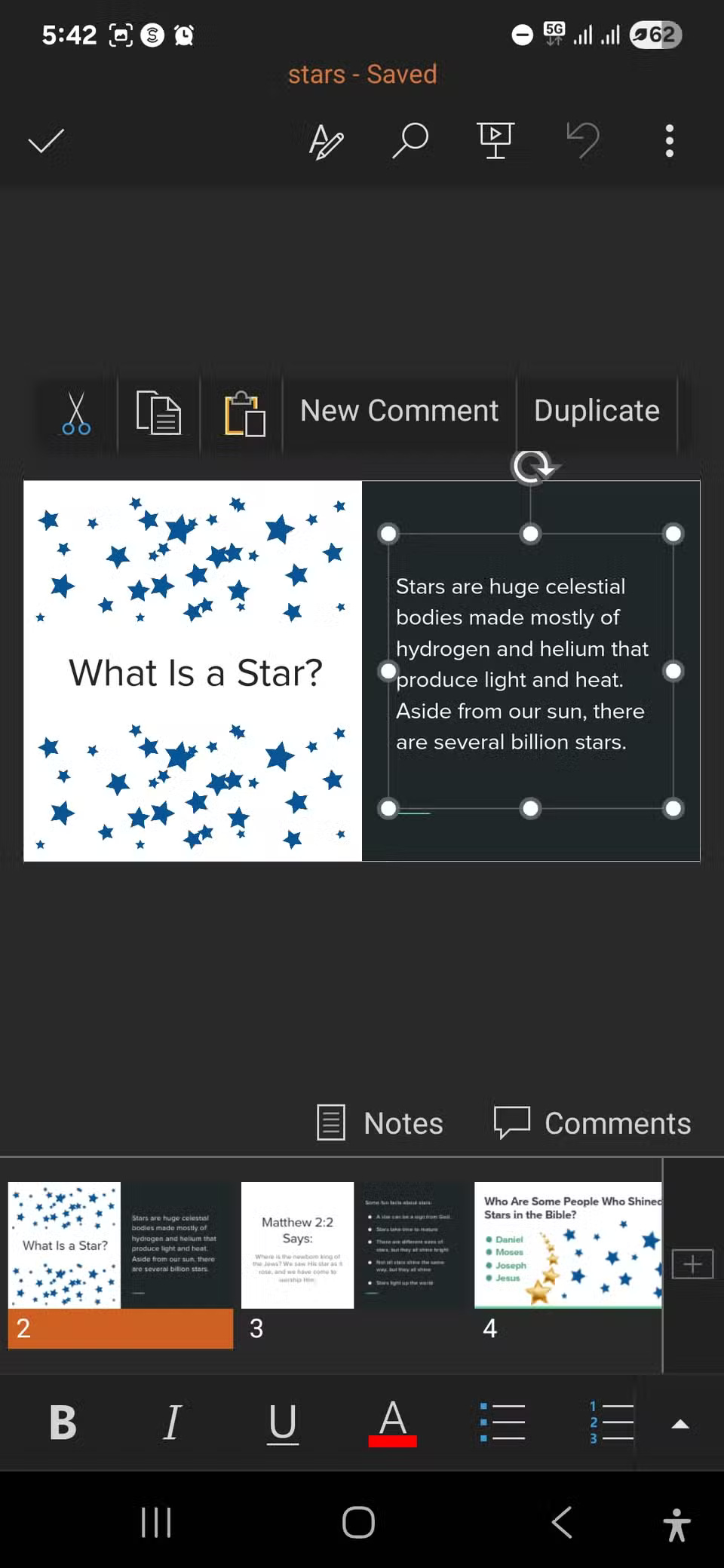
Both mobile apps handle quick edits such as correcting a title or updating a slide image. Try the same two edits on your phone and see how many steps each takes. Review the finished deck on a larger display to catch clipping and alignment problems.

3. Share one editable copy
In Google Drive, share the Slides deck and assign Viewer, Commenter or Editor access according to what each person needs. Check version history when you need to recover an earlier edit. In PowerPoint, save the deck to OneDrive or SharePoint and send its link for co-authoring. In either app, sending file attachments creates copies that can drift apart.
4. Make feedback easy for people outside your team
Send the link and test its permissions with the intended audience. Ask reviewers to comment on specific slides and assign an owner to resolve feedback. Work and school policies may block external access even when a link exists. If the recipient needs a PowerPoint file, see how PPTX files open in Google Slides and verify formatting after conversion.
5. Test Gemini and Copilot on the same task
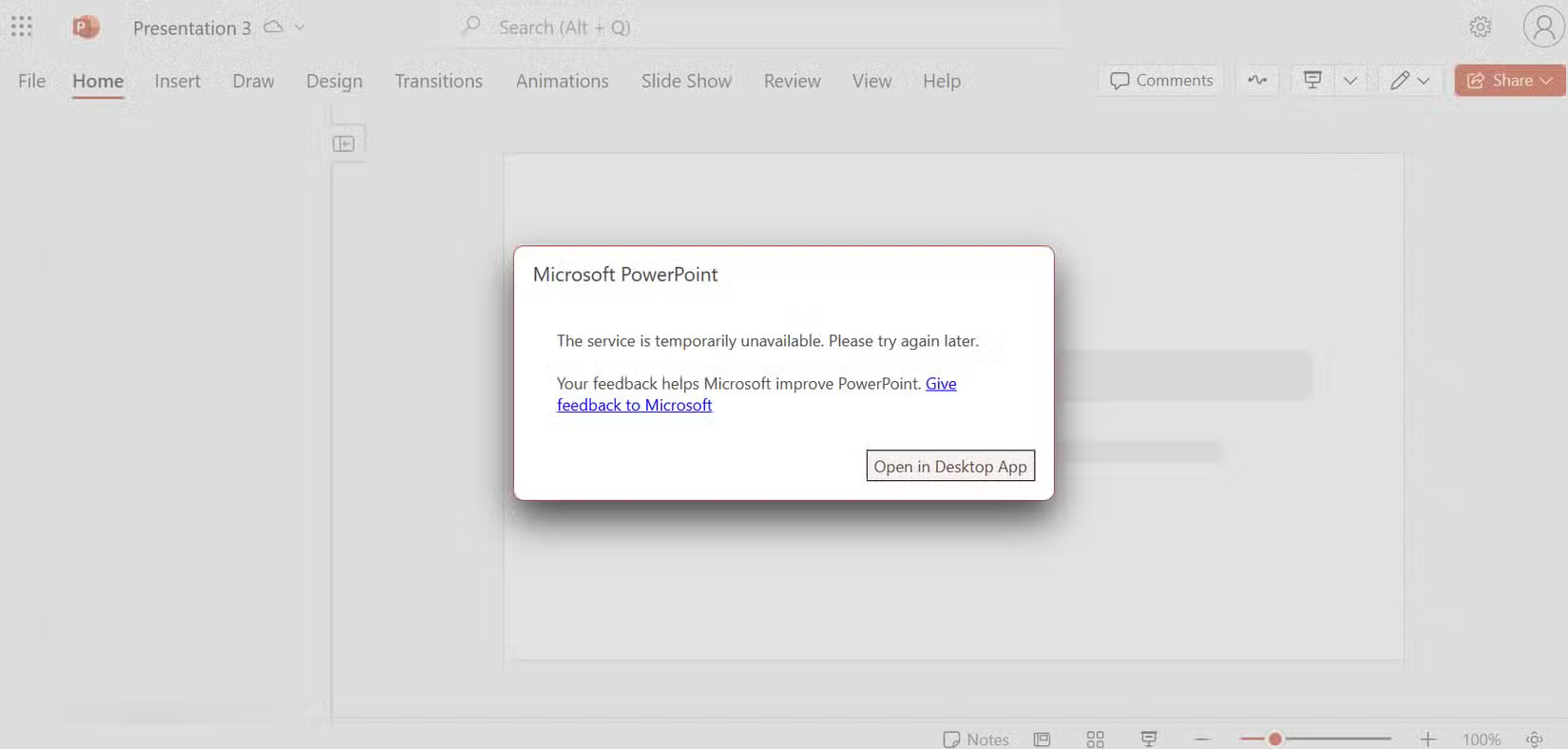
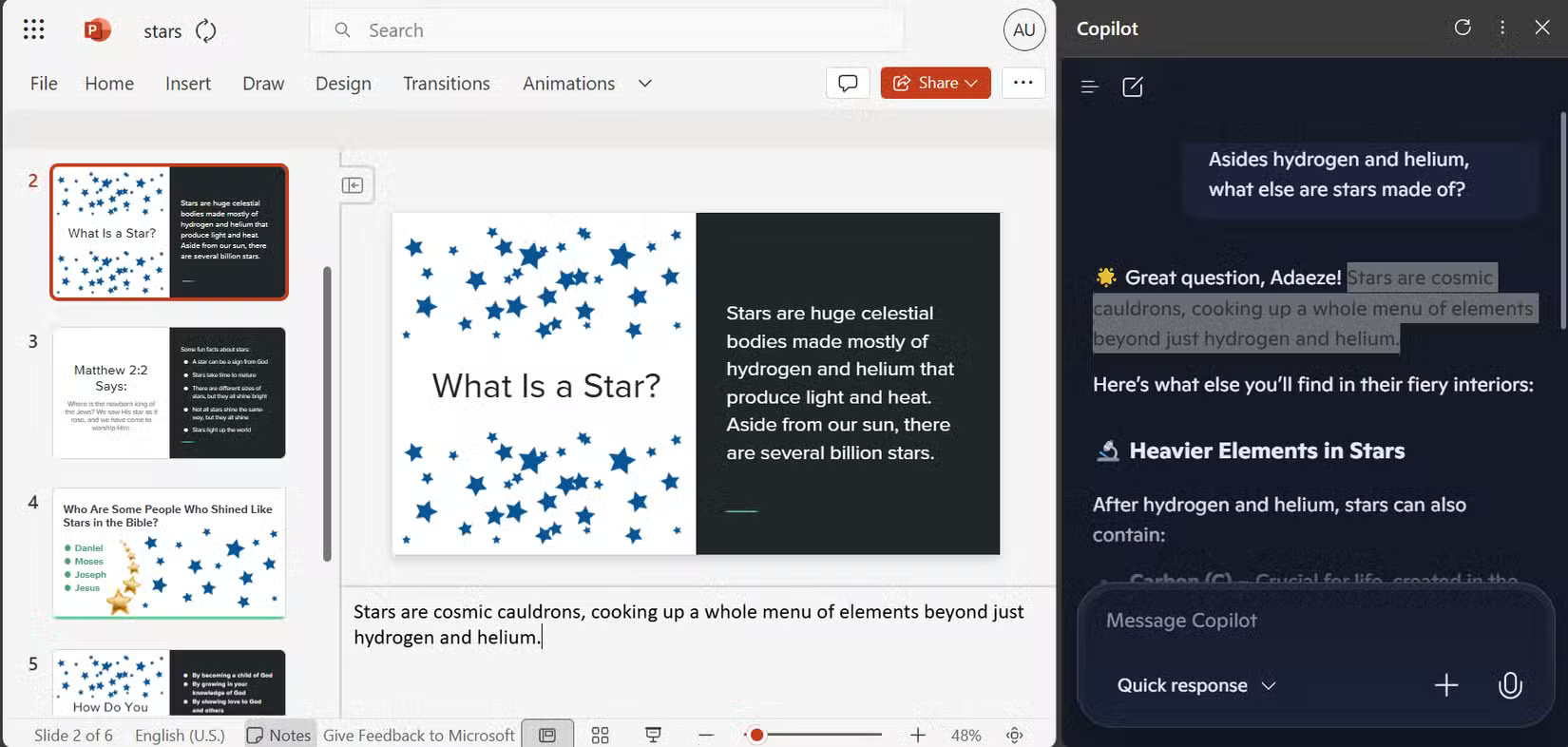
AI features depend on the plan, platform and account settings. If you have access, try asking each tool for a draft slide based on the same source. Compare whether it kept the facts and fit your layout. See Google’s Gemini for Slides documentation and the TipsMake guide to starting a PowerPoint deck from a template if you prefer a fixed layout.
Related Articles
 How to convert Google Slides to PowerPoint
 How to Convert PowerPoint Files to Google Slides
 Free download of beautiful PowerPoint and Google Slides slides designed by Google
 How to open PowerPoint slides on Google Slides
 Powerful support utilities for Google Slides
 10 things you can do with Google Slides
Reader Comments 0
Sign in with email or Google to join the discussion.