Table of Contents
This updated guide examines Ensure Safety When Surfing with Mcafee Siteadvisor and organizes the essential facts, background, and practical takeaways in clear American English.
McAfee SiteAdvisor is a software that can analyze and identify ' dirty ' and unsafe websites to alert users before they visit. The software also allows users to block unauthorized access to websites that are considered unsafe, in case the outsider arbitrarily uses the computer to access these websites, despite the software's warning.
Compared to similar tools with the website's security warning function, McAfee SiteAdvisor is able to identify and evaluate large and fuller websites.
By default, McAfee SiteAdvisor costs 19.95 USD for 1 year. However, McAfee has a promotion that allows users to use it for free for 1 year.
- First, download the special promotion version of McAfee Site Advisor here.
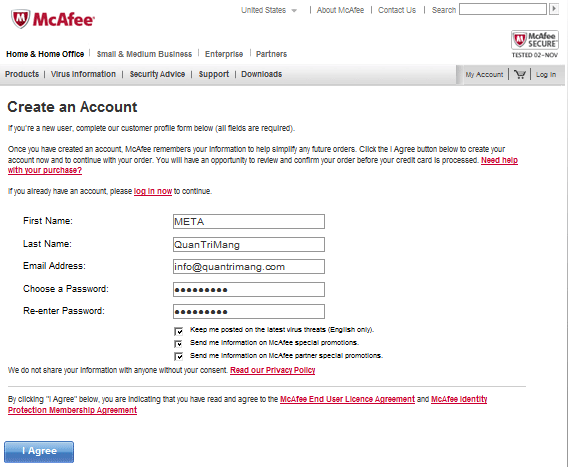
- Access here, fill in the registration form and click " I Agree " button to create a McAfee account.
Note: The password you create must have at least 1 digit number to be accepted.
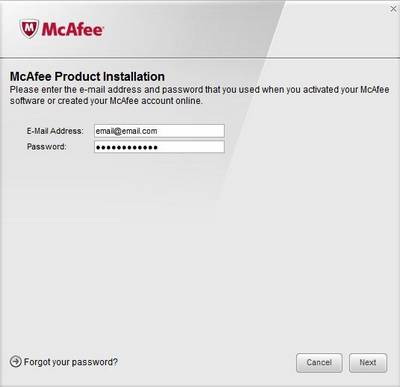
- Install software. In the first step, you will be asked to enter the registered email and password above. Click Next to continue and complete the installation process.
When installing, you should turn off all open web browser windows.
After installation, McAfee SiteAdvisor Plus button will appear on the internet browser interface. Currently the software only supports Firefox and Internet Explorer, in case of using Google Chrome, you can install the free McAfee SiteAdvisor add-on here.
When conducting searches on search engines such as Google, Bing, Yahoo!., McAfee SiteAdvisor Plus will automatically analyze and evaluate the results returned, thereby indicating whether the websites are safe or not..
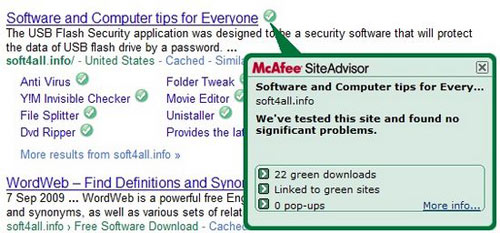
The safety of websites is evaluated based on the website content and the linked pages placed on that website. The software also classifies safety levels according to colors, with green being safe, yellow being alert and red being extremely dangerous.
However, if you wish, you can still access websites that are considered dangerous. Then, the software will immediately alert.
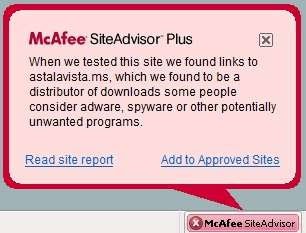
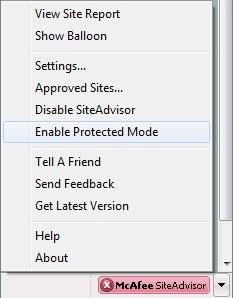
To ensure safety, you should use the software to block access to websites that are considered dangerous or fraudulent. To do this, click on the arrow icon of the browser software, select " Enable Protected Mode ".
A dialog box appears, asking you to create a password to protect. The " Password Hint " section will give you a hint, just in case you forget your password after initializing it.
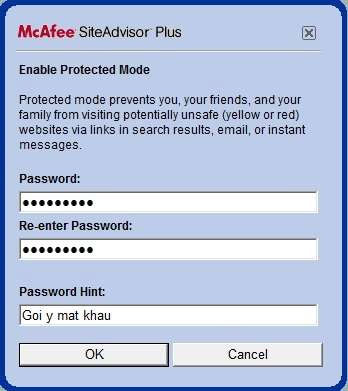
Enter and confirm the password and click OK .
Now, when accessing the websites that are warned, you will be redirected to McAfee's intermediary page, and asked if you really want to access this website. If you want to ignore the warning, click the " Override this warning " button, then enter the above initialized password to access the website.
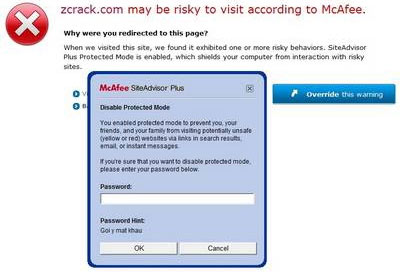
This will ensure that no one is allowed to use the computer to access unsafe websites, avoiding the risk of infection without your knowledge. In addition, this feature also prevents the system from being automatically transferred to ' dirty ' websites in case the computer has been infected before.
Not only checking the cleanliness of links from search results, McAfee SiteAdvisor Plus also checks incoming links via email or chat programs.
McAfee SiteAdvisor Plus is the perfect tool to protect users safely in an uncertain Intenet environment.
FAQ
What is Ensure Safety When Surfing with Mcafee Siteadvisor about?
It provides a structured overview of McAfee SiteAdvisor, explains the main context, and highlights practical takeaways for readers.
Why does this topic matter?
Understanding the main concepts helps readers evaluate the issue, avoid common mistakes, and make better-informed decisions.
How should readers use this information?
Use the guidance as a practical starting point, confirm details that may have changed, and follow current product, safety, or security recommendations.
Related Articles
 Register for Free Using Mcafee Virusscan Plus 2010 for 1 Year2 minutes read
 7 Safety Principles for Children Surfing the Web1 minutes read
 Mcafee Develops Anti-piracy Applications3 minutes read
 McAfee Released the WebAdvisor Extension for Microsoft Edge for Free on Microsoft Store3 minutes read
 How to Uninstall McAfee4 minutes read
 Click: How to Disable Mcafee6 minutes read
Reader Comments 0
Sign in with email or Google to join the discussion.