Table of Contents
CCleaner can remove selected temporary files and browser data, and it includes tools for managing some applications and startup entries. Its most useful role is helping you identify and remove data you no longer need. It is not a guaranteed fix for a slow PC, and cleaning more categories is not automatically better.
Start by deciding what you want to remove: temporary files, old browser data, or an application you no longer use. Keep important files backed up, and review the proposed cleanup before confirming deletion.
Download and install CCleaner
Download the supported Windows version from the official CCleaner website. Read each installer screen, review optional offers, and choose the edition that meets your needs. A paid subscription is not required simply to inspect Windows storage usage.
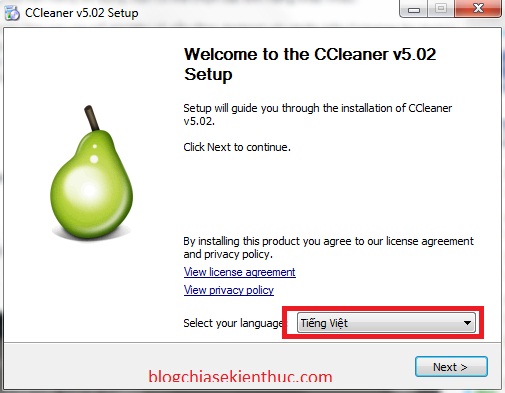
The screenshots in this guide show an older Vietnamese interface. Current versions use different layouts and may group features differently. Follow the labels in your installed version rather than expecting an exact match.
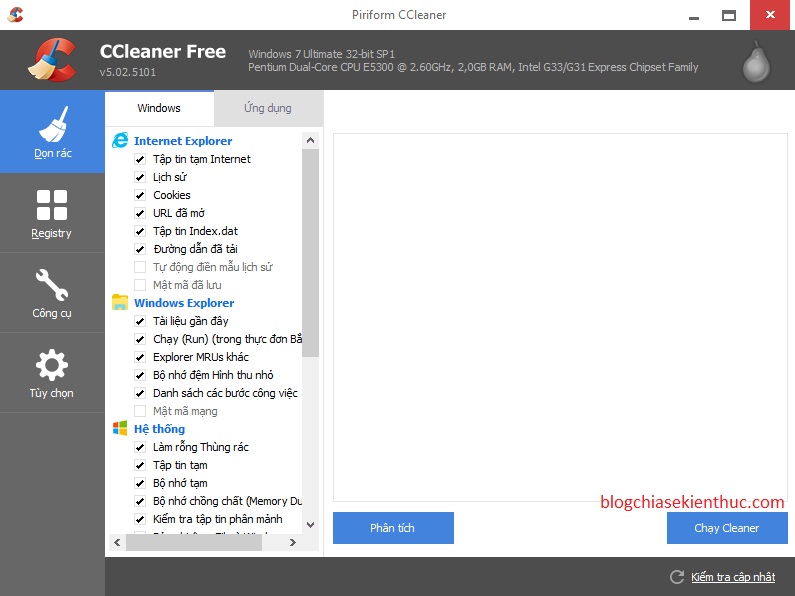
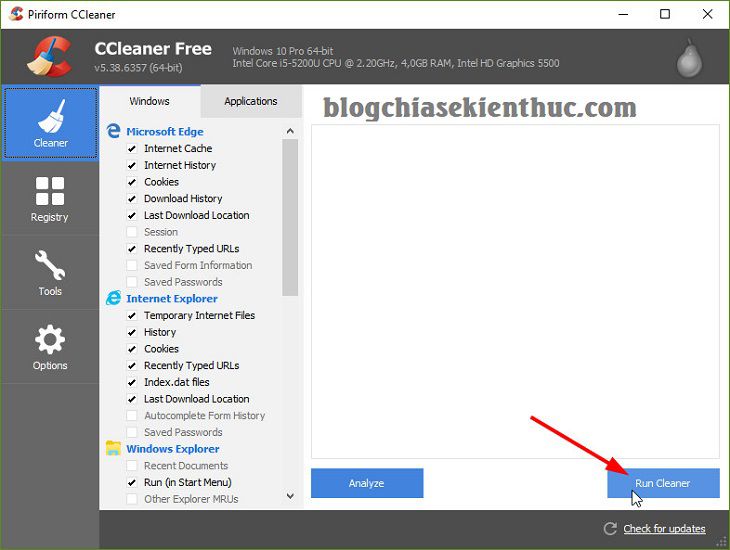
Review files before running a cleanup
- Open Custom Clean or the corresponding cleanup section.
- Inspect the selected categories. Keep browser cookies, saved sessions, history, and other data you want to retain unchecked.
- Run the analysis or scan. In older versions, this is labeled Analyze; newer workflows may use different wording.
- Review the results and deselect items you do not recognize or still need. Save your work before closing any application the cleaner needs to access.
- Confirm the cleanup only when you understand what will be removed.
Deleting cookies can sign you out of websites. Clearing caches can recover space, but applications may recreate them and take longer on their next launch. Review Downloads and Recycle Bin contents separately: they can contain personal files, not just disposable “junk.”
For version-specific steps, consult CCleaner’s Custom Clean instructions. Avoid selecting every category just to maximize the reported amount removed.
Do you need the registry cleaner?
Do not use registry cleaning as a general response to unexplained slowness or unusual behavior. Identify the actual problem first. Removing a registry entry can affect an application or Windows, and a list of detected entries does not by itself show that they are causing a fault.
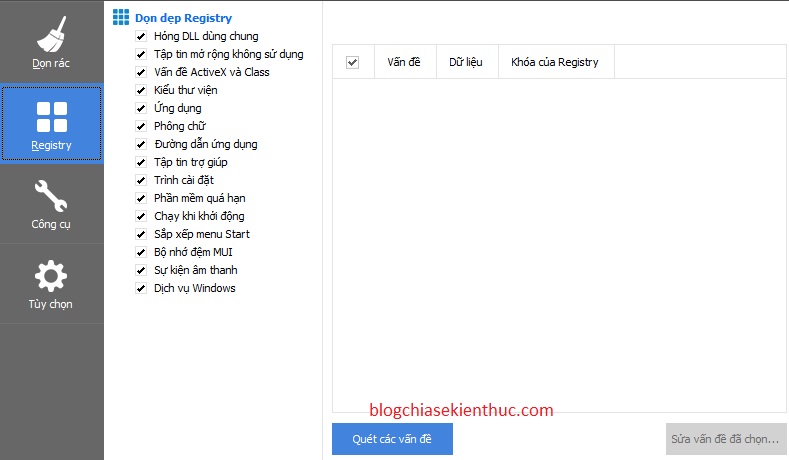
Microsoft cautions that improper registry changes can cause application errors, instability, or startup problems. Follow targeted, trusted troubleshooting instructions and keep appropriate backups before making such changes. See Microsoft’s system configuration guidance.
Understand the other tools
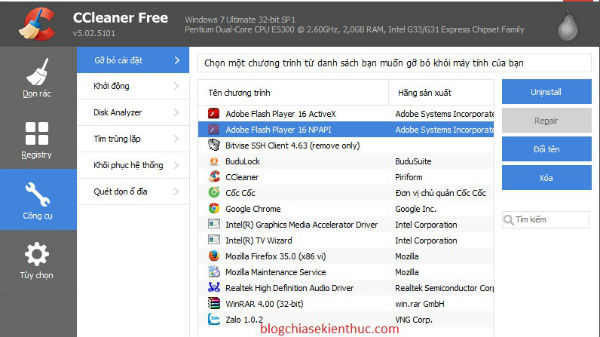
| Tool | What it is for | What to check first |
|---|---|---|
| Uninstall | Removing installed applications | Confirm you no longer need the app and have saved any related work. |
| Startup management | Controlling which programs launch automatically | Disable only entries you recognize. Leave required security and device components alone. |
| Disk Analyzer | Showing how storage space is used | It analyzes files; it is not a disk-defragmentation tool. |
| Duplicate Finder | Finding candidate duplicate files | Verify the contents and locations. Some applications require their own copies. |
| System Restore management | Managing restore points where supported | Removing a restore point removes that recovery option. |
| Drive-wiping tools | Erasing data or free space, depending on the selected operation | These are not ordinary junk cleanup. Do not use them unless you understand the exact scope. |
Tool availability depends on the version and edition. The table explains the purpose of features shown in older releases rather than promising that every control is present in your installation.
Free versus paid editions
Compare the current vendor feature list if you need scheduling, software updating, or other paid functions. Check the device allowance, renewal terms, and supported operating system before buying. Historical bundles and device counts may no longer match current plans.
A paid edition does not guarantee a particular speed increase, and data-recovery software cannot promise to recover every deleted file. Do not purchase an upgrade on the assumption that it will solve an unidentified hardware or software problem.
Try Windows storage tools first if you only need space
Windows offers storage cleanup through Settings → System → Storage. Review Temporary files and the available cleanup recommendations before removing anything. For a step-by-step approach, see freeing storage space safely.
If downloaded installers and archives occupy most of the drive, inspect them directly using the Downloads-folder cleanup guide. Record free space before and after cleanup so you can tell whether it addressed your actual problem.
Clean up when there is a reason, such as low free space or unwanted browser data. A weekly scan is not necessary for every computer, and no cleanup tool replaces updates, backups, or diagnosing the cause of persistent slowness.
Related Articles
 The best CCleaner replacement software
 CCleaner 5.45 is wiped out by collecting user data, if you are using it, remove it immediately
 These are the reasons you should remove CCleaner on Windows right away
 Instructions for restoring original settings for CCleaner
 Optimize your system with CCleaner
 How to use CCleaner software to clean up computer trash effectively
Reader Comments 0
Sign in with email or Google to join the discussion.