What you will learn
- Measure system-drive capacity and identify the largest storage categories.
- Review Temporary files item by item before removal.
- Configure Storage Sense with clear expectations about Downloads and cloud content.
- Remove applications and personal files through supported workflows.
What you need
- A Windows 10 or Windows 11 PC.
- A backup of important files before large cleanup actions.
- Administrator permission for uninstalling system-wide applications.
Measure before choosing a cleanup target
Microsoft's drive-space guidance begins with Storage settings, where Windows groups usage into installed apps, temporary files, documents, pictures and other categories. This makes it easier to choose a supported action for the actual source of growth.
Record total used and free space on C:. Open the largest categories and note whether they contain personal files, application data, temporary content or system-managed files. A category can take time to calculate. Do not assume Other means disposable; it may contain project data or application caches that need vendor-specific cleanup.
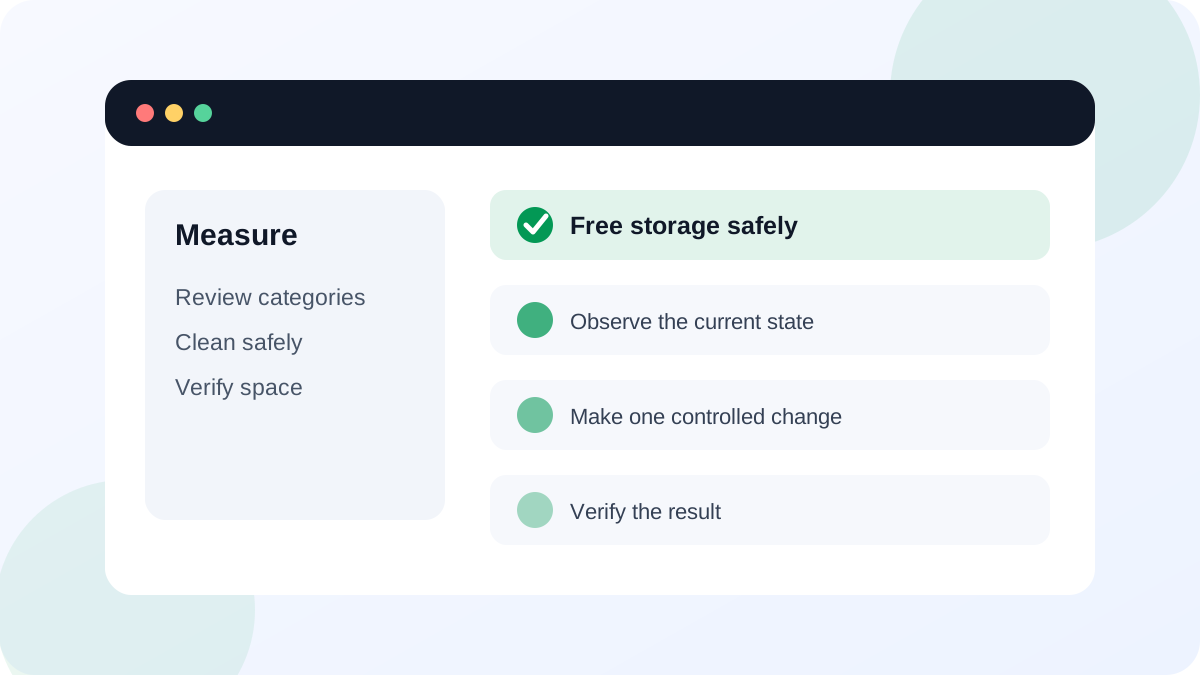
Review Temporary files instead of selecting everything
Open Temporary files and let Windows calculate available items. Read every category and its description. Thumbnails, delivery optimization files and temporary system files are usually regenerated. Downloads and Recycle Bin can contain irreplaceable user files, so Windows may leave them unchecked or clearly warn about them.
If Previous Windows installation appears after an upgrade, removing it can free significant space but can also remove the normal rollback option. Confirm the current Windows version is stable and that no rollback is needed before selecting it.
- 1
Press Windows + I and open System > Storage.
- 2
Record free space on the system drive.
- 3
Open Temporary files and wait for calculation to finish.
- 4
Review each selected category, paying special attention to Downloads, Recycle Bin and previous installations.
- 5
Remove only categories whose contents and recovery consequences you understand.
- 6
Restart if requested and record the new free-space value.
Configure Storage Sense deliberately
Storage Sense can remove temporary content automatically and can manage locally available cloud files depending on the selected schedule and rules. Microsoft documents its controls under Storage settings.
Choose a schedule that fits the device, then inspect Recycle Bin, Downloads and cloud-content thresholds. A file becoming online-only is not the same as deletion, but it will require network access to open later. On a travel or offline PC, aggressive cloud dehydration can create a practical access problem even though the file remains in the cloud.
- Free space before and after cleanup is recorded.
- Downloads and Recycle Bin were reviewed manually.
- The Windows rollback consequence was considered before removing a previous installation.
- Storage Sense rules match offline and recovery needs.
Handle applications and personal files through their owners
Sort Installed apps by size and uninstall software you no longer need through Settings. Large games and creative applications can keep libraries or project folders outside the main program directory, so check their documentation. For personal videos, archives and installers, move or delete only known files and open the destination copy before removing the original.
Do not manually delete Windows, Program Files, ProgramData or unknown AppData folders. Do not use registry cleaners to claim storage savings. If a category remains abnormally large, use the responsible application's cleanup settings or official support guidance.
Recover space with a documented cleanup
Choose two low-risk cleanup actions and prove the result without relying on a third-party cleaner.
- 1
Record free space and the three largest Storage categories.
- 2
Remove reviewed temporary-file categories.
- 3
Uninstall one unused nonessential application or move one known large personal file.
- 4
Empty only reviewed Recycle Bin items.
- 5
Record final free space and open one important file and one regular application to verify normal use.
Common mistakes to avoid
- Selecting every Temporary files category without reading the descriptions.
- Deleting unknown ProgramData or AppData folders manually.
- Removing Previous Windows installation before confirming the upgrade is stable.
- Measuring only the amount deleted instead of verifying the PC still works normally.
Key takeaways
- Storage categories identify the correct owner and cleanup method.
- Temporary files, Downloads and previous installations have different recovery consequences.
- A good cleanup has before-and-after evidence and preserves a separate backup.
Frequently asked questions
How much free space should Windows have?
There is no single value for every workload, but updates and temporary operations need headroom. Monitor whether free space is falling and follow application or update requirements rather than aiming for the smallest possible reserve.
Is it safe to delete everything in the Temp folder?
Use Windows Temporary files or Disk Cleanup first. Files currently in use will be protected, but manual deletion can interrupt installers or applications and does not address every storage category.
Sources and further reading
- Free up drive space in WindowsMicrosoft Support
- Manage drive space with Storage SenseMicrosoft Support
Ready to continue?
Mark the lesson complete so your Learning Path progress stays current on this device.