Table of Contents
An M.2 SSD installs directly on a desktop motherboard, but a drive that physically fits is not automatically compatible. Before opening the PC, check the motherboard manual for the slot's supported interface, drive lengths, PCIe generation, lane-sharing rules, and boot limitations.
Check M.2 compatibility first
M.2 is a form factor. The drive may communicate over PCIe/NVMe or SATA, and the motherboard slot may support one or both. Connector notches provide clues, but they do not replace the compatibility table in the manual. A B+M-key drive is often SATA or PCIe x2, while a typical PCIe x4 NVMe drive uses an M key.
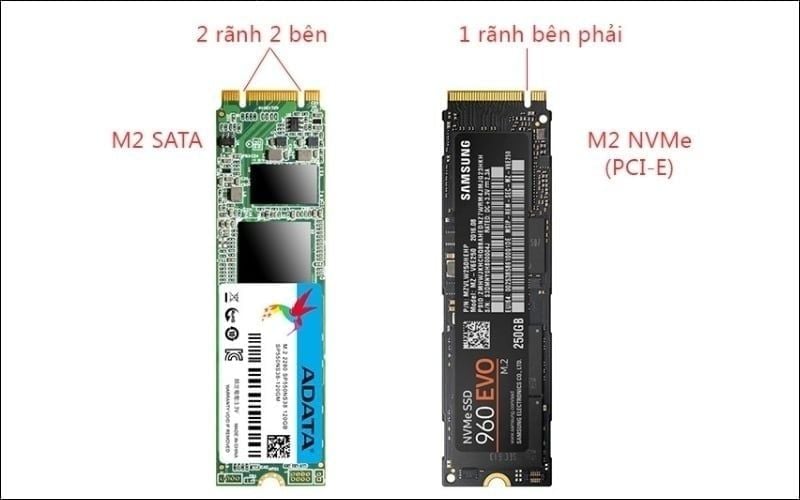
Use the exact motherboard manual to confirm protocol, keying, and supported drive length.
Also read the lane-sharing notes. On some boards, using a particular M.2 slot disables one or more SATA ports, reduces another PCIe slot's lane allocation, or operates at a lower speed when certain devices are installed. Move any affected SATA cable to an enabled port before closing the case. For a broader comparison, see the main SSD form factors and interfaces.
Tools and safety precautions
- A screwdriver with the correct bit for the case, M.2 screw, and heatsink
- The correct M.2 standoff and screw, usually supplied with the motherboard
- An antistatic wrist strap, or another reliable method of grounding yourself
- The motherboard manual and a well-lit, uncluttered work area
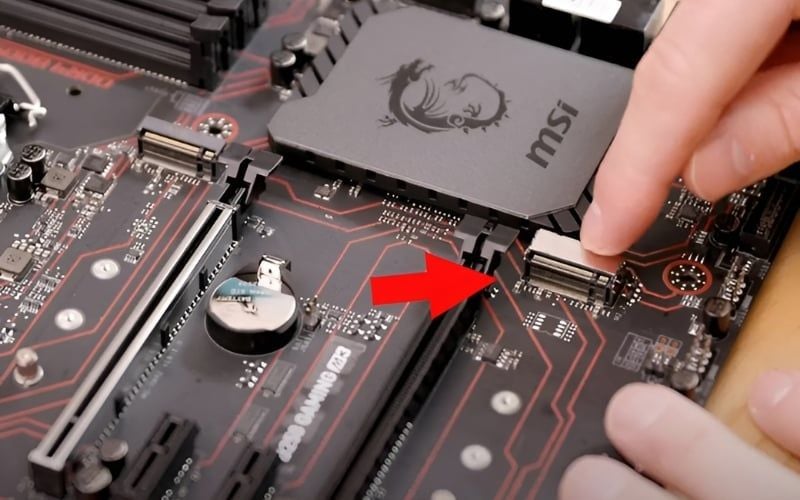
Do not substitute an arbitrary case screw for the small M.2 fastener.
Shut Windows down, switch the power supply off, unplug its power cable, and press the case power button briefly to discharge residual power. Work away from carpet and handle the SSD by its edges. If access requires removing the graphics card, release its PCIe latch and power connectors carefully rather than working around the card.
Install the M.2 SSD
1. Locate the correct slot
M.2 slots are commonly between PCIe slots, below the CPU socket, or under a motherboard heatsink. A board with several slots may give them different speeds or CPU/chipset connections, so use the slot recommended in the manual.
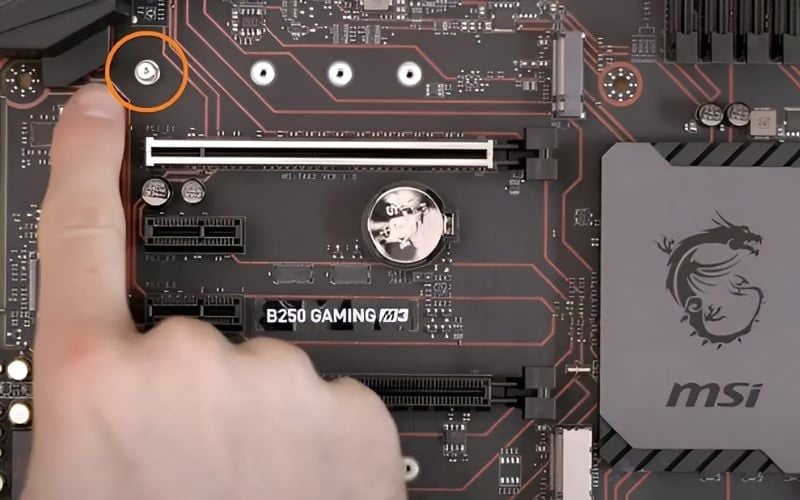
Locate the slot by its motherboard label and manual, not by position alone.
2. Position the standoff and prepare the heatsink
Move or install the standoff at the hole matching the drive length—2280 means 22 mm wide and 80 mm long. The SSD must rest on the standoff; it should never be bent down to the motherboard.
If the board includes an M.2 heatsink, remove it as directed. Peel the protective film from its thermal pad immediately before reassembly. Do not stack an extra pad on top of the motherboard's supplied pad unless the manufacturer specifies it.
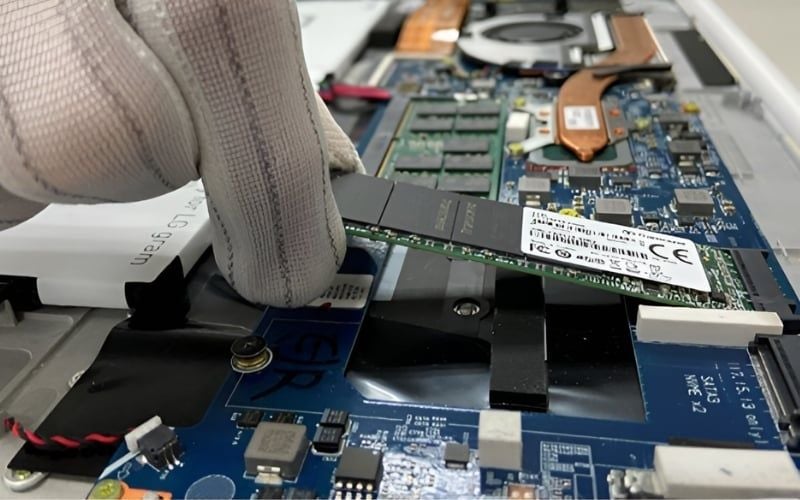
Place the standoff in the mounting hole that matches the SSD's length.
3. Insert and secure the drive
Align the connector notch and slide the drive into the slot at roughly a 20- to 30-degree angle. It should enter with light, even pressure. If it does not, stop and check the orientation and keying.
Hold the board by its edges and insert it squarely into the socket.
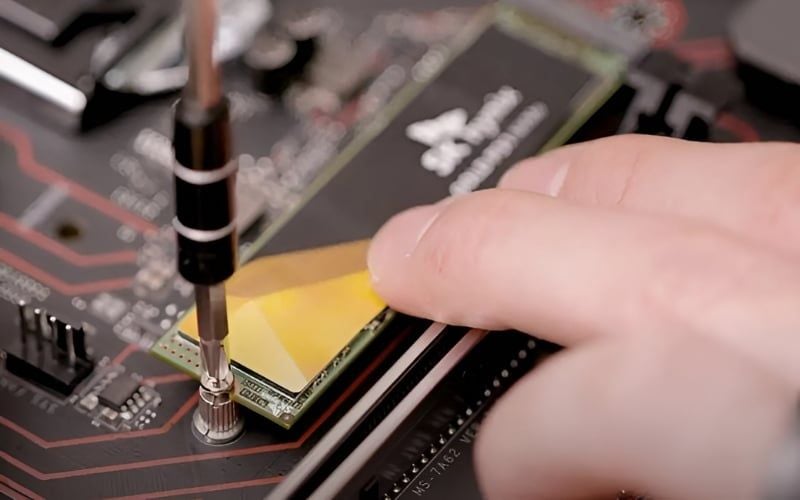
Press the free end gently onto the standoff and fit the M.2 screw or the board's tool-free latch. Tighten only enough to hold the SSD flat. Reinstall the heatsink evenly, making sure it contacts the drive without shifting it out of the socket.
The SSD should lie flat and remain unbent after the fastener is secured.
Verify the SSD in BIOS or UEFI
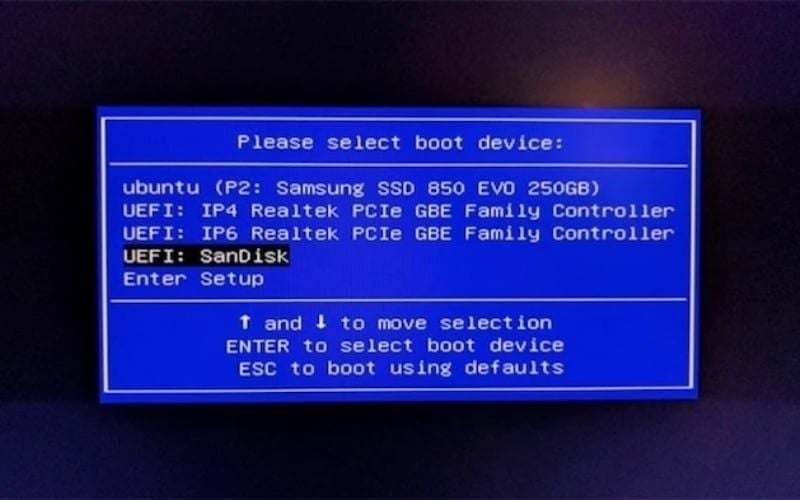
Reconnect power and start the PC. Use the key shown by the motherboard—commonly Delete or F2—to enter firmware setup. Look under NVMe, storage, or boot-device information for the drive's model number. Do not change storage-controller mode just to make a secondary drive appear; changing AHCI or RAID settings can prevent an existing Windows installation from booting.
Detection in firmware confirms the motherboard can communicate with the drive.
Initialize a blank secondary SSD in Windows
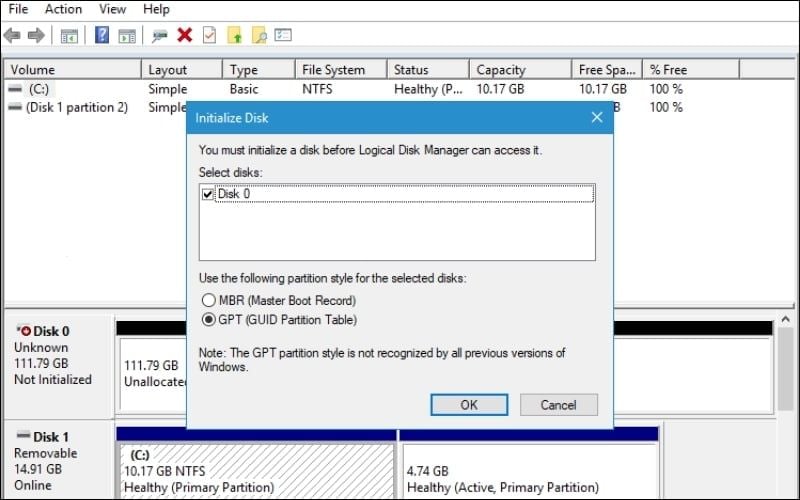
Open Disk Management by right-clicking Start. If prompted to initialize a disk, verify its capacity and that it is the new blank SSD. GPT is the normal partition style for a current UEFI-based PC.
Confirm the disk number before initializing it; never initialize a drive containing needed data.
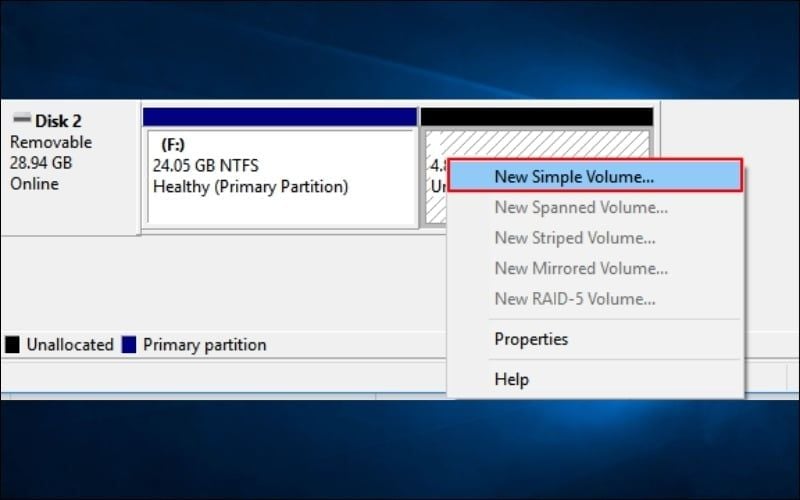
Right-click its unallocated space, choose New Simple Volume, assign a drive letter, and format it—normally as NTFS for Windows use.

A new volume makes the blank SSD available in File Explorer.
If the M.2 drive will replace the Windows system disk, do not create a data volume first. Clone the existing installation or boot from Windows installation media and select the new SSD during setup.
If the PC does not recognize the drive
- Power off and reseat the SSD; confirm that it is fully inserted and held by the correct standoff.
- Recheck whether that slot supports the drive's NVMe or SATA interface.
- Review lane-sharing rules and test another compatible M.2 slot if the board provides one.
- Update the motherboard BIOS only when the vendor's notes indicate a relevant compatibility fix, following its exact update instructions.
- Test the SSD in another compatible system or enclosure if possible to separate a drive fault from a slot problem.
An M.2-to-PCIe adapter can add an NVMe data drive to a system with a suitable free slot, but boot support depends on the motherboard firmware. Avoid unofficial firmware modifications merely to make an old PC boot from NVMe. Once the drive is working, follow the practical SSD optimization and maintenance guidance rather than applying outdated tweaks.
Related Articles
 Instructions for Installing and Using Claude Offline on a Computer6 minutes read
 Instructions on How to Build a Computer at Home Simply and13 minutes read
 The Easiest Way to Install Cctv via Network10 minutes read
 How to Download Google Meet for Laptop: a Quick Guide to Installing a PWA8 minutes read
 Detailed Instructions on How to Create a USB to Install4 minutes read
 How to Use Claude to Code and Debug Code6 minutes read
Reader Comments 0
Sign in with email or Google to join the discussion.