Table of Contents
The fastest reliable way to check M.2 support is to identify the laptop's exact model and read its manufacturer specifications or service manual. Seeing an M.2-shaped slot is not enough: the connector may support SATA, PCIe/NVMe, both, or a non-storage device, and the permitted card length can vary.
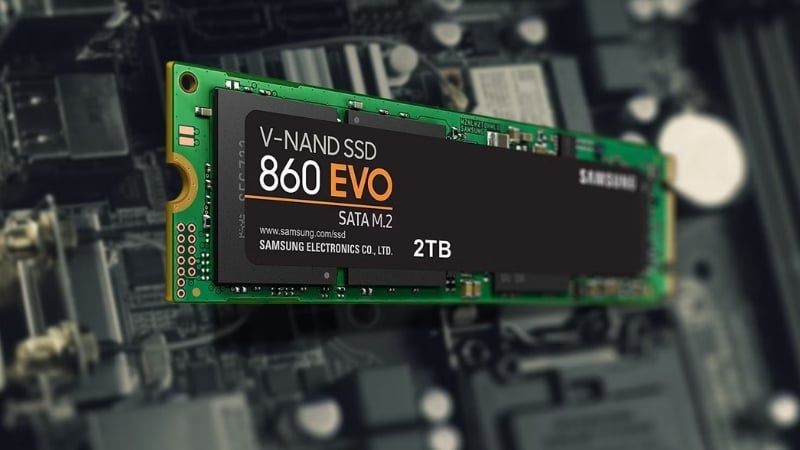
M.2 is a form factor, not a speed standard
M.2 describes the card and connector format. An M.2 storage drive can use the SATA interface with AHCI or the PCIe interface with NVMe. An M.2 SATA SSD typically performs like a 2.5-inch SATA SSD, while an NVMe model can use several PCIe lanes for much higher sequential throughput.
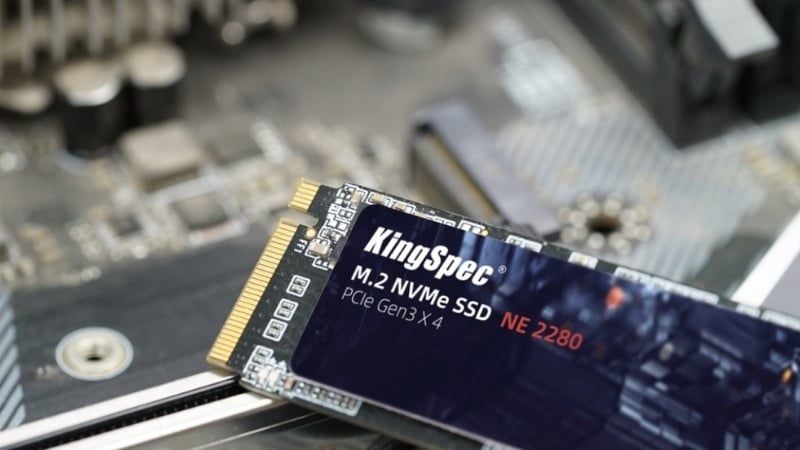
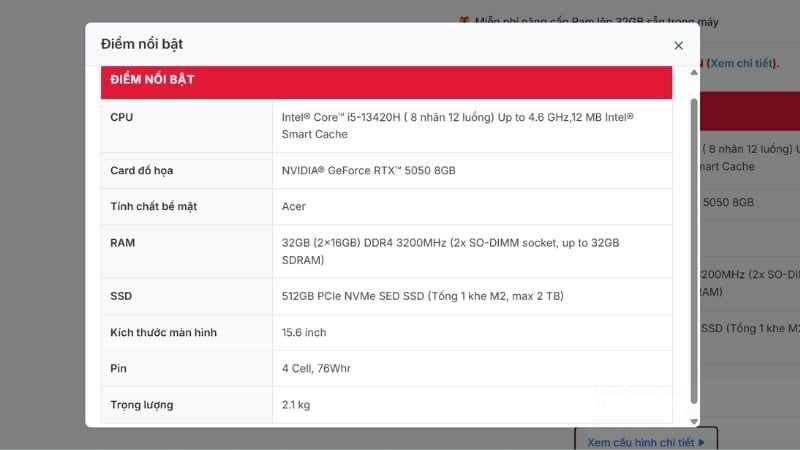
1. Find the complete laptop model
A family name such as “IdeaPad 5” or “Dell Inspiron 15” is not specific enough because storage support can change between submodels. Check the underside label, BIOS/UEFI information page, purchase record, or Windows System Information.
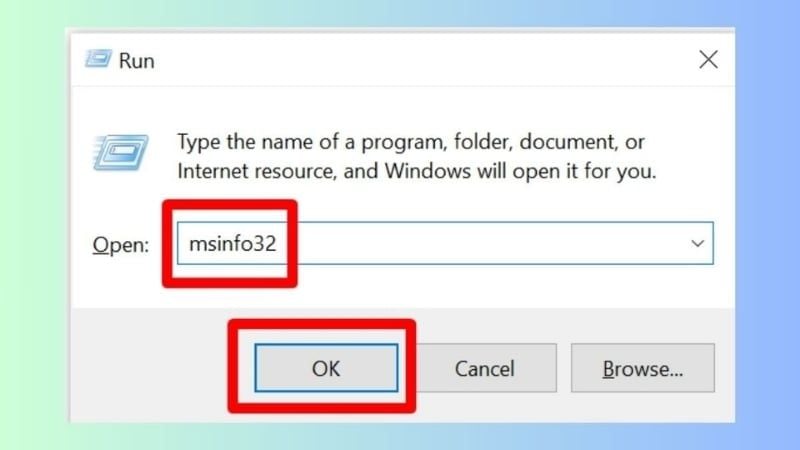
- Press Windows + R.
- Enter msinfo32 and press Enter.
- Record System Manufacturer, System Model, and, when available, System SKU.
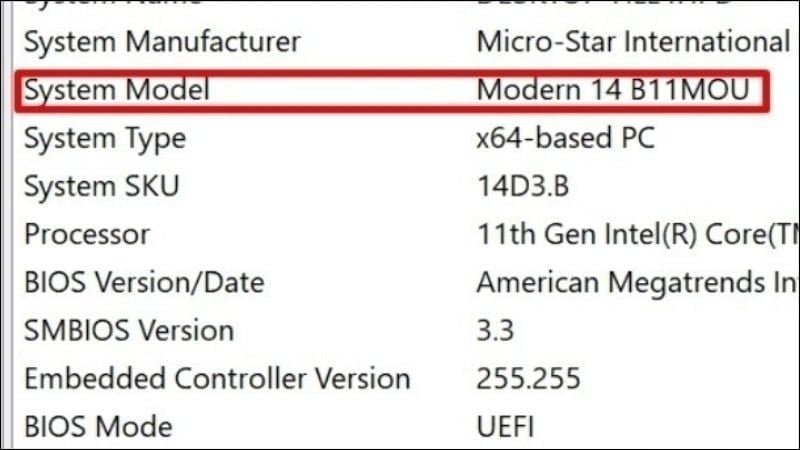
2. Read the official specification or service manual
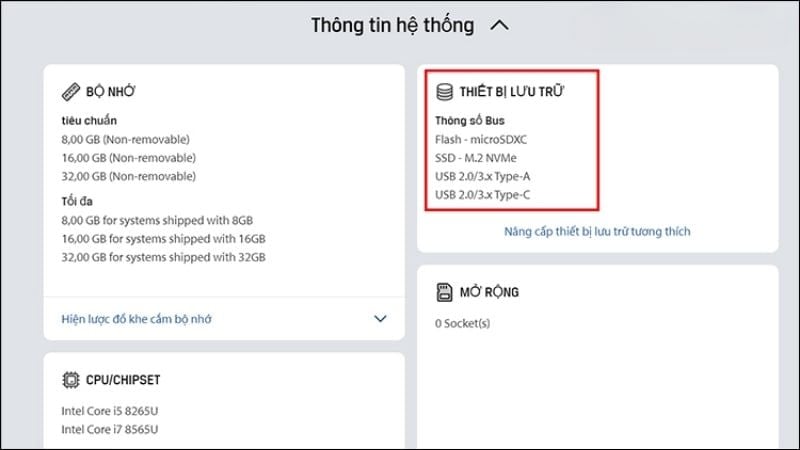
Search the laptop manufacturer's support site for the exact model. The most useful documents are the product specification sheet, hardware maintenance manual, service manual, and parts list. Look for these details:
- Number of storage connectors and whether one is already occupied
- M.2 SATA, PCIe/NVMe, or dual-protocol support
- PCIe generation and lane width
- Supported lengths such as 2230, 2242, 2260, or 2280
- Single-sided or double-sided clearance
- Required bracket, screw, cable, thermal pad, or shield
- Whether installing a drive disables another port or device

3. Use a compatibility database as a cross-check
Memory and SSD manufacturers such as Crucial and Kingston provide model-based upgrade finders. These are useful for discovering likely compatible capacities and form factors, but they are not a substitute for the laptop manual. Verify that the database result matches the exact regional SKU before ordering.
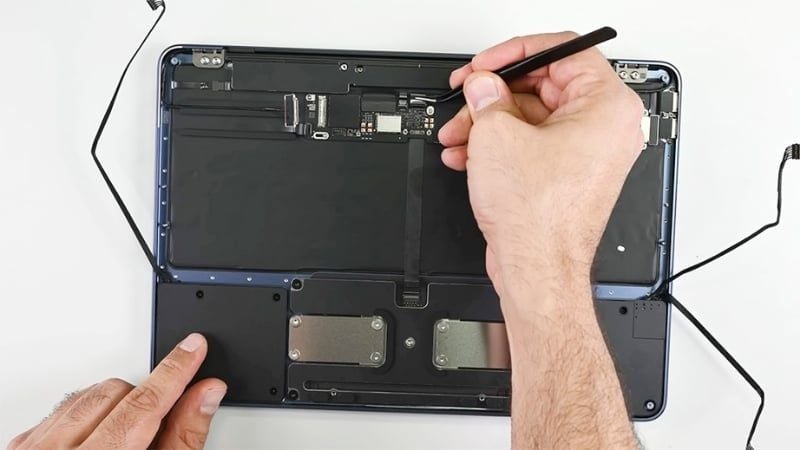
4. Inspect the hardware only when necessary
A physical inspection can confirm whether a connector, mounting post, screw, or existing drive is present. It may not reveal the protocol supported by the motherboard. A slot label can help, but rely on documentation for the final answer.
Before opening the laptop, shut it down, disconnect power, follow the service manual, and use electrostatic-discharge precautions. Check the warranty terms for that model; opening a service panel does not have the same consequence on every product or in every region, but damage caused during an upgrade may not be covered.
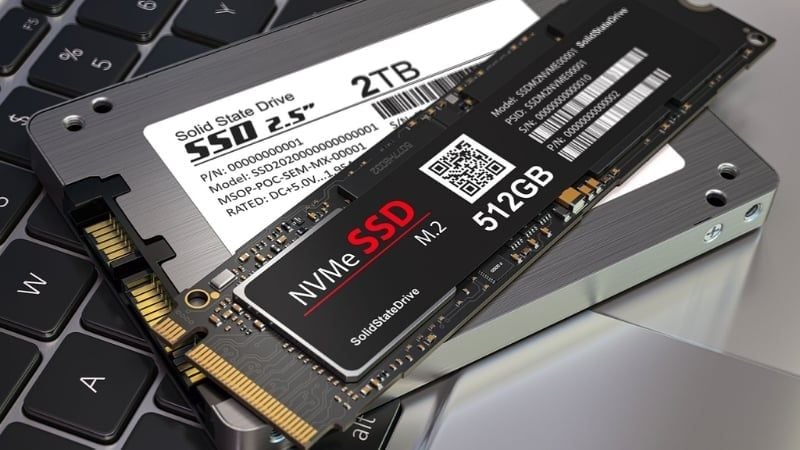
Do M.2 SATA and NVMe drives interchange?
Only when the host slot explicitly supports both protocols. A B+M-keyed SATA drive may physically fit an M-keyed socket but still fail to work if that socket carries only PCIe. Likewise, an NVMe drive cannot operate in a SATA-only M.2 slot. Physical fit and electrical compatibility are separate checks.
Check size, capacity, and cooling
The common 2280 size is 22 mm wide and 80 mm long, but thin laptops may use 2230 or 2242 drives. Verify the mounting post before purchase. Also check whether the laptop accepts double-sided drives; components on the underside can hit the motherboard or chassis in a tight design.
A higher-capacity drive is not automatically unsupported, but older firmware or vendor validation may limit recognized capacities. Use the largest size documented by the manufacturer or confirm a larger model through a current compatibility list and firmware notes.
Do not buy an NVMe SSD with a tall desktop heatsink for a laptop unless the chassis specifically has room. Use the original thermal pad or shield described in the service manual.

What if the laptop supports an older PCIe generation?
PCIe is backward-compatible at the link level in typical NVMe implementations. A PCIe 4.0 SSD can usually operate in a PCIe 3.0-capable slot, but it will negotiate the lower generation and cannot reach its advertised Gen 4 bandwidth. Buying a newer drive can still make sense for price, warranty, or later reuse, but do not pay a premium for speed the laptop cannot use.
Upgrade checklist
- Exact model and SKU confirmed
- Empty slot or replacement plan confirmed
- SATA versus PCIe/NVMe protocol confirmed
- Card length and mounting screw confirmed
- Lane generation and width understood
- Single/double-sided clearance checked
- Operating-system migration or clean-install plan prepared
- Current backup completed before opening the laptop
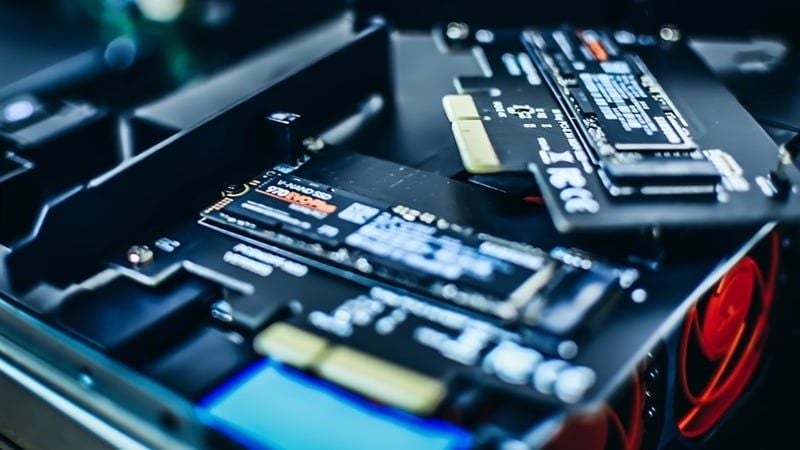
Compare the available formats in this guide to common laptop SSD types. After installation, use the SSD optimization checklist to verify TRIM, temperature, firmware, and free space.
Related Articles
 How to Check Old Laptop, Test the Machine Before Buying12 minutes read
 How to Check If the Laptop Supports Precision Touchpad4 minutes read
 Check If iPhone Supports RCS Messaging: Step-by-Step Guide4 minutes read
 How to Check If the HP Laptop Battery Is Subject to Revocation4 minutes read
 Want to Know If Your Computer Supports USB 3.0, Read This Article3 minutes read
 How to Change Your Wi-Fi Password on a Computer or Laptop13 minutes read
Reader Comments 0
Sign in with email or Google to join the discussion.