Table of Contents
ScratchJr programs are built by connecting visual blocks from six categories: Triggering, Motion, Looks, Sound, Control, and End. Each category has a distinct color and purpose. This guide explains the main interface controls and shows what the most commonly used blocks do.
If you are completely new to visual programming, this basic Scratch tutorial explains characters, stages, and scripts. ScratchJr has a simpler interface, but it uses the same core idea of arranging actions in a meaningful sequence.
ScratchJr interface at a glance
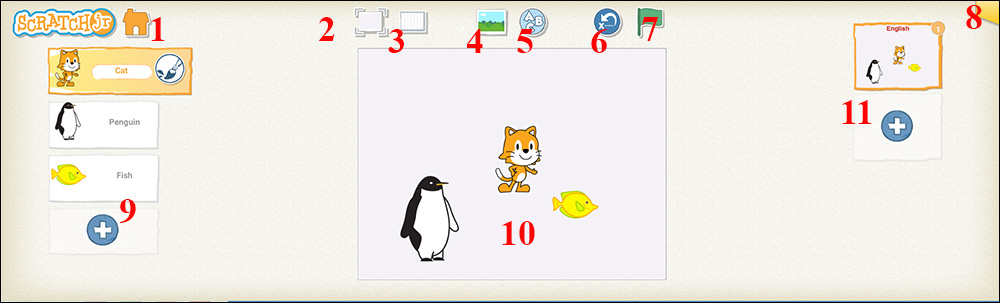
- Home: return to My Projects, where you can open or create projects.
- Presentation mode: enlarge the stage and hide most editing controls.
- Grid: display coordinates that make character placement and movement easier to estimate.
- Background: choose an existing backdrop or create one.
- Add text: place a title or other text on the current page.
- Reset: return characters to their starting positions and stop the current run.
- Green flag: start every script on the page that begins with Start on Green Flag.
- Project information: name the project and access sharing options.
- Character area: add, select, edit, or remove characters. Select the correct character before editing its code.
- Stage: preview and interact with the current page.
- Page area: add, select, reorder, or remove pages in a story.
The six ScratchJr block categories
| Category | What it controls |
|---|---|
 | Triggering: starts a script after an event such as tapping the green flag, tapping a character, bumping another character, or receiving a message. |
 | Motion: moves, turns, or hops a character and can return it to its home position. |
 | Looks: shows speech, changes size, resets size, hides a character, or shows it again. |
 | Sound: plays the built-in Pop effect or audio recorded in the project. |
 | Control: waits, stops selected scripts, changes running speed, or repeats a group of blocks. |
 | End: ends a script, repeats it forever, or moves the project to another page. |
Triggering blocks
A script needs a clear starting condition. Triggering blocks have a rounded top, so they belong at the beginning of a sequence rather than in the middle.
| Block | What it does |
|---|---|
 | Start on Green Flag: begins the script when the green flag above the stage is tapped. |
 | Start on Tap: begins when the viewer taps this character on the stage. |
 | Start on Bump: begins when this character touches another character. |
 | Send Message: broadcasts a message of the selected color to other scripts on the page. |
 | Start on Message: begins when a message with the matching color is received. |
Messages are especially useful for coordinating characters. For example, one character can finish moving, send an orange message, and cause a second character's orange Start on Message script to begin.
Motion blocks
Most Motion block numbers represent distances in stage-grid squares or a number of repeated turns. Tap a block's number to change it.
| Block | What it does |
|---|---|
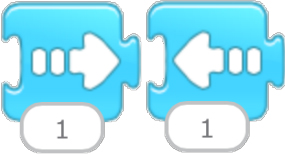 | Move Right / Move Left: moves the character horizontally by the selected number of grid squares. |
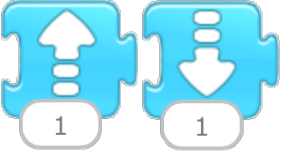 | Move Up / Move Down: moves the character vertically by the selected number of grid squares. |
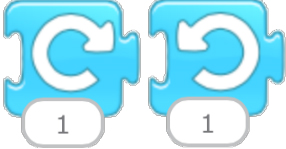 | Turn Right / Turn Left: rotates the character. A value of 12 produces a complete turn. |
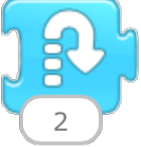 | Hop: moves the character up and back down to its current location. |
 | Go Home: returns the character to the position it occupied when the project started. |
Looks blocks
| Block | What it does |
|---|---|
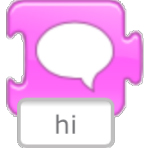 | Say: displays editable text in a speech bubble above the character. |
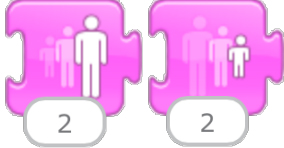 | Grow / Shrink: increases or decreases the character's size by the selected amount. |
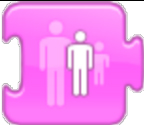 | Reset Size: restores the character's default size after Grow or Shrink. |
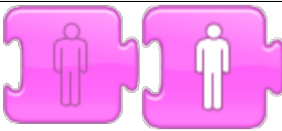 | Hide / Show: makes the character invisible or visible without deleting it. |
Sound blocks
| Block | What it does |
|---|---|
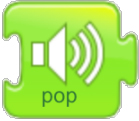 | Pop: plays the built-in pop sound. |
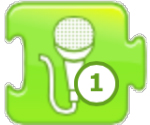 | Play Recorded Sound: plays a recording created in the project's sound recorder. |
How to combine the blocks
A useful first script is Start on Green Flag → Move Right → Say → Wait → Go Home → End. It gives the script a trigger, visible actions, a pause, a reset, and a clear finish. Test after each change so you can see which block caused a problem.
- If nothing happens, check that the first block is the trigger you actually used.
- If you edit the wrong script, select the intended character in the character area.
- If a movement distance is hard to estimate, turn on the stage grid.
- If characters must act in order, coordinate them with matching Send Message and Start on Message colors.
- If a character should repeat only part of a script, place those blocks inside Repeat rather than duplicating them.
The official ScratchJr block descriptions are the best quick reference for individual commands. For project ideas beyond ScratchJr, browse these coding games and apps for children.
Related Articles
 A Compilation of Control and Termination Statements in ScratchJR4 minutes read
 ScratchJr Quiz - Lesson 5: Review of Commands3 minutes read
 How to Learn English on ScratchJr3 minutes read
 Instructions for Using Sound in ScratchJR: Main Insights4 minutes read
 Instructions for Using Loops in ScratchJR: Key Facts4 minutes read
 How to Add a Start and End Screen for a ScratchJR Quiz (Part 3)6 minutes read
Reader Comments 0
Sign in with email or Google to join the discussion.