Table of Contents
You can turn a ScratchJr project into a simple English vocabulary activity: tap a character and its English name appears in a speech bubble. The project uses only two essential blocks—Start on Tap and Say—so it is suitable for a first lesson. Adding a second character then reinforces the idea that each character has its own scripts.
What you will build
The first character is a cat. When a learner taps it, the word “cat” appears. A second character, such as a dog, responds with “dog.” You can later add a recorded pronunciation, a size change, or more characters.
If the interface is unfamiliar, review the basic ideas behind characters and block scripts before starting.
1. Start a new project and choose a trigger
Create a new ScratchJr project. Select the cat in the character area so its scripts appear in the programming area.
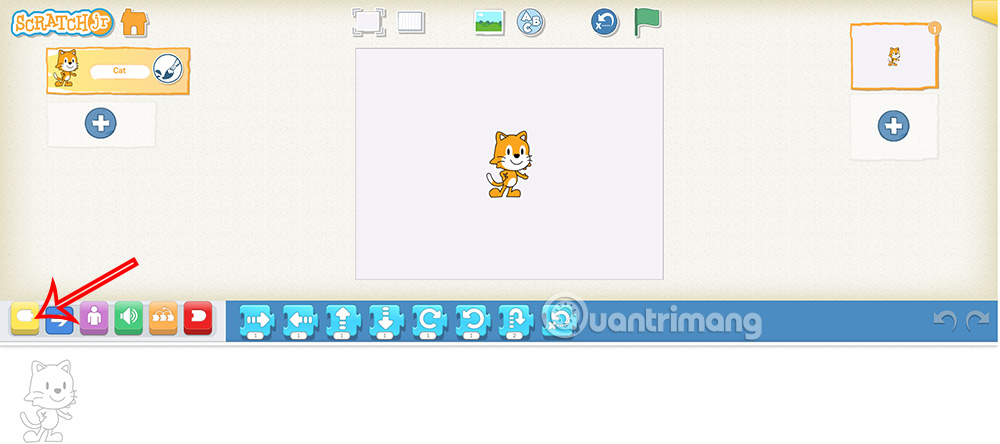
Tap the yellow Triggering category.
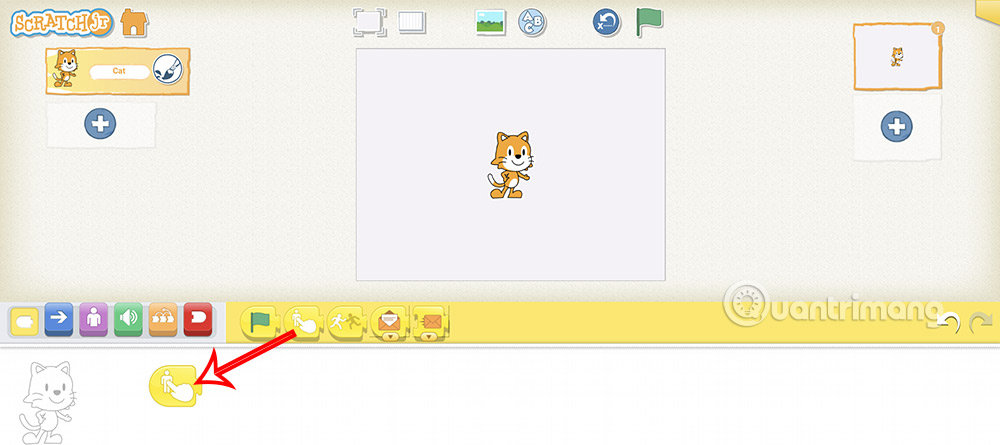
Drag Start on Tap into the programming area. This trigger runs the attached script when the learner taps the cat—not when they tap an empty part of the stage.
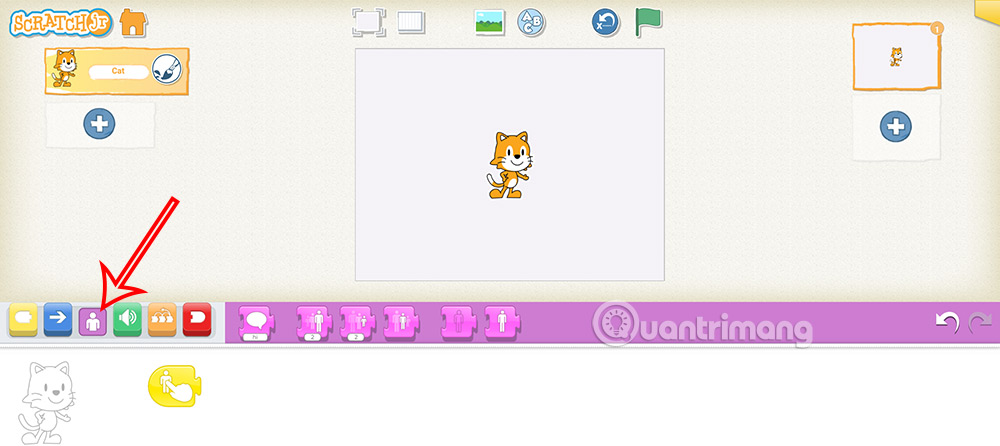
2. Make the cat display its English name
Open the purple Looks category.
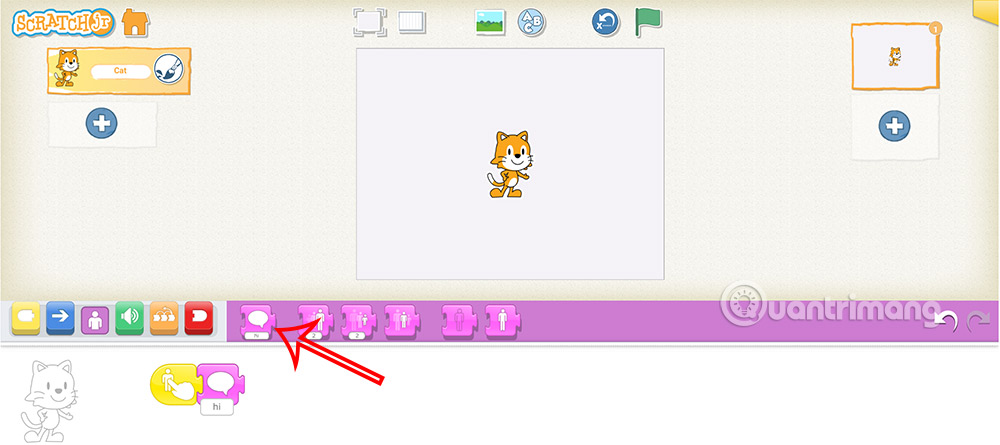
Drag the Say block next to Start on Tap so the two blocks snap together.
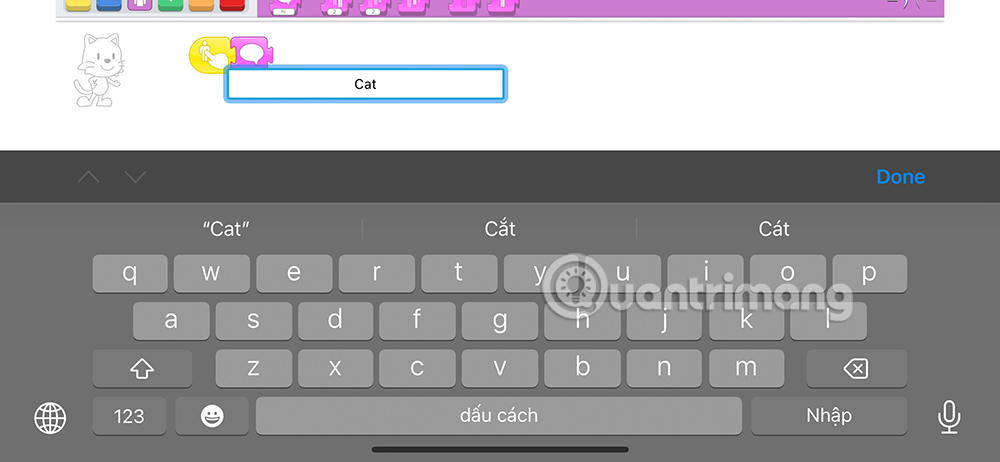
Tap the text on the Say block, replace the default greeting with cat, and confirm the edit. Test the script by tapping the cat on the stage.
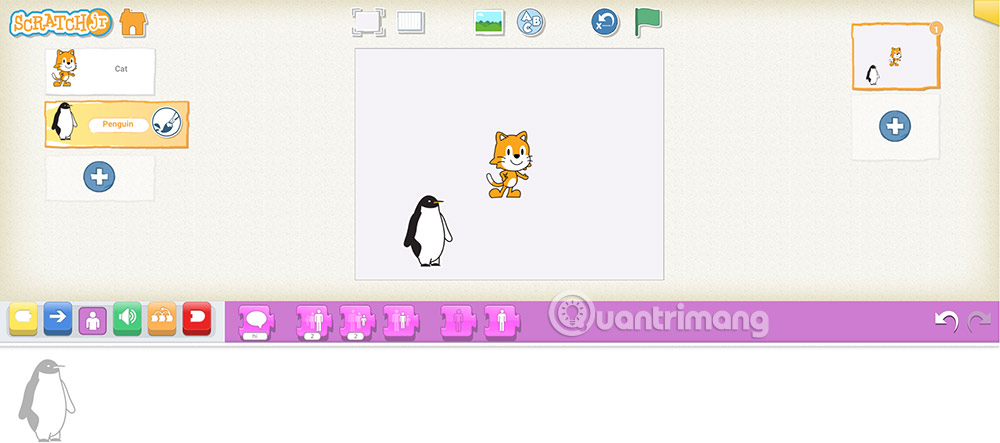
3. Add and program a second character
Tap the plus sign in the character area to open the character library.
Choose a dog or another object whose English name the learner should practice, then confirm the selection.
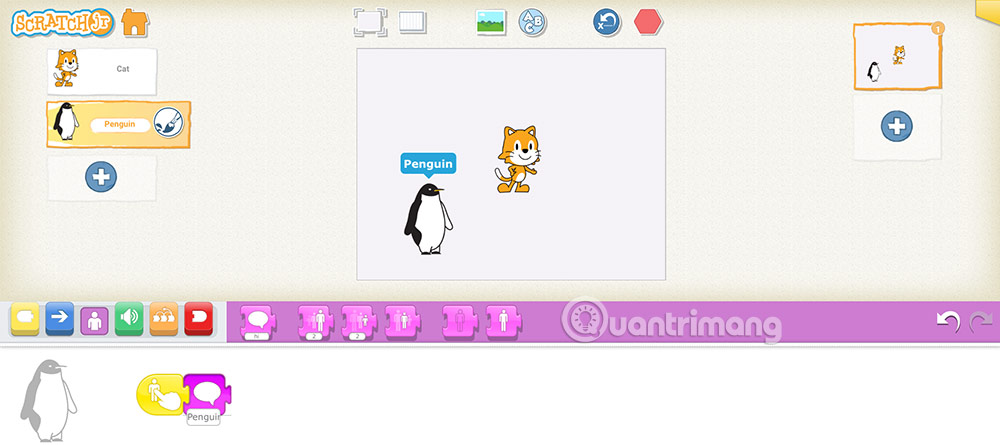
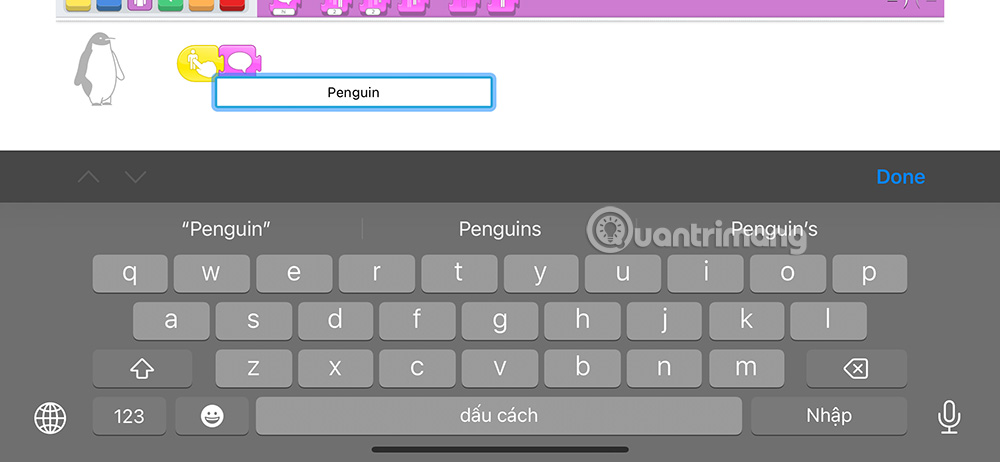
Select the new character's thumbnail. Build its own Start on Tap → Say script and change the Say text to the correct word, such as dog.
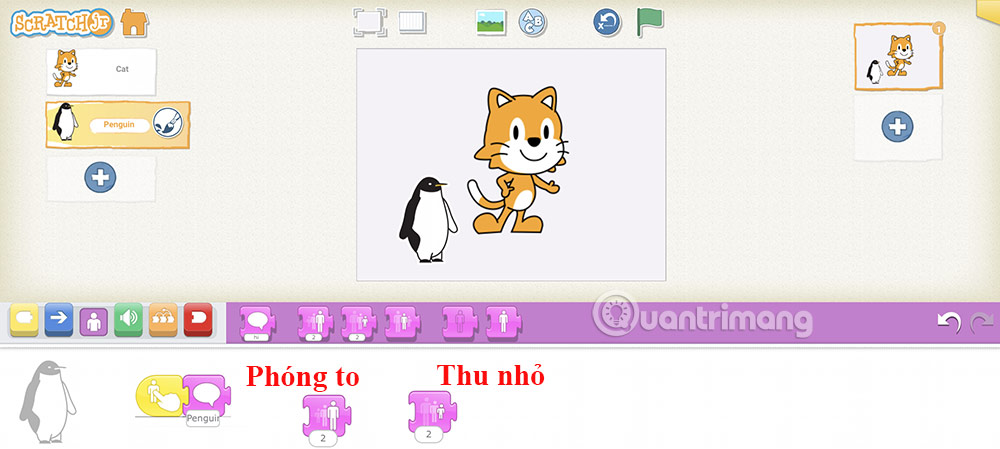
Tap each character in turn. If both characters display the same word, check which thumbnail is selected and edit that character's Say block.
4. Add a visual response
Connect a Grow block after Say so the selected character changes size after displaying its name. A Shrink block makes it smaller, while Reset Size restores its default size.
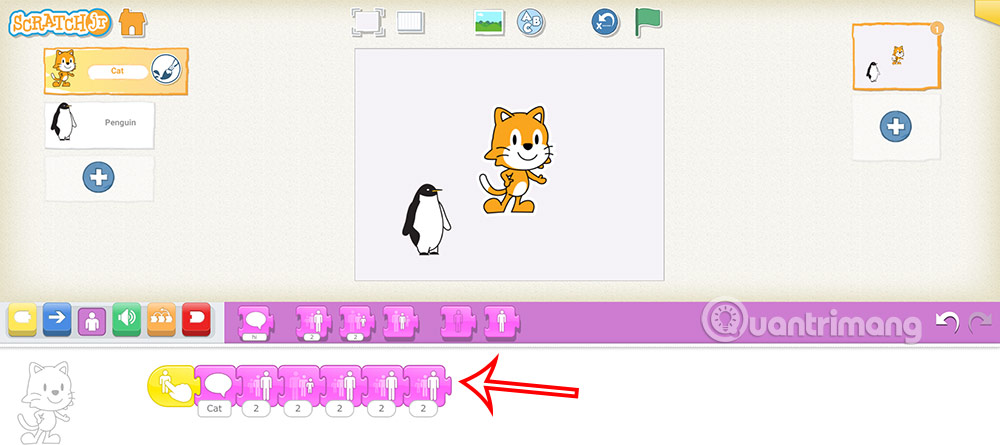
A tidy sequence is Start on Tap → Say → Grow → Wait → Reset Size. This produces a visible response without making the character grow every time it is tapped.
5. Name and test the project
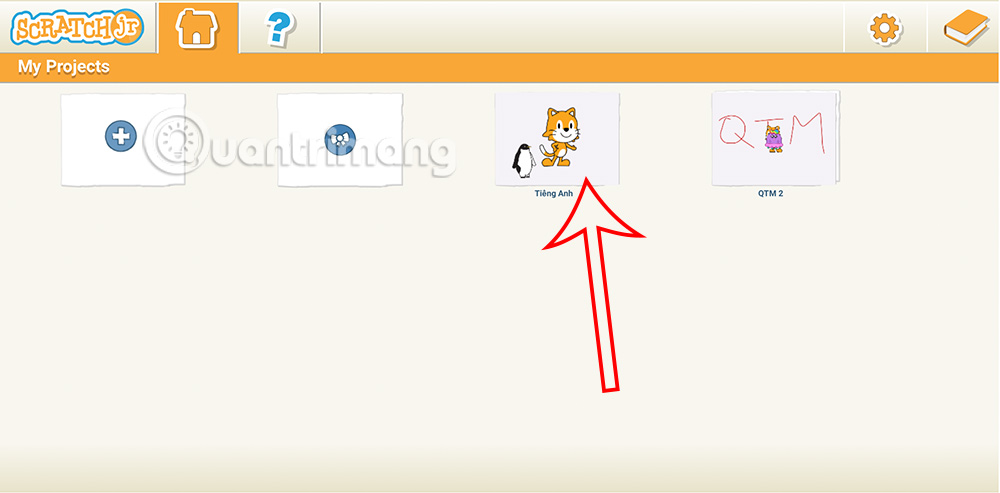
Open the yellow Project Information tab in the upper-right corner and give the project a useful name, such as Animal Words. Return to the project and test every character before leaving it in My Projects.
Ways to extend the activity
- Add pronunciation: record the word and connect Play Recorded Sound after Say. Record in a quiet place and listen before keeping the clip.
- Practice a theme: make one page for animals, another for food, and another for colors.
- Reverse the task: show the written word as page text and ask the learner to tap the matching character.
- Add a sentence: change “cat” to “This is a cat” after the single word is familiar.
- Coordinate two characters: use Send Message and Start on Message to create a short question-and-answer exchange.
Keep each page focused and test the wording for spelling and readability. The official ScratchJr block guide explains the triggers, Looks blocks, and Sound blocks used here. For more tools that introduce coding through play, see these programming games and apps for kids.
Related Articles
 Best English Learning Apps Of 20264 minutes read
 What Is ScratchJr?4 minutes read
 Good English Game, Learning While Playing8 minutes read
 4 Free English Learning Apps on Smartphones4 minutes read
 How to Add Characters in ScratchJr4 minutes read
 The Best Software for Learning English on Computers7 minutes read
Reader Comments 0
Sign in with email or Google to join the discussion.