Table of Contents
ScratchJr is a visual programming app for young children to create interactive stories and games. A project is made by snapping together picture-based blocks rather than typing commands. Characters can move, speak, play sounds, change appearance, and respond to taps or other events.
This tutorial creates a first movement script for the default cat, then shows how to remove a block, change the background, and name the project. The official version is available for supported iPads and Android tablets; check the ScratchJr compatibility FAQ before installing.
Create a new ScratchJr project
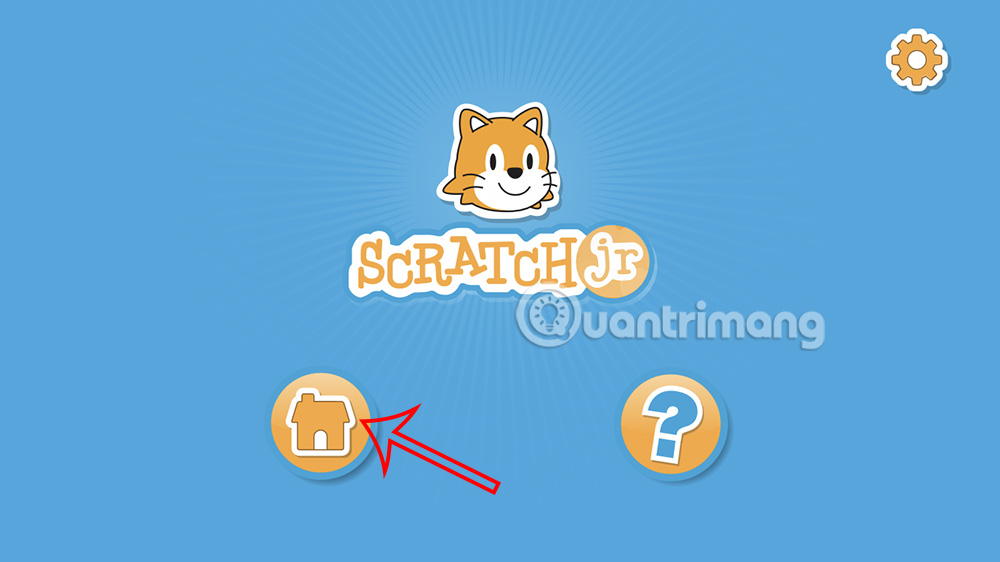
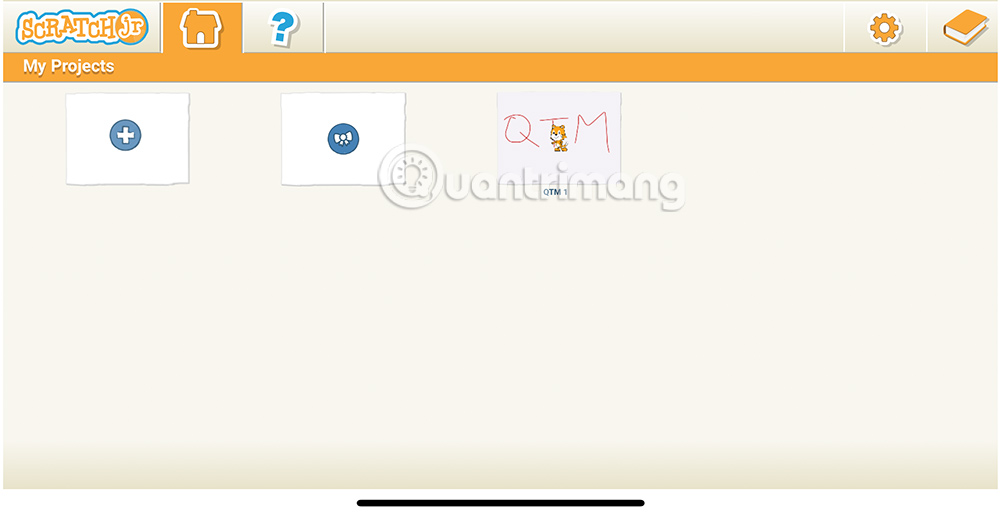
Open ScratchJr and tap the Home button to reach My Projects.
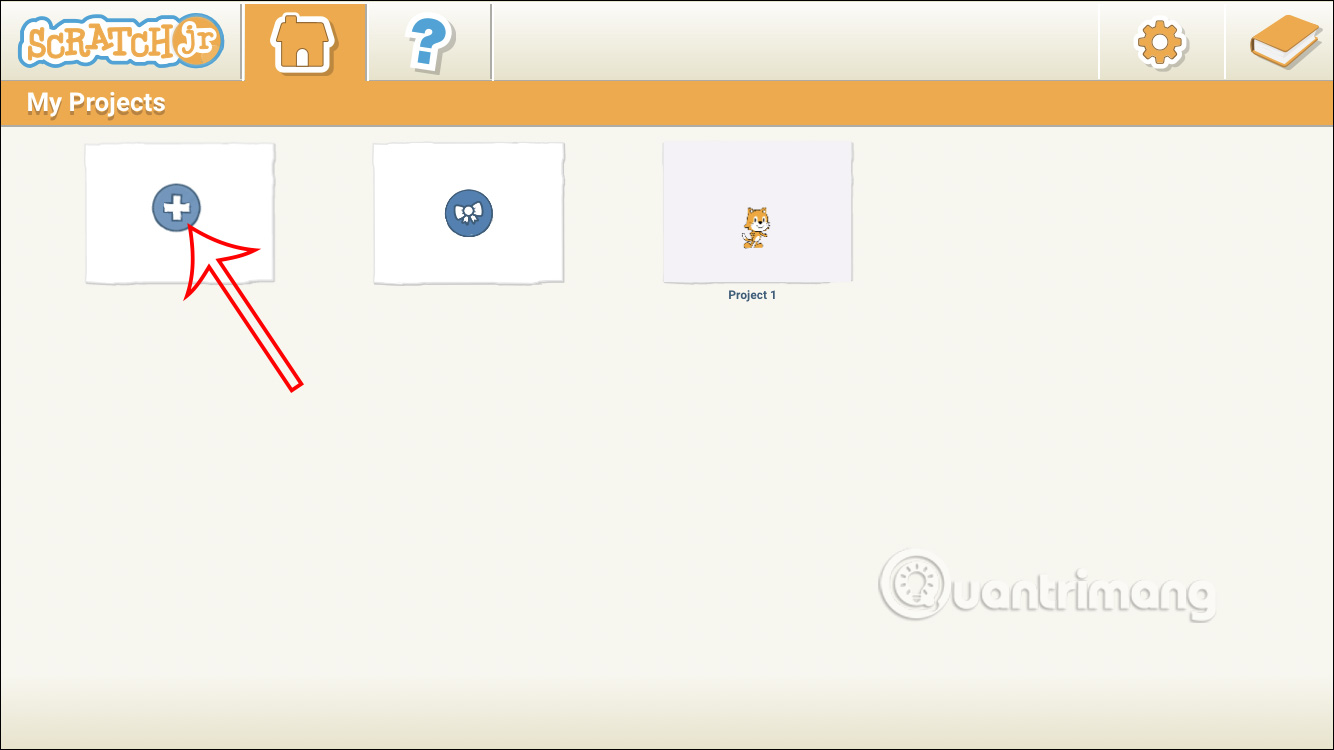
Tap the plus sign in My Projects to create a project.
Understand the editor
The editing screen has several connected areas:
- Stage: shows the current page, background, and characters.
- Character area: selects the character whose scripts you want to edit.
- Block categories and palette: groups commands by purpose and displays the blocks in the selected category.
- Programming area: holds scripts for the selected character.
- Page area: manages the different scenes in a project.
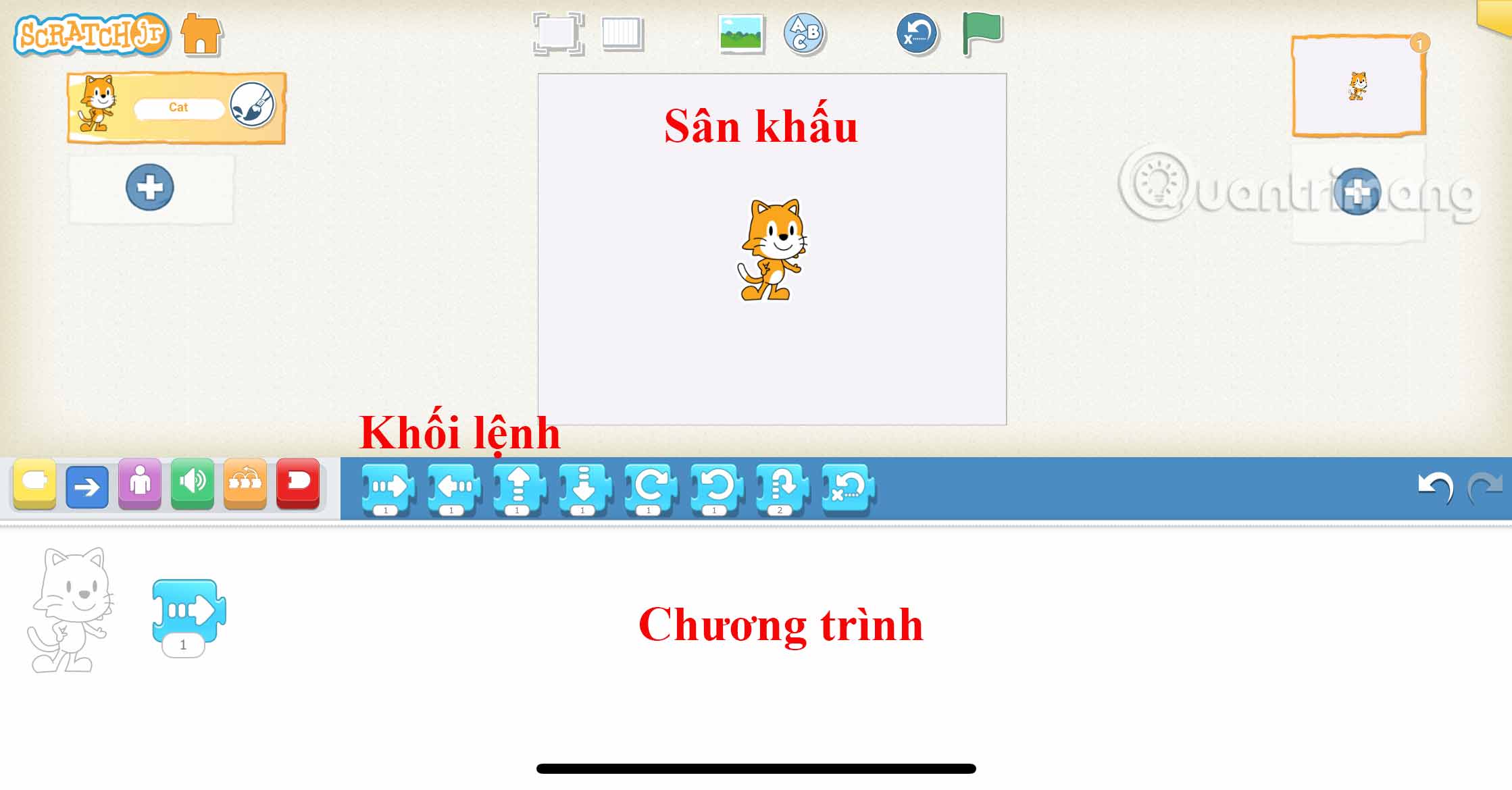
The default cat is already selected in a new project. If you later add characters, always select the intended thumbnail before changing a script.
Move the cat with a Motion block
Tap the blue Motion category and drag Move Right into the programming area.
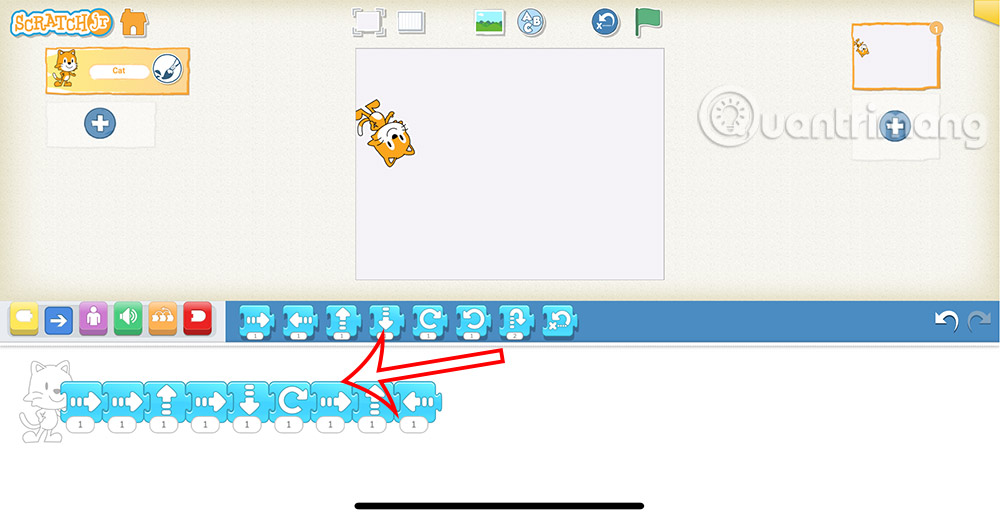
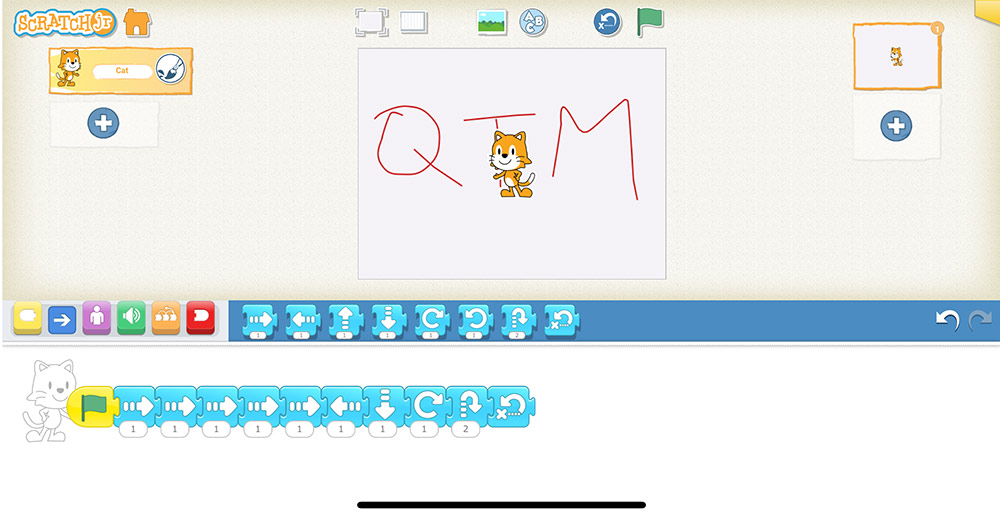
Tap the block in the programming area to test it. The cat moves by the number of stage-grid squares shown on the block. Tap that number if you want to change the distance.
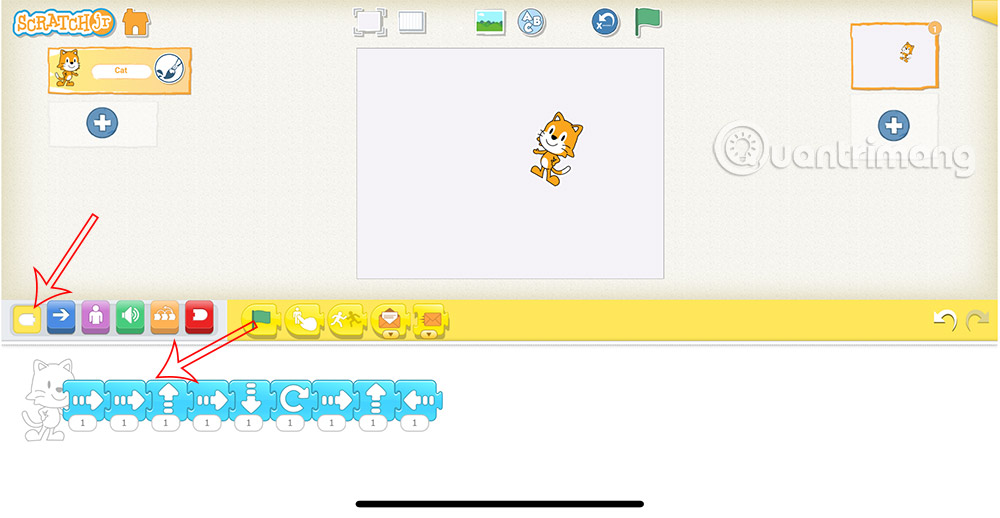
You can connect more Motion blocks to move left, up, or down, turn, hop, or return the character to its home position. Blocks execute from left to right.
Start the script with the green flag
Testing a single block is useful while editing, but a finished script needs a trigger. Open the yellow Triggering category.
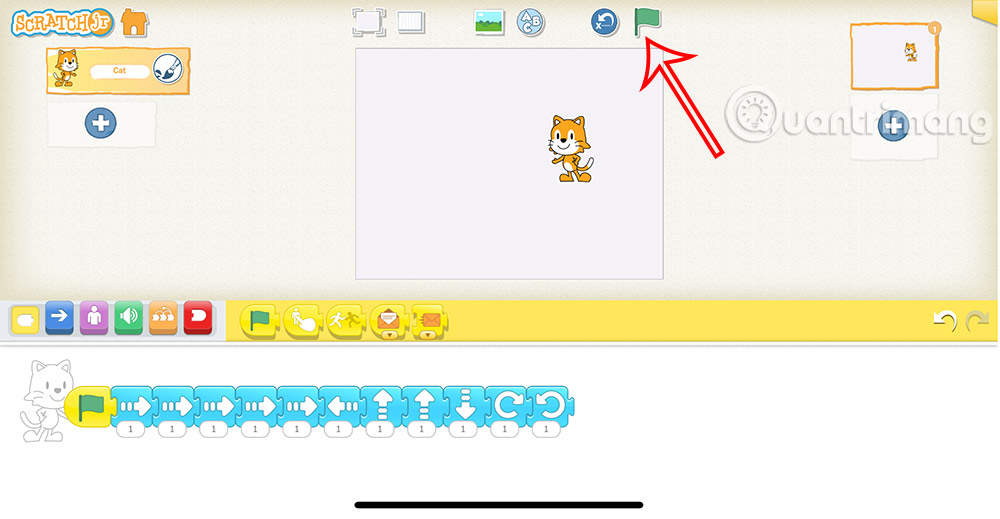
Drag Start on Green Flag to the left of the movement blocks and snap the sequence together.
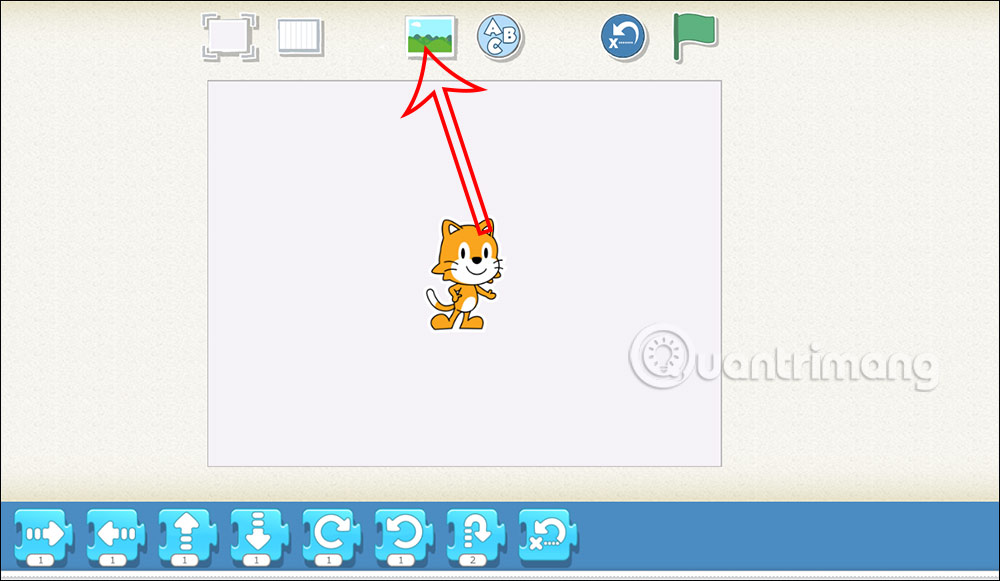
Tap the green flag above the stage. Every script on the current page that starts with this trigger will begin.
If the cat moves farther every time you test, tap Reset to return all characters to their original positions before running the project again.
Remove or rearrange a block
To remove a command, detach it from the script and drag it back toward the block palette. To change the sequence without deleting anything, pull a group of blocks apart and reconnect them in the desired order.
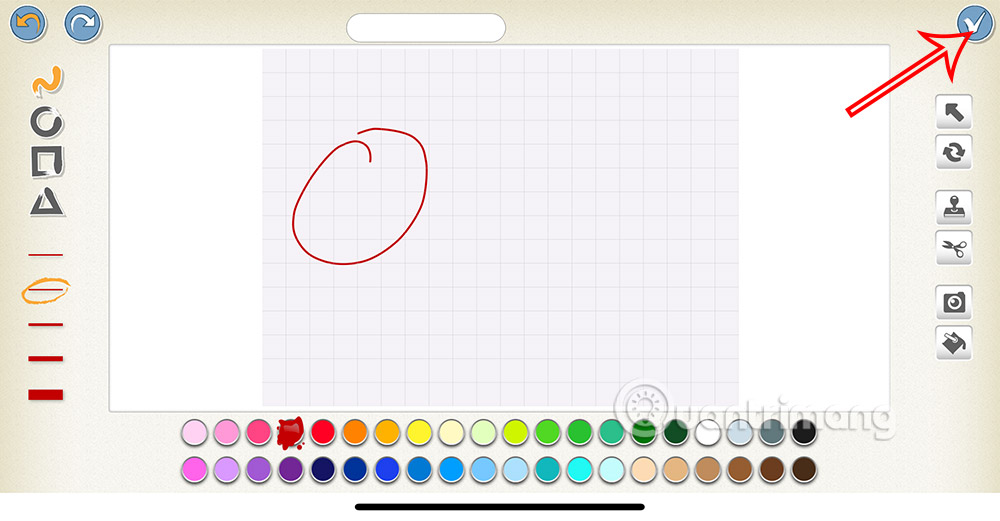
Change the stage background
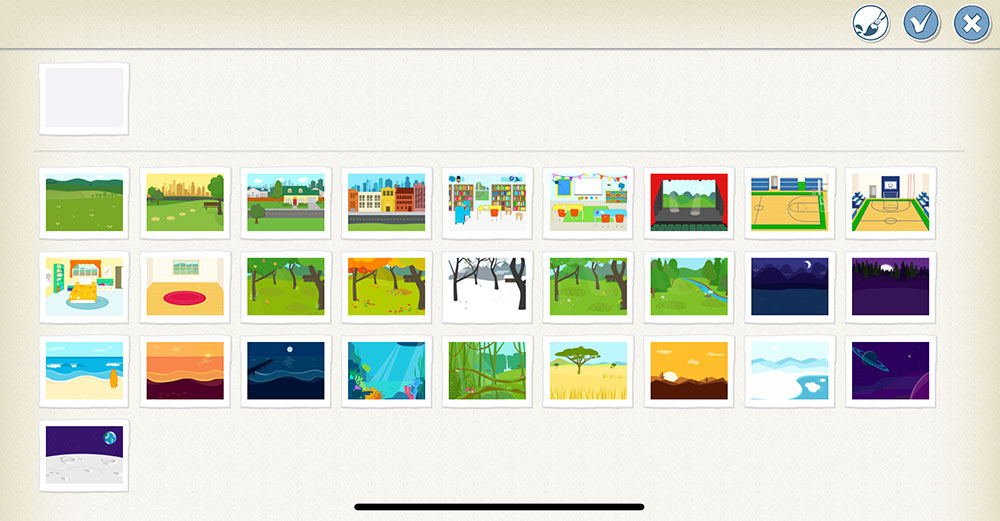
Tap the background button above the stage.
Choose a background from the library, or use the paintbrush to create one. Select the checkmark to apply your choice.
Name the project
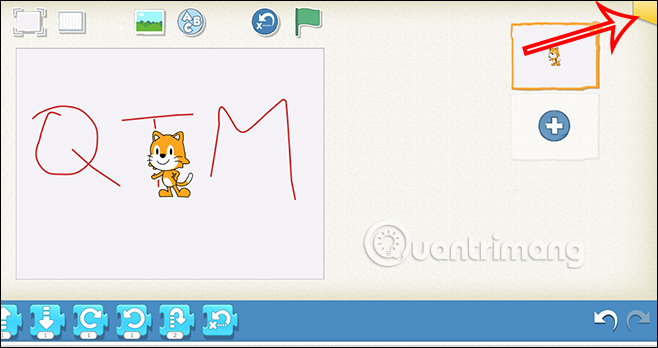
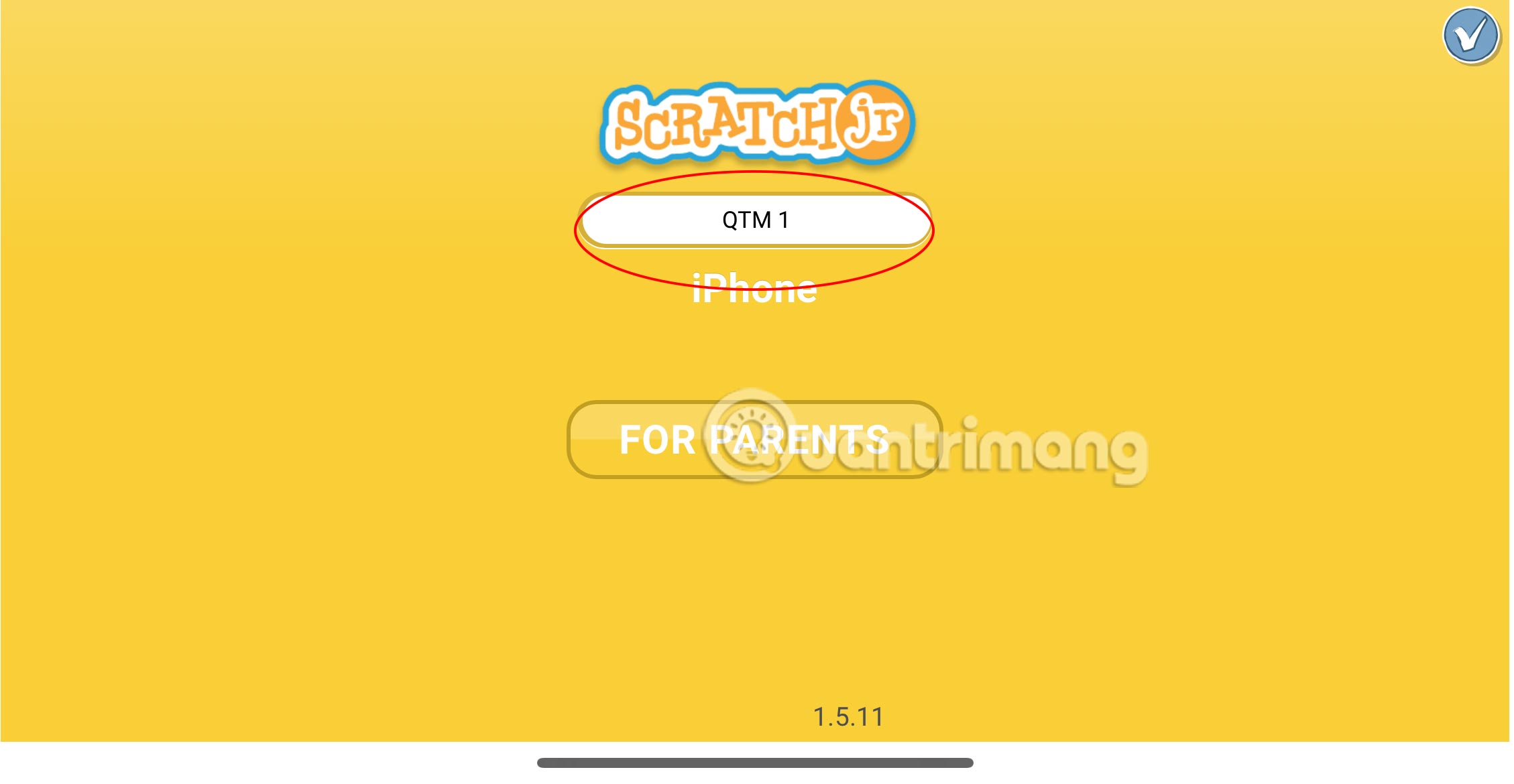
Open the yellow Project Information tab in the upper-right corner, enter a specific name such as Cat Moves Right, and confirm it. Return to My Projects to see the named project.
What to try next
- Add Move Up and Move Down, then predict where the cat will finish.
- Connect Hop and Say blocks to make the action easier to follow.
- Use Repeat around two or three movement blocks instead of copying the same sequence.
- Add a second character and give it a separate green-flag script.
- Turn on the stage grid and compare the block number with the distance moved.
The official block guide explains every command. You can also review the broader concepts in the Scratch beginner guide or find more coding apps for children.
Related Articles
 How to Add Characters in ScratchJr4 minutes read
 Basic ScratchJr Quiz - Lesson 1 with Answers4 minutes read
 Instructions for Using Sound in ScratchJR: Main Insights4 minutes read
 Instructions for Designing a Maze Game in ScratchJR4 minutes read
 How to Learn English on ScratchJr3 minutes read
 ScratchJR Maze Game Design Tutorial (Part 2)4 minutes read
Reader Comments 0
Sign in with email or Google to join the discussion.