Table of Contents
This updated guide explores smart tvs have a secret menu: here's how to access it with practical details, clear explanations, and useful takeaways. Like entering a secret cheat code in a video game, some Smart TVs have hidden codes that open a unique service menu. There, you'll find special developer tools, hours of use, and even special diagnostic and calibration tools that you wouldn't normally have access to.
9. What Is the Secret Service Menu Used For?
If the ability to access diagnostic tools does not interest you, the service menu contains information and options more or less reserved for technicians. It lets you calibrate your monitor, run tests to find hardware problems, adjust audio and video (though it is a little different than the regular menu), and open developer tools like app testing. it is not much different than accessing the BIOS on your computer.
Warning : Since the service menu is intended for technicians, you could potentially damage your Smart TV if you adjust the wrong settings. An incorrect setting could damage your TV. Only proceed if you are comfortable with the risk.
8. How to Unlock the Service Menu of LG Smart TV
Accessing your LG Smart TV's service menu is a bit of a gamble. that is because different codes may work, depending on your LG Smart TV. Start by opening the Menu and going to Settings . Once you're in Settings, enter one of these codes, then press the Select button immediately after:
- 1, 1, 0, 5
- 8, 7, 4, 3
- 1, 1, 1, 1
- 0, 4, 1, 3
- 0, 0, 0, 0
- 8, 7, 4, 1
- 7, 7, 7, 7
- 3, 1, 9, 5
- 8, 8, 7, 8
If none of that works, another option is to press the Power and Select buttons at the same time. When you want to exit the service menu, just turn off the TV.
7. How to Unlock the Service Menu of Vizio Smart TV
Vizio Smart TVs offer a variety of settings to adjust, as well as the ability to learn about hardware information, adjust picture and sound, or troubleshoot. In fact, that is what a technician used to diagnose a Vizio TV's black screen of death. Using the Vizio remote:
- Press the Menu button.
- Use code 1, 9, 9, 9 .
- Press the Back button.
When you're done tweaking your Vizio Smart TV settings, you can exit the service menu simply by pressing the Exit button.
6. How to Unlock the Service Menu of Sony Smart TV
Some Smart TVs, like Sony's, let you troubleshoot problems and the like, but you can check the hours of use. Here's how to unlock the service menu on your Sony Smart TV:
- Press Display , then 5 > Volume Up > Power .
- While on the home page, turn off the TV, then press Home > Select > Volume Up > Power .
- To turn off the TV while on the home page, press the Info button ("i" button) > 5 > Volume Down > Power .
To exit the service menu, you can try the Home , Back, or TV buttons. Again, this depends on your model.
5. How to Unlock the Amazon Fire TV Service Menu
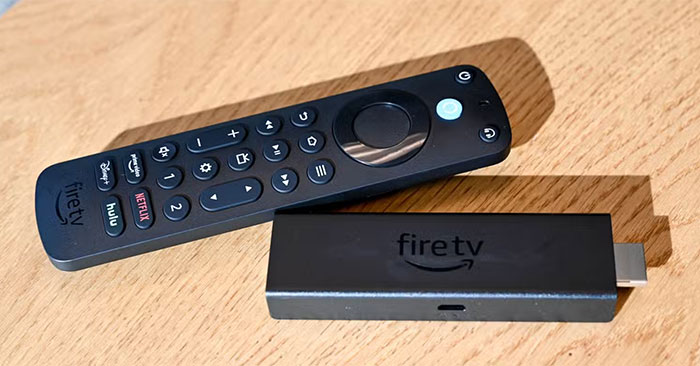
Since Amazon's FireOS is deployed on smart TVs and streaming devices, like the Fire TV Stick 4K, accessing the service menu is the same on both. On the remote, press and hold the Select and Down buttons at the same time for 5 seconds, release, and immediately press the Menu button.
This will open your Fire device's developer tools menu, giving you access to options like "Network Advisor" which helps diagnose connection issues and "System X-Ray" which displays an overlay of system information in the corner.
4. How to Unlock the Service Menu of Panasonic Smart TV
While Fire TVs have a fancy service menu, Panasonic Smart TVs have a menu that looks straight out of the early 2000s. Once you turn on your Panasonic TV, press and hold the Volume Down button. On some models, you'll press the TV button instead. Now, depending on your model, press the Info button three times or use the code 0, 0, 0 or the code 3, 1, 3, 8 .
Since the code can be different for each model, you will have to do a little digging around for your specific Panasonic Smart TV. In fact, if you still have the manual, It is best to check it out. To move around the service menu, You need to use the 1 and 2 buttons, while the OK button is used to select options.
3. How to Unlock the Service Menu of Samsung Smart TV
Like Sony Smart TVs, accessing the service menu on Samsung Smart TVs will vary depending on the model. On some models, turn off the TV, then press these buttons: Info, Menu, Mute, then the Power button. The TV will then boot into the service menu.
Other models use this key combination: Press Mute, 1, 1, 9, then Enter in succession.
2. How to Unlock the Service Menu of Philips Smart TV
Following the trend of different models having different ways to access the service menu, Philips Smart TVs have several button combinations. It is best to try all of them:
- Turn off the TV, hold the Volume Down button, then press the Power button.
- Press 3, 1, 9, 7, 5, 3 , then end with Mute .
- You can try Mute , D-pad Left , D-pad Right , D-pad Up , D-pad Down , then press OK.
- Another option is to switch to the live channel, then press 1 , 2 , 3 , 6 , 5 , 4 .
To exit the service menu, press the Exit , Return or Power button.
1. How to Unlock the Service Menu of Hisense Smart TV
With Hisense Smart TVs, you have to toggle between multiple menus and use a specific code to unlock the service menu. This will work with Hisense remotes with or without numbers. The first method is to open Menu > Settings > Advanced Settings . Select Balance — it may be grayed out, but that is okay — then press 1, 9, 6, 9 .
On other Hisense Smart TV models, it is Settings > Audio > Speakers . Select Balance , set it to 0 , then press 1, 9, 6, 9 . You'll see options to adjust white balance, test the microphone, set the MAC address or language, and even the number of hours the TV has been used.
it is worth reiterating the importance of avoiding the service menu, no matter what kind of Smart TV you own, if you're not sure what you're doing. Still, knowing how can give you access to a wealth of useful information for troubleshooting, usage data, or just practice to become a technician.
FAQ
What is the main takeaway about Smart TVs Have a Secret Menu: Here's How to Access It?
The key is to understand the core idea, compare the available options, and apply the practical guidance that matches your situation.
What should beginners know about Smart TVs Have a Secret Menu: Here's How to Access It?
Start with the essential steps and terminology. Avoid changing advanced settings until you understand how they affect performance, privacy, cost, or compatibility.
How can I use this information in practice?
Follow the relevant section in order, test one change at a time, and confirm the result before moving to the next step or recommendation.
Related Articles
 Connectivity Labs Secret Menu Makes Samsung Phone's Wi-Fi Connection7 minutes read
 How to Customize Quick Access Menus in Windows 10 and 89 minutes read
 How to Access the Secret Developers Menu on Fire TV Stick4 minutes read
 DNS Tricks to Access More Content on Smart TV8 minutes read
 8 Vpns That Can Be Used on Smart Tvs6 minutes read
 How to Fix Win X Menu Errors Doesn't Work on Windows 106 minutes read
Reader Comments 0
Sign in with email or Google to join the discussion.