Table of Contents
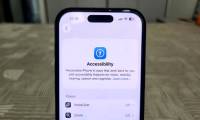
AssistiveTouch gets little attention because it's hidden away in the Accessibility menu. That's a shame, because this little button can replace physical buttons, speed up common actions, and change the way you use your iPhone.
5. Easy one-handed use
Using an iPhone with one hand isn't always easy. Sure, you can rely on Reachability to make it easier, but constantly swiping to activate it can be awkward. Plus, turning on Reachability lowers the screen, which means more scrolling than usual.
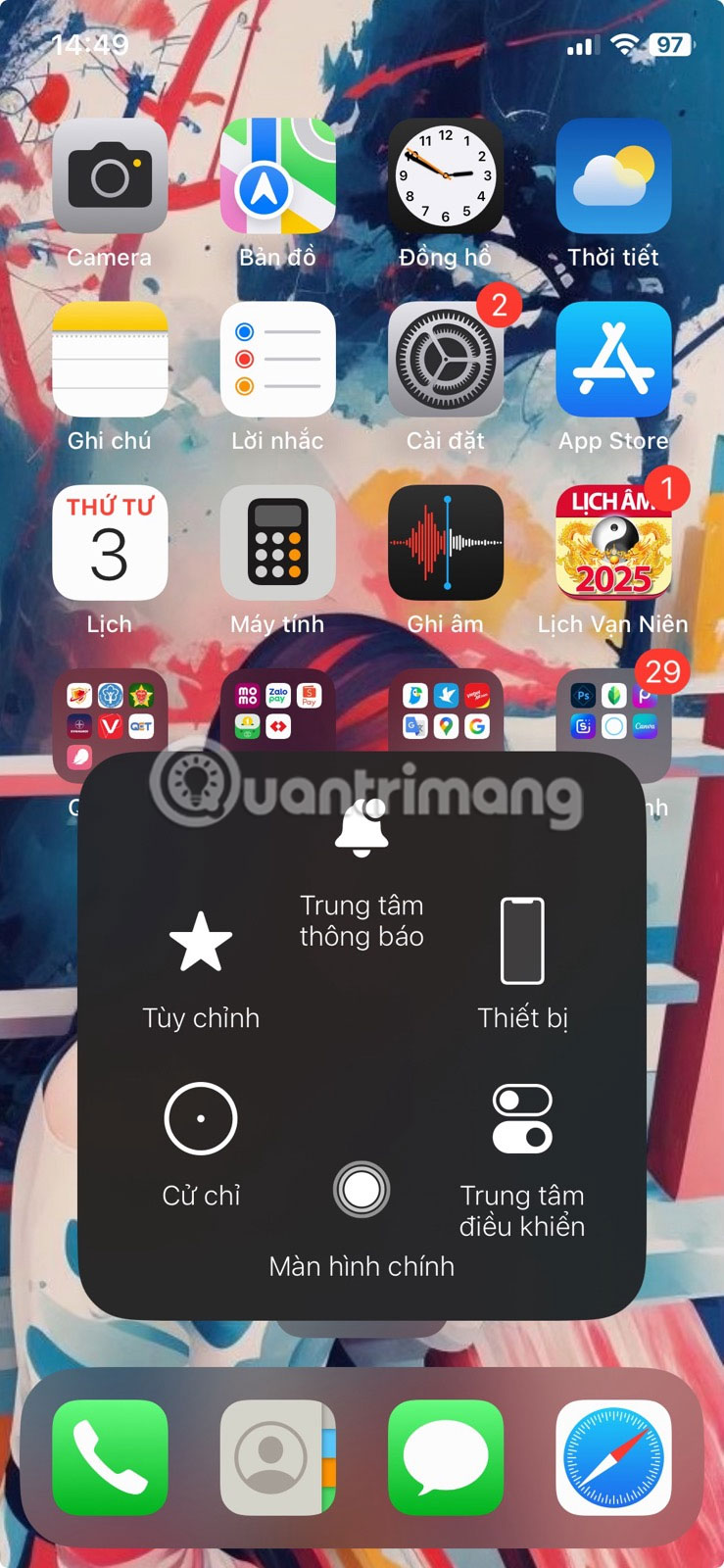
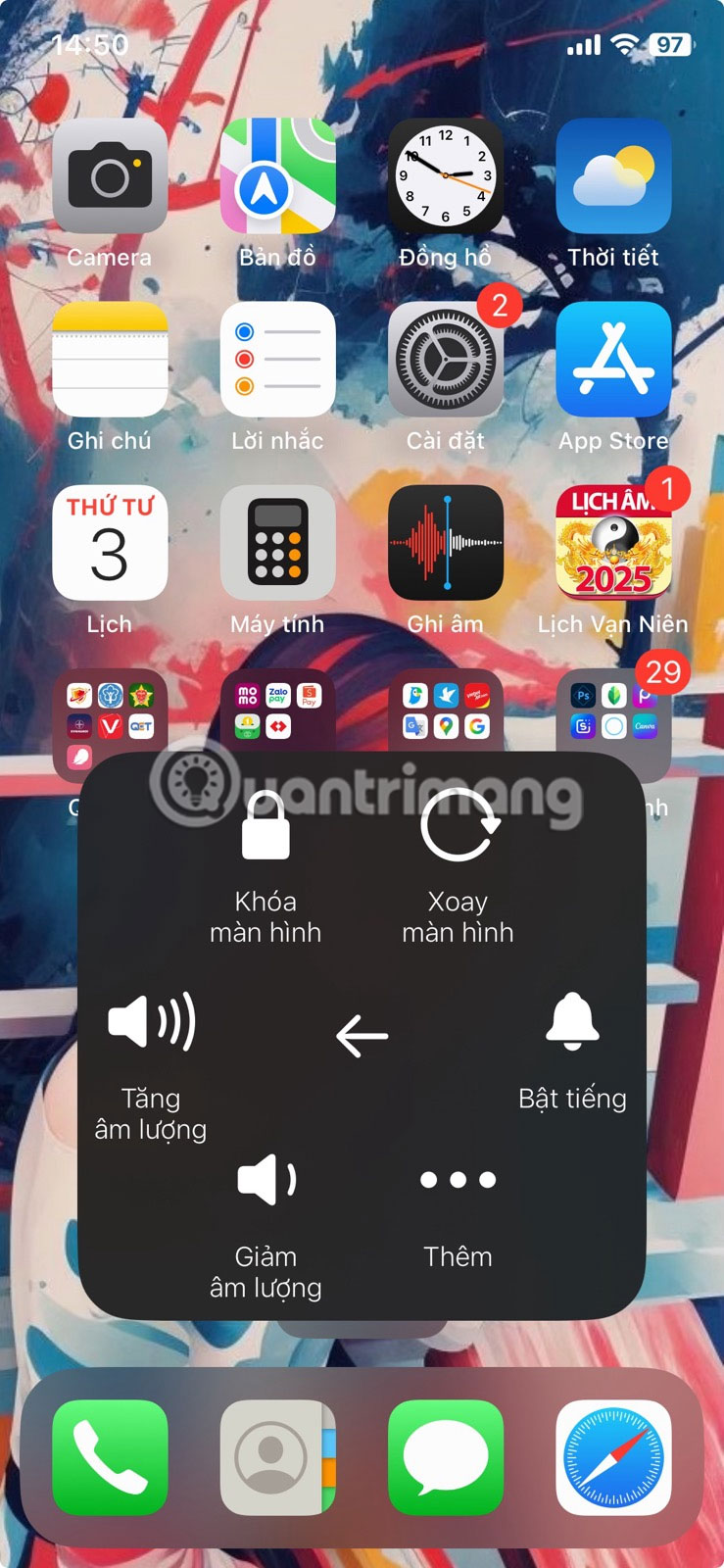
AssistiveTouch solves this problem perfectly. With just a tap, you can open Control Center, check notifications, adjust the volume, or even activate the Action button. This means you don't have to reach up to the top of the screen, which is convenient on larger models like the Pro Max.
4. Quick access to shortcuts
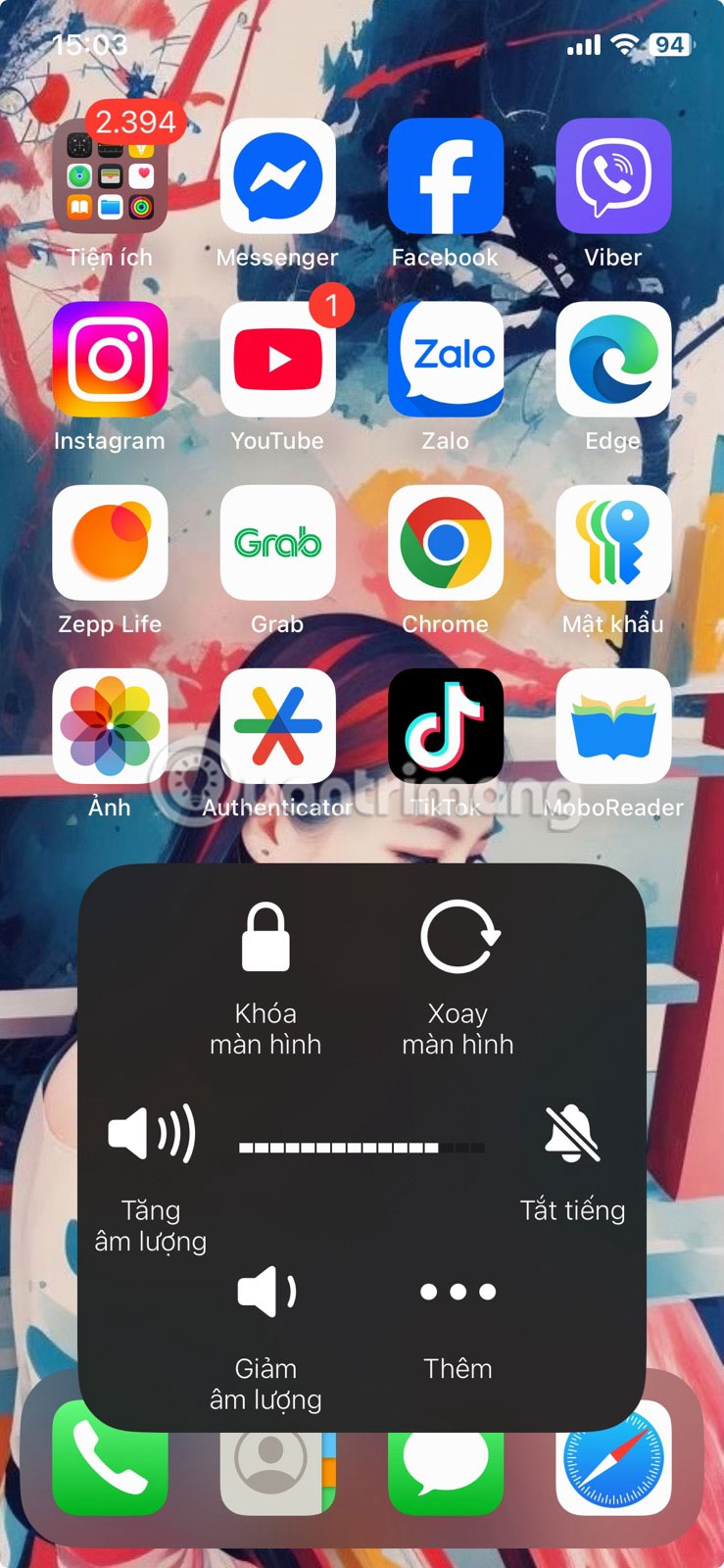
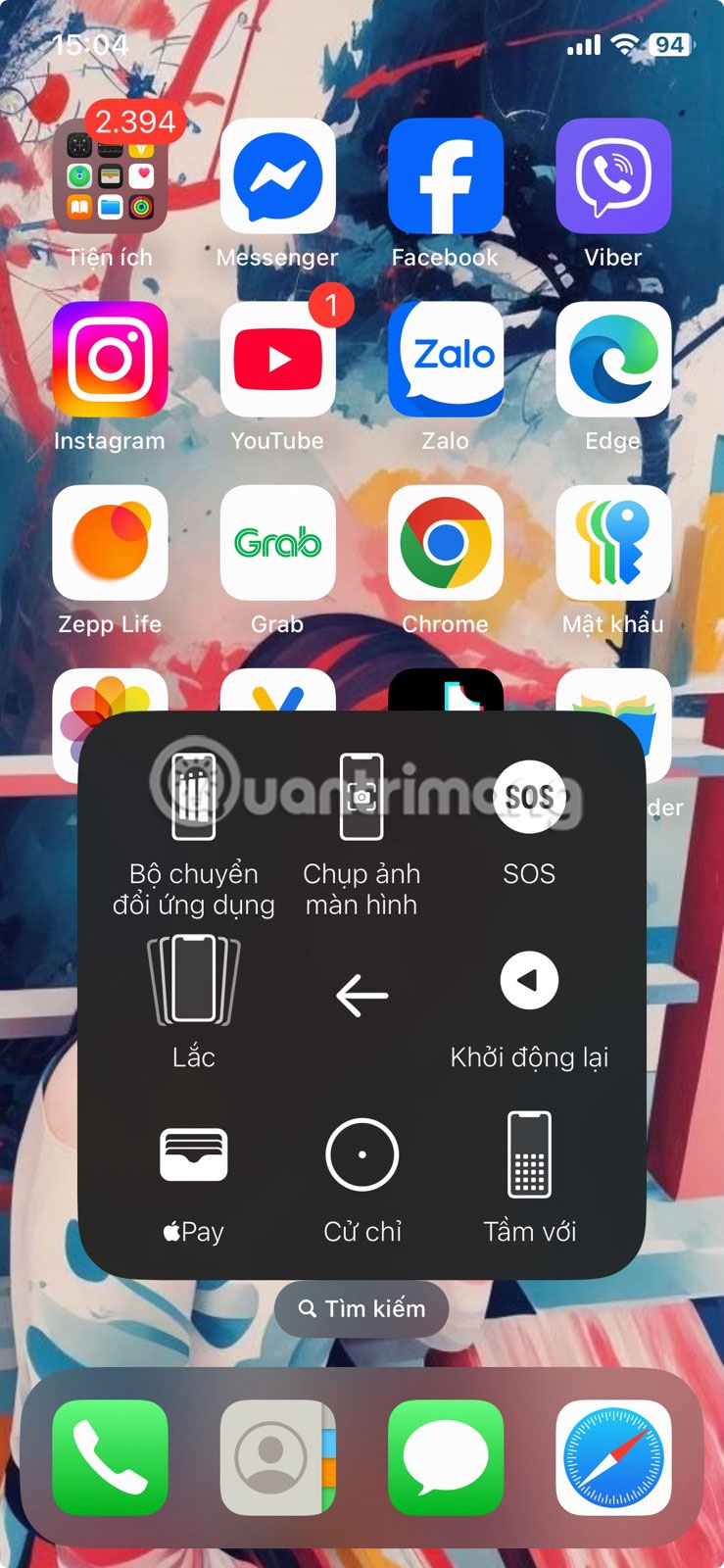
Everyone loves shortcuts, and AssistiveTouch puts your favorite shortcuts right at your fingertips. By default, tapping the button will give you access to options like Lock Screen, Screen Rotation, Siri, and more.
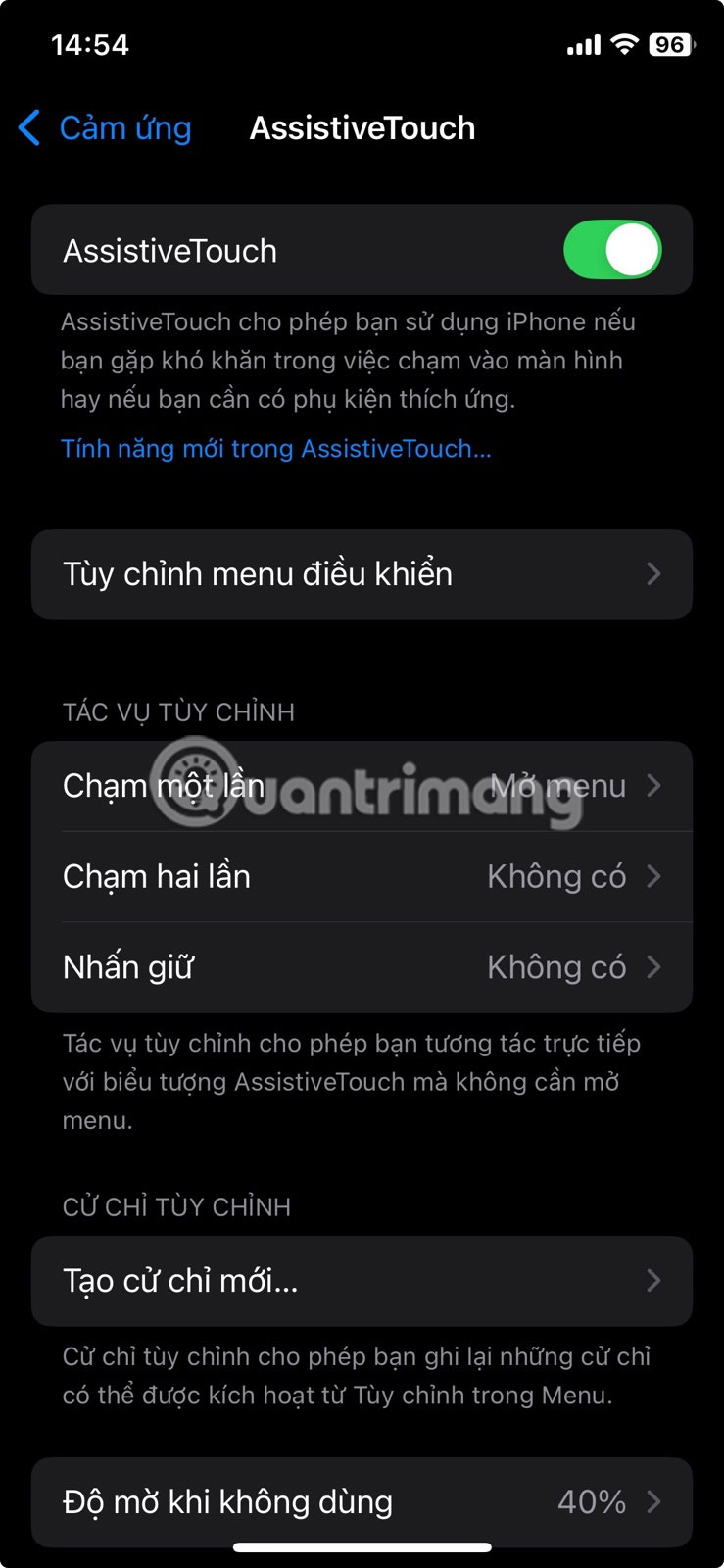
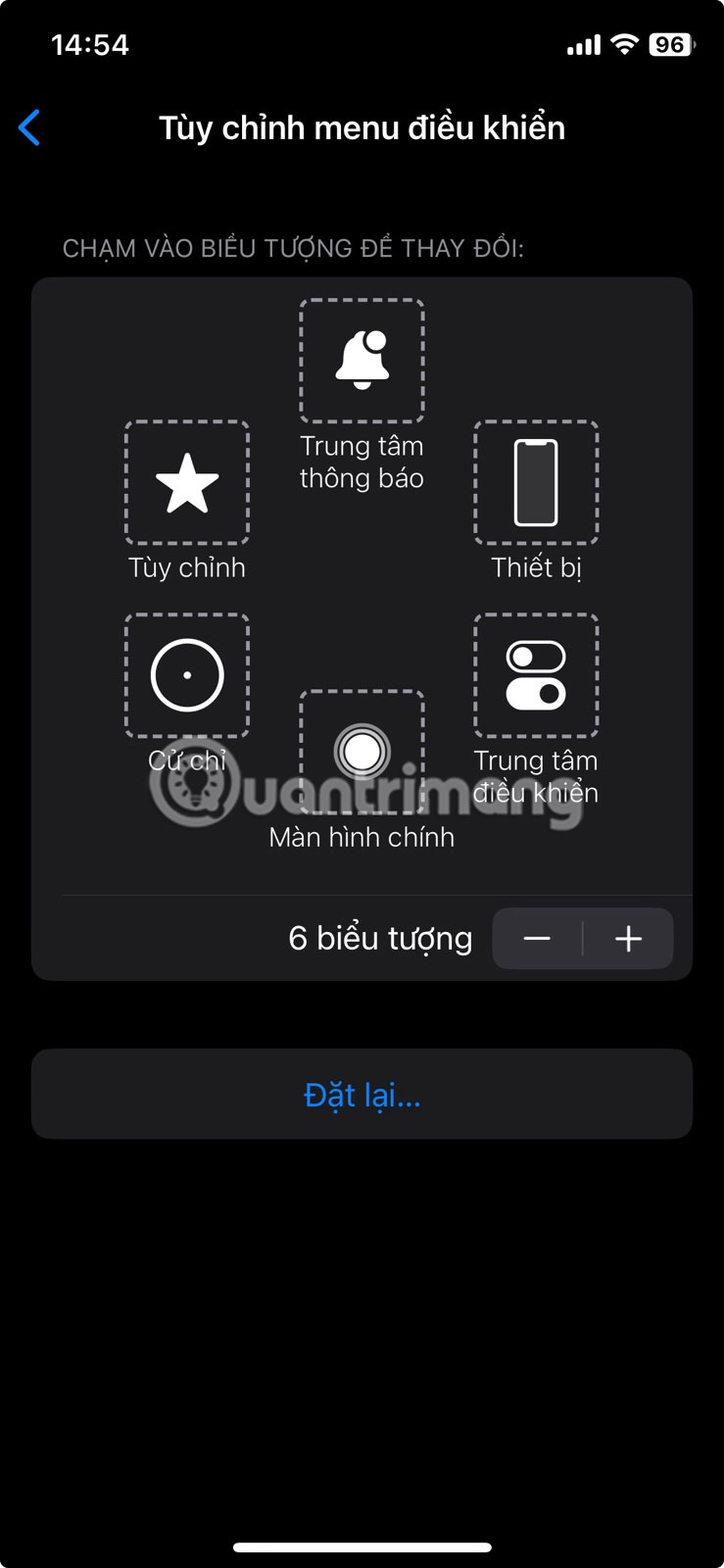
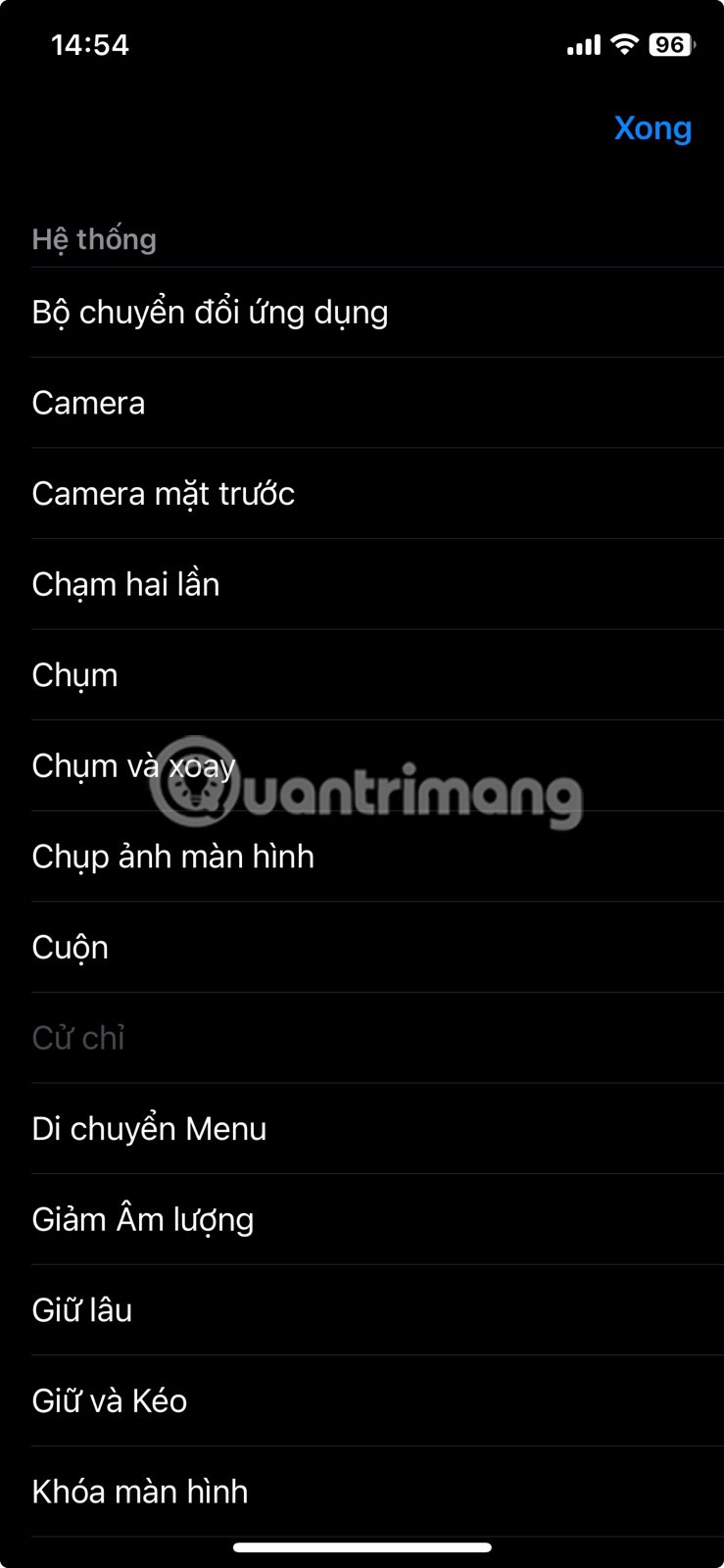
But that's not all. You can add more icons if you want. You can tap Customize Controls to add, change, or replace the default options. You can include shortcuts like Camera, Front-facing Camera, Flashlight, Type to Siri, Shake, and more. Even actions that aren't normally available, like Restart, can be added here.
3. Enable automation of your favorite shortcuts instantly
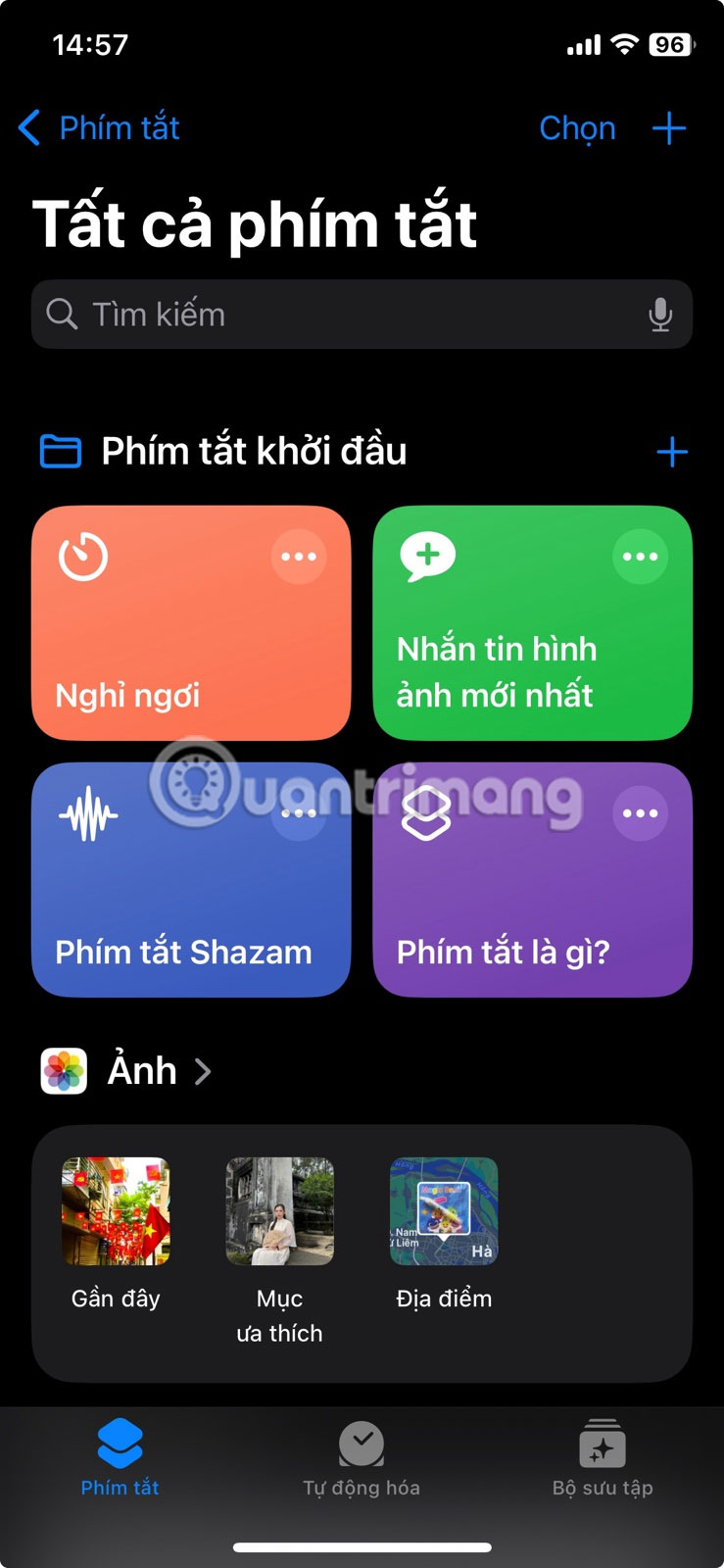
Apple's Shortcuts app is one of the most overlooked tools on your iPhone. It lets you run entire sequences of actions without opening multiple apps or digging through countless menus. From sending messages and starting playlists to adjusting settings or automating smart home devices, Shortcuts can handle it all.
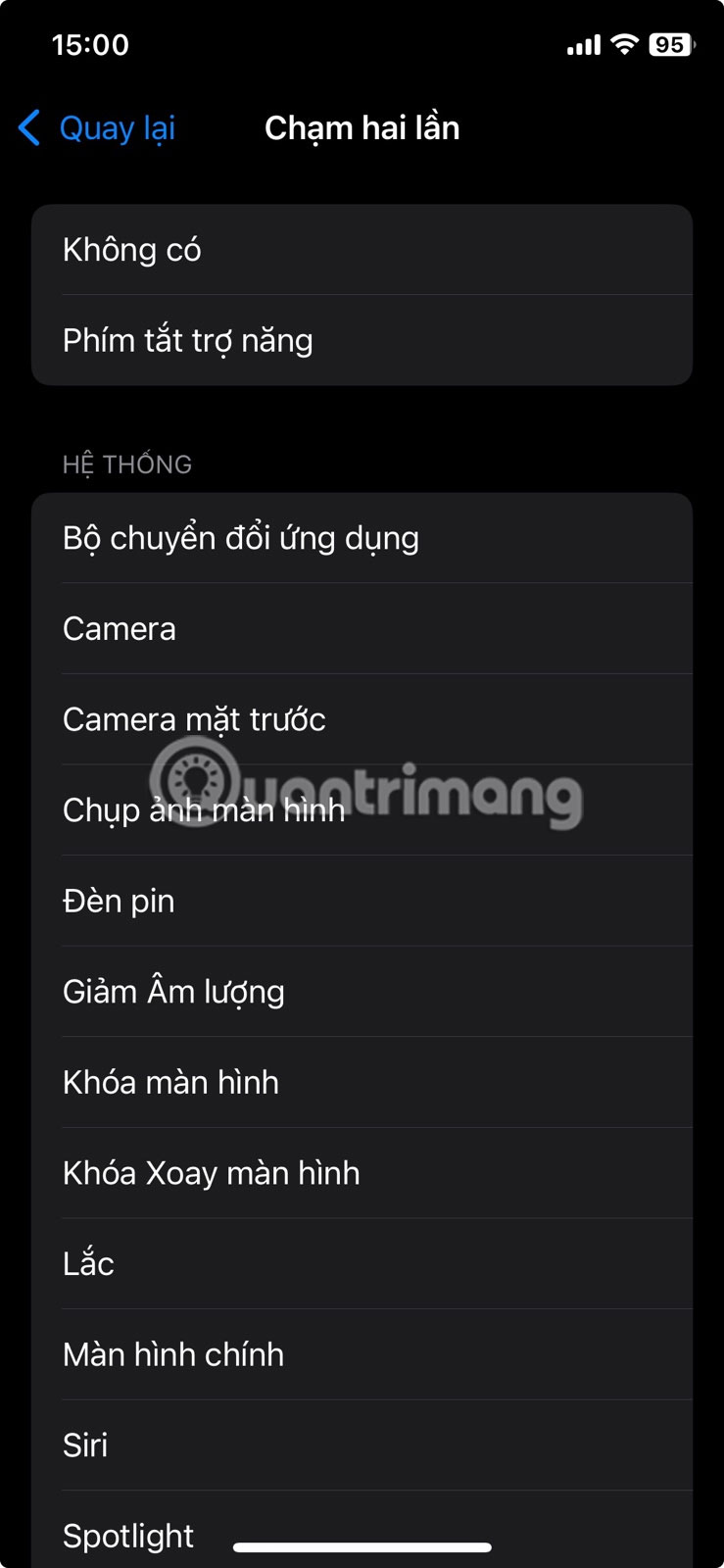
With AssistiveTouch, you can launch these automations instantly. Instead of opening the Shortcuts app each time, you can assign your favorite shortcuts to a tap, double tap, or long press of the AssistiveTouch button.
2. A smart alternative to physical buttons
Using the physical buttons on your iPhone can be awkward at times. Maybe your phone is lying face down on a table, making the side buttons hard to press. Or maybe you're holding your phone in one hand, but the button you need — like the Action button — is out of reach.
Instead of relying on hardware buttons, you can perform almost any action directly from the floating button on the screen. Whether you want to lock the screen, adjust the volume, take a screenshot, or even simulate a vibration motion, all of these actions are just a tap away.
1. Hide the AssistiveTouch button when you're not using it
While the floating AssistiveTouch button is useful, it can sometimes get in the way — especially when you're watching videos, playing games, or simply want your screen to look cleaner. Luckily, there's a clever way to hide it until you actually need it.
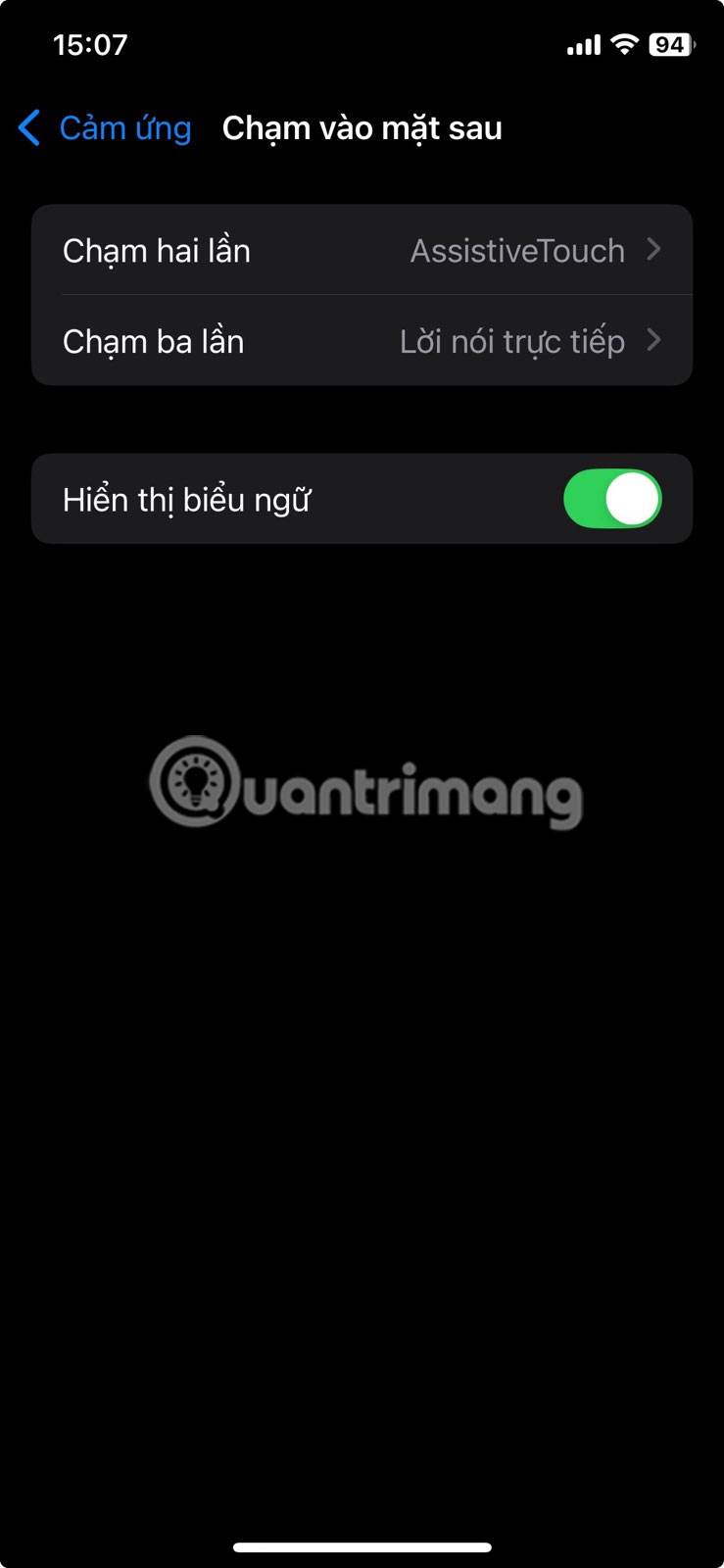
Back Tap is a feature on iPhone that lets you trigger actions by double- or triple-tapping the back of your device. You can use this feature to turn the floating button on or off without having to go into Settings each time.
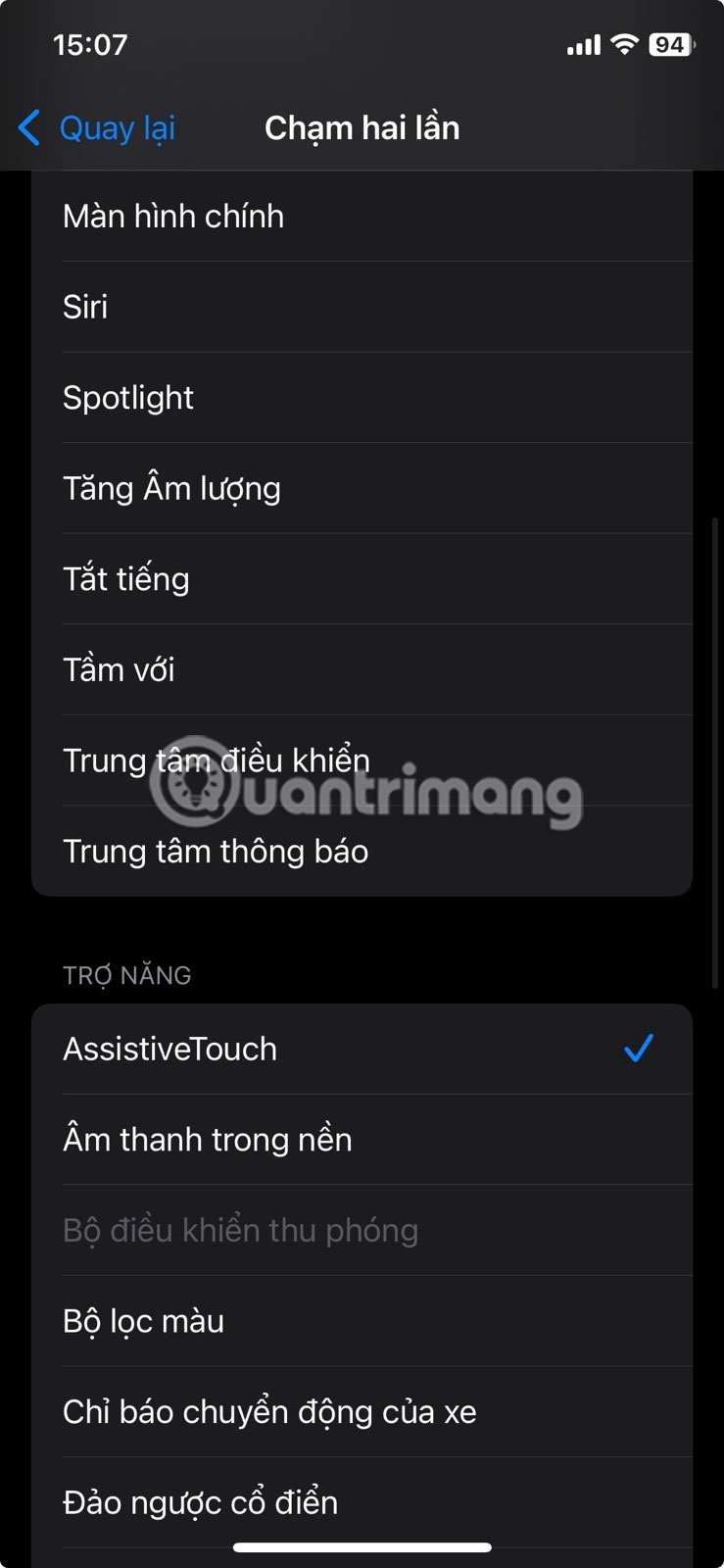
Go to Settings > Accessibility > Touch > Back Tap and select Double Tap or Triple Tap . Then assign AssistiveTouch as an action. From now on, quickly tapping the back of your iPhone will bring up the AssistiveTouch button, and tapping it again will hide it.
Final Thoughts
Overall, Don't Overlook AssistiveTouch! It Makes Your iPhone So Much More Useful! is best understood by considering the main facts, practical context, and limitations together. Use the details above as a clear starting point and confirm time-sensitive information when necessary.
FAQ
What does this article explain about Don't Overlook AssistiveTouch! It Makes Your iPhone So Much More Useful!?
AssistiveTouch gets little attention because it's hidden away in the Accessibility menu. That's a shame, because this little button can replace physical buttons, speed up common actions, and change the way you use your iPhone.
What should you know about 5. Easy one-handed use?
Using an iPhone with one hand isn't always easy. Sure, you can rely on Reachability to make it easier, but constantly swiping to activate it can be awkward. Plus, turning on Reachability lowers the screen, which means more scrolling than usual.
Should time-sensitive details be verified?
Yes. Software features, game codes, product specifications, prices, and research findings can change. Confirm important details with an official or primary source when accuracy affects your decision.
Related Articles
 Warning: iOS 14 Is Experiencing a Critical Error3 minutes read
 How to Restart iPhone on iOS 11 When Not Using the Power Button4 minutes read
 Things You Don't Know That the iPhone's Home Key Can Do9 minutes read
 How to Take a Screenshot on iPhone: Complete Guide5 minutes read
 5 Easy Ways to Take Screenshots on iPhone and iPad5 minutes read
 13 Useful iPhone Accessibility Features People Often Overlook7 minutes read
Reader Comments 0
Sign in with email or Google to join the discussion.