Table of Contents
Google stores search activity when Web & App Activity is enabled. Reviewing this history can help you find past searches, manage account activity, and adjust privacy controls from a computer or phone.
How to View Google Search History on a Computer
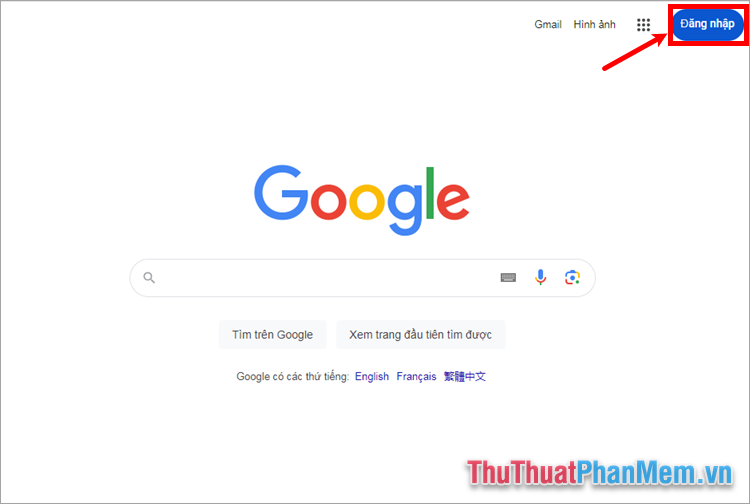
Step 1: Open a web browser, visit Google, and sign in to the Google account whose activity you want to review.
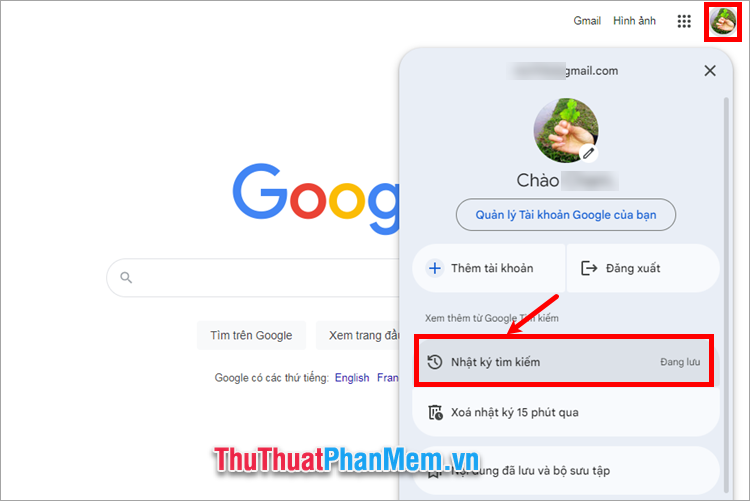
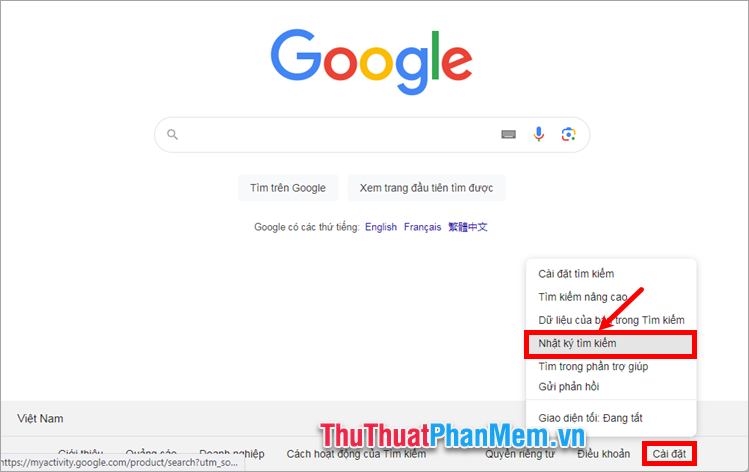
Step 2: Select your profile picture, then choose Search history . You can also use the Settings link near the bottom of the Google homepage and open Search history .
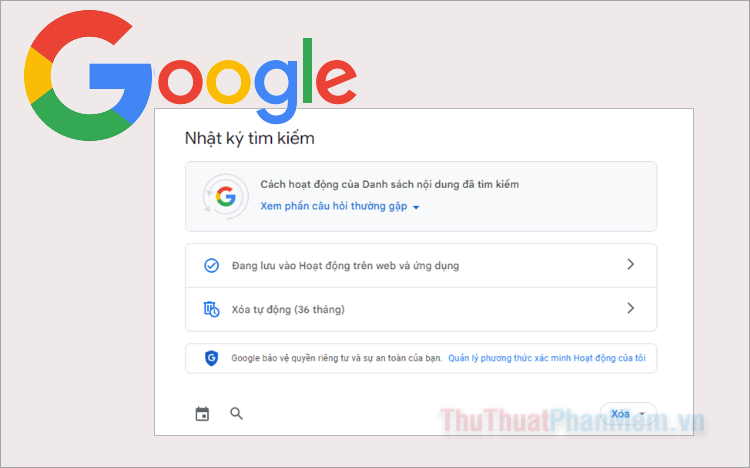
Step 3: The Search History page shows activity connected to your account. Scroll through the timeline, use the calendar to filter by date, or use the search tool to find a specific query.
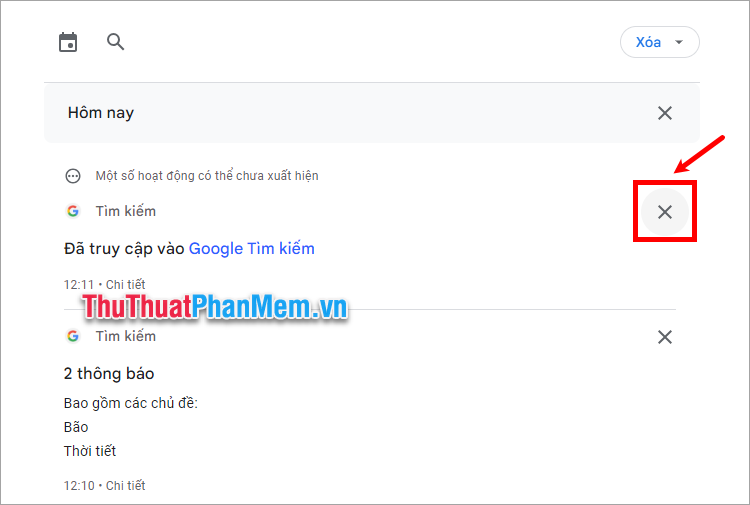
Step 4: Select an activity item to review available details. Use the delete controls when you want to remove one item, a custom date range, or all saved activity.

How to View Google Search History on a Phone
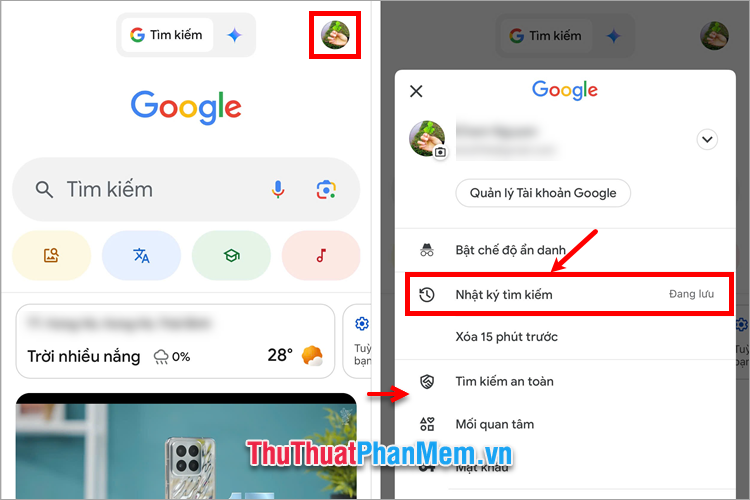
Step 1: Open the Google app or a mobile browser and sign in to your account.
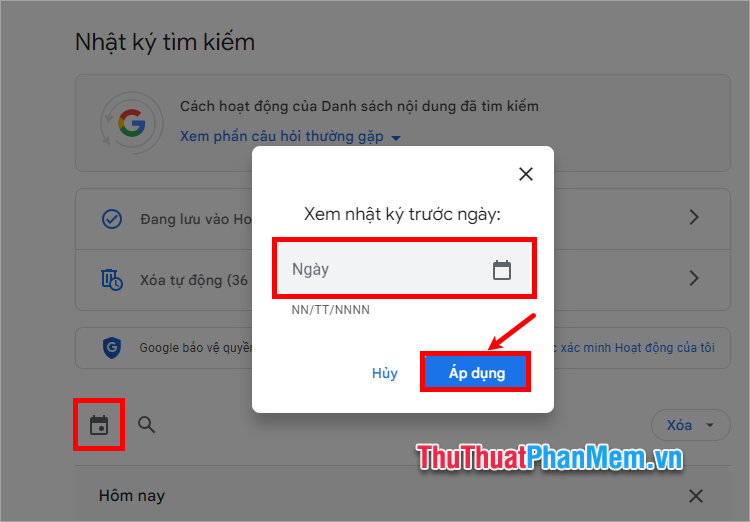
Step 2: Tap your profile picture and select Search history or Manage your Google Account followed by the activity controls.
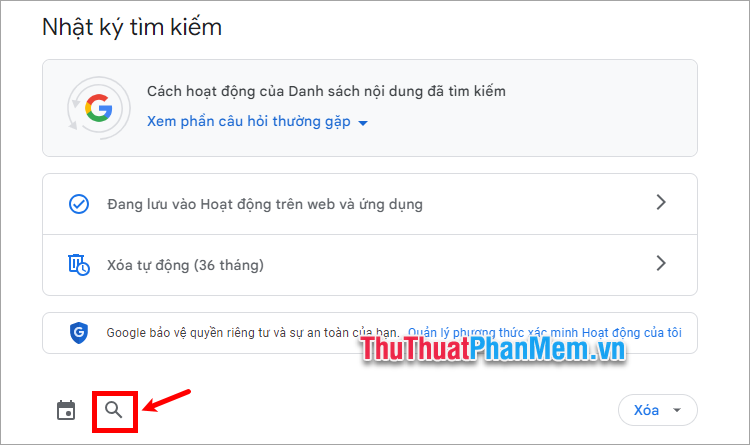
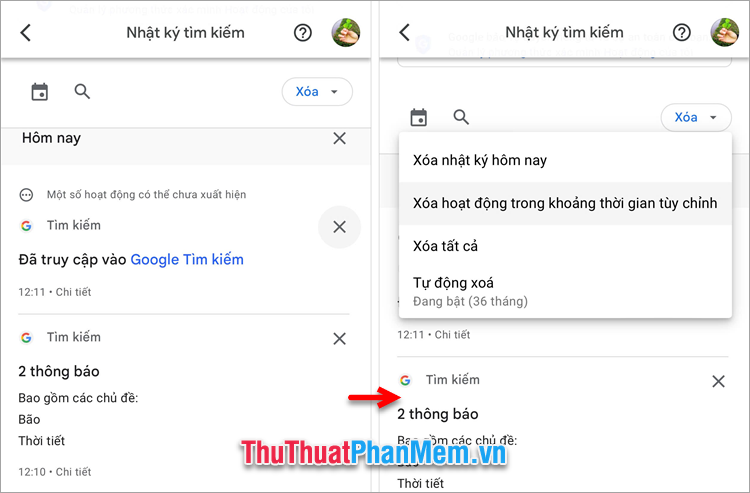
Step 3: Browse the saved searches, filter the list by date, or search within your activity.
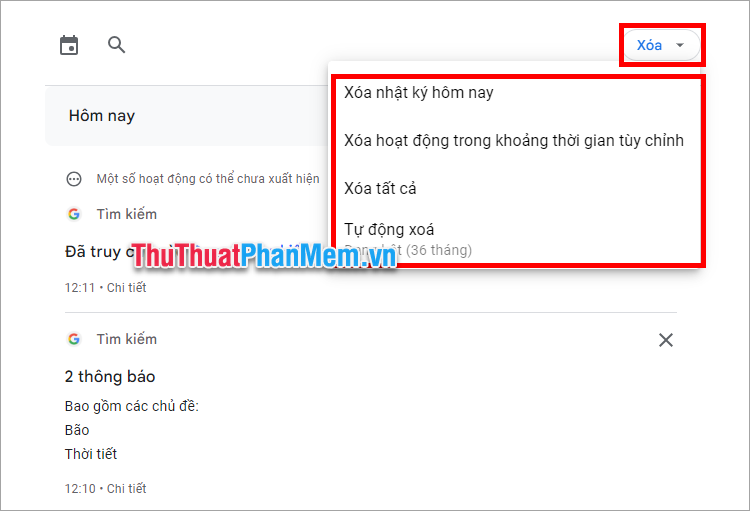
Step 4: Use the delete menu to remove selected searches or clear activity for a chosen period.
How to Manage Search History and Privacy
Google activity controls let you pause future collection, choose an automatic deletion period, and remove existing records. Review these settings carefully because deleting activity may reduce personalization across Google services.
Menu names can vary slightly by device, app version, region, and account type. When an option is missing, update the Google app or open the My Activity page in a browser.
FAQ
What should I prepare before I view and manage your google search history?
Review the requirements and options in the guide first. Having the correct device, app version, account access, or materials ready helps prevent avoidable errors.
How long does it take to view and manage your google search history?
The time depends on the task and your setup. Most basic steps can be completed quickly, while downloads, updates, scans, or troubleshooting may take longer.
What should I do if the steps do not work?
Repeat the instructions in order, confirm that your software or device is supported, and check permissions, connectivity, and available updates before trying again.
Related Articles
 Google Will Start Deleting Photos, Comments, Pages and More on Google+ from April6 minutes read
 Google Products: 11 Products of Google Are Little Known3 minutes read
 What Is Google One?8 minutes read
 18 Interesting 'Bombs' of Google11 minutes read
 14 Great Features on Google You May Not Know Yet8 minutes read
 Interesting Search Engines on Google That You May Not Know Yet10 minutes read
Reader Comments 0
Sign in with email or Google to join the discussion.