Table of Contents
Currently, users have many options for automatically updating drivers on their computers, such as Driver Booster 3 or Drive Easy. However, there is another software that is not as well-known as Driver Booster 3 , but still provides the latest and best drivers for installation on various computer models: SnailDriver. To automatically update drivers on your Windows computer using SnailDriver, please download the software following these instructions.
Automatically update drivers on your Windows computer with SnailDriver:
Download SnailDriver here: Download SnailDriver
Step 1
Access the download link above and click Download to download SnailDriver.

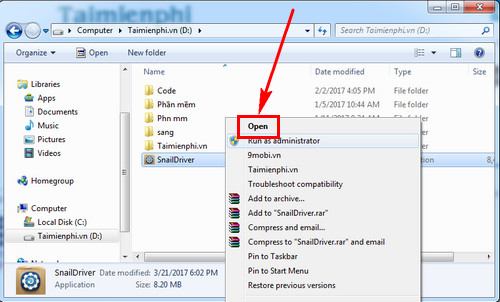
Step 2: After downloading SnailDriver, open the folder containing the installation file , right-click, and select Open.
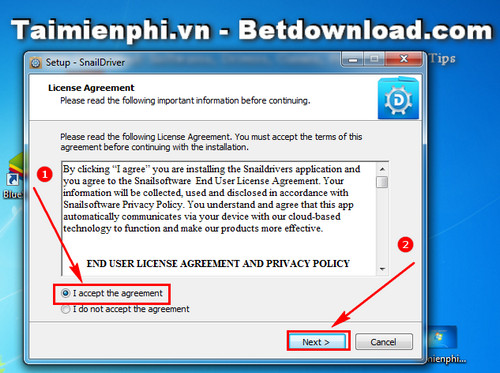
Step 3: Select "I accept the agreement" and press "Next".
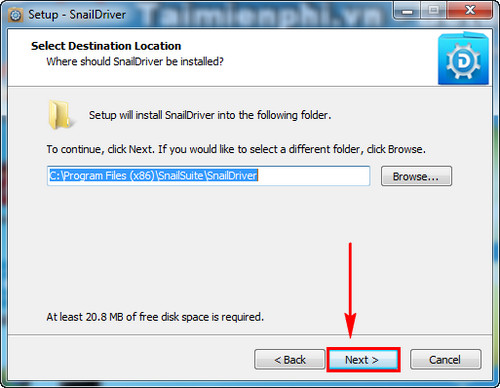
Step 4: You can save SnailDriver to the default C drive, or click Browse to select a different folder.
Press Next.
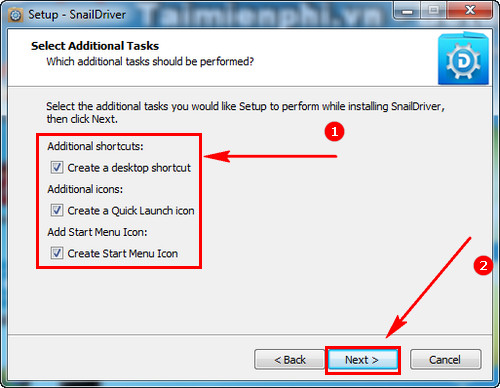
Step 5: Check the boxes to make the SnailDriver icon appear on your Desktop.
Press Next.
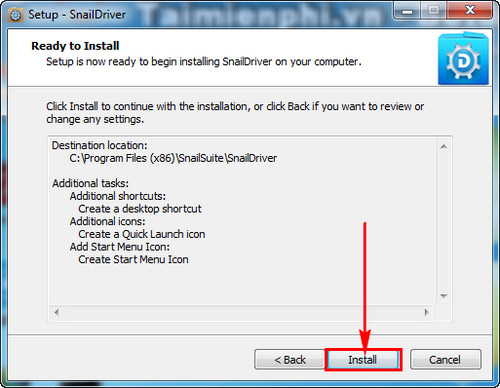
Step 6: Click Install to begin the installation.
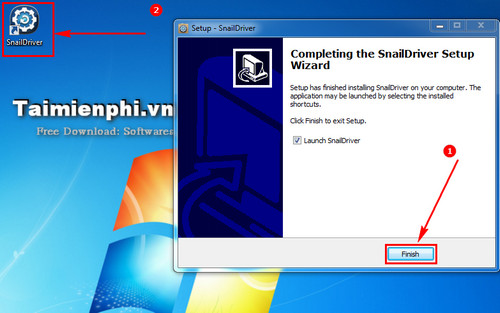
Step 7: After the installation is complete, click Finish and open the SnailDriver software.
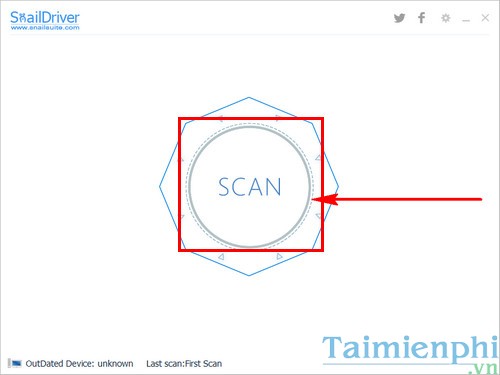
Step 8: After opening the SnailDriver software, to scan for missing drivers on your computer, click Scan.
Step 9: Once missing drivers are detected, click Update to allow the software to automatically update the drivers for your computer.
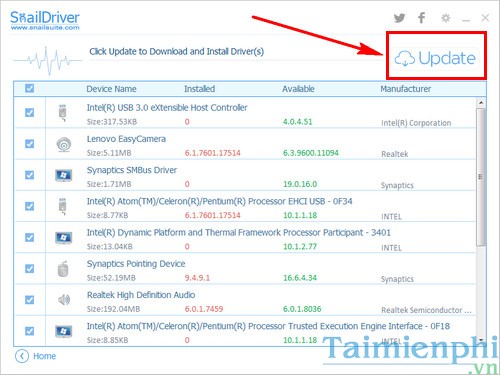
Please wait a moment for the installation process to complete.
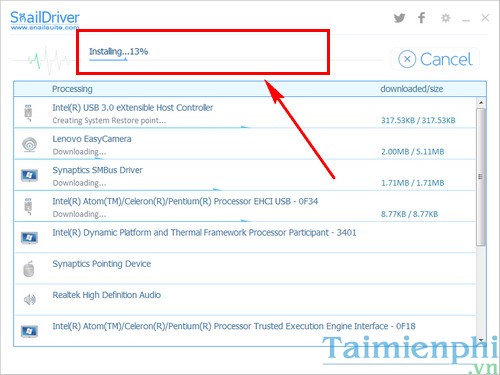
The above is a detailed guide on how to install SnailDriver and automatically update drivers on your computer using SnailDriver software.
If you want to use a different software, you can refer to the method of updating drivers using Driver Easy . This is also one of the effective tricks to automatically update drivers on your computer. You can use these two software programs in parallel to update all the drivers on your computer. It is very possible that updating drivers with Driver Easy will find missing drivers when updating with SnailDriver and vice versa.
Related Articles
 How to Automatically Update Drivers on Windows Using SnailDriver4 minutes read
 How to Disassemble an Acer Aspire ES1-532G Laptop7 minutes read
 How to Use 3DP Chip to Update or Install Missing Drivers for the Computer5 minutes read
 How to Update Drivers Windows 109 minutes read
 Automatically Update Drivers for Windows with Snappy Driver Installer6 minutes read
 How to Update Drivers for Windows 105 minutes read
Reader Comments 0
Sign in with email or Google to join the discussion.