Table of Contents
Easy DriverPack , also known as WanDriver, allows users to update computer drivers both online and offline. With its simple interface, users can easily use Easy DriverPack to update their computer drivers quickly and accurately.
How to use Easy DriverPack
Step 1
Before using Easy DriverPack, you need to install the software on your computer. If you don't know how to install it, you can refer to TipsMake's Easy DriverPack installation guide.
Step 2
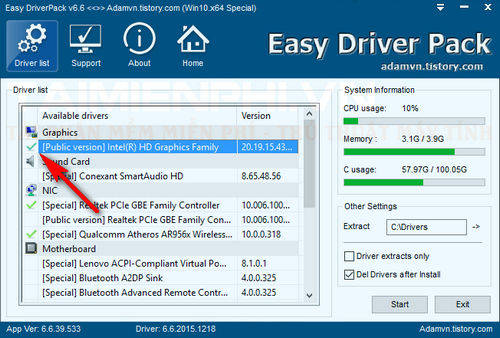
After installation is complete, launch the software. On the main interface of Easy DriverPack, you will see a list of hardware drivers that need updating in the Driver list section .
If you need to update any drivers, simply click on the driver name to reveal a green checkmark .
Step 3
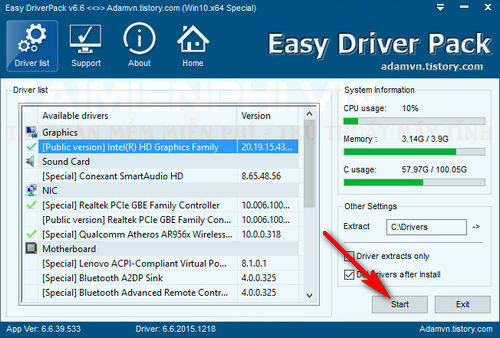
After selecting the driver versions you need to update, you can press Start to begin updating the drivers using Easy DriverPack.
Step 4
Continue by clicking Yes in the notification window that appears afterward.
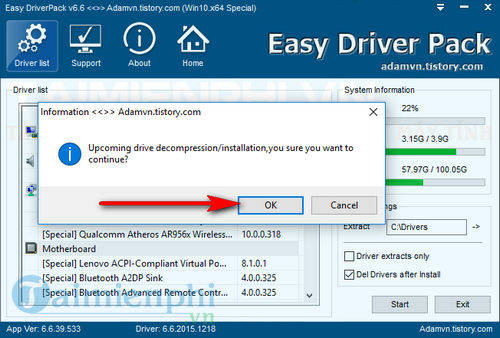
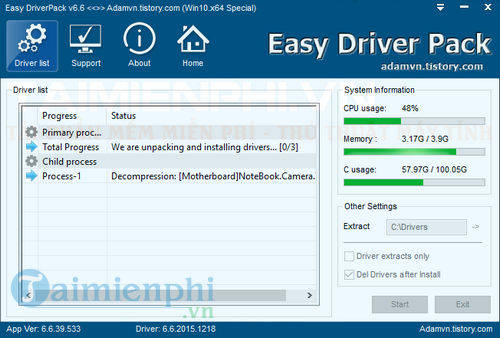
The process of using Easy DriverPack to update computer drivers is clearly and detailedly displayed for users to understand.
Step 5
After updating your computer drivers using Easy DriverPack, the software will display a dialog box asking you to restart your computer. Save any tasks or processes you are currently working on and click OK to restart your computer immediately. You have now successfully updated your computer drivers.
Above is a guide on how to use Easy DriverPack from TipsMake to quickly and easily update your computer's drivers to the latest versions. Additionally, if you're not satisfied with Easy DriverPack, you can check out the top 5 other automatic driver download software for computers and laptops that also offer accurate and fast driver search functions. Good luck!
Related Articles
 How to Install Easy DriverPack on Your Computer3 minutes read
 How to Install Drivers for Windows with DriverPack Solution5 minutes read
 Driverpack Solution - Download Driverpack Solution to Automatically Update3 minutes read
 Driver Driver Installation Software for Computers7 minutes read
 What Is Easyanticheat.exe? Should Easyanticheat.exe Be6 minutes read
 The Best Driver Update Software for Computers10 minutes read
Reader Comments 0
Sign in with email or Google to join the discussion.