Table of Contents
Windows 10 offers excellent driver support, with many peripherals pre-installed in the installation package, eliminating the need to search for and install them separately. However, installing drivers and updating drivers for Windows 10 are two different things. This aspect has never been a strong point of the operating system, as it has generally performed poorly .
Instructions for updating drivers on Windows 10
But it is precisely for this reason that third-party software companies have developed automatic driver search software, allowing them to scan for all drivers in the latest version and provide them to users in just a few steps. In the article below, TipsMake will introduce you to the best automatic driver search and update software for Windows 10, helping you eliminate this problem.
How to update drivers for Windows 10
Step 1
There are many software programs that help you update drivers for Windows 10. One of them, which TipsMake will introduce in this article, is iObit Driver Booster, currently the most effective automatic driver search software. Please download and install Driver Booster on your computer.
Step 2
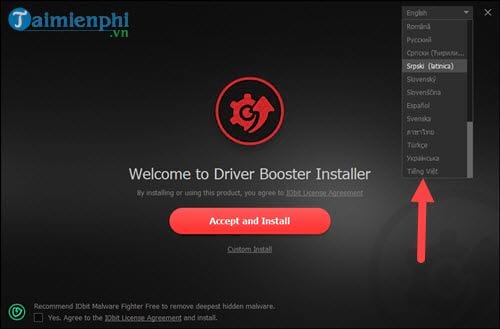
After successfully downloading Driver Booster, open it but don't install it yet because Driver Booster supports Vietnamese . Switch the installation process to Vietnamese to easily install the software.
Step 3
Don't rush to click "Accept and Install." Instead, click "Customize Settings ." There are some parameters you might want to change.

Step 4
Here you can save the Driver Booster installation path as you wish, and you can also create an icon on the desktop or taskbar. Think carefully before choosing, then click accept and install .
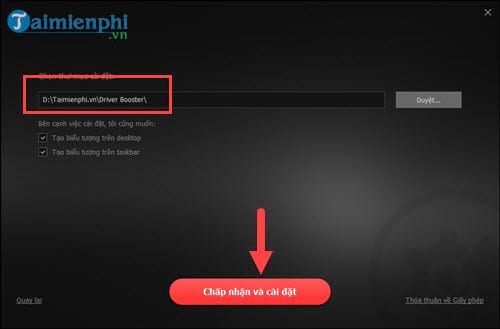
The installation process will only take you about 1 minute , so just let the software install itself.

Step 5
After installing Driver Booster, click " Scan Now" to update the drivers for Windows 10.

Step 6
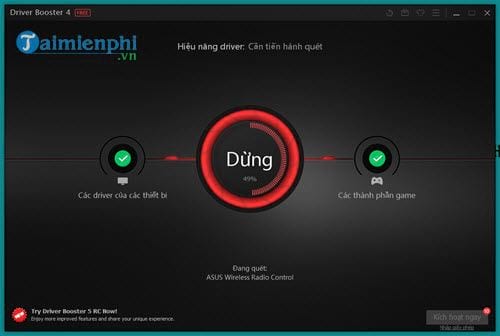
Immediately afterwards, the Driver Booster software will automatically scan all your Windows 10 drivers. This process is quite fast, so you can wait and receive the results right away.
Step 7
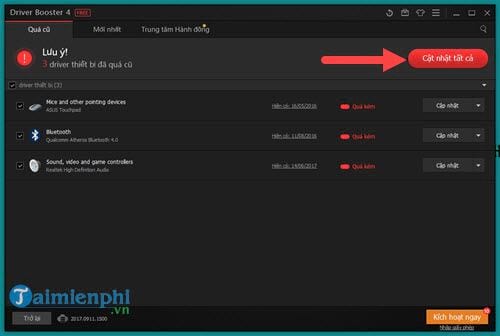
The results will show drivers that are not yet updated to the latest version. To update drivers for Windows 10, click on " Update All" .
Step 8
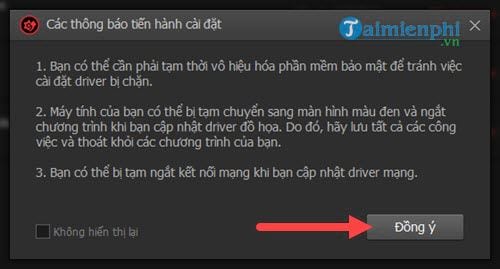
Driver Booster will display a notification warning users about potential issues that may arise during the Windows 10 driver update process; simply click "Agree" .
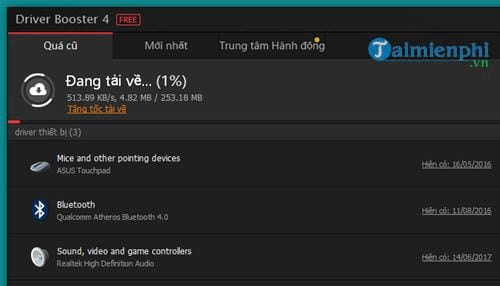
The download process depends entirely on the size of the driver; the download speed is quite high, so you can rest assured and leave your computer running until the download is complete.
Step 9
After the drivers have finished downloading, Driver Booster will ask you again if you want to back up your drivers before updating the new Windows 10 drivers. You should click "Agree" to back up your old drivers in case the new ones encounter errors.
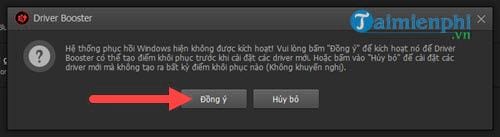
And just wait for the Windows 10 driver update process to complete; you only need to restart your computer for the update to take effect.
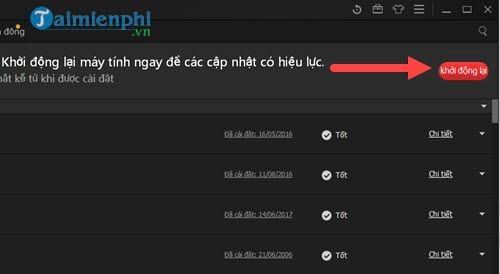
Completing all the steps above means you've finished updating your Windows 10 drivers. Driver Booster also helps you always have the latest drivers thanks to its management tool; you just click and download whenever a driver is available.
Besides using Driver Booster, DriverEasy is also a good option. Updating drivers using DriverEasy is a popular choice. If Driver Booster doesn't satisfy you, try updating your drivers with DriverEasy . Or, if you're using Windows 11, you can refer to the article "Update drivers in Windows 11" for more effective updates.
Related Articles
 How to Disassemble an Acer Aspire ES1-532G Laptop7 minutes read
 Fix Old Driver Duplicate Settings on Windows Update4 minutes read
 How to Download and Update Bluetooth Drivers for Windows 105 minutes read
 How to Update Drivers Windows 109 minutes read
 How to Update All Drivers for Windows 10 Computers6 minutes read
 How to Root Out Old Windows 10 Drivers?3 minutes read
Reader Comments 0
Sign in with email or Google to join the discussion.