Table of Contents
Checking your graphics card helps you understand your current GPU, its performance, and whether an upgrade is needed. Below are instructions on how to view specifications and test performance using the most accurate tools.
Method 1: Check using DirectX Diagnostic Tool
From your computer screen, press the Windows key - R and type dxdiag.
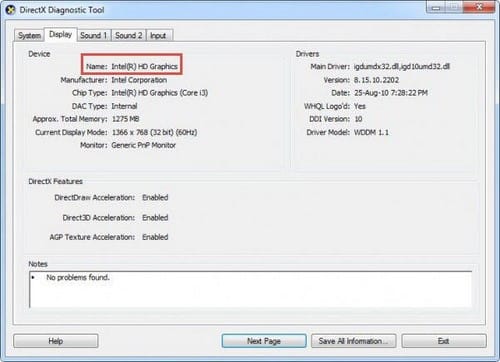
After the DirectX Diagnostic Tool program interface appears, switch to the Display tab . Typically, onboard graphics cards are manufactured by Intel.
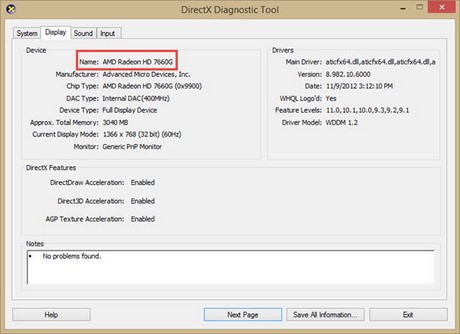
Dedicated graphics cards are usually manufactured by ATI, AMD, or NVIDIA.
For some laptops with dual-card functionality (using two graphics cards in parallel), in most cases, the laptop will use the onboard card to save power. Only when performing demanding tasks such as Photoshop, gaming, or video editing will the system need a dedicated graphics card.
Method 2: Check using third-party software
Besides using built-in tools, you can install third-party software. The choice of software depends entirely on your needs. In this article, we use CPUz.
- Download link for CPUz.
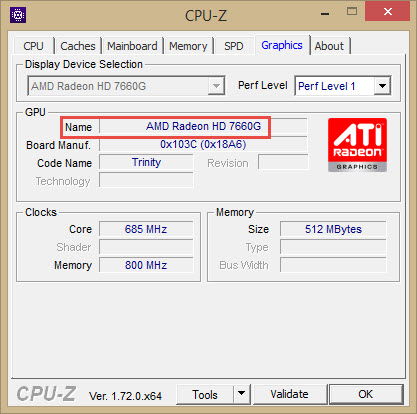
After installing CPUz, open the program and switch to the Graphics tab . Here you can easily see the name of your graphics card and its specifications.
Method 3: Check on the laptop casing
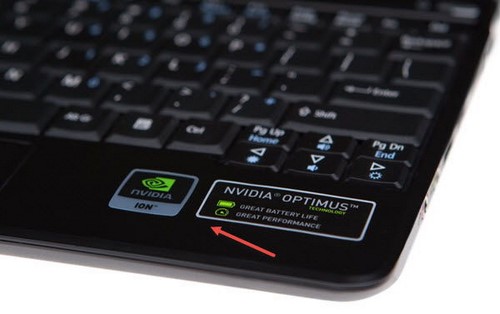
Newer laptops typically print important specifications directly onto the casing, including the graphics card specifications. If your laptop has a dedicated graphics card, you'll definitely see the NVIDIA, ATI, or AMD logo.
Therefore, you can check whether your graphics card is dedicated or integrated using different methods to optimize your device's performance. After checking and determining whether you're using a VGA or Nvidia card, if the VGA card is outdated, you should upgrade it for better display performance. Additionally, consider removing the integrated graphics card if you want to use a dedicated graphics card.
Related Articles
 How to Perform Graphical Stress Test on Linux6 minutes read
 How to Use GPU-Z to Analyze Graphics Card Parameters10 minutes read
 How Does the Intel HD Graphics 520 Graphics Card Perform: Complete Overview11 minutes read
 How to Check the Type of Graphics Card (GPU) on the Computer4 minutes read
 How to Monitor Nvidia GPU Performance on Linux4 minutes read
 How to Test a Video Card: Step-by-Step Guide7 minutes read
Reader Comments 0
Sign in with email or Google to join the discussion.