Table of Contents
Are you looking for ways to set an alarm on your computer? Let TipsMake show you 3 reliable methods to set an alarm on your computer!
Windows 11 or 10: Open Start > Clock > Alarm, select Add, choose the time, repeat days, sound, and label, then save it. Mac: Open the Clock app, choose Alarms, select the add button, configure the alarm, and save it.
Make sure the computer can actually sound the alarm
- Keep the computer powered on; a fully shut-down device cannot sound an app alarm.
- Check system volume, the selected output device, Focus/Do Not Disturb settings, and app notification permission.
- On Windows, the Clock app may warn that notifications appear only while the device is awake. Adjust sleep settings or use a phone alarm when waking on time is critical.
- Keep a laptop connected to power for an overnight alarm and test it once before relying on it.
- For an online alarm, keep the browser tab open, allow sound, and maintain power and connectivity. A browser crash or sleeping computer can prevent it from ringing.
A computer alarm is useful for work intervals and reminders, but a phone or dedicated alarm clock is generally more reliable for an important wake-up time.
See Microsoft's guide to alarms and timers in Windows Clock and Apple's instructions for alarms in Clock on Mac. If you want a phone-based fallback, TipsMake also compares Android alarm apps.
Therefore, in addition to the setup process, users also need to check some related settings to ensure the alarm works on time. This article will share how to set alarms on Windows, MacBook, and online alarm tools, as well as share important notes to avoid common errors.
Quick answer
- Windows 10/11 and the latest macOS both have a Clock app for quickly setting alarms without needing third-party software.
- For the alarm to work, the computer must not be completely shut down, and the system volume must not be muted.
- The alarm not ringing is often due to the computer going into Sleep mode, being muted, or closing a browser tab (for online alarms).
- Enabling the Allow wake timers feature in Power Options (Windows) can allow your computer to automatically wake up to the alarm.
1. Quickly select the alarm setting method that suits your device
|
Device/Operating System |
The most appropriate way |
When should it be used? |
Key notes |
|---|---|---|---|
|
Windows 11/10 |
Clock or Alarms & Clock |
Want to set an alarm quickly without installing additional software? |
The machine must not be turned off completely. |
|
Windows 7 or machines without a Clock function. |
Free Alarm Clock |
Old device, missing default apps. |
Download only from official sources. |
|
MacBook macOS Ventura and later |
Backup |
A standard system-style alarm is required. |
Interface varies depending on the version. |
|
Older MacBook models |
Reminders or Siri |
It's important to remember that the work is done on an hourly basis and quickly. |
It's probably more of a reminder than an alarm. |
|
Online alarm clock |
Website for setting alarms in your browser. |
I'm using it temporarily, I don't want to install the app. |
Dependent on tabs and system notifications. |
2. Set an alarm in Windows 11 or 10
Windows 11 and Windows 10 have a built-in alarm clock app. The app name may be Clock or Alarms & Clock depending on the version and language of your computer.
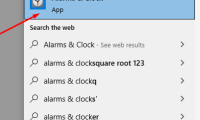
- Step 1: Open Search on the taskbar, type Clock or Alarms & Clock, and then open the correct application.
- Step 2: Select the Alarm option in the app interface. If you don't see it, you might have opened the wrong clock app.
- Step 3: Press the + sign to create a new alarm.
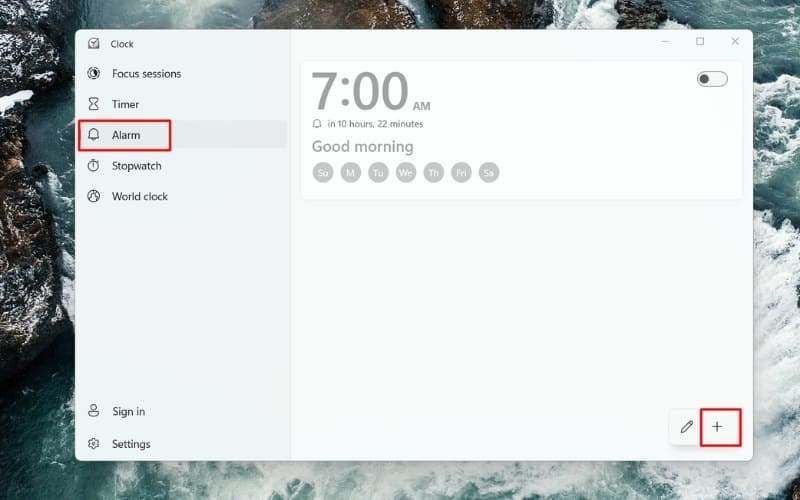
Select the Alarm option and press the + sign to create a new alarm.
- Step 4: Choose a time and set additional alarm names, sounds, repeat function, and snooze time if needed.
- Step 5: Press Save to save, then check if the alarm switch is turned on.
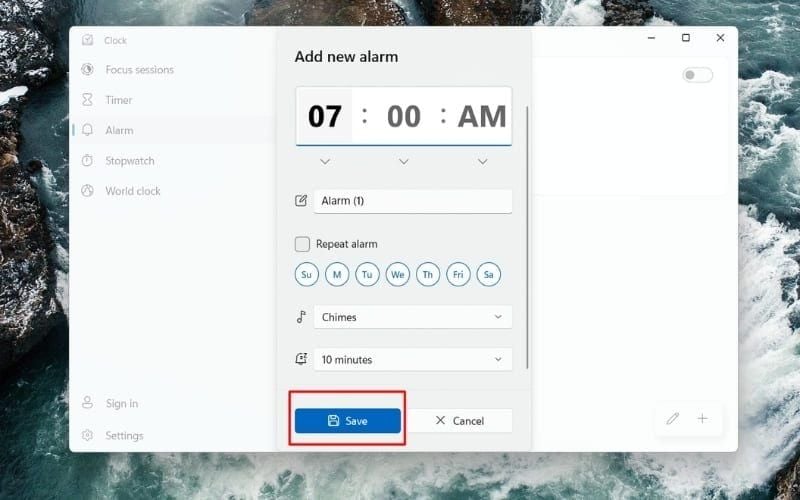
Complete the settings and select Save to save.
3. How to set an alarm on Windows 7 or when your computer doesn't have the Clock app
Consider using third-party software when your computer is running an older version of Windows that lacks a built-in Clock application, or when you need more advanced options. In some cases, specialized software can also provide more stable wake-up functionality from Sleep mode compared to the default application.
- Step 1: Download the Free Alarm Clock software from the official website. Install the application following the default instructions.
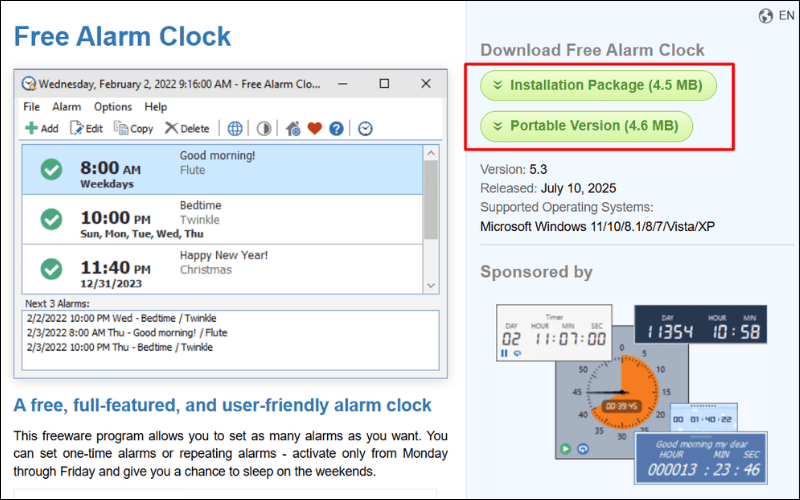
Download the Free Alarm Clock software from the official website.
- Step 2: Open the software and press Add to add a new alarm.
- Step 3: Set the time, date, sound, and alarm name according to your needs.
- Step 4: Press OK to save and check that the alarm has been activated.
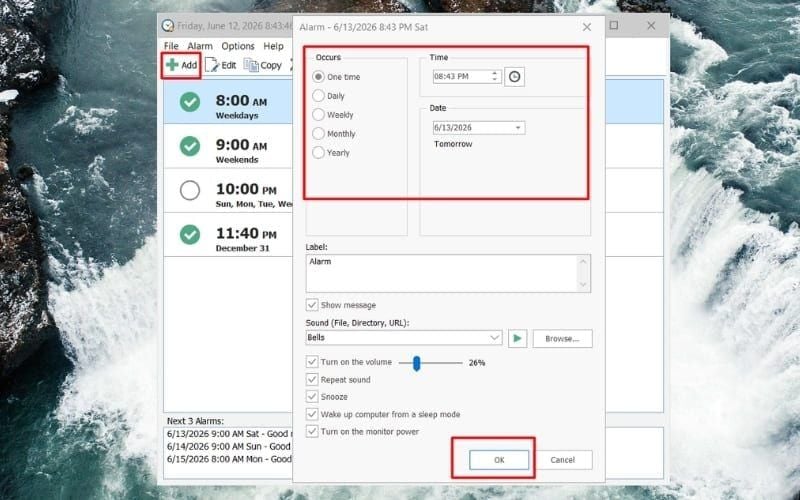
Press Add, set the alarm, and then press OK.
4. Set an alarm on a Mac
MacBooks don't have a single way of doing things for all versions. The key is to clearly distinguish whether your machine is running macOS Ventura or later, or an older version. With newer machines, you can use Clock. With older machines, Reminders or Siri are usually more practical.
4.1. Setting an alarm using Clock on macOS Ventura or later
- Step 1: Open the Clock app on your MacBook and select Alarm from the menu bar.
- Step 2: Press the + sign to create a new alarm.
- Step 3: Set the time, sound, and repeat schedule if needed. Save the settings to complete.
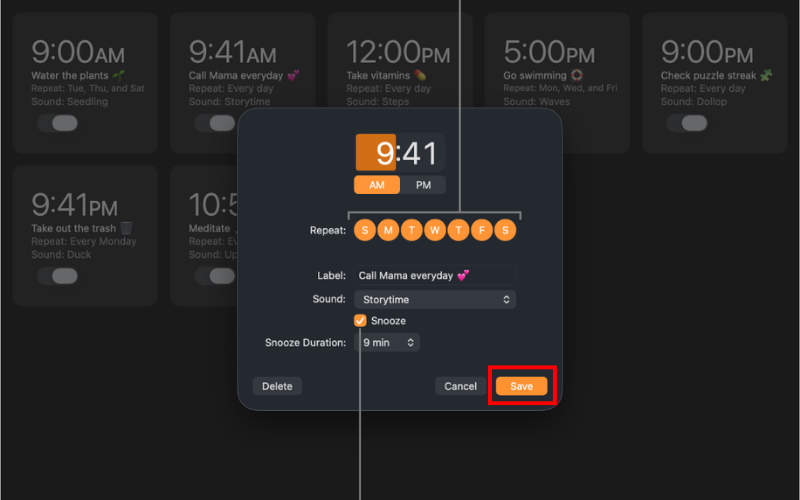
Set the alarm and select Save to save it.
4.2. Use Reminders or Siri on your MacBook
- Reminders are useful when you need reminders for specific dates and times.
- Siri is suitable when you need to perform quick actions using your voice.
On some older MacBooks, this is a more reliable method than finding a dedicated alarm function. If using Siri, you can command it to create a timed reminder. Depending on the macOS version, the response and level of support may vary.
You can use Reminders or Siri to set an alarm.
5. How to set an alarm online without installing software
5.1. When should you use an online alarm clock?
- Use on public or borrowed computers.
- I don't want to install any more apps.
- Just set a short-term alarm for a single work session.

You can set alarms online if you don't want to install an additional app.
5.2. Limitations of online alarms you should know
- Depending on your browser and the tab you have open, closing the tab may prevent the alarm from running.
- If the device goes into sleep mode or blocks notifications, it's prone to errors.
- The stability is generally poorer compared to applications pre-installed on the operating system.
6. Conditions for the alarm to sound on time on a laptop or computer
Setting an alarm isn't enough. The computer needs to be in the right state for the alarm to work. Sleep mode keeps the computer running while it's asleep. Hibernate mode saves the state and is almost a deeper shutdown than Sleep mode. If the computer is completely shut down, the alarm won't start. You need to ensure:
- The alarm has been switched on after saving.
- The device did not completely shut down before the alarm went off.
- The speaker volume is loud enough and not muted.
- The system notification indicates that it is not blocked.
- A stable power source is essential if you leave the device overnight; it's best to plug it into a laptop charger.
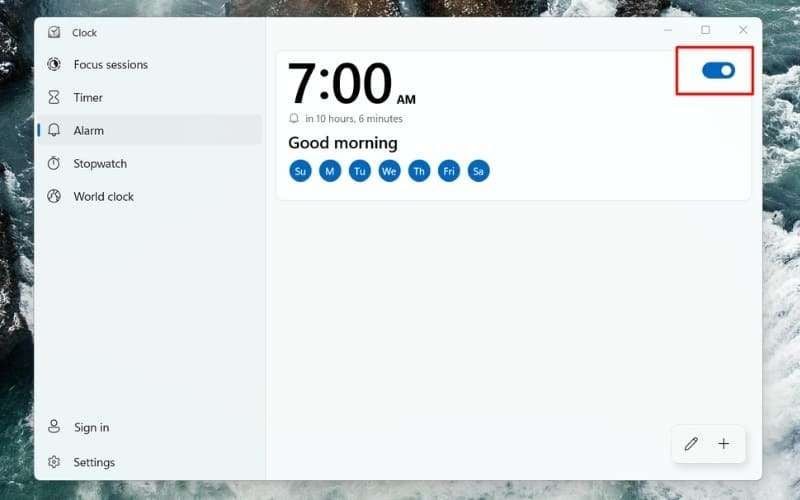
Make sure the alarm is turned on after saving.
7. How to fix the problem of the alarm not ringing on your computer
|
Problem |
How to fix it |
|---|---|
| The computer is in sleep mode, so the alarm won't go off. |
|
| The alarm is silent. |
|
| Online alarms are not working. |
|
8. Tips for using alarms more effectively on your laptop
Computer alarms are suitable for reminding you of tasks when studying or working at a desk. If set up correctly, you can manage your time quite effectively without installing many other tools. To make alarm management easier, you should:
- Give your alarms clear names related to tasks such as meetings, assignments, or breaks.
- Turn on daily or weekly repetition for recurring tasks.
- Use additional alarms on your phone for important events to have a backup reminder.
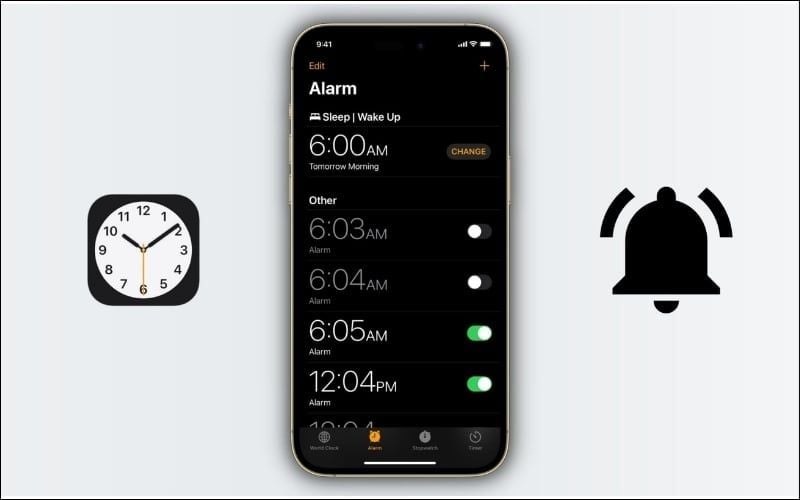
Use an additional alarm on your phone as a backup.
9. Power and sleep questions
9.1. Why doesn't my laptop have an "Allow wake timers" option?
This option may not appear on some laptops due to the Windows version, drivers, or power mode applied by the manufacturer. Additionally, some devices use Modern Standby mode, so traditional power management options may be hidden or altered.
9.2. Does the alarm consume a lot of battery power when the device is in Sleep mode?
It's negligible. In Sleep mode, laptops only maintain a small amount of power to save the system state and support essential tasks. However, if left in Sleep mode for an extended period, the battery will still gradually drain over time.
Related Articles
 How to Set an Alarm on Windows 103 minutes read
 How to Set an Alarm on a Computer or Laptop Using Win 104 minutes read
 Instructions on How to Change the Alarm When Logoff, Logon and5 minutes read
 How to Set an Alarm on a Mac: Step-by-Step Guide3 minutes read
 Set Timer Alarm Windows 10: How to Set Alarm and Timer in Windows7 minutes read
 How to Set an Alarm on a Computer - Laptop: Step-by-Step Guide7 minutes read
Reader Comments 0
Sign in with email or Google to join the discussion.