Table of Contents
MacOS 26 has a built-in Clock app so you can set alarms, timers, and stopwatches without having to install any additional supporting apps.
MacOS 26 has a built-in Clock app so you can set alarms, timers, and stopwatches without having to install any additional apps. Setting an alarm on your Mac is as simple as setting an alarm on your iPhone. Here's how to set an alarm on your Mac.
How to set an alarm on a Mac
Step 1:
You Open the Clock app On your Mac in the /Applications folder, or you can access it through Spotlight or Launchpad.
Step 2:
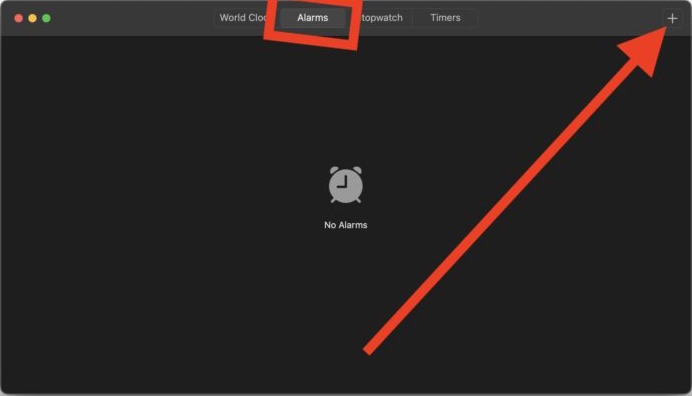
Next, Select the Alarms tab And then click The plus icon In the top right corner to add a new alarm.
Step 3:
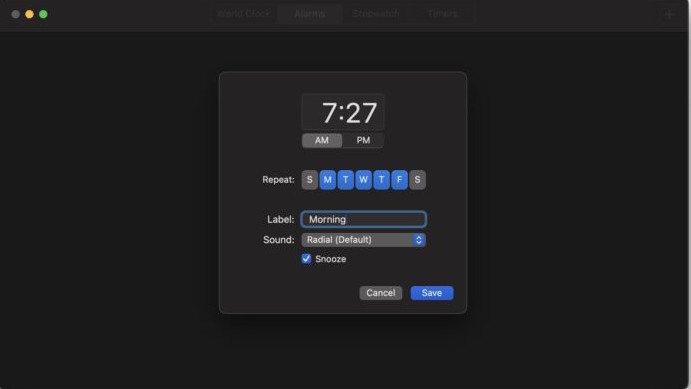
Displays the interface for you to Set the alarm time As you like. We click on the days of the week if you want the alarm to repeat (choose M, T, W, T, F to activate the alarm for a standard 5-day work week).
Step 4:
Next, you Name the alarm And Choose the alarm sound On your Mac. Then you click Snooze if you want to enable the ability to snooze the alarm to give more time before the alarm goes off again. Finally, click Save to save the alarm on your Mac.
Step 5:
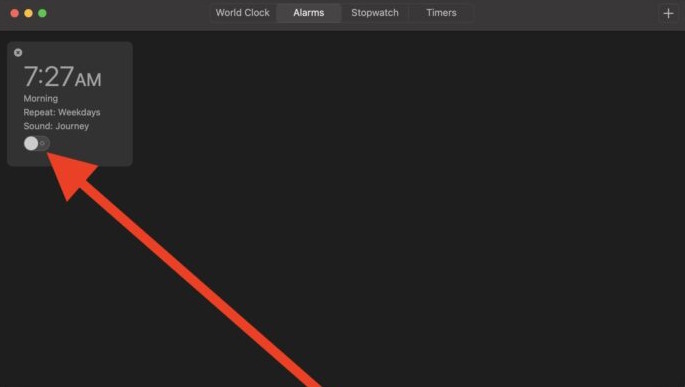
To turn off notifications on Mac, reopen the Clock app on Mac, then click on Alarms and turn off the mode. If you want to delete this alarm, click on the x to delete the alarm.
FAQ
How do you set an alarm on a mac: step-by-step guide?
In practical terms, macOS 26 has a built-in Clock app so you can set alarms, timers, and stopwatches without having to install any additional supporting apps.
What should you check before getting started?
Review the requirements, compatible device or software version, and any warnings described in the guide before making changes.
What should you do if the steps do not work?
Repeat the steps in order, confirm that your app or system is up to date, and review the troubleshooting details provided above.
Related Articles
 How to Set an Alarm on Windows 103 minutes read
 Turn Your Old Phone into a Remote Fire Alarm Device with Smonkey6 minutes read
 Should Smartphones Be Used as Alarm Clocks?4 minutes read
 How to Set an Alarm on a Computer or Laptop Using Win 104 minutes read
 iPhone Has Strange Alarm Problem: Complete Guide3 minutes read
 The Best Alarm App on Android6 minutes read
Reader Comments 0
Sign in with email or Google to join the discussion.