Table of Contents
This guide provides a practical overview of Useful Features You May Not Know About Alarms & Clock in Windows 10, including its main features, benefits, limitations, and important considerations.
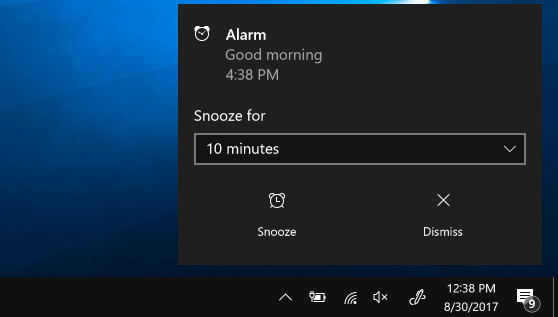
Very simple with the following steps, you can complete the alarm and timer.
Press Window key and select Alarm and clock in the list or you can directly search. Then choose the time frame you want and finish.
Note to use this feature should make sure your device does not enter sleep mode (Sleep). Besides, make sure your device has enough battery and volume is enough to function.
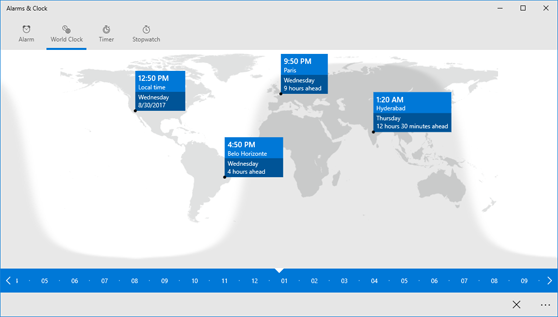
Second, compare the time zones in the world
Step 1: Select the clock app, at the bottom select New +
Step 2: Enter the first letter of the position you want to track and select this position from the list.
Step 3: Choose Compare between the two clocks and choose the time at the bottom slider.
Third, use a stopwatch
Step 1: Click Stopwatch and select Start
Step 2: If you need to mark lap time or lap time when the stopwatch runs, do so by selecting Lap time / Break time (flag).
Step 3: You can also increase the size of the stopwatch screen by selecting Expand.
Step 4: When you want to stop this feature suddenly, select Pause.
Step 5: If you do not want to continue using the stopwatch, you can delete with the Reset button.
FAQ
What should I know about Useful Features You May Not Know About Alarms & Clock in Windows 10?
Focus on the key features, requirements, limitations, and practical use cases explained in this guide.
How do I get the best results with Useful Features You May Not Know About Alarms & Clock in Windows 10?
Follow the recommended steps, use current software or information, confirm compatibility, and review settings before major changes.
Are there any risks or limitations?
Potential limitations depend on compatibility, data quality, cost, privacy, support, and how the product or method is used.
Related Articles
 How to Set Alarms on Windows 10 Without Software5 minutes read
 Sense Desktop: the Best Clock for Windows 10 Desktop3 minutes read
 This Windows 11 Mod Lets You Have Tons of Useful Information4 minutes read
 How to Activate Calendar and Clock Hidden on Windows 10 Build3 minutes read
 12 Best Free Clock Widgets for Android10 minutes read
 How to Display Clock on Windows 11 Screen3 minutes read
Reader Comments 0
Sign in with email or Google to join the discussion.