Table of Contents
On an iPhone with Face ID, press and hold the side button and either volume button until the sliders appear, then drag slide to power off. On an iPhone with a Home button, press and hold the side button—or the top button on older models—until the power-off slider appears.
Turning an iPhone off normally is different from forcing it to restart. Use a force restart only when the screen or controls are unresponsive.
Turn off an iPhone with the buttons
iPhone with Face ID
- Press and hold the side button and either volume button at the same time.
- Release the buttons when the sliders appear.
- Drag slide to power off to the right.
- Wait about 30 seconds for the phone to turn off.
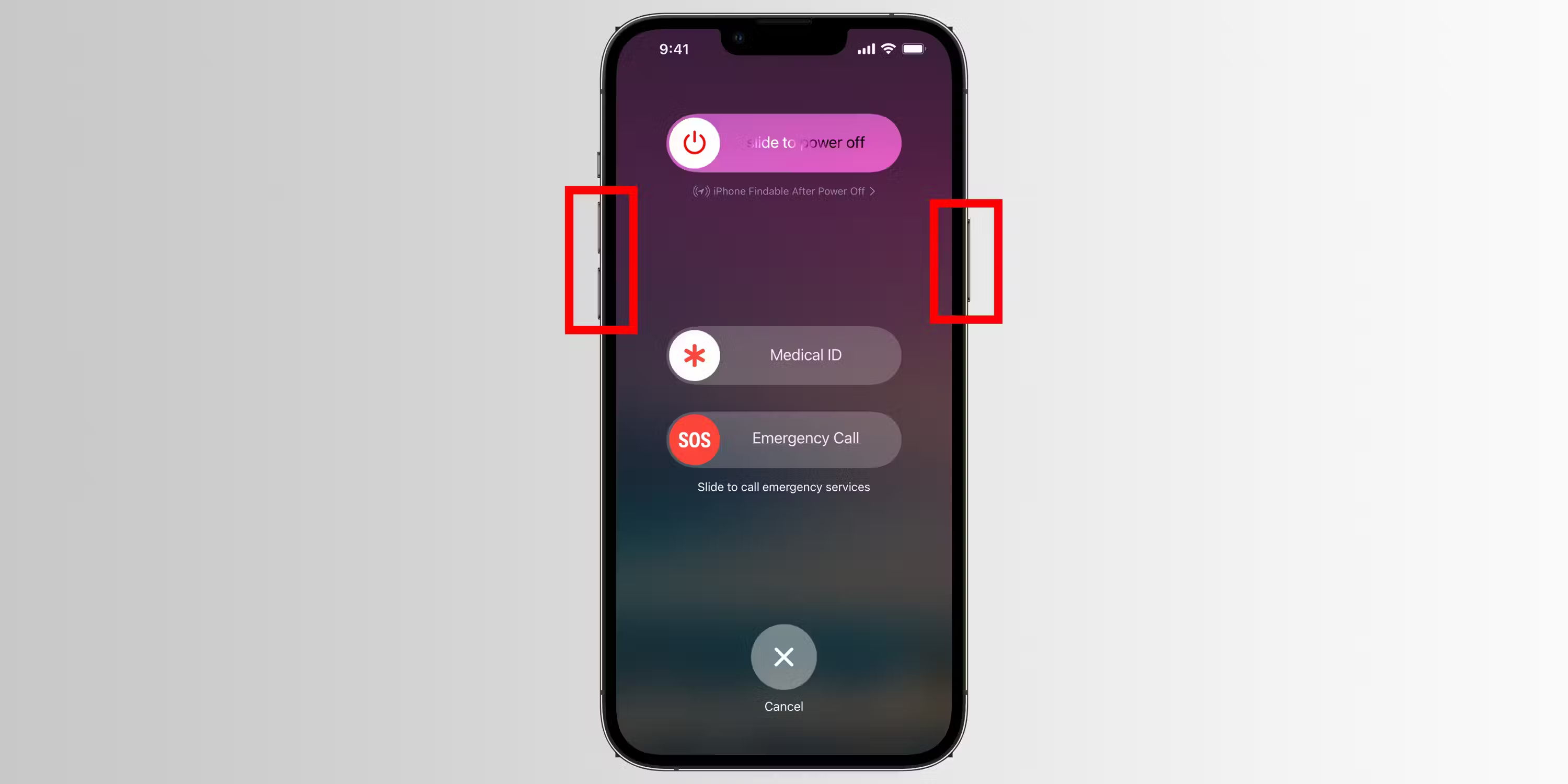
Pressing only the side button normally locks the phone or activates Siri, so it does not open the shutdown screen.
iPhone with a Home button
On iPhone 6, 7, 8, and iPhone SE models, press and hold the side button until the slider appears. On iPhone SE (1st generation), iPhone 5, and earlier models, press and hold the top button. Drag the power-off slider and wait for shutdown to finish.
To turn any supported iPhone back on, press and hold the side or top button until the Apple logo appears.
Turn off an iPhone from Control Center
iOS 18 and later include a power control in Control Center:
- Swipe down from the top-right corner of the screen. On an iPhone with a Home button, swipe up from the bottom edge.
- Touch and hold the power icon in the top-right corner.
- Release it when the shutdown screen appears.
- Drag the power-off slider.
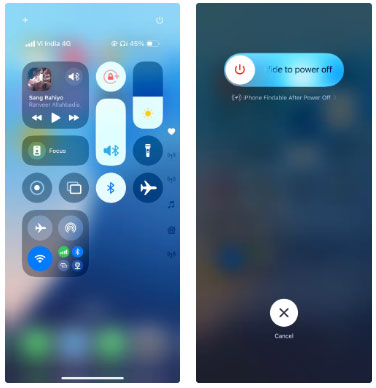
This method is useful when a physical button is difficult to press, but it still requires a responsive touchscreen.
Turn off an iPhone in Settings
This path works on current iPhone models:
- Open Settings.
- Tap General.
- Scroll to the bottom and tap Shut Down.
- Drag the power-off slider.



Ask Siri to turn the iPhone off
On supported iOS versions and languages, say, “Siri, turn off my iPhone,” then confirm the prompt. If Siri does not offer the confirmation, use Control Center or Settings > General > Shut Down.
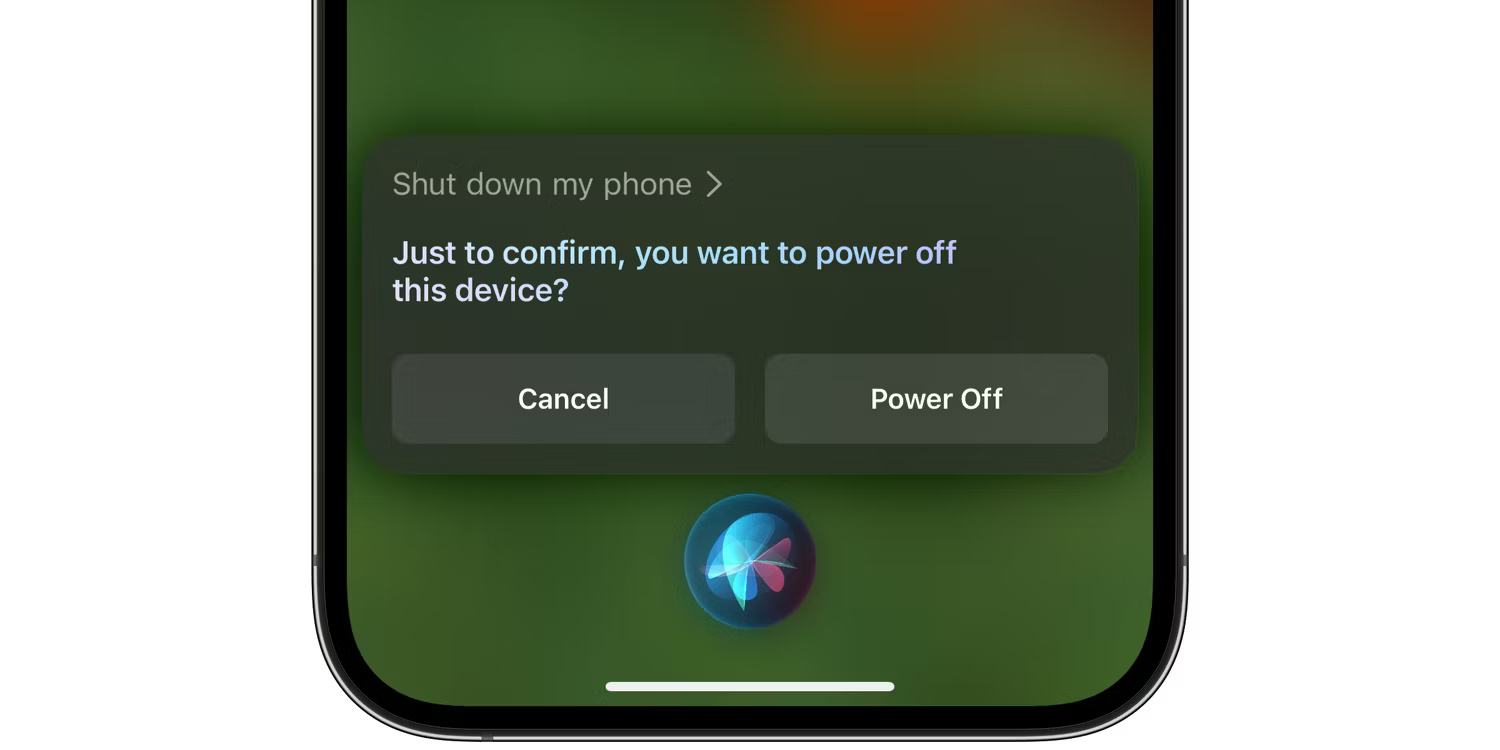
Siri availability and offline behavior vary by language, settings, and software version, so this should be treated as a convenience rather than the only shutdown method.
Force restart a frozen iPhone
If the screen does not respond and you cannot use the slider, do not wait for the battery to drain. Use the button sequence for your model.
iPhone 8 or later, including iPhone SE (2nd and 3rd generation)
- Press and quickly release volume up.
- Press and quickly release volume down.
- Press and hold the side button.
- Release the side button when the Apple logo appears.
iPhone 7 or iPhone 7 Plus
Press and hold the side button and volume down button together. Release them when the Apple logo appears.
iPhone 6s, iPhone SE (1st generation), or earlier
Press and hold the Home button and the side or top button together. Release them when the Apple logo appears.
A force restart does not intentionally erase data, but it abruptly interrupts running processes. Use it for an unresponsive phone, not as the routine way to shut down.
If the iPhone still will not start
- Connect it to power with a known-good cable and charger.
- Leave it charging, then repeat the correct force-restart sequence.
- If the recovery screen appears or the phone remains stuck on the Apple logo, connect it to a Mac or Windows PC and follow Apple's recovery instructions.
- Choose an update that preserves data when the recovery tool offers one. Restore erases the device, so confirm that a backup exists first.
Do not factory-reset a phone as the first troubleshooting step. TipsMake's factory-reset guide explains the data-loss risk and backup requirement.
Do you need to restart an iPhone every week?
No fixed weekly restart schedule is required. Restart when iOS or an app is misbehaving, after an update when prompted, or as a troubleshooting step. Repeated freezes, unexpected shutdowns, or rapid battery loss may indicate a software, storage, battery, or hardware problem that restarting will not solve.
For power-related problems, use TipsMake's battery-health and charging guide. Apple's current turn-off instructions and force-restart instructions provide the model-specific sequences.
Related Articles
 5 Ways to Turn Off iPhone Not Everyone Knows7 minutes read
 8 Ways to Save iPhone Battery, Increase Battery Life When Using9 minutes read
 TOP 9 Websites That Support Online C/c++ Programming Compilation7 minutes read
 How to Turn Off and Turn on the Power of iPhone X4 minutes read
 How to Turn on 3G on iPhone 5 / 5S / 6?3 minutes read
 How to Turn Off Voice Control on iPhone6 minutes read
Reader Comments 0
Sign in with email or Google to join the discussion.