Table of Contents
IPhones are quite popular among us, and over the years Apple has significantly changed its devices, from their appearance to their functions. Even the process of turning off an iPhone differs depending on the model you are using.
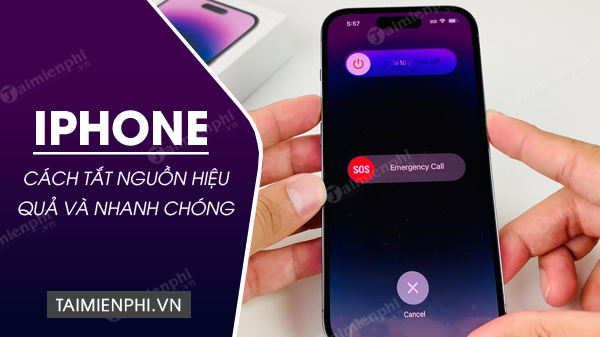
I. How to turn off your iPhone using the physical buttons
1. Turn off your iPhone with FaceID.
Step 1: Press and hold the power button and the volume up/down button on your iPhone simultaneously .
Step 2: Swipe the slider to the right to turn off the power.
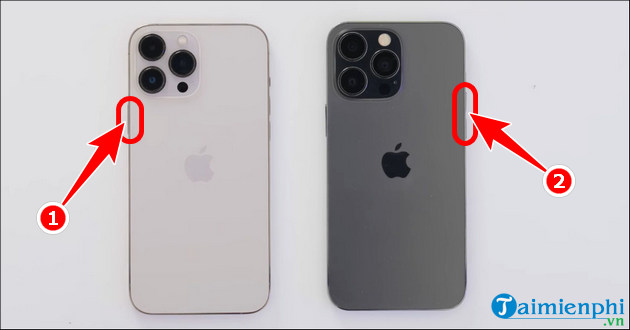
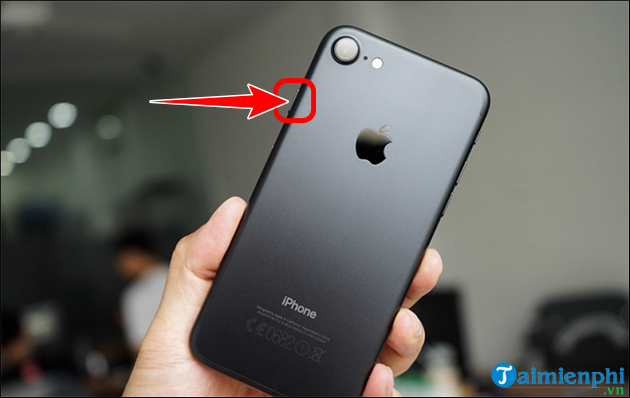
2. Instructions on how to turn off an iPhone with a Home button.
Step 1
Press and hold the power button .
Step 2: A slider will appear on the phone screen; swipe horizontally to turn off the power.
II. How to turn off your iPhone using the Settings app
Besides the physical power button, you can also turn off your iPhone through Settings. However, for this method to work effectively, your device must be running iOS 11 or later.
Step 1
Open Settings , select General Settings => Scroll to the bottom and tap Shut Down .
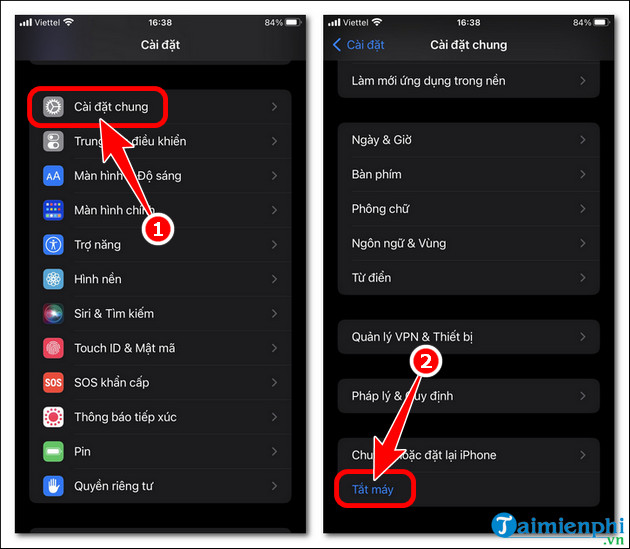
Step 2
Next, slide the slider to the right to turn off your iPhone.

III. How to turn off your iPhone using the virtual Home button
AssistiveTouch is an accessibility button on the iPhone that allows you to use built-in features, including turning off your iPhone.
Step 1
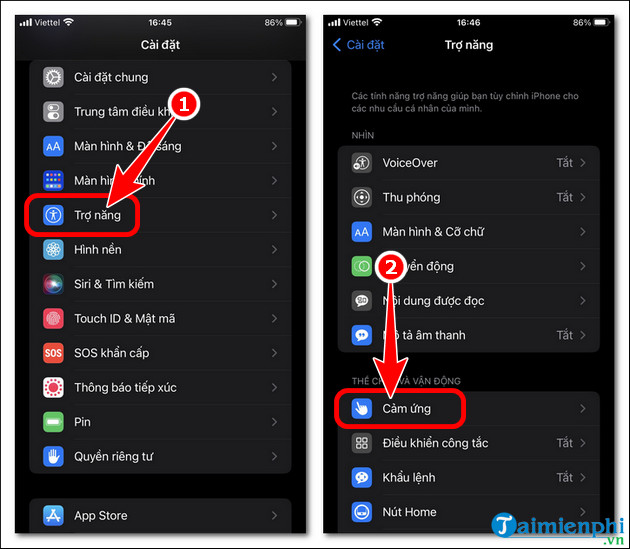
Open Settings , click Accessibility => select Touch .
Step 2
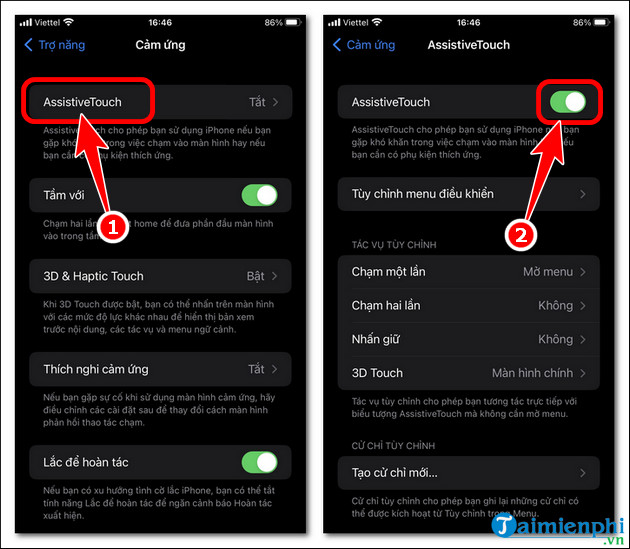
Press AssistiveTouch => turn on AssistiveTouch .
Step 3
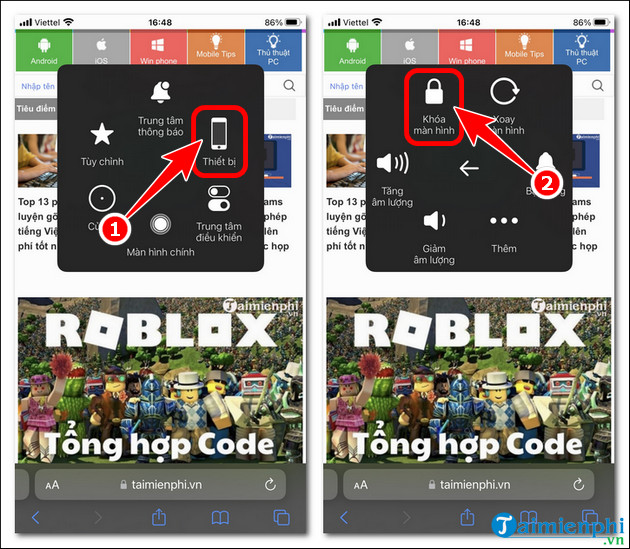
Open the virtual Home button , select Devices => press and hold Lock screen .
Step 4
Slide the horizontal bar to turn off your iPhone.

IV. Tips for turning off your iPhone using supporting software.
If the above methods are ineffective, you can try turning off your iPhone using supporting software. Currently, there are many software programs that integrate iOS power-off functionality, however, 3uTools is more stable and superior to other tools. You can download the latest version of 3uTools here.
However, if your iPhone won't turn off, freezes, or becomes unusable, you can refer to the guide on how to fix the iPhone power off issue here and follow the steps.
Above are four highly effective ways to turn off your iPhone that you can apply to your iPhone model to save battery or protect your device when needed. If your device is experiencing automatic shutdown issues, you can quickly fix the iPhone shutting down without needing expert assistance.
Related Articles
 How to Power Off iPhone Properly3 minutes read
 How to Shut Down and Fix a Frozen or Lagging Computer8 minutes read
 iPhone 14 Often Freezes and Here's How to Fix It2 minutes read
 How to Properly Turn Off the Raspberry Pi3 minutes read
 Touchpad Freezes: Causes and Effective Solutions8 minutes read
 How to Turn Off and Turn on the Power of iPhone X4 minutes read
Reader Comments 0
Sign in with email or Google to join the discussion.