Table of Contents
Connecting Samsung phones and tablets offers many benefits during device usage.
Connecting a phone to a Samsung tablet is a common need when users want to share data, synchronize information, or utilize the tablet's large screen for work and entertainment. This article will provide detailed instructions on 5 of the quickest and easiest connection methods.
Why do I need to connect my phone to my Samsung tablet?
Connecting Samsung phones and tablets offers many benefits during device usage. When the two devices are linked, users can quickly share data without needing additional intermediate storage devices.
Additionally, connecting your phone to your tablet allows you to synchronize notifications, messages, or images between the devices. This is especially useful when you're working on your tablet but still want to keep track of information from your phone.
Some users also take advantage of connecting their phones to tablets to transfer large files such as videos, study materials, or high-quality images. This allows users to study, work, and entertain themselves on their devices more conveniently.
Ways to connect a phone and Samsung tablet
There are many ways to connect Samsung phones and tablets to share data or sync information. Below are 5 simple, easy-to-follow, and most common methods you can quickly apply.
Connect via Samsung Flow
Samsung Flow is an application that provides a very convenient way to connect your phone to your tablet. This tool allows you to synchronize notifications, share files, and even unlock your tablet using your phone.
How to do it:
- Step 1: Open the Samsung Flow app on both your phone and tablet.
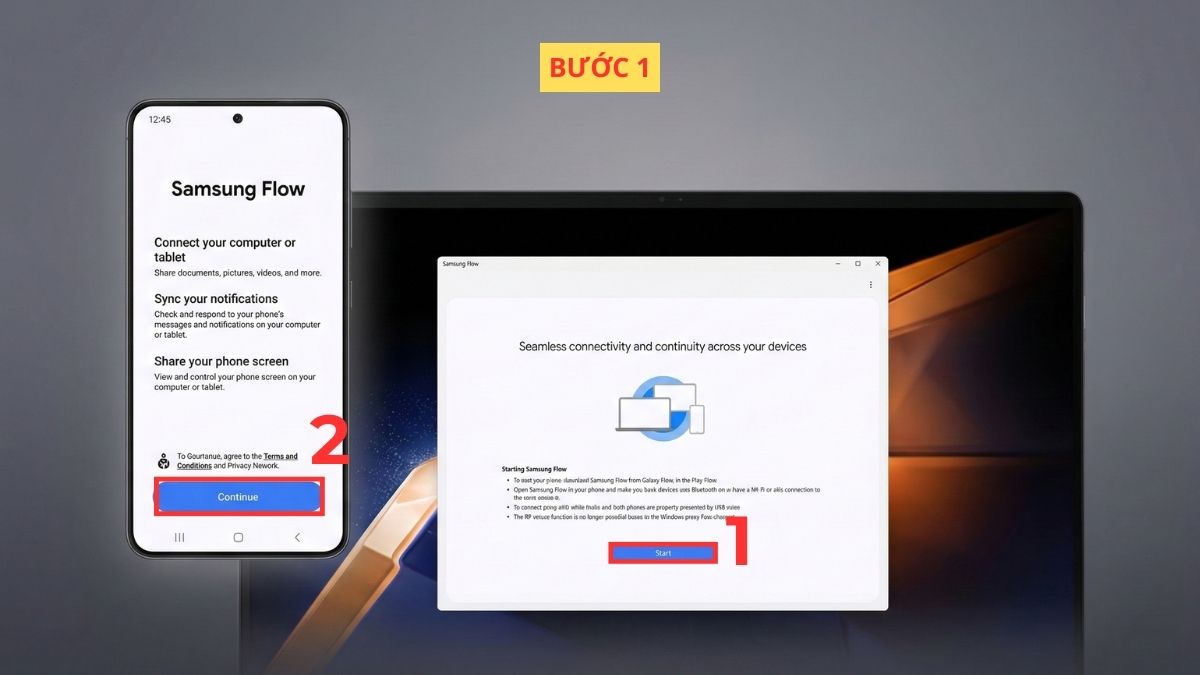
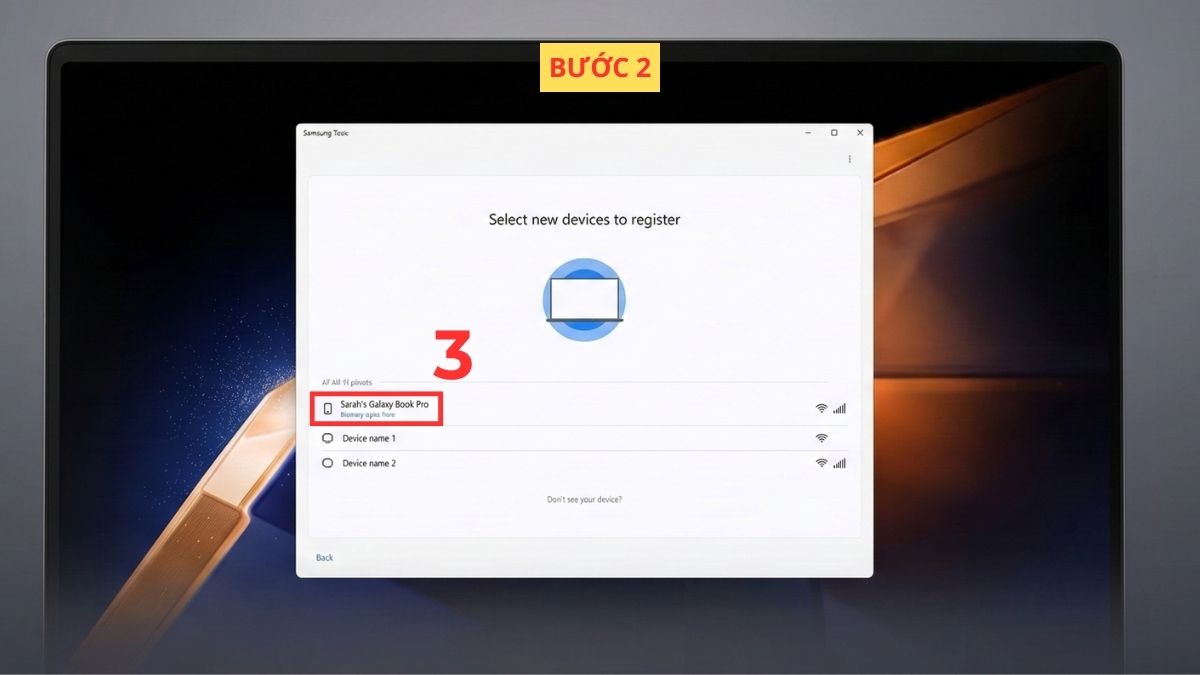
- Step 2: On your tablet, select your phone from the list of devices.
- Step 3: Confirm the passcode on both devices, then press Enter to complete.
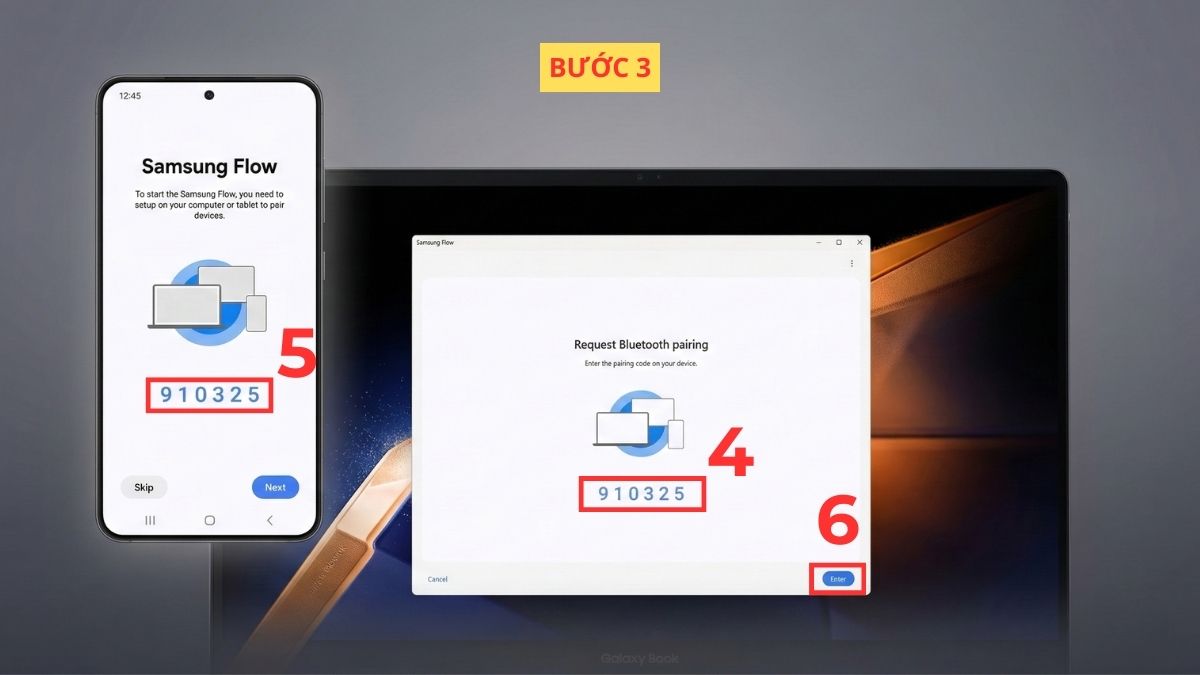
Once complete, connecting your phone to your Samsung tablet will allow you to easily share files, receive notifications, and control the device.
Note: Turn on Bluetooth or WiFi on both devices for the system to search. If the device does not have the Samsung Flow app, download the official app from the Galaxy Store or Google Play.
Don't let device connectivity interrupt your experience. Own a genuine Samsung phone to sync with your tablet and share data quickly. Great deals today. Order now!
Connect your phone to your Samsung tablet via Bluetooth
Bluetooth is a fairly common and easy-to-use data transfer method. It's also a suitable way to connect your phone to your tablet when you only need to share small files.
How to do it:
- Step 1: Swipe down the notification bar on your phone or tablet.
- Step 2: Turn on Bluetooth connection .
- Step 3: Select the Bluetooth name of the other device to connect.
Once the connection is complete, users can quickly share images, documents, or music files from their phone to their Samsung tablet.
Connect via the Quick Share feature
Quick Share is a Samsung-exclusive feature that connects your phone to a Samsung tablet and transfers data extremely quickly via WiFi Direct.
How to do it:
- Step 1: Go to the file you want to send on your phone and tap the share icon .
- Step 2: Tap the Quick Share icon .
- Step 3: Select the tablet device that appears in the list to share with.
This method is chosen by many users because of its fast data transfer speed and simple operation.
Connect via USB cable
If wireless connection issues arise, using a USB cable is a stable and secure way to connect your phone to your Samsung tablet.
How to do it:
- Step 1: Plug one end of the USB cable into your phone.
- Step 2: Plug the other end into the tablet.
- Step 3: A message will appear on the tablet asking 'Allow access to phone data?' , select Allow to connect.
This method is suitable when you need to connect your phone to your tablet to transfer large files.
Note: The tablet needs to support USB OTG to be able to read data from the phone.
Connect via Multi Control feature
Multi Control is a feature within the Samsung ecosystem that allows you to share a keyboard and mouse between your phone and tablet. You can drag and drop content or control both devices as if you were using a single extended screen.
How to do it:
- Step 1: In your tablet's Settings , select Connected devices → Multi Control .
- Step 2: Toggle the Multi Control switch on .
- Step 3: Select Connect phone.
- Step 4: Select the phone from the list .
Once connected, you can use a mouse and keyboard to control both your phone and tablet, and copy, paste, or drag and drop files between the two devices. This is a very convenient connection method for multitasking.
Note: To use the Multi Control feature, both the phone and tablet need to be logged in with the same Samsung account, and Wi-Fi and Bluetooth must be enabled. Additionally, this feature is only supported on select Samsung Galaxy devices running One UI 5.1 or later.
Troubleshoot connection problems
During the process of connecting Samsung phones and tablets, users may sometimes encounter some common errors such as the devices not finding each other, connection interruptions, or slow data transfer.
Common causes include Bluetooth or Wi-Fi not being turned on, the two devices being too far apart, or not being logged in with the same Samsung account. Additionally, outdated software versions can also lead to unstable phone-tablet connections.
To fix this, you should check your network connection, update your operating system, and ensure features like Bluetooth or Quick Share are enabled.
Connecting your phone to a Samsung tablet is actually quite simple if you choose the right method for your needs. From Samsung Flow and Quick Share to Bluetooth or USB cable, each method makes sharing data and syncing devices faster and more convenient. Follow us to discover more useful computer, laptop, and tablet knowledge!
This article uses some AI images.
Related Articles
 Ways to Connect Android Phones to Samsung Tvs6 minutes read
 How to Play Music from Phone to Samsung Smart TV by Bluetooth5 minutes read
 How to Connect Your Phone to a Samsung TV: Practical Guide8 minutes read
 Experience the Amazing Ways to Connect Your Tablet to Your TV5 minutes read
 Are There Ways to Connect Your Phone to a TV to Watch Videos?14 minutes read
 7 Simple Ways to Make Your Samsung Phone Look Less Boring8 minutes read
Reader Comments 0
Sign in with email or Google to join the discussion.