Table of Contents
The simplest way to check a Windows disk's partition style is to open Disk Management, view the physical disk's Properties → Volumes and read Partition style. PowerShell and DiskPart also provide read-only ways to inspect it.
GPT and MBR describe a disk's partition layout. UEFI and legacy BIOS describe firmware boot modes. They are related when booting Windows, but the partition style of an arbitrary data disk does not tell you how the computer currently booted.
Identify the disk first
A computer can contain several disks with different partition styles. Match the disk by capacity, model and its volumes. Do not assume that Disk 0 is always the Windows disk.
Checking requires no formatting, partition deletion or conversion. Cancel any prompt asking you to initialize an unfamiliar disk if you are only inspecting it.
Method 1: Disk Management
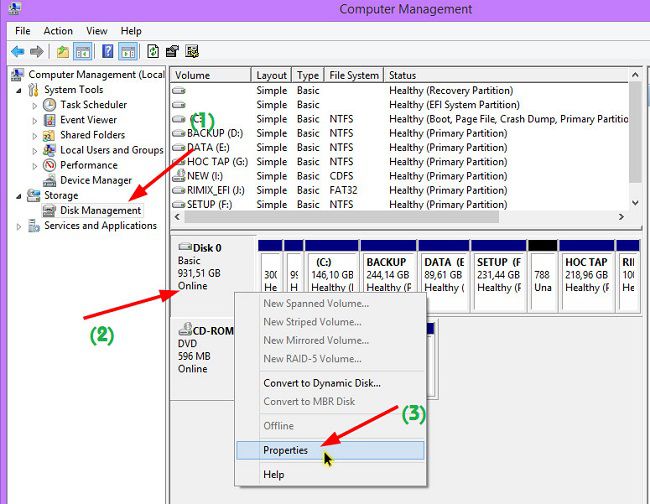
- Press Windows + R, enter
diskmgmt.mscand press Enter. - In the lower pane, locate the physical disk containing the volume you want to examine.
- Right-click the disk label on the left, such as Disk 0, and choose Properties.
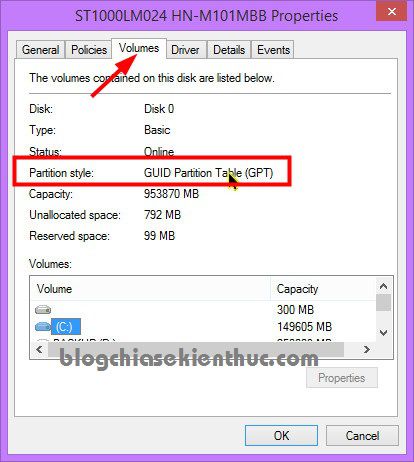
- Open Volumes and read Partition style.
Method 2: PowerShell
Open PowerShell or a PowerShell tab in Windows Terminal. Run:
Get-Disk | Select-Object Number, FriendlyName, Size, PartitionStyleRead the PartitionStyle value for the intended disk. GPT and MBR are explicit results; RAW can indicate an uninitialized disk, rather than MBR.
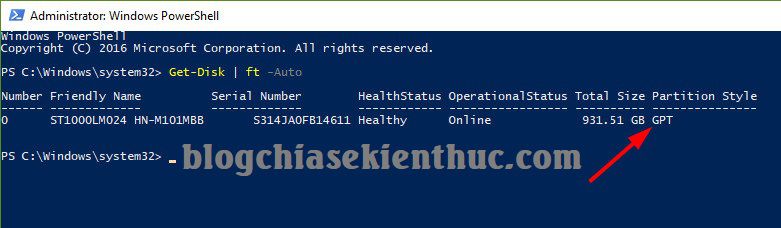
The Get-Disk documentation notes that dynamic disks are not returned by this cmdlet. If a disk is missing, use Disk Management for further inspection instead of assuming its style.
Method 3: DiskPart
Open an elevated terminal if required, then enter these inspection commands:
diskpart
list disk
exit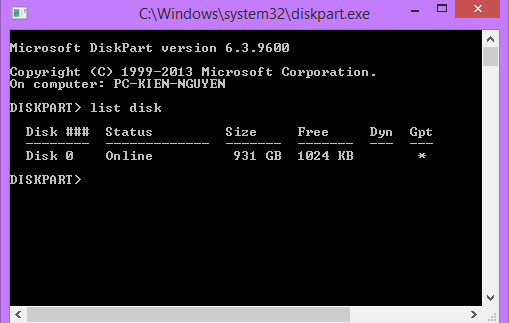
An asterisk in the GPT column identifies a GPT disk. For an initialized disk, a blank GPT column generally indicates MBR; a blank entry on a new or unreadable disk should be investigated rather than treated as conclusive.
Use only the listing command for this check. Commands such as clean, format and convert have different purposes and can change or erase storage. Microsoft's DiskPart list reference explains the available listings.
Check the current boot mode separately
- Press Windows + R and run
msinfo32. - In System Summary, find BIOS Mode.
- Read whether the current Windows session is using UEFI or Legacy.
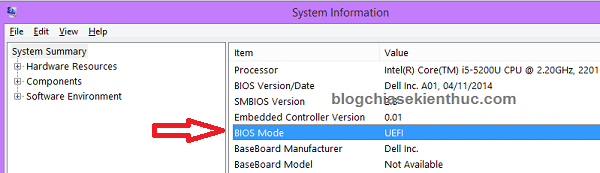
Windows UEFI boot normally uses a GPT system disk, while a legacy Windows installation uses an MBR system disk. Data disks can use another style. This distinction matters when preparing Windows installation media.
Optional third-party tools
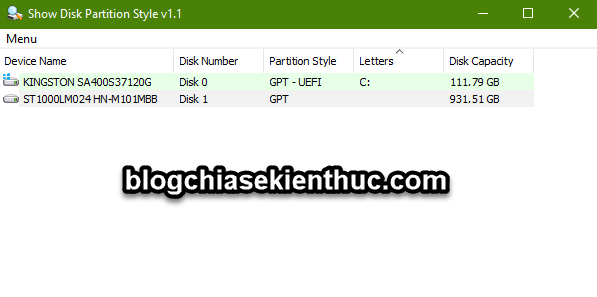
If you already use a trusted partition viewer, read its disk-level style or properties. An older utility named Show Disk Partition Style displays a dedicated column, as illustrated below. Windows' built-in tools make an additional download unnecessary for this task.
MiniTool Partition Wizard also shows disk information. Inspect the disk summary instead of choosing a conversion command as a test.
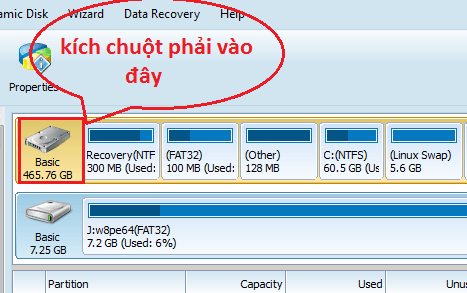
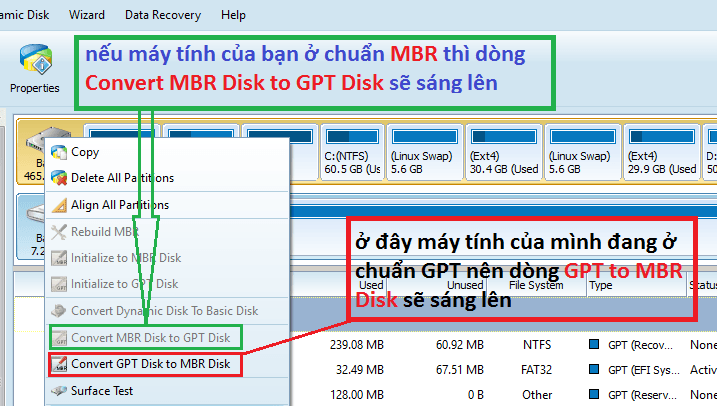
If you are troubleshooting an installer warning, record both the disk style and the mode used to boot the installer. See Windows installation error guidance before changing the layout. Back up data and plan any conversion separately from this inspection.
Related Articles
 5 ways to check hard drive effectively to help periodically check the hard drive
 8 effective ways to check your hard drive to periodically check the health of your hard drive
 How to check hard drive health in 3 ways
 3 How to check the working status of the hard drive
 3 ways to check the health of the hard drive on a Windows computer
 6 ways to check SDD or HDD hard drive in detail and quickly!
Reader Comments 0
Sign in with email or Google to join the discussion.