Table of Contents
In Windows terminology, the system partition holds the files used to begin startup, while the boot partition holds the Windows installation itself. The names can seem reversed: the partition labeled Boot in Disk Management is normally the volume containing the currently running Windows folder.
These roles can be separate, and their arrangement depends on whether Windows starts through UEFI or legacy BIOS. Do not delete a small partition merely because it has no drive letter.
Inspect the layout in Disk Management
- Press Windows + R.
- Enter
diskmgmt.mscand press Enter. - Read the physical-disk layout in the lower pane and the status labels for its volumes.
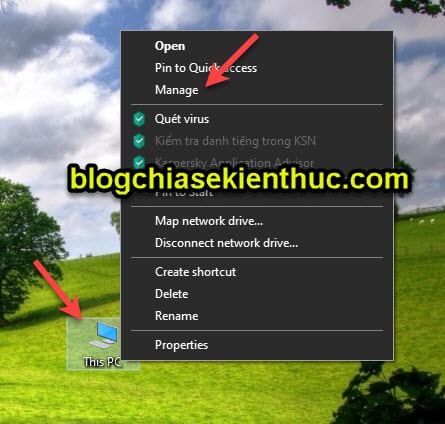
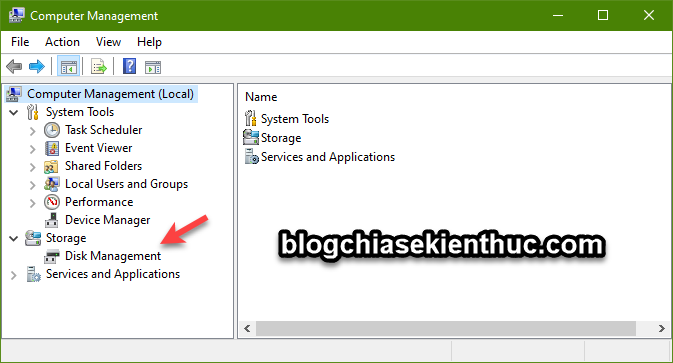
A disk can contain Windows, startup, recovery and data partitions. Drive letters and disk numbers are not reliable substitutes for reading those roles. See Windows drives and storage basics for the distinction between a physical disk, partition and volume.
Compare the main roles
| Role | What it contains | Typical appearance |
|---|---|---|
| System partition | Startup files needed to launch Windows | EFI System Partition on UEFI systems; often System Reserved on older BIOS installations |
| Boot partition | The Windows installation used by the running session | Usually C:, with the Windows folder |
| Recovery partition | Windows recovery-environment tools | A separate volume without an ordinary drive letter |
UEFI: The EFI System Partition
On a standard UEFI Windows layout, the EFI System Partition, or ESP, is a separate FAT32 partition containing EFI startup files. The Windows installation occupies another partition. The ESP normally has no drive letter and is not a place to store personal files.
Partition-size requirements depend on the storage and deployment layout; an old universal 100 MB minimum is not suitable guidance for every current installation. Microsoft's UEFI/GPT partition guidance provides the relevant requirements.
Legacy BIOS: System Reserved or a shared Windows volume
On a legacy BIOS/MBR Windows installation, startup files can reside in a separate System Reserved partition. In some layouts, the Windows volume also performs the system-partition role.
Modern Windows startup files include Windows Boot Manager and boot configuration data. Older names such as NTLDR and boot.ini belong to older Windows boot systems; they should not be presented as required files in every installation.
In a machine with multiple disks or operating systems, startup files may be on a different disk from the Windows installation. Do not assume that backing up only C: captures everything required to restore a bootable system.
What the labels do not mean
- Primary does not automatically mean “system partition.” It is a partition-layout category.
- Boot does not mean a spare volume that can be formatted after startup.
- No drive letter does not mean unused.
- Reported free space does not establish that a protected partition is empty.
Microsoft's Disk Management overview cautions that EFI and recovery partitions can display misleading free-space information and contain critical files.
If you are preparing installation media, check the current firmware mode and disk layout separately. This UEFI and legacy USB guide explains the relationship. Inspection requires no conversion, formatting or deletion; plan any repair or repartitioning as a separate backed-up task.
Related Articles
 How to restore Master Boot Record in Windows 10
 Use parallel Windows 7 and Windows 8 on PC
 Remove 'reserve system' partition in Windows 7
 Create or repair EFI, MSR and recovery partitions on a GPT disk
 What is the Master Partition Table?
 This is how to delete Recovery partition and Recovery partition 450 MB on Windows 10
Reader Comments 0
Sign in with email or Google to join the discussion.