Table of Contents
AutoHotkey v2 lets you assign your own shortcuts for tasks you repeat in Windows. Save the examples you want in a plain-text file ending in .ahk. Put #Requires AutoHotkey v2.0 on the first line, open the file with AutoHotkey v2, and use its notification-area menu to reload or exit after testing.
In the examples, ^ means Ctrl, ! means Alt, and + means Shift. If a key combination conflicts with another app, choose a different one.
1. Open an app menu
Press Ctrl+Alt+M to choose a utility. Change the app names and commands in the menu to match what you use.

^!m::{
    apps := Menu()
    apps.Add("Calculator", (*) => Run("calc.exe"))
    apps.Add("Notepad", (*) => Run("notepad.exe"))
    apps.Show()
}
2. Scroll sideways with Shift and the mouse wheel
This sends a horizontal wheel event. It works in apps that respond to that event.
#HotIf GetKeyState("Shift", "P")
WheelUp::Send("{WheelLeft}")
WheelDown::Send("{WheelRight}")
#HotIf
3. Open a frequently used folder
Press Ctrl+Alt+D to open your Documents folder. Replace A_MyDocuments with the quoted path to another folder if you prefer.
^!d::Run(A_MyDocuments)4. Expand abbreviations
Type ;ty or ;gm followed by a space to expand a phrase. The prefix makes it harder to trigger one by accident.
::;ty::Thank you
::;gm::Good morning
5. Control speaker volume
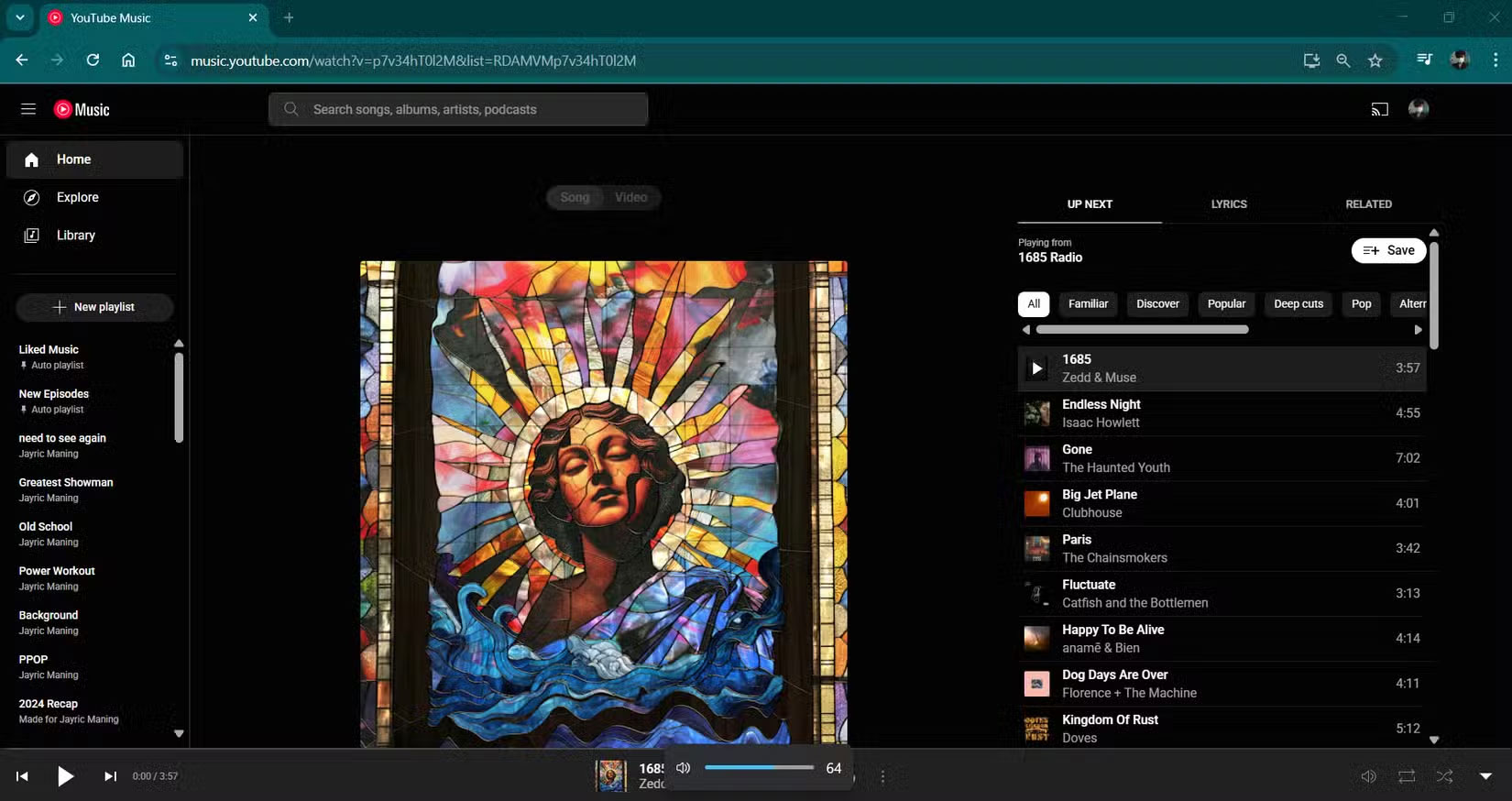
Press Ctrl+Alt+Up or Down to adjust volume and Ctrl+Alt+0 to toggle mute.
^!Up::Send("{Volume_Up}")
^!Down::Send("{Volume_Down}")
^!0::Send("{Volume_Mute}")
6. Move the pointer to the active window
Press Ctrl+Alt+C to center the pointer in the active window. Screen coordinates make this work across multiple monitors.
^!c::{
    WinGetPos(&x, &y, &width, &height, "A")
    CoordMode("Mouse", "Screen")
    MouseMove(x + width / 2, y + height / 2, 0)
}
7. File finished PDF downloads
Test with a scratch folder first. Ctrl+Alt+F12 moves PDFs once per press, leaving similarly named files in place. Run it after downloads complete. Adjust the path if your Downloads folder is redirected.
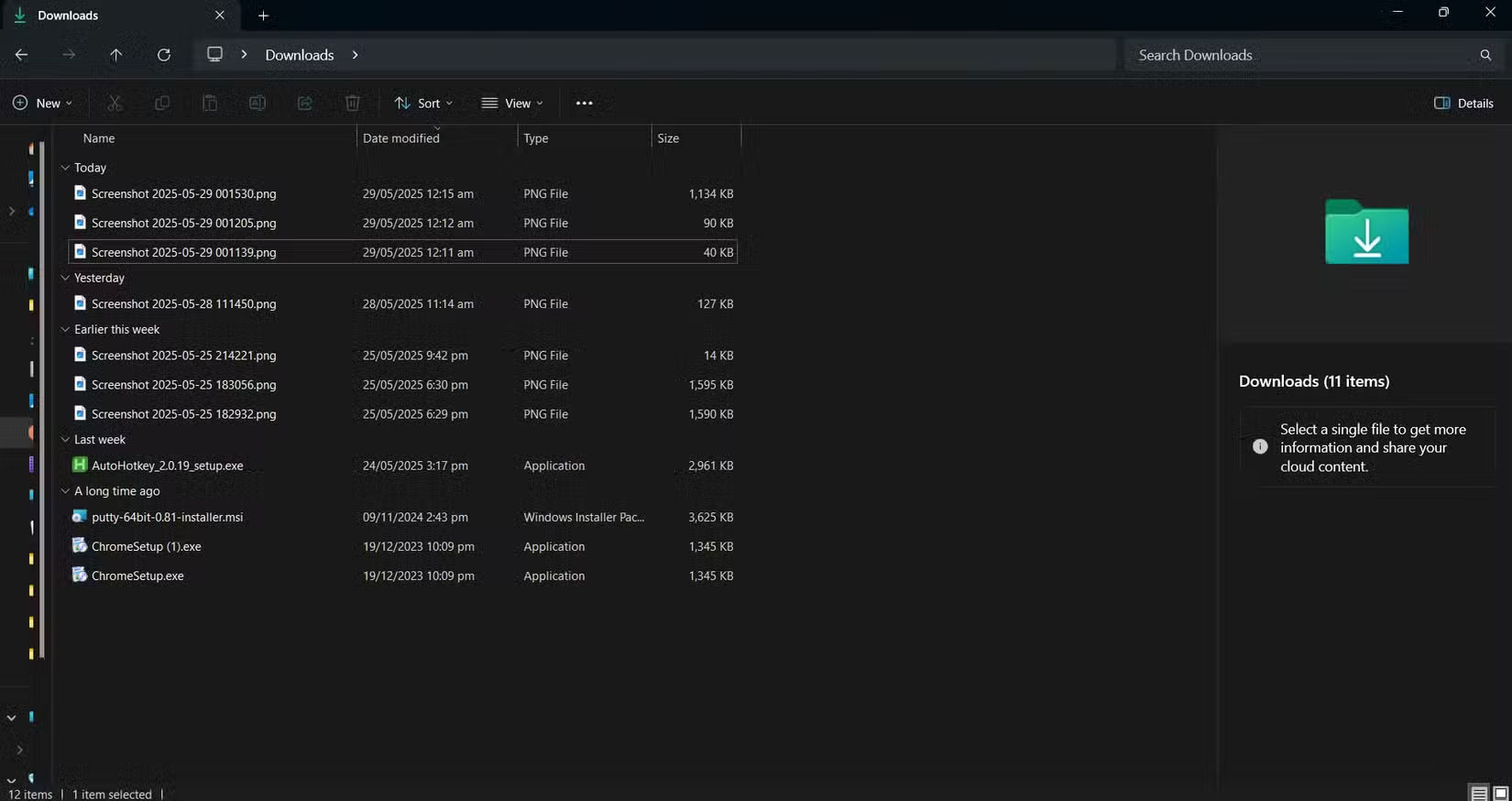
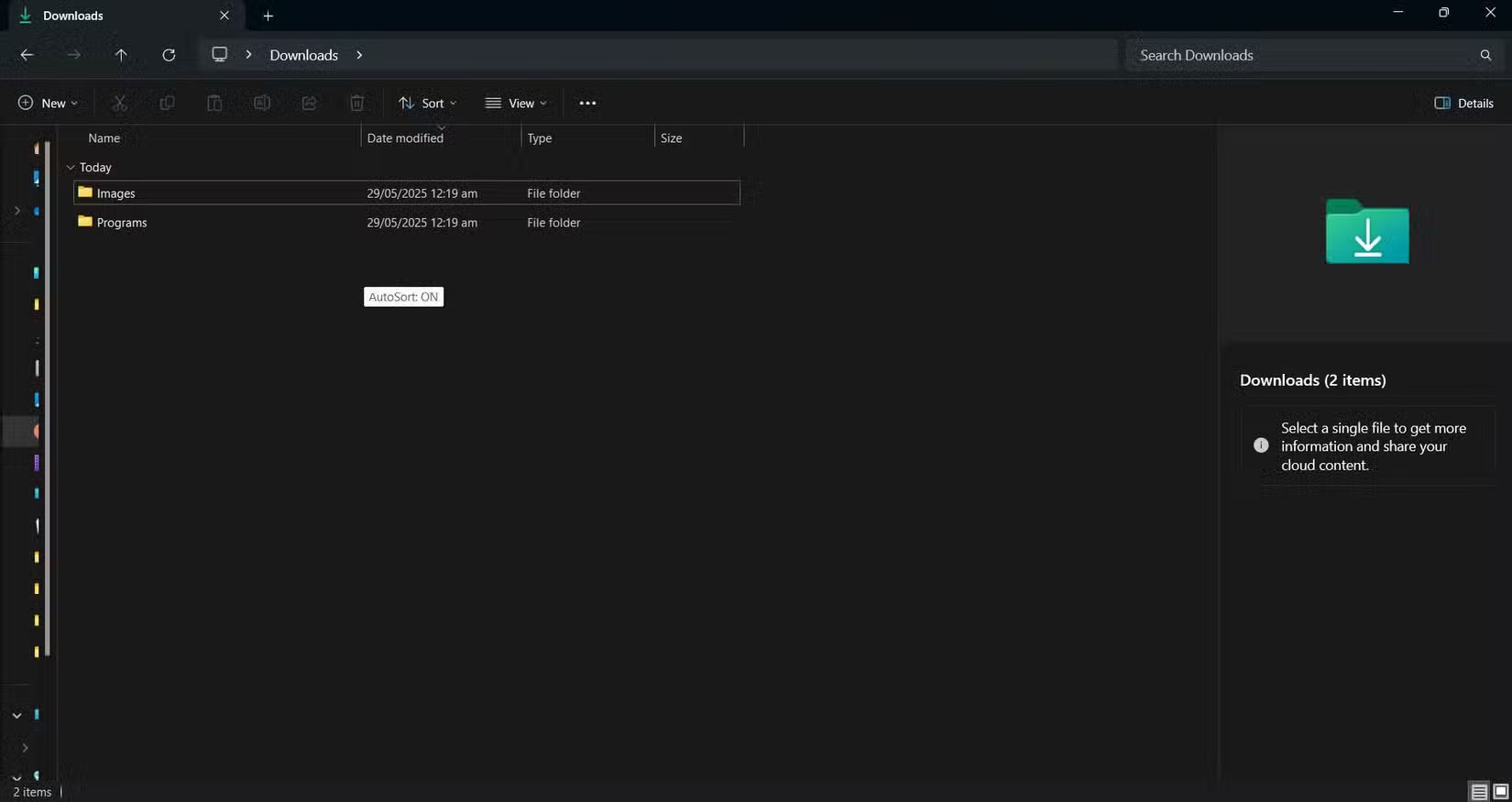
^!F12::{
    downloads := EnvGet("USERPROFILE") "Downloads"
    destination := downloads "PDFs"
    DirCreate(destination)
    Loop Files downloads "*.pdf", "F" {
        target := destination "" A_LoopFileName
        if !FileExist(target)
            FileMove(A_LoopFileFullPath, target, false)
    }
}
8. Launch a pair of apps
Press Ctrl+Alt+1 to open two programs together. Change either Run target to the path of an installed app.
^!1::{
    Run("notepad.exe")
    Run("calc.exe")
}
9. Toggle always-on-top for the active window
Press Ctrl+Alt+T to pin a reference window above others. Press the same keys again to unpin it.
^!t::WinSetAlwaysOnTop(-1, "A")10. Open power settings before a long transfer
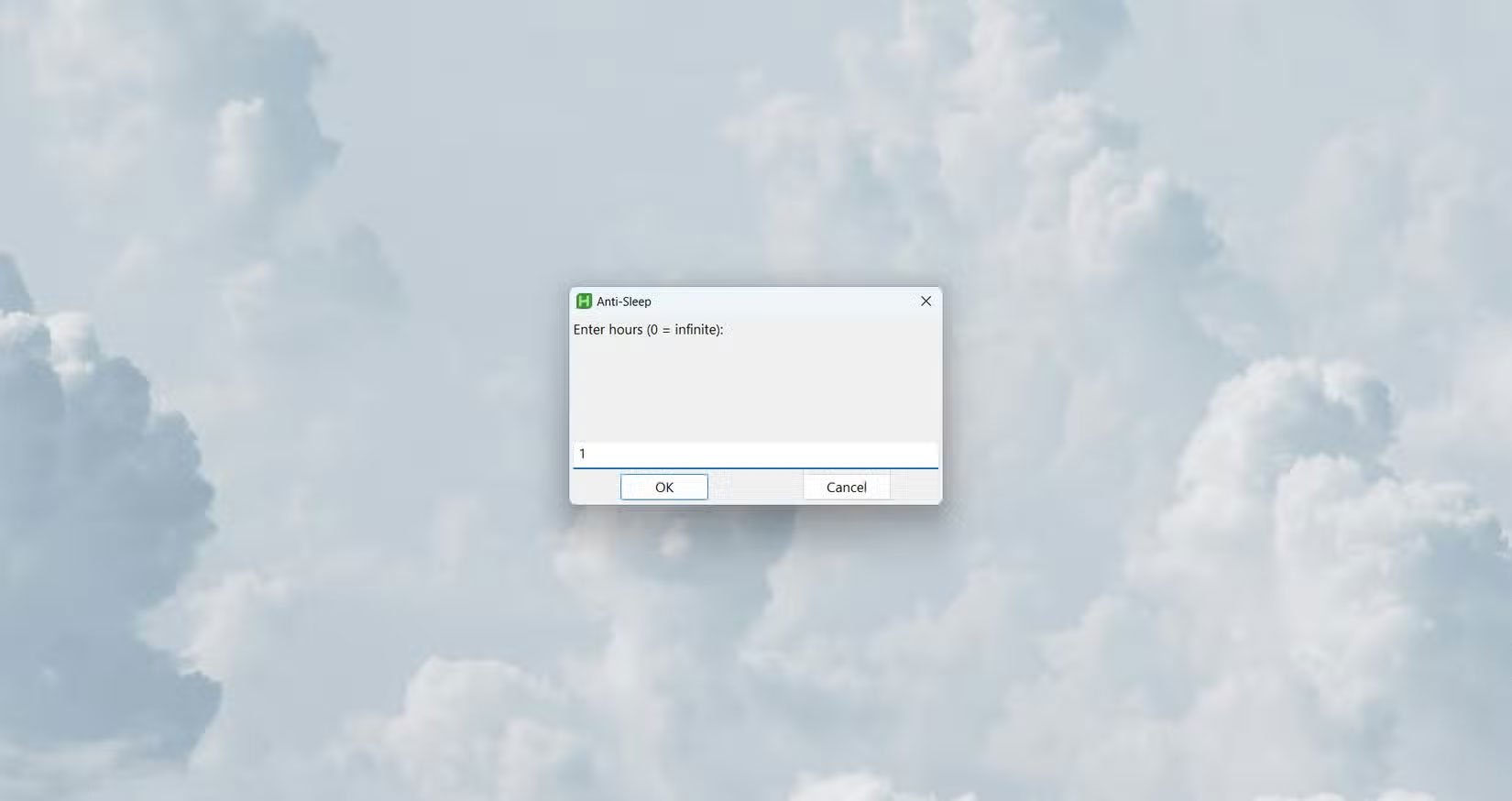
Press Ctrl+Alt+Shift+S to open Windows power settings. Set a longer sleep timeout while plugged in if you need one, then restore your usual setting after the transfer. Microsoft PowerToys Awake also offers a timed option.
^!+s::Run("ms-settings:powersleep")For more ideas, see everyday AutoHotkey scripts or try Windows utilities including PowerToys Awake.




Reader Comments 0
Sign in with email or Google to join the discussion.