Table of Contents
There are many reasons why a tablet might fail to turn on, ranging from simple issues to complex hardware failures.
A tablet failing to turn on is a fairly common problem that worries users because the device seems 'silent' even after pressing the power button multiple times. This issue is often due to the battery, software, or hardware. Let's explore the signs and symptoms along with some extremely simple home remedies.
Confirm whether the tablet has power
When a tablet fails to turn on, the device typically exhibits several easily recognizable signs:
- The screen is completely black: You've pressed the power button multiple times, but the screen shows no response, no boot logo, and no backlight.
- The device still has a signal but no image is displayed: This is a "bizarre" situation where you can still hear notifications, the ringtone, or feel the vibration when you touch it, but the screen remains a mysterious black color.
- The screen flickers on and off and then fades away: Upon startup, the logo appears for a few seconds and then suddenly disappears.
- Tablet freezes and won't turn off: The screen stops at a fixed image (stuck on the logo) or the screen is dim but cannot be operated via touch or turned off in the usual way.
Early recognition of the signs that your tablet won't turn on will help you quickly identify the problem and apply the appropriate troubleshooting method before taking the device for repair.
Common causes
There are many reasons why a tablet might fail to turn on, ranging from simple issues to complex hardware failures.
- Completely drained battery: Sometimes the battery runs out so quickly that it won't power on immediately, leading you to mistakenly believe the device is broken.
- Software conflicts: Incompatible apps or operating system updates can cause the tablet to freeze and fail to boot.
- Faulty charger or charging port: A faulty charger or a dirty charging port prevents power from reaching the device, leading to the device becoming unresponsive.
- Screen damage or loose cable: After a fall or strong impact, the cable connecting the screen to the motherboard may become loose, or the internal display panel may be broken.
- Mainboard or power IC failure: This is the most serious hardware failure, usually caused by water damage or prolonged use of low-quality charging components.
Safe troubleshooting steps
Here are some ways to troubleshoot a tablet that won't turn on at home before needing a repair technician:
Try recharging the device properly
Many users have a habit of charging their devices for only 5-10 minutes before trying to turn them on again. If the battery is severely depleted, you need to plug it in for at least 30-60 minutes to allow the battery to have enough voltage to reactivate the system. Make sure the power outlet is working properly.
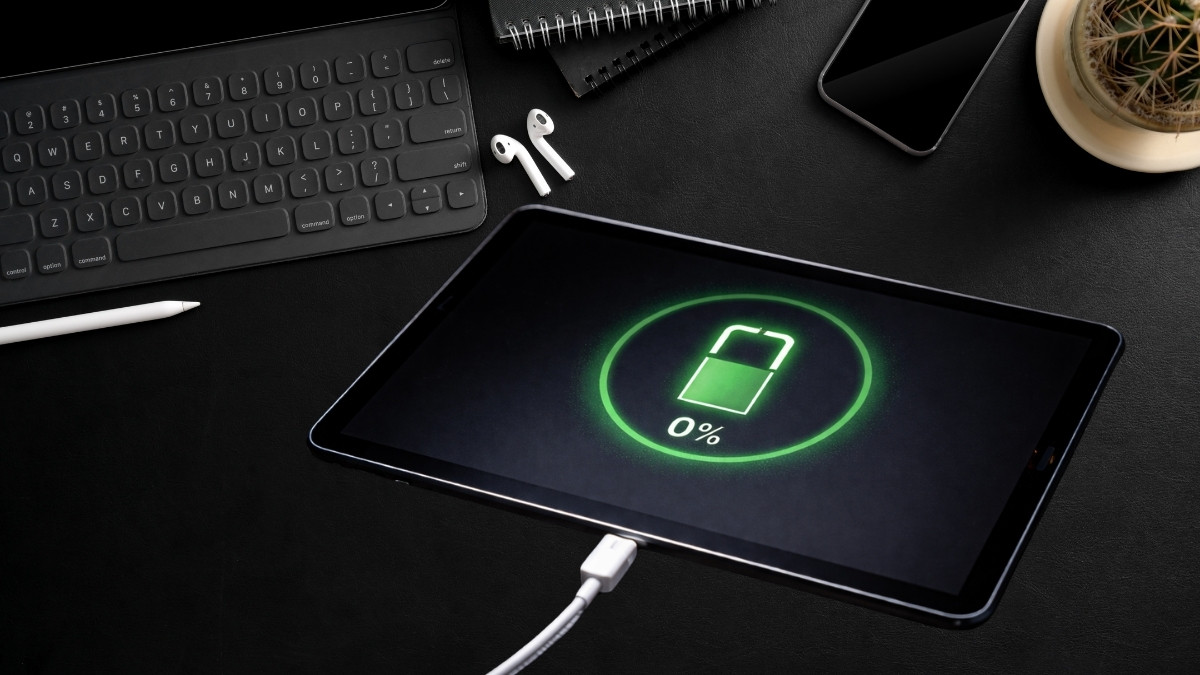
Charge the battery for at least 30-60 minutes to power on the tablet.
Don't waste money repairing your old device; upgrade your iPad now to experience powerful performance, a sharp display, and a stable operating system for smooth learning, work, and entertainment. Discover attractive tablet deals today.
Check and try a different charging cable
Charging cables are the most fragile components due to internal bending and breakage; try testing them with an equivalent genuine charger. If the tablet doesn't power on with the new charger, the problem lies in the tablet's hardware, not simply the charger.
Force restart using hard keys
This is a crucial step when your tablet freezes and won't turn off. Depending on the model, the procedure will vary to ensure technical accuracy:
- On iPads without a Home button (Pro, Air 4/5, Gen 10.): Quickly press and release the volume up button first, then the volume down button . Finally, hold down the Power button until the Apple logo appears.
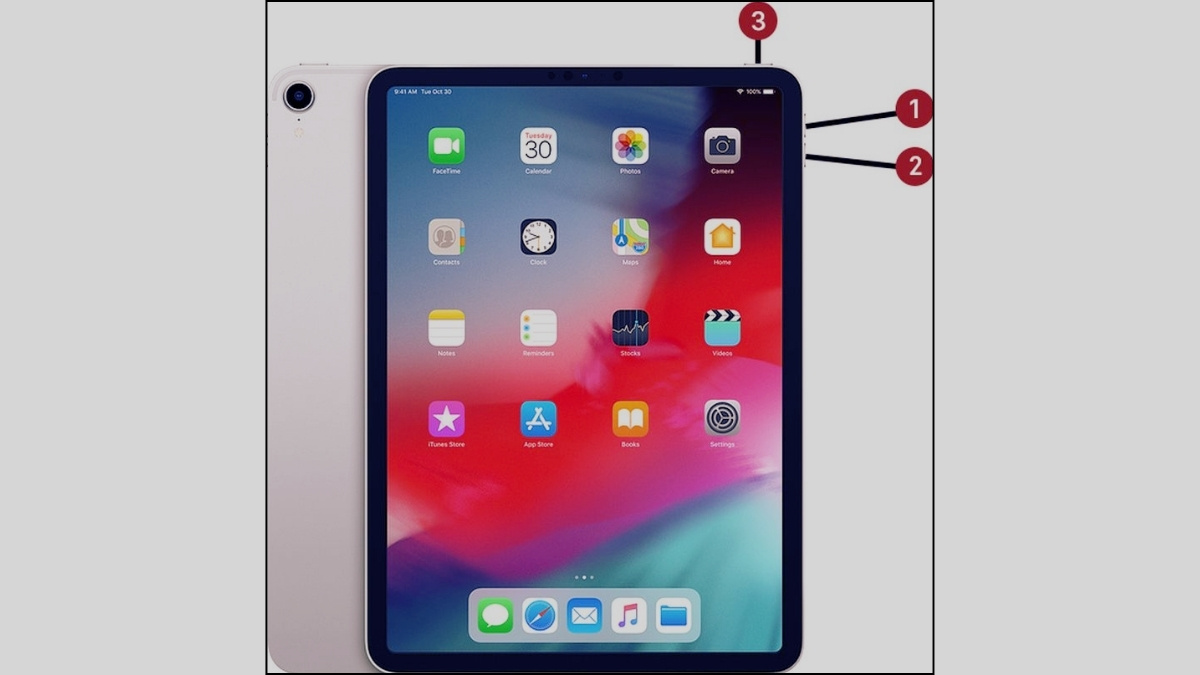
Note: Absolutely do not just press Power + Volume Down, as this action on iPads usually activates SOS or a normal power off, not Force Restart.
- For iPads that still have a Home button: Press and hold the Power + Home buttons simultaneously for a moment until the logo appears.
- For Xiaomi: Press and hold the Power button for about 10-15 seconds.
- For Samsung: Press and hold the Power button and the Volume Down button simultaneously for 7 to 10 seconds.
Check if the device is receiving power
Connect the tablet to your computer/laptop via USB cable. If the computer makes a connection sound or the device appears in Device Manager (on Windows) as a Device or connection port, then it's working.
Note: With modern devices, due to security mechanisms, computers usually only recognize the driver or emit a connection sound, and rarely display the drive (access to internal memory) if the screen is locked and trust permissions have not been granted.
Consider a factory reset only as a last resort
Warning: A factory reset can erase apps, settings, and locally stored files. Use the device manufacturer's instructions for the exact model, and do not reset it if important data is not backed up.
Resetting your tablet to its factory settings (Factory Reset) helps eliminate software conflicts that cause the tablet to fail to turn on or freeze.
For Android tablets (Samsung Tab, Xiaomi Pad, etc.)
If the screen is still displaying, you can go to Settings and search for "Reset". In case the tablet freezes, use Recovery mode.
- Step 1: Connect the Samsung tablet to your computer via USB cable. Other brands, such as Xiaomi, can skip this step.
- Step 2: Hold down the Power button and the Volume Up button simultaneously until you enter Recovery mode.
- Step 3: Use the volume up or down buttons to navigate, and the power button to confirm the Wipe data/factory reset command.
- Step 4: Select Yes or Factory data reset to confirm.
For iPad (Apple)
To restore your iPad to factory settings after it experiences startup problems, you will need to use a computer:
- Step 1: Connect your iPad to your computer using a USB cable.
- Step 2: Open the Apple Devices app (on Windows) or Finder (on macOS).
- Step 3: Press and hold the Force Restart button until the Recovery Mode screen appears (the cable icon).
- Step 4: On your computer screen, select the Restore command to erase all data and reinstall the latest operating system.
Note: All data (photos, contacts, apps) will be completely lost after a factory reset.
When is screen replacement or hardware repair necessary?
If you've tried all the above methods and your tablet still won't turn on, it's time for professional help. If the screen shows signs of cracks, ink spills, or there's sound but no picture, screen replacement is necessary. If the device is completely silent, the power IC may be damaged. In this case, you should take the device to a reputable repair shop for a thorough inspection and replacement of components if necessary.
How to use your tablet correctly to avoid screen not turning on errors
To minimize the risk of your tablet failing to turn on, you should pay attention to how you use and maintain your device daily.
Avoid letting the battery drain completely too often
Avoid using your tablet until the battery is completely drained. Try to charge it when the battery is low (below 20%). Frequently letting the device run out of power will reduce the battery voltage, making it difficult to restart the next time. This is also a reason why tablets fail to turn on.
Avoid installing apps from unknown sources
To avoid your tablet failing to turn on, you should limit installing apps from unreliable sources. Untrusted software may contain malware, cause system conflicts, or make your device unstable. Ideally, download apps from official stores like Google Play or the App Store to ensure safety and help your tablet run more smoothly.
Avoid overloading the machine for extended periods
Charging while playing demanding games or watching movies continuously for hours will cause the device's temperature to rise. Heat is the number one enemy of electronic components, easily causing the power chip pins to detach or the battery to swell, pressing against the screen and causing damage.
Protect your screen with the right accessories
A protective case with good heat dissipation and a quality tempered glass screen protector are smart investments. They minimize the direct impact on the display panel in the event of a collision, helping to protect the "heart" of the tablet.
In general, a tablet failing to turn on can stem from a variety of reasons. Before seeking expensive technical support, you should patiently try some basic troubleshooting methods at home. Hopefully, the laptop, computer, and tablet tips above will help you effectively resolve the issue.
This article uses some AI images.
Related Articles
 19 Great Ideas to Take Advantage of Old Smartphones17 minutes read
 Simple Guide to Fix Tablet That Won't Turn on at Home11 minutes read
 Ibm Registered a Patent for Sliding Screen Technology, Turning7 minutes read
 Computer Screen Shrinks on Both Sides: Causes and Solutions5 minutes read
 Please See the Video Experience of the Folding Screen Tablet, Maybe Xiaomi3 minutes read
 5 Cheapest 10-inch Tablets in Vietnam5 minutes read
Reader Comments 0
Sign in with email or Google to join the discussion.