Table of Contents
Important: A factory reset erases apps, settings, accounts, and locally stored data. Back up anything important, charge the tablet, and confirm that you know the linked account credentials before continuing. Button combinations and menu names can vary by model and software version.
To ensure a smooth recovery process, make sure your battery level is at least 50% to avoid the risk of sudden power failure.
Resetting your Huawei tablet is the best solution when the device experiences software errors or freezes during use. Restoring it to its original state helps the device function better and removes corrupted system data. In this article, you will be guided through the detailed steps to quickly and safely restore your Huawei tablet to factory settings.
When should you reset your Huawei tablet?
During use, Huawei tablets may experience some errors that affect performance and user experience. You should reset your Huawei tablet in the following cases:
- The device is slow, unresponsive, or frequently lags.
- The app frequently freezes, crashes, or automatically closes while in use.
- The device shows signs of being infected with a virus or malware.
- The device cannot be turned on because the user has forgotten the screen lock password.
- Personal data must be completely erased before selling, giving away, or transferring it to others for use.
Restoring the factory settings on a Huawei tablet will return the device to its original state as when it was first shipped, helping the system to operate more stably.
What preparations are needed before performing a factory reset on a Huawei tablet?
Before resetting your Huawei tablet , you should back up all important data because the reset process will erase everything on the device, such as photos, videos, contacts, messages, and installed applications. You can back up to Huawei Cloud, Google Drive, or copy it to your personal computer for easy restoration later.
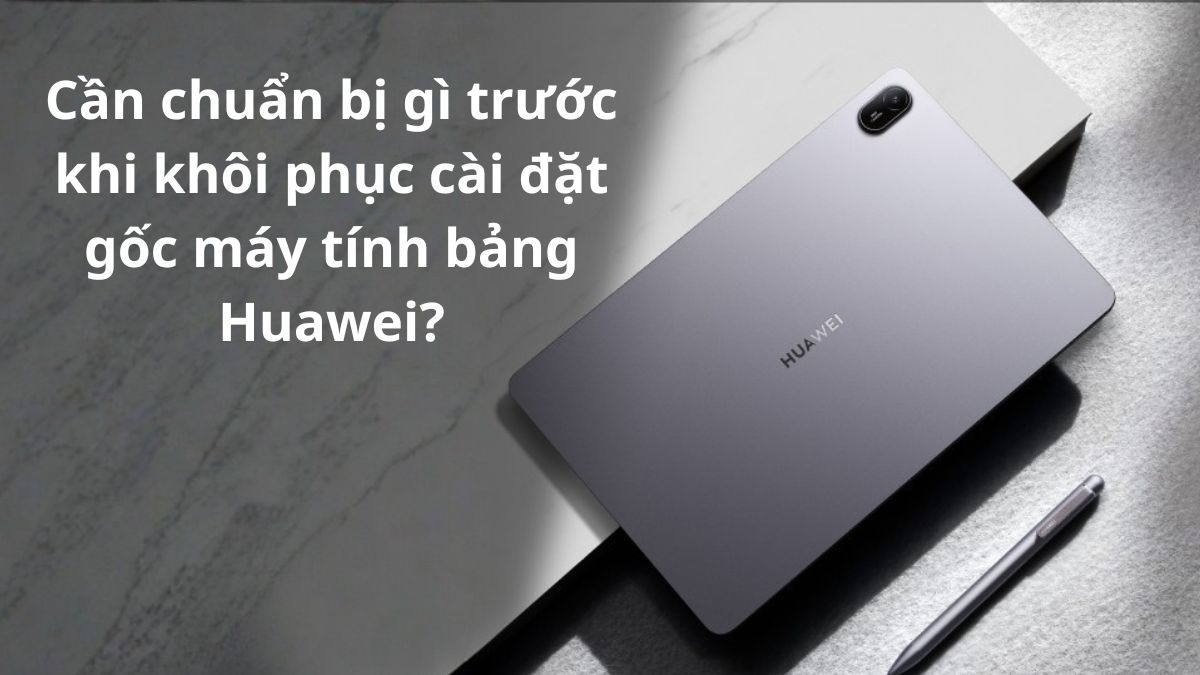
To ensure a smooth recovery process, make sure your battery level is at least 50% to avoid the risk of sudden power failure. Additionally, remembering your Google account or Huawei ID is mandatory, as the system will require ownership verification immediately after the device restarts.
Two ways to reset a Huawei tablet
There are two common ways to reset a Huawei tablet : restoring from system settings or resetting using the hard keys.
Reset from Settings
If your Huawei tablet can still access the home screen, this is the safest and quickest method.
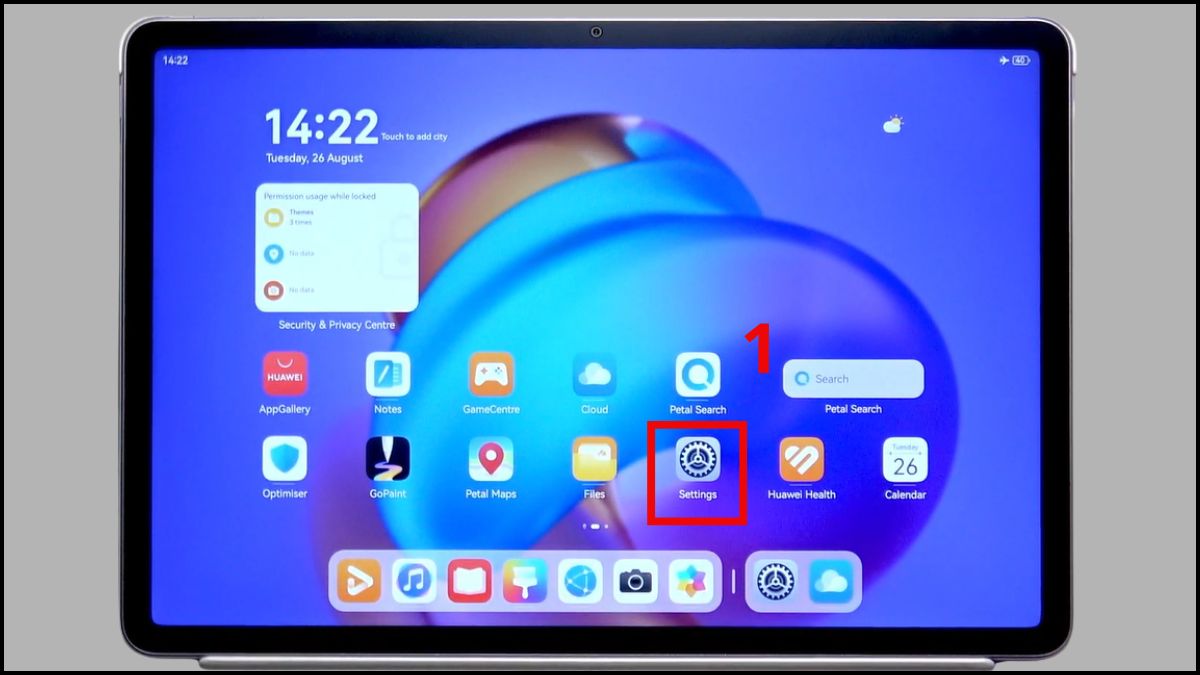
- Step 1: Open Settings.
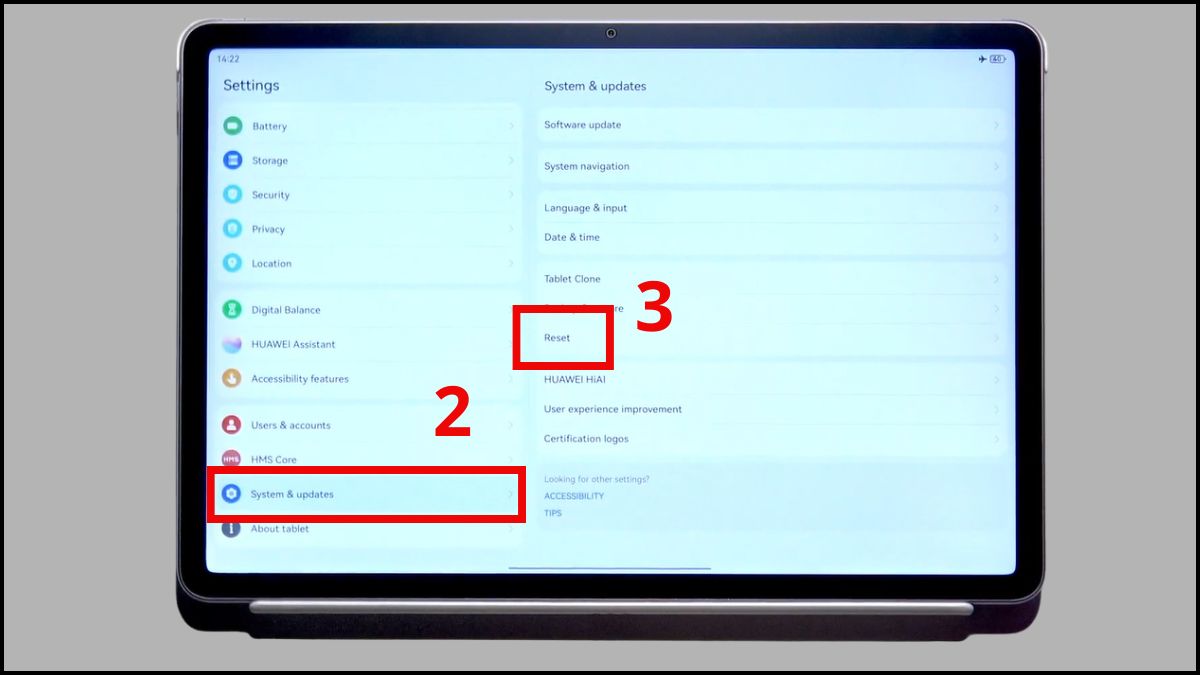
- Step 2: Select System & updates → Press Reset
- Step 3: Select Reset tablet .
- Step 4: Select Reset tablet .
Once complete, the Huawei tablet will automatically restart with a completely new interface and settings, just like when it was first unboxed.
Note: The reset steps may vary slightly depending on the Huawei tablet model and the installed software version.
If your Huawei tablet is still slow and laggy after a reset , you might consider switching to a new tablet for smoother performance. Check out genuine tablet models at [website/store name], with many offers, flexible installment plans, and fast nationwide delivery.
Reset from recovery mode
If your device freezes or you can't access the system, you can reset your Huawei tablet using the hard reset buttons. Here are the steps:
- Step 1: Press and hold the power button for 3 seconds to turn off the device → Select Power off
- Step 2: Select Touch to Power off → Press and hold the power button and the volume up button simultaneously until the logo appears.
- Step 3: Select Clear data → Select Factory reset
- Step 4: Enter Yes and select Factory reset → Wait for the process to complete.
- Step 5: Select Back → Select Restart .
Note: The reset steps may vary slightly depending on the Huawei tablet model and the installed software version.
What should you do after resetting your Huawei tablet?
After the reset is complete, your Huawei tablet will return to its factory settings, so you'll need to set it up again from scratch to use it normally. Once the device starts up successfully, complete the initial settings such as selecting your language, logging into Wi-Fi, and signing in with your personal account (Google or Huawei) to access the home screen.
Next, if you have previously backed up your data, restore it via Huawei Cloud, Google Drive, or sync your contacts from your Google account. After the data is restored, you should check and update the operating system to ensure stable operation and minimize minor errors. Updating also helps patch security and improve performance after a reset.
Resetting your Huawei tablet is a simple and effective way to fix many software issues such as lag, app crashes, or forgotten passwords. You can perform a factory reset through the settings or using the physical buttons if the device malfunctions. Before resetting, back up all important data to avoid losing essential information. Follow us for more incredibly useful computer, laptop, and tablet knowledge!
Related Articles
 How to Reset SMC on Mac6 minutes read
 How to Reset Huawei Device Using Recovery Mode and Install5 minutes read
 Detailed and Simple Guide on How to Reset Xiaomi Headphones7 minutes read
 Revealing How to Reset Samsung Tablet Simply at Home12 minutes read
 How to Reset Lock Pattern on Android Tablet: Clear Instructions9 minutes read
 Huawei Launches Matepad Pro Tablet, Smart Keyboard Connection5 minutes read
Reader Comments 0
Sign in with email or Google to join the discussion.